Chapterبەش 8 · Lectureوانە 8.3
Windows Network Commandsفەرمانەکانی ڕایەڵە لە Windows
The Windows commands that answer everyday network questions: ipconfig and ipconfig /all (the Physical Address is the MAC), /release and /renew, the DNS cache and nslookup, hostname and getmac, arp -a, route print/add/delete/change with -p, netstat -ano with tasklist, net view and net use (error 85), the PowerShell cmdlets Get-NetIPConfiguration, Test-NetConnection and Resolve-DnsName, and the Linux and macOS equivalents.
ئەو Windows کە وەڵامی پرسیارە ڕۆژانەکانی دەدەنەوە: ipconfig و ipconfig /all (دێڕی Physical Address هەمان )، /release و /renew، DNS و nslookup، hostname و getmac، arp -a، route print/add/delete/change بە -p، netstat -ano لەگەڵ tasklist، net view و net use (هەڵەی 85)، cmdletـەکانی PowerShell: Get-NetIPConfiguration، Test-NetConnection و Resolve-DnsName و هاوتاکانیان لە Linux و macOS.
What you will learnچی فێر دەبیت
- Choose the right command for a network question and run it with or without administrator rights as needed.
- Read ipconfig /all, find the MAC address and the DHCP lease, and renew an address.
- Read arp -a and route print, and add, change and delete a route safely.
- Find the program behind a port with netstat -ano and map a shared folder with net use.
- Use the PowerShell, Linux and macOS equivalents.
- فەرمانی گونجاو بۆ پرسیارێکی هەڵبژێریت و بە پێی پێویست بە مافی بەڕێوەبەر یان بەبێ ئەو کاری پێ بکەیت.
- ipconfig /all بخوێنیتەوە، و بدۆزیتەوە و ناونیشانێک نوێ بکەیتەوە.
- arp -a و route print بخوێنیتەوە و ڕێگایەک بە سەلامەتی زیاد بکەیت، بگۆڕیت و بسڕیتەوە.
- بە netstat -ano ئەو بدۆزیتەوە کە لە پشت و بە net use نەخشە بکەیت.
- هاوتاکانی PowerShell، Linux و macOS بەکاربهێنیت.
Your network toolboxسندووقی ئامرازەکانی ڕایەڵەکەت
When a network “does not work”, a few short commands tell you where the problem is: your own settings, the path, a neighbour, a program or a name. They run in Command Prompt or PowerShell, usually inside Windows Terminal (Command Prompt and PowerShell). Most only read information; a few change settings and need Run as administrator.
کاتێک «کار ناکات»، چەند فەرمانێکی کورت پێت دەڵێن کێشەکە لە کوێیە: ڕێکخستنەکانی خۆت، ڕێگاکە، دراوسێیەک، یان ناوێک. لە Command Prompt یان PowerShell کار دەکەن، زۆرجار لە ناو Windows Terminal (Command Prompt و PowerShell). زۆربەیان تەنیا زانیاری دەخوێننەوە؛ هەندێکیان ڕێکخستن دەگۆڕن و پێویستیان بە Run as administrator هەیە.
ping and tracert have their own lesson: reading a ping, when ping fails, reading a tracert and pathping. Remember only that Windows ping sends 4 echo requests of 32 bytes by default (-n and -l change them, -t keeps going until Ctrl+C), while Linux and macOS ping until you stop them.
ping و tracert وانەی خۆیان هەیە: خوێندنەوەی پینگێک، کاتێک پینگ سەرناکەوێت، خوێندنەوەی tracert و pathping. تەنیا لەبیرت بێت کە pingـی Windows بە بنەڕەت 4 داواکاریی echo بە 32 دەنێرێت (-n و -l دەیانگۆڕن، -t بەردەوام دەبێت تا Ctrl+C)، لە کاتێکدا Linux و macOS تا ڕایاندەگریت دەکەن.
ipconfig: your own settingsipconfig: ڕێکخستنەکانی خۆت
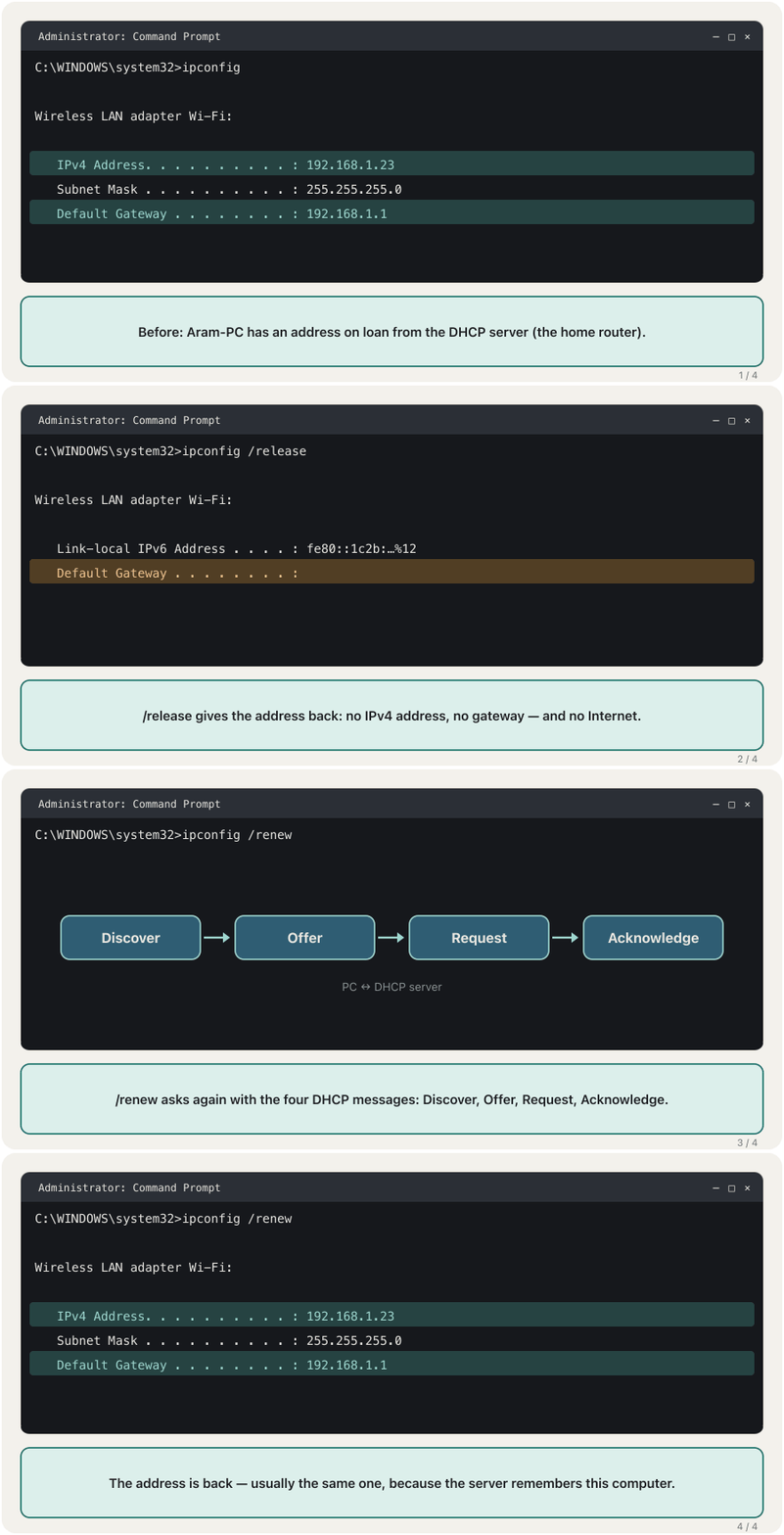
ipconfig is a Windows command-line tool (MS-DOS never had it: MS-DOS had no built-in TCP/IP). It shows the TCP/IP settings your computer has received for every network adapter and lets you renew them. Alone it gives the short version: for each adapter its IPv4 address, subnet mask and default gateway — for example IPv4 192.168.1.23, mask 255.255.255.0 — plus IPv6 lines and “Media disconnected” for an adapter with no cable or Wi-Fi.
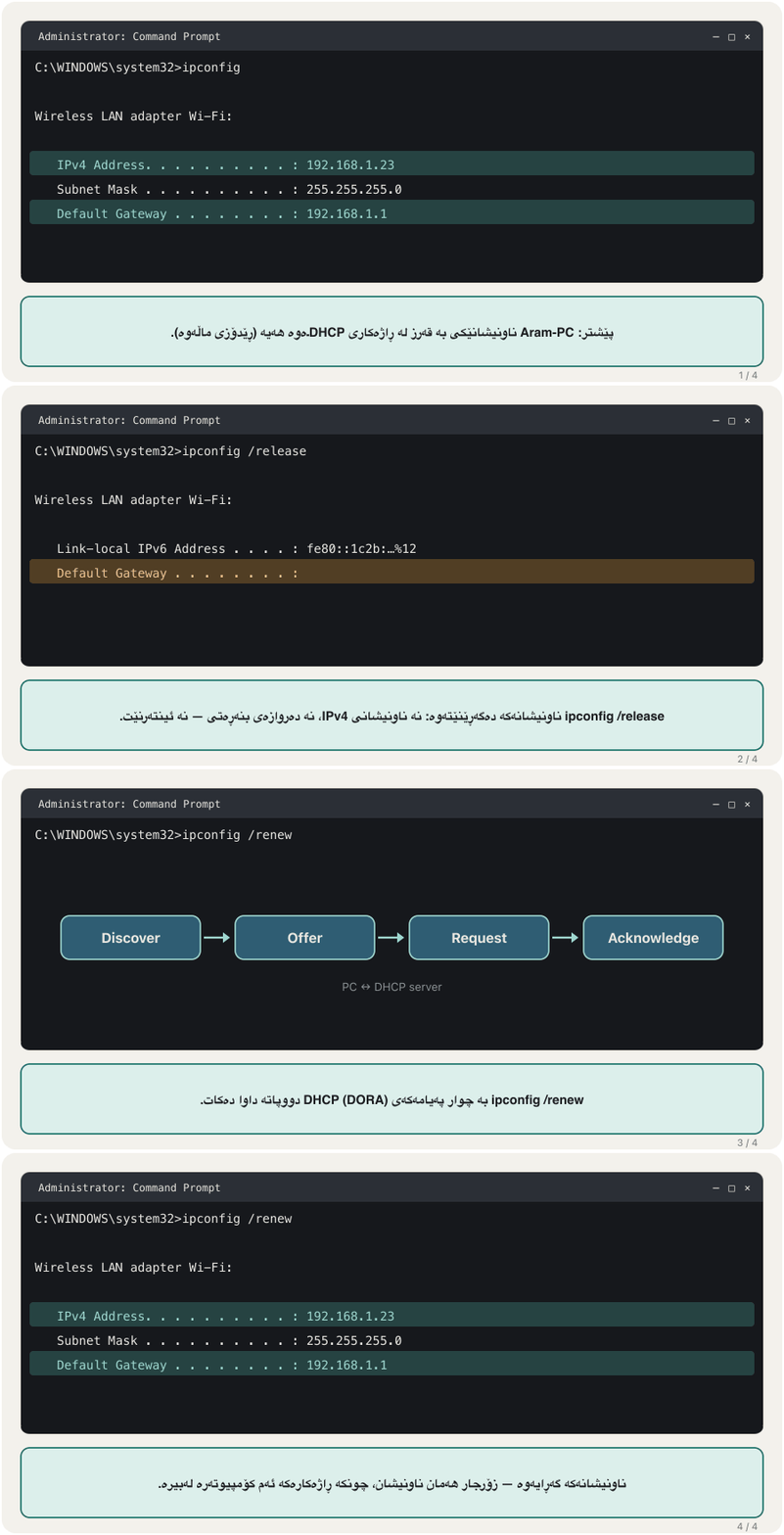
ipconfig ئامرازێکی Windowsـە (MS-DOS هەرگیز نەیبووە: MS-DOS تێدا نەبوو). ڕێکخستنەکانی پیشان دەدات کە بۆ هەر وەریگرتووە و ڕێگەت پێ دەدات نوێیان بکەیتەوە. بە تەنیا وەشانە کورتەکە دەدات: بۆ هەر کارتێک ناونیشانی ، و — بۆ نموونە IPv4 192.168.1.23، ماسکی 255.255.255.0 — لەگەڵ دێڕەکانی و «Media disconnected» بۆ کارتێک کە کێبڵ یان Wi-Fiـی نییە.
ipconfigWindows IP Configuration Wireless LAN adapter Wi-Fi: Connection-specific DNS Suffix . : home Link-local IPv6 Address . . . . . : fe80::1c2b:3d4e:5f60:7a8b%12 IPv4 Address. . . . . . . . . . . : 192.168.1.23 Subnet Mask . . . . . . . . . . . : 255.255.255.0 Default Gateway . . . . . . . . . : 192.168.1.1 Ethernet adapter Ethernet: Media State . . . . . . . . . . . : Media disconnected Connection-specific DNS Suffix . :
Explain the codeڕوونکردنەوەی کۆدەکە
- Lineدێڕی 1
Run it in Command Prompt or PowerShell; no administrator needed.
لە Command Prompt یان PowerShell کاری پێ بکە؛ بەڕێوەبەر پێویست نییە.
| Optionهەڵبژاردە | What it doesچی دەکات |
|---|---|
ipconfig /all | every setting of every adapter: MAC, DHCP, lease, DNS serversهەموو ڕێکخستنێکی هەموو کارتێک: MAC، ، ، DNS |
ipconfig /release | gives the DHCP address back (administrator)ناونیشانی دەگەڕێنێتەوە (بەڕێوەبەر) |
ipconfig /renew | asks DHCP for an address again (administrator)دووپاتە داوای ناونیشان لە دەکات (بەڕێوەبەر) |
ipconfig /displaydns | shows the DNS cache DNS پیشان دەدات |
ipconfig /flushdns | empties the DNS cache DNS بەتاڵ دەکاتەوە |
ipconfig /release6, /renew6 | the same for DHCPv6هەمان کار بۆ DHCPv6 |
ipconfig /? | helpیارمەتی |
The three IPv6 lines are explained in What ipconfig shows.
سێ دێڕەکەی لە ipconfig چی پیشان دەداتدا ڕوون کراونەتەوە.
ipconfig: your own settingsipconfig: ڕێکخستنەکانی خۆت
ipconfig /all: the full storyipconfig /all: هەموو چیرۆکەکە
ipconfig /all adds everything else. Host Name is the computer’s name. Each adapter shows a Description (the card), the Physical Address — this is the adapter’s MAC address, 48 bits written as six pairs of hex digits —, DHCP Enabled (Yes = the address came from DHCP), Lease Obtained and Lease Expires, the DHCP Server that lent it and the DNS Servers that answer names. Older Windows versions also listed WINS servers, a name service that is no longer used.
ipconfig /all هەموو شتەکانی تر زیاد دەکات. Host Name ناوی . هەر کارتێک Description (کارتەکە)، Physical Address — ئەمە ـی کارتەکەیە، 48 کە بە شەش جووت ژمارەی hex نووسراوە —، DHCP Enabled (Yes = ناونیشانەکە لە هاتووە)، Lease Obtained و Lease Expires، ئەو DHCP Serverـەی بەقەرزی داوە و ئەو DNS Serversـانەی وەڵامی ناوەکان دەدەنەوە پیشان دەدات. وەشانە کۆنەکانی Windows WINSـیشیان لیست دەکرد، خزمەتگوزارییەکی ناو کە ئیتر بەکار نایەت.
On a two-PC lab network with no router you may see a static address and an empty gateway (DHCP Enabled: No; IPv4 10.1.1.2; Default Gateway blank): perfectly normal there. Do not post screenshots of ipconfig /all from a real computer: the MAC address and the host name identify it — see See your own addresses.
لەسەر تاقیگەیی دوو بێ ، لەوانەیە و بەتاڵ ببینیت (DHCP Enabled: No؛ IPv4 10.1.1.2؛ Default Gateway بەتاڵ): لەوێدا تەواو ئاساییە. ipconfig /all لە ڕاستەقینەوە بڵاو مەکەرەوە: و دەیناسێنن — بڕوانە ناونیشانەکانی خۆت ببینە.
ipconfig /release and /renewipconfig /release و /renew
ipconfig /release gives your DHCP address back to the server; ipconfig /renew asks for one again with the four DHCP messages. Use them when a computer kept an old or wrong address, for example after the router was changed. Both need a Command Prompt opened with Run as administrator — otherwise Windows answers “The requested operation requires elevation.” Never run /release over a remote connection: it cuts you off.
ipconfig /release ناونیشانی بۆ دەگەڕێنێتەوە؛ ipconfig /renew بە چوار پەیامەکەی دووپاتە داوای یەکێک دەکات. کاتێک ناونیشانێکی کۆن یان هەڵەی هێشتووەتەوە بەکاریان بهێنە، بۆ نموونە دوای گۆڕینی . هەردووکیان پێویستیان بە Command Promptـێکە کە بە Run as administrator کرابێتەوە — دەنا Windows وەڵام دەداتەوە «The requested operation requires elevation.» هەرگیز /release بە پەیوەندییەکی دوورەوە کار پێ مەکە: پەیوەندییەکەت دەبڕێت.
How DORA and leases work is in DORA: four messages and See and control your lease. If /renew fails and you get 169.254.x.x, no DHCP server answered — APIPA.
DORA و چۆن کار دەکەن لە DORA: چوار پەیام و کرێی DHCPـەکەت ببینە و کۆنترۆڵی بکەدان. ئەگەر /renew سەرنەکەوت و 169.254.x.x وەرگرت، هیچ وەڵامی نەداوەتەوە — APIPA.
Names: the DNS cache and nslookupناوەکان: کاشی DNS و nslookup
Windows remembers recent name answers in its DNS cache. ipconfig /displaydns lists it and ipconfig /flushdns empties it — useful when a website has moved but your computer still goes to the old address. nslookup <name> skips the cache and asks the DNS server directly, so it shows what the server says right now. The details are in See and clear your computer’s DNS cache and Ask DNS yourself: nslookup.
Windows وەڵامە نوێیەکانی ناو لە DNSـدا لەبیر دەکات. ipconfig /displaydns لیستی دەکات و ipconfig /flushdns بەتاڵی دەکاتەوە — بەسوودە کاتێک گوازراوەتەوە بەڵام هێشتا دەچێتە ناونیشانە کۆنەکە. nslookup <name> تێدەپەڕێنێت و ڕاستەوخۆ لە DNS دەپرسێت، بۆیە پیشان دەدات ئێستا چی دەڵێت. وردەکارییەکان لە کاشی DNSـی کۆمپیوتەرەکەت ببینە و پاکی بکەرەوە و خۆت لە DNS بپرسە: nslookupدان.
hostname and getmachostname و getmac
hostname prints the computer’s name and nothing else — the name other computers use in \\Aram-PC or in a ping. getmac lists the MAC address of every network adapter; with getmac /v you also see the connection name (Wi-Fi, Ethernet) and the card. Three commands show MAC addresses, and it pays to know whose:
hostname ناوی چاپ دەکات و هیچی تر — ئەو ناوەی تر لە \\Aram-PC یان لە بەکاری دەهێنن. getmac هەموو لیست دەکات؛ بە getmac /v ناوی پەیوەندییەکە (Wi-Fi، Ethernet) و کارتەکەش دەبینیت. سێ فەرمان پیشان دەدەن و باشە بزانیت هی کێن:
hostname
getmac /vAram-PC
Connection Name Network Adapter Physical Address Transport Name
=============== =============== =================== ==================
Wi-Fi Intel(R) Wi-Fi 00-00-5E-00-53-1A \Device\Tcpip_{…}
Ethernet Realtek PCIe GB 00-00-5E-00-53-2B Media disconnectedarp -a: who is next to youarp -a: کێ لە تەنیشتتە
arp -a prints the ARP cache: the IP-to-MAC pairs your computer has learned on each network. Each block starts with Interface, your own address on that network. dynamic entries were learned by ARP and disappear after a while; static ones are broadcast and multicast addresses whose MAC addresses Windows works out itself. arp -d * empties the cache (administrator), and the entries come back as soon as the computer talks to its neighbours again.
arp -a چاپ دەکات: ئەو جووتە IP–MACـانەی لە هەر فێریان بووە. هەر بەشێک بە Interface دەست پێ دەکات، ناونیشانی خۆت لەو . تۆمارە dynamicـەکان بە فێر بوون و دوای ماوەیەک ون دەبن؛ staticـەکان ناونیشانی و کە Windows خۆی حیساب دەکات. arp -d * بەتاڵ دەکاتەوە (بەڕێوەبەر) و تۆمارەکان هەر کە دووپاتە لەگەڵ دراوسێکانی قسە بکات دەگەڕێنەوە.
How ARP fills this table, and how long an entry lives, is in The ARP cache.
ARP چۆن ئەم خشتەیە پڕ دەکاتەوە و تۆمارێک چەند دەمێنێت لە کاشی ARPدایە.
route: your computer’s routing tableroute: خشتەی ڕێدۆزیی کۆمپیوتەرەکەت
route shows and changes your computer’s own routing table. route print (the same as netstat -r) prints it; route print 10.* prints only the routes that begin with 10. The line 0.0.0.0 / 0.0.0.0 is the default route, made from your default gateway: “everything I have no better route for goes to 192.168.1.1”. How to read the other lines is in Your computer has a routing table too.
route خودی پیشان دەدات و دەیگۆڕێت. route print (هەمان netstat -r) چاپی دەکات؛ route print 10.* تەنیا ئەو ڕێگایانە چاپ دەکات کە بە 10 دەست پێ دەکەن. دێڕی 0.0.0.0 / 0.0.0.0 کە لە دروست بووە: «هەر شتێک ڕێگایەکی باشترم بۆی نییە بۆ 192.168.1.1 دەچێت». چۆنیەتیی خوێندنەوەی دێڕەکانی تر لە کۆمپیوتەرەکەت خشتەی ڕێدۆزییەکی هەیەدایە.
Why add a route? Imagine a second router in your LAN, 192.168.1.254, that leads to a lab network 10.41.0.0/16. Your gateway does not know that network, so you tell your computer directly. In the active list the metric is 40, not 5: Windows adds the interface’s own metric to the one you gave.
بۆچی ڕێگایەک زیاد بکەیت؟ وای دابنێ دووەم لە هەیە، 192.168.1.254، کە دەچێتە تاقیگە 10.41.0.0/16. ئەو ناناسێت، بۆیە ڕاستەوخۆ بە دەڵێیت. لە لیستی چالاکدا metric 40ـە نەک 5: Windows metricـی خودی کارتەکە دەخاتە سەر ئەوەی تۆ دات.
route: your computer’s routing tableroute: خشتەی ڕێدۆزیی کۆمپیوتەرەکەت
route add, delete and changeroute add، delete و change
The general form is route [-p] add|delete|change|print destination mask netmask gateway [metric n] [if index]. These examples change real routing, so use them only on a lab computer:
شێوەی گشتی route [-p] add|delete|change|print destination mask netmask gateway [metric n] [if index]ـە. ئەم نموونانە ڕێدۆزیی ڕاستەقینە دەگۆڕن، بۆیە تەنیا لەسەر تاقیگە بەکاریان بهێنە:
route print
route print 10.*
route add 0.0.0.0 mask 0.0.0.0 192.168.12.1
route add 10.41.0.0 mask 255.255.0.0 10.27.0.1
route -p add 10.41.0.0 mask 255.255.0.0 10.27.0.1 metric 7
route change 10.41.0.0 mask 255.255.0.0 10.27.0.25
route delete 10.41.0.0 mask 255.255.0.0
route delete 10.*
Explain the codeڕوونکردنەوەی کۆدەکە
- Lineدێڕی 1-2
Print the whole table, or only routes that begin with 10.
هەموو خشتەکە چاپ بکە، یان تەنیا ئەو ڕێگایانەی بە 10 دەست پێ دەکەن.
- Lineدێڕی 3
A default route through 192.168.12.1 (what the default gateway setting does for you).
لە ڕێی 192.168.12.1 (ئەوەی ڕێکخستنی بۆت دەکات).
- Lineدێڕی 4
A route to 10.41.0.0/16 through the next hop 10.27.0.1 — gone after a restart.
ڕێگایەک بۆ 10.41.0.0/16 لە ڕێی 10.27.0.1 — دوای ون دەبێت.
- Lineدێڕی 5
The same route made persistent with -p, with metric 7.
هەمان ڕێگا بە -p هەمیشەیی کراوە، بە metricـی 7.
- Lineدێڕی 6
Change its next hop from 10.27.0.1 to 10.27.0.25.
لە 10.27.0.1ـەوە بگۆڕە بۆ 10.27.0.25.
- Lineدێڕی 7-8
Delete that route, or every route that begins with 10.
ئەو ڕێگایە بسڕەوە، یان هەموو ئەو ڕێگایانەی بە 10 دەست پێ دەکەن.
netstat -ano: which program uses which portnetstat -ano: کام بەرنامە کام پۆرت بەکار دەهێنێت
netstat -ano lists every socket: -a all connections and listening ports, -n numbers instead of names (faster), -o the PID — the number of the process that owns it. tasklist /fi "PID eq 7340" turns that number into a program name (Task Manager shows the PID too). netstat -b shows the program names directly but needs an administrator prompt. Add | findstr LISTENING or | findstr :443 to keep only the lines you want.
netstat -ano هەموو لیست دەکات: -a هەموو پەیوەندی و گوێگرتووەکان، -n ژمارە لەبری ناو (خێراترە)، -o PID — ژمارەی ئەو خاوەنییەتی. tasklist /fi "PID eq 7340" ئەو ژمارەیە دەکاتە ناوی (Task Managerـیش PID پیشان دەدات). netstat -b ڕاستەوخۆ ناوی پیشان دەدات بەڵام Command Promptـی بەڕێوەبەری پێویستە. | findstr LISTENING یان | findstr :443 زیاد بکە بۆ ئەوەی تەنیا ئەو دێڕانەی دەتەوێت بمێننەوە.
Here a student’s Python test server listens on 127.0.0.1:8080, so only this computer can reach it. What every column and TCP state means is in Seeing your sockets with netstat and TCP states in netstat.
لێرەدا تاقیکردنەوەی Pythonـی قوتابییەک لەسەر 127.0.0.1:8080 گوێ دەگرێت، بۆیە تەنیا ئەم دەتوانێت پێی بگات. واتای هەموو ستوونێک و دۆخەکانی لە بینینی سۆکێتەکانت بە netstat و دۆخەکانی TCP لە netstatدان.
net view and net use: shared foldersnet view و net use: فۆڵدەرە هاوبەشەکان
net view \\Aram-PC lists the folders and printers that Aram-PC shares. net view alone (and net view /domain:sales, the computers of the sales workgroup) relied on the old Computer Browser service, which needs SMBv1 — not installed in Windows 11 — so today it usually ends with System error 6118; open Network in File Explorer instead. net use connects to a share: net use h: \\Aram-PC\Lessons maps it as drive H:, a network drive that appears in This PC next to your disks. Alone, net use lists your connections.
net view \\Aram-PC ئەو فۆڵدەر و لیست دەکات کە Aram-PC هاوبەشیان دەکات. net view بە تەنیا (و net view /domain:sales، sales) پشتی بە خزمەتگوزاریی کۆنی Computer Browser دەبەست کە SMBv1ـی پێویستە — لە Windows 11ـدا دانەمەزراوە — بۆیە ئەمڕۆ زۆرجار بە System error 6118 کۆتایی دێت؛ لەبری ئەوە Network لە File Explorer بکەرەوە. net use بە هاوبەشێکەوە دەبەستێتەوە: net use h: \\Aram-PC\Lessons دەیکات بە درایڤی H:، کە لە This PC لە تەنیشت دیسکەکانتەوە دەردەکەوێت. بە تەنیا، net use پەیوەندییەکانت لیست دەکات.
H:.هەڵەی 85، پاشان سەرکەوتن: هاوبەشەکە دەبێتە درایڤی H:.CêITSystem error 85 — “The local device name is already in use” means the drive letter is taken: here E: is the DVD drive. Choose a free letter — or write *, and Windows takes the last free letter of the alphabet, usually Z: — as in net use * \\Aram-PC\Lessons.
System error 85 — «The local device name is already in use» واتە گیراوە: لێرەدا E: درایڤی DVDـیە. پیتێکی بەتاڵ هەڵبژێرە — یان * بنووسە و Windows دوایین پیتی بەتاڵی ئەلفوبێ هەڵدەبژێرێت، زۆرجار Z: — وەک net use * \\Aram-PC\Lessons.
net view and net use: shared foldersnet view و net use: فۆڵدەرە هاوبەشەکان
More net use: another user, disconnect, reconnectnet useـی زیاتر: بەکارهێنەرێکی تر، پچڕاندن، دووپاتە بەستنەوە
net use d: \\server\share /user:Accounts\Dan
net use f: \\financial\public /delete
net use k: "\\financial 2\memos"
net use h: \\Aram-PC\Lessons /persistent:yes
net use * /delete
Explain the codeڕوونکردنەوەی کۆدەکە
- Lineدێڕی 1
Connect as the user Dan of the Accounts domain; Windows asks for his password.
وەک بەکارهێنەری Dan لە دۆمەینی Accounts ببەستەوە؛ Windows دەپرسێت.
- Lineدێڕی 2
Disconnect drive
F:from\\financial\public.درایڤی
F:لە\\financial\publicبپچڕێنە.- Lineدێڕی 3
A server name with a space: put quotes around the whole path.
ناوی بە بۆشاییەوە: دوو کەوانە لە دەوری هەموو ڕێڕەوەکە دابنێ.
- Lineدێڕی 4
Reconnect H: automatically at every sign-in.
H:لە هەموو چوونەژوورەوەیەکدا خۆکارانە دووپاتە ببەستەوە.- Lineدێڕی 5
Disconnect all network drives.
هەموو بپچڕێنە.
Two details trip people up: a space after the drive letter is required (d: \\server, not d:\\server), and a name with a space needs the quotes around the whole path. Sharing the folder in the first place — and why SMBv1 stays off — is the next lesson, which also maps the drive from File Explorer: Map the share to a drive letter.
دوو وردەکاری خەڵک هەڵە دەخەن: بۆشایی لە دوای پێویستە (d: \\server، نەک d:\\server) و ناوێک بە بۆشاییەوە پێویستی بە دوو کەوانە لە دەوری هەموو ڕێڕەوەکەیە. خودی هاوبەشکردنی فۆڵدەرەکە — و بۆچی SMBv1 کوژاوە دەمێنێتەوە — وانەی داهاتووە، هاوبەشکردنی فۆڵدەر و Remote Desktop.
The same in PowerShellهەمان شت لە PowerShell
Every command above also works in PowerShell, but PowerShell has its own cmdlets that return objects you can sort and filter. Three are worth learning now: Get-NetIPConfiguration (a short ipconfig with the gateway and DNS servers), Test-NetConnection (a ping that can also test a TCP port with -Port, or trace with -TraceRoute) and Resolve-DnsName (like nslookup).
هەموو فەرمانەکانی سەرەوە لە PowerShellـیش کار دەکەن، بەڵام PowerShell cmdletـی خۆی هەیە کە ئۆبجێکت دەگەڕێننەوە و دەتوانیت ڕیزیان بکەیت و فلتەریان بکەیت. ئێستا سێیان شایەنی فێربوونن: Get-NetIPConfiguration (ipconfigـێکی کورت بە و DNS)، Test-NetConnection ( کە دەتوانێت بە -Port تاقی بکاتەوە، یان بە -TraceRoute ڕێگاکە بدۆزێتەوە) و Resolve-DnsName (وەک nslookup).
| Command Promptلە Command Prompt | PowerShellلە PowerShell |
|---|---|
ipconfig | Get-NetIPConfiguration |
ping 192.168.1.40 | Test-NetConnection 192.168.1.40 |
tracert example.com | Test-NetConnection example.com -TraceRoute |
nslookup example.com | Resolve-DnsName example.com |
arp -a | Get-NetNeighbor |
route print | Get-NetRoute |
netstat -ano | Get-NetTCPConnection |
ipconfig /flushdns | Clear-DnsClientCache |
Linux and macOSLinux و macOS
The questions are the same on every operating system; the commands are not. ipconfig exists only on Windows. On Linux the modern tool is ip (ip addr, ip route, ip neigh); the older ifconfig is still found on some systems. macOS uses ifconfig and BSD-style commands.
پرسیارەکان لەسەر هەموو هەمانن؛ فەرمانەکان نا. ipconfig تەنیا لە Windowsـدا هەیە. لە Linuxـدا ئامرازی نوێ ipـە (ip addr، ip route، ip neigh)؛ ifconfigـی کۆنتر هێشتا لەسەر هەندێک سیستەم هەیە. macOS ifconfig و فەرمانی شێوە-BSD بەکار دەهێنێت.
| Questionپرسیار | Windows | Linux | macOS |
|---|---|---|---|
| My addressesناونیشانەکانم | ipconfig /all | ip addr | ifconfig |
| Routing table | route print | ip route | netstat -rn |
| Neighbours (ARP)دراوسێکان () | arp -a | ip neigh | arp -a |
| Reachable?دەگاتێ؟ | ping -n 4 | ping -c 4 | ping -c 4 |
| Pathڕێگا | tracert | traceroute | traceroute |
| Namesناوەکان | nslookup | dig, nslookup | dig, nslookup |
| Sockets | netstat -ano | ss -tulpn | netstat -an |
Common mistakesهەڵە باوەکان
Exercisesڕاهێنانەکان
On your own Windows computer run hostname, ipconfig /all, arp -a and route print -4. Write down: the host name, the MAC of the adapter you use, whether DHCP is on, the lease end, the gateway, and the gateway’s MAC address. In which output did you find each one?
لەسەر Windowsـی خۆت hostname، ipconfig /all، arp -a و route print -4 کار پێ بکە. بنووسە: ، MACـی ئەو کارتەی بەکاری دەهێنیت، ئایا هەڵکراوە، کۆتاییی ، و MACـی . هەریەکەیانت لە کام دەرچوونەدا دۆزییەوە؟
Show answerوەڵامەکە پیشان بدە
- Host name:
hostname(also Host Name inipconfig /all). - Your MAC, DHCP Enabled, Lease Expires, Default Gateway:
ipconfig /all. - The gateway again as the 0.0.0.0 line:
route print -4. - The gateway’s MAC:
arp -a, the dynamic entry for the gateway’s IP address.
- :
hostname(هەروەها Host Name لەipconfig /all). - MACـی خۆت، DHCP Enabled، Lease Expires، Default Gateway:
ipconfig /all. - دووپاتە وەک دێڕی 0.0.0.0:
route print -4. - MACـی :
arp -a، تۆمارە dynamicـەکەی .
An old ipconfig /all shows two adapters: “Local Area Connection” with Physical Address 00-00-5E-00-53-E1, Dhcp Enabled No, IP Address 10.1.1.2, mask 255.255.255.0 and an empty Default Gateway; and “Wireless Network Connection” with “Media disconnected”. Describe this computer’s situation in three sentences.
ipconfig /allـێکی کۆن دوو کارت پیشان دەدات: «Local Area Connection» بە Physical Address 00-00-5E-00-53-E1، Dhcp Enabled No، IP Address 10.1.1.2، ماسکی 255.255.255.0 و Default Gatewayـێکی بەتاڵ؛ و «Wireless Network Connection» بە «Media disconnected». بارودۆخی ئەم بە سێ ڕستە باس بکە.
Show answerوەڵامەکە پیشان بدە
The wired card (MAC 00-00-5E-00-53-E1) has a static address, 10.1.1.2/24, typed by hand, and no gateway, so it can reach only computers in 10.1.1.0/24 — typical of a two-PC lab. The Wi-Fi card is not connected to any network. To reach the Internet it would need a gateway (or DHCP).
کارتە سیمدارەکە (MAC 00-00-5E-00-53-E1) هەیە، 10.1.1.2/24، کە بە دەست نووسراوە و نییە، بۆیە تەنیا دەگاتە ناو 10.1.1.0/24 — وەک تاقیگەیەکی دوو-. کارتی Wi-Fi بە هیچ نەبەستراوە. بۆ گەیشتن بە پێویستی بە (یان ) دەبێت.
Aram-PC shares a folder called Lessons. Shilan’s computer already uses E: for its DVD drive. Write the commands to (a) see what Aram-PC shares, (b) map Lessons to a free letter that Windows chooses, (c) list her connections and (d) remove the mapping.
Aram-PC فۆڵدەرێک بە ناوی Lessons هاوبەش دەکات. شیلان پێشتر E:ـی بۆ درایڤی DVD بەکار هێناوە. فەرمانەکان بنووسە بۆ (a) بینینی ئەوەی Aram-PC هاوبەشی دەکات، (b) نەخشەکردنی Lessons بۆ پیتێکی بەتاڵ کە Windows هەڵیدەبژێرێت، (c) لیستکردنی پەیوەندییەکانی و (d) لابردنی نەخشەکردنەکە.
Show answerوەڵامەکە پیشان بدە
net view \\Aram-PC
net use * \\Aram-PC\Lessons
net use
net use z: /delete
Explain the codeڕوونکردنەوەی کۆدەکە
- Lineدێڕی 2
Windows answers with the letter it chose, for example
Drive Z: is now connected to \\Aram-PC\Lessons.(Windows starts fromZ:and counts back)Windows بەو پیتەی هەڵیبژارد وەڵام دەداتەوە، بۆ نموونە
Drive Z: is now connected to \\Aram-PC\Lessons.(Windows لەZ:ـەوە دەست پێ دەکات و بەرەو دواوە دەژمێرێت)- Lineدێڕی 4
Use the letter Windows gave you.
ئەو پیتە بەکاربهێنە کە Windows پێی دای.
Choose one command for each situation: (a) a website moved and your PC still opens the old one; (b) you need the PID of the program listening on port 3306; (c) you must reach 10.50.0.0/16 through a second router 192.168.1.254 after every restart; (d) on a Mac you want your IP address.
بۆ هەر بارێک فەرمانێک هەڵبژێرە: (a) گوازراوەتەوە و هێشتا کۆنەکە دەکاتەوە؛ (b) PIDـی ئەو دەوێت کە لەسەر 3306 گوێ دەگرێت؛ (c) دەبێت دوای هەموو لە ڕێی دووەمی 192.168.1.254 بگەیتە 10.50.0.0/16؛ (d) لەسەر Mac دەوێت.
Show answerوەڵامەکە پیشان بدە
- (a)
ipconfig /flushdns— empties the DNS cache - (b)
netstat -ano | findstr :3306— the PID is in the last column - (c)
route -p add 10.50.0.0 mask 255.255.0.0 192.168.1.254(administrator) - (d)
ifconfig(oripconfig getifaddr en0)
- (a)
ipconfig /flushdns— DNS بەتاڵ دەکاتەوە - (b)
netstat -ano | findstr :3306— PID لە دوایین ستووندایە - (c)
route -p add 10.50.0.0 mask 255.255.0.0 192.168.1.254(بەڕێوەبەر) - (d)
ifconfig(یانipconfig getifaddr en0)
Summaryپوختە
ipconfig(Windows only): address, mask, gateway;/alladds the Physical Address = MAC, DHCP, lease, DHCP and DNS servers;/releaseand/renew(administrator) redo DHCP;/displaydnsand/flushdnsshow and empty the DNS cache.hostname= the name;getmac= your MACs;arp -a= neighbours’ MACs (dynamic/static).route printshows the routing table (0.0.0.0 = default route);route add/delete/changewith care,-p= persistent, administrator.netstat -ano+tasklist= which program owns which port;nslookup= ask DNS directly.net view \\PClists shares;net use h: \\PC\sharemaps a network drive; error 85 = the letter is taken.- PowerShell: Get-NetIPConfiguration, Test-NetConnection (-Port), Resolve-DnsName. Linux: ip addr, ip route, traceroute, dig; macOS: ifconfig.
ipconfig(تەنیا Windows): ناونیشان، ماسک، ؛/allPhysical Address = MAC، ، ، DHCP و DNS زیاد دەکات؛/releaseو/renew(بەڕێوەبەر) دووپاتە دەکەنەوە؛/displaydnsو/flushdnsDNS پیشان دەدەن و بەتاڵی دەکەنەوە.hostname= ناوەکە؛getmac= MACـەکانی خۆت؛arp -a= MACـی دراوسێکان (dynamic/static).route printپیشان دەدات (0.0.0.0 = )؛route add/delete/changeبە وریاییەوە،-p= هەمیشەیی، بەڕێوەبەر.netstat -ano+tasklist= کام خاوەنی کام ؛nslookup= ڕاستەوخۆ لە DNS بپرسە.net view \\PCهاوبەشەکان لیست دەکات؛net use h: \\PC\shareدروست دەکات؛ هەڵەی 85 = پیتەکە گیراوە.- PowerShell: Get-NetIPConfiguration، Test-NetConnection (-Port)، Resolve-DnsName. Linux: ip addr، ip route، traceroute، dig؛ macOS: ifconfig.
Next: share a folder between two PCs and connect with Remote Desktop — Sharing folders and Remote Desktop; and a method for finding faults — Troubleshooting networks.
دواتر: هاوبەشکردنی فۆڵدەر لە نێوان دوو و پەیوەندی بە Remote Desktop — هاوبەشکردنی فۆڵدەر و Remote Desktop؛ و ڕێگایەک بۆ دۆزینەوەی کێشەکان — چارەسەرکردنی کێشەی ڕایەڵە.
Lesson complete!وانەکە تەواو بوو!
Well done. Review the key terms, then go on to the next lesson.دەستخۆش. سەیرێکی زاراوە سەرەکییەکان بکەرەوە، پاشان بڕۆ بۆ وانەی داهاتوو.
Key termsزاراوە سەرەکییەکان
Lab: Connecting Two PCs, Sharing Folders and Remote Desktopتاقیگە: بەستنەوەی دوو کۆمپیوتەر، هاوبەشکردنی فۆڵدەرەکان و Remote Desktop
Related lecturesوانە پەیوەندیدارەکان
- ICMP, Ping and TracerouteICMP، پینگ و بەدواداچوونی ڕێگە
- DHCP: Automatic Addresses, DORA and LeasesDHCP: ناونیشانی خۆکار، DORA و کرێکانی DHCP
- DNS: How Names Become AddressesDNS: ناو چۆن دەبێتە ناونیشان
- ARP: From IP Address to MAC AddressARP: لە ناونیشانی IP بۆ ناونیشانی MAC
- Port Numbers and Socketsژمارەی پۆرت و سۆکێتەکان
- How a Packet Finds Its Way: Gateways and Routing Tablesپاکێت چۆن ڕێگای خۆی دەدۆزێتەوە: دەروازەی بنەڕەتی و خشتەکانی ڕێدۆزی
- IPv6 in Practice: SLAAC, Neighbour Discovery and Dual StackIPv6 لە کرداردا: SLAAC، دۆزینەوەی دراوسێ و ستاکی دووانە
- Lab: Connecting Two PCs, Sharing Folders and Remote Desktopتاقیگە: بەستنەوەی دوو کۆمپیوتەر، هاوبەشکردنی فۆڵدەرەکان و Remote Desktop
- Troubleshooting a Network, Layer by Layerچارەسەرکردنی کێشەی ڕایەڵە، چین بە چین
- IP Addresses and MAC Addressesناونیشانەکانی IP و ناونیشانەکانی MAC
References and further readingسەرچاوەکان و خوێندنەوەی زیاتر
- Microsoft Learn: ipconfig
- Microsoft Learn: ping (defaults: 4 requests, 32 bytes)
- Microsoft Learn: getmac
- Microsoft Learn: hostname
- Microsoft Learn: arp
- Microsoft Learn: route
- Microsoft Learn: netstat
- Microsoft Learn: tasklist
- Microsoft Learn (archived): Net use
- Microsoft Learn: SMBv1 is not installed by default in Windows (Computer Browser service removed)
- Microsoft Learn: Test-NetConnection
- Microsoft Learn: Get-NetIPConfiguration
- Microsoft Learn: Resolve-DnsName
- RFC 7042: IANA Considerations for IEEE 802 Parameters (documentation MAC addresses 00-00-5E-00-53-xx)
This lecture is a first edition. The Kurdish text and terminology are waiting for review by Kurdish IT teachers.ئەم وانەیە چاپی یەکەمە. دەقە کوردییەکە و زاراوەکانی چاوەڕێی پێداچوونەوەی مامۆستایانی کوردی بواری IT ن.