Chapterبەش 4 · Lectureوانە 4.1
Formsفۆرمەکان
Build the screens of the University database: the Form tool, the Form Wizard, Blank Form and Form Design; form views, layouts, sections and themes; bound, unbound and calculated controls; sorting, filters and Filter by Form; a main form with a subform and a total; a combo box that finds a student; command buttons with embedded macros; and a navigation form as the main menu.
شاشەکانی University دروست بکە: ئامرازی Form، Form Wizard، Blank Form و Form Design؛ ، ڕێکخستن، بەش و ؛ بەستراو، نەبەستراو و ژمێردراو؛ ، و Filter by Form؛ سەرەکی لەگەڵ و کۆیەک؛ Combo Boxـێک کە قوتابی دەدۆزێتەوە؛ فەرمان بە ناوەکی؛ و Navigation وەک لیستی سەرەکی.
What you will learnچی فێر دەبیت
- Explain what a form is for and tell bound from unbound forms and controls.
- Create forms with the Form tool, the Form Wizard, Blank Form and Form Design, and use Form, Layout and Design view.
- Add bound, unbound and calculated controls, set form properties and apply a theme.
- Sort and filter records in Form view, including Filter by Form with OR.
- Build a main form with a subform and a total, a combo-box record finder, command buttons and a navigation form.
- ڕوون بکەیتەوە بۆ چییە و و بەستراو لە نەبەستراو جیا بکەیتەوە.
- بە ئامرازی Form، Form Wizard، Blank Form و Form Design دروست بکەیت و Form، Layout و بەکاربهێنیت.
- بەستراو، نەبەستراو و ژمێردراو زیاد بکەیت، تایبەتمەندییەکانی دابنێیت و بەکاربهێنیت.
- لە Form view ڕیز بکەیت و ، لەوانە Filter by Form بە OR.
- سەرەکی بە و کۆیەکەوە، Combo Boxـێکی دۆزینەوەی ، فەرمان و Navigation دروست بکەیت.
What a form isفۆرم چییە
A is the screen most people use instead of the tables. Each piece on it — a box with a student's name, a label, a tick box, a button — is a . Office staff who never open a table, the naive users of a database, do all their work through forms. A form has three jobs:
ئەو شاشەیەیە کە زۆربەی خەڵک لە جیاتی بەکاری دەهێنن. هەر پارچەیەکی سەری — سندووقێک بە ناوی قوتابییەکەوە، نووسینێک، چوارگۆشەیەکی نیشانکردن، — ـێکە. ئەو فەرمانبەرانەی هەرگیز ناکەنەوە، واتە بەکارهێنەرە سادەکانی ، هەموو کارەکانیان لە ڕێگەی دەکەن. سێ کاری هەیە:
- Data entry — add, change and delete records one at a time (frmStudent).
- Asking for values before a task — for example a small form where the user picks two dates before a report opens (the same job a parameter query does with its prompts).
- Navigation — a main menu that opens the other forms and reports (frmMainMenu, at the end of this lesson).
- تۆمارکردنی — زیادکردن، گۆڕین و سڕینەوەی یەک بە یەک (frmStudent).
- پرسینی نرخ پێش ئەنجامدانی کارێک — بۆ نموونە بچووک کە دوو ڕێکەوت تێیدا هەڵدەبژێرێت پێش ئەوەی بکرێتەوە (هەمان کار کە پرسی پارامیتەر بە پرسیارەکانی دەیکات).
- ڕێنیشاندان — لیستێکی سەرەکی کە و تر دەکاتەوە (frmMainMenu، لە کۆتایی ئەم وانەیەدا).
What a form isفۆرم چییە
Bound and unbound formsفۆرمەکانی بەستراو و نەبەستراو
A bound form has a record source — a table or a query — and shows its records; what you type is saved in that table. An unbound form has no record source: a main menu or a date-picking dialog shows no records.
بەستراو سەرچاوەی ـی هەیە — یان — و پیشان دەدات؛ ئەوەی دەینووسیت لەو پاشەکەوت دەکرێت. نەبەستراو هیچ سەرچاوەیەکی نییە: لیستێکی سەرەکی یان بۆ هەڵبژاردنی ڕێکەوت هیچ پیشان نادات.
At a post office you never walk into the back room where the letters are filed. You fill in a slip at the counter, and the clerk files it for you. A form is that counter: the tables are the back room.
لە پۆستەخانەدا هەرگیز ناچیتە ژووری پشتەوە کە نامەکانی تێدا ڕێکدەخرێن. لە پەنجەرەکەدا پەڕەیەک پڕ دەکەیتەوە و فەرمانبەرەکە بۆت ڕێکی دەخات. ئەو پەنجەرەیەیە: ژووری پشتەوەن.
Where the analogy stops workingسنووری ئەم نموونەیە
There is no clerk in between: Access writes each record into the table the moment you leave it.
هیچ فەرمانبەرێک لە نێواندا نییە: Access هەر هەر کە جێی دەهێڵیت دەینووسێتە ناو .
The Forms groupگرووپی Forms
Every way to make a form starts on Create → Forms:
هەموو ڕێگایەکی دروستکردنی لە Create → Forms دەست پێدەکات:
| Button | What you getچی وەردەگریت | Opens inلە چی دەکرێتەوە |
|---|---|---|
| Form | a form with every field of the selected table or query, one record at a time بە هەموو ئەو یان هەڵبژێردراوە، هەر جارە | Layout view |
| Form Design | an empty form; you add fields and controls بەتاڵ؛ و زیاد دەکەیت | Design view |
| Blank Form | an empty form with the Field List open بەتاڵ بە Field Listـی کراوە | Layout view |
| Form Wizard | asks for the fields, the layout and a title — also from several tables، ڕێکخستن و ناونیشان دەپرسێت — لە چەند | your choiceهەڵبژاردەی خۆت |
| Navigation | a menu form with tabs that open your forms and reports لیست بە تابەوە کە و دەکەنەوە | Layout view |
| More Forms → Multiple Items | many records at once, one per row (a continuous form)زۆر پێکەوە، بۆ هەر یەکێک ڕیزێک | Layout view |
| More Forms → Datasheet | a form that looks like a datasheet کە وەک دەردەکەوێت | Datasheet view |
| More Forms → Split Form | a form on top and a datasheet below, kept in step لە سەرەوە و لە خوارەوە، هاوکات | Layout view |
| More Forms → Modal Dialog | a small dialog with OK and Cancel that must be closed before you go on بچووک بە OK و Cancel کە دەبێت دابخرێت پێش ئەوەی بەردەوام بیت | Design view |
Create → Application Parts also offers ready-made blank forms (for example a dialog or a list layout) — handy when you know the look you want before you know the data.
Create ← Application Partsیش بەتاڵی ئامادە پێشکەش دەکات (بۆ نموونە ڕێکخستنی یان لیست) — بەسوودە کاتێک پێش دەزانیت چ ڕووخسارێکت دەوێت.
One click: the Form tool and the three viewsیەک کلیک: ئامرازی Form و سێ پیشاندانەکە
In the Navigation Pane click the Student table (do not open it).
لە لە Student بکە (مەیکەرەوە).
Create → Forms → Form. Access builds a form with every Student field and shows it in Layout view, one student at a time.
Create → Forms → Form. Access بە هەموو Student دروست دەکات و لە Layout view پیشانی دەدات، هەر جارە قوتابییەک.
Because Enrolment is related to Student one-to-many, Access also puts a datasheet of the student's enrolments at the bottom. Keep it for now (subforms are explained below) or click it and press Delete.
چونکە Enrolment بە بە Studentـەوە بەستراوە، Access تۆمارکردنەکانی قوتابییەکەش لە خوارەوە دادەنێت. ئێستا بیهێڵەوە ( لە خوارەوە ڕوون دەکرێنەوە) یان لێ بکە و Delete دابگرە.
Ctrl+S → name it
frmStudent→ OK.Ctrl+S ← ناوی بنێ
frmStudent← OK.
- Split Form (More Forms) shows the same records twice — a form on top, a datasheet below; click a row below and the form jumps to it.
- Multiple Items shows many records, one per row, but each row can hold buttons and pictures that a datasheet cannot.
- Delete a form: select it in the Navigation Pane → Home → Records → Delete → Yes. It is gone for good, but the table data is untouched.
- Split Form (More Forms) هەمان دوو جار پیشان دەدات — لە سەرەوە، لە خوارەوە؛ لە ڕیزێکی خوارەوە بکە و بازی بۆ دەدات.
- Multiple Items زۆر پیشان دەدات، بۆ هەر یەکێک ڕیزێک، بەڵام هەر ڕیزێک دەتوانێت و وێنەی تێدا بێت کە ناتوانێت.
- سڕینەوەی : لە هەڵیبژێرە ← Home → Records → Delete → Yes. بۆ هەمیشە دەڕوات، بەڵام دەستی لێ نادرێت.
Building a real table in Microsoft Access: fields are the columns, records are the rows, and a key field identifies each record.
ڕاستەقینە لە Microsoft Access دروست دەکرێت: دادەنرێن، دەبنە و وەک هەر لەوانی تر جیا دەکاتەوە.
Plays 19:25-22:12 (chapter 'Forms'): one click on Create > Form builds a form for Customers; because of the relationship it shows the customer's orders in a subform.
لە 19:25 تا 22:12 پەخش دەبێت (بەشی Forms): بە یەک لەسەر Create، پاشان Form، بۆ Customers دروست دەبێت؛ بەهۆی فەرمایشتەکانی کڕیارەکە لە پیشان دەدات.
One click: the Form tool and the three viewsیەک کلیک: ئامرازی Form و سێ پیشاندانەکە
Form, Layout and Design viewForm view، Layout view و پیشاندانی Design
| View | What it is forبۆ چییە | Data shown? پیشان دەدرێت؟ |
|---|---|---|
| Form view | using the form: read, type, browse recordsبەکارهێنانی : خوێندنەوە، نووسین، گەڕان بە ناو | yes, and you can change itبەڵێ، دەتوانیت بیگۆڕیت |
| Layout view | arranging: resize and move controls, add fields, apply a theme — while you see real dataڕێکخستن: گۆڕینی قەبارە و جێی ، زیادکردنی ، — لە کاتێکدا ڕاستەقینە دەبینیت | yes, but you cannot type in itبەڵێ، بەڵام ناتوانیت تێیدا بنووسیت |
| Design view | every detail: the form's sections and every propertyهەموو وردەکارییەک: بەشەکانی و هەموو تایبەتمەندییەک | no — controls show field namesنەخێر — ناوی پیشان دەدەن |
The Form Wizard and form layoutsForm Wizard و ڕێکخستنی فۆرم
Create → Forms → Form Wizard. In Tables/Queries choose Student; move fields with > or all of them with >>. Next.
Create → Forms ← Form Wizard. لە Tables/Queriesـدا Student هەڵبژێرە؛ بە > یان هەموویان بە >> بگوازەرەوە. Next.
Choose a layout (see the table). Next.
ڕێکخستنێک هەڵبژێرە (بڕوانە خشتەکە). Next.
Type a title, keep Open the form to view or enter information → Finish.
ناونیشانێک بنووسە، Open the form to view or enter information بهێڵەوە ← Finish.
A form's layout decides how its controls and data are placed on the screen:
ڕێکخستنی دیاری دەکات و چۆن لەسەر شاشە دادەنرێن:
| Layoutڕێکخستن | How it looksچۆن دەردەکەوێت | Good forباشە بۆ |
|---|---|---|
| Columnar | one record; fields one under another, labels on the leftیەک ؛ یەک لە ژێر یەک، نووسینەکان لە لای چەپ | typing one student at a timeنووسینی هەر جارە قوتابییەک |
| Tabular | several records, one per row, labels as column titlesچەند ، بۆ هەر یەکێک ڕیزێک، نووسینەکان وەک سەردێڕی ستوون | short records such as courses کورت، وەک وانەکان |
| Datasheet | rows and columns like a tableڕیز و ستوون وەک | quick lists; subformsلیستی خێرا؛ |
| Justified | one record; fields side by side in rows, labels above themیەک ؛ لە تەنیشت یەک لە چەند ڕیزێکدا، نووسینەکان لە سەرەوەیان | many short fields on one screenزۆر کورت لەسەر یەک شاشە |
A "New student" form. Make a Columnar form on Student called frmNewStudent. Open it in Design view, press F4 for the Property Sheet, choose Form at the top and set Data → Data Entry = Yes. Now the form opens on an empty record: staff can add students but cannot scroll through the existing ones.
«قوتابیی نوێ». Columnar لەسەر Student بە ناوی frmNewStudent دروست بکە. لە بیکەرەوە، F4 دابگرە بۆ Property Sheet، لە سەرەوە Form هەڵبژێرە و Data ← Data Entry = Yes دابنێ. ئێستا لەسەر بەتاڵ دەکرێتەوە: فەرمانبەران دەتوانن قوتابی زیاد بکەن بەڵام ناتوانن بە ناو قوتابییە هەبووەکاندا بگەڕێن.
Blank Form, Form Design and the Field ListBlank Form، Form Design و Field List
The Field List is a small pane that lists the fields of your tables; you build a form by bringing fields from it. Two ways to start from nothing:
Field List بچووکە کە لیست دەکات؛ بە هێنانی لێیەوە دروست دەکەیت. دوو ڕێگا بۆ دەستپێکردن لە هیچەوە:
Blank Form (Layout view): Create → Blank Form. In the Field List click Show all tables, expand Course with its + sign and double-click Title, Stage and FeeIQD. Each field arrives with its label. Save as
frmCourseCard.Blank Form (Layout view): Create ← Blank Form. لە Field Listـدا لە Show all tables بکە، Course بە نیشانەی +ـەکەی بکەرەوە و لە Title، Stage و FeeIQD بکە. هەر لەگەڵ نووسینەکەی دێت. وەک
frmCourseCardپاشەکەوتی بکە.Form Design (Design view): Create → Form Design gives an empty Detail section. Form Design → Tools → Add Existing Fields opens the Field List; drag CourseCode, Title and FeeIQD onto the grid.
Form Design (): Create ← Form Design بەشێکی Detailـی بەتاڵ دەدات. Form Design ← Tools ← Add Existing Fields Field List دەکاتەوە؛ CourseCode، Title و FeeIQD ڕابکێشە سەر تۆڕەکە.
Home → View → Form View to try it: the controls now show IT11, Database Fundamentals, 450,000 IQD …
Home → View ← Form View بۆ تاقیکردنەوە: ئێستا IT11، Database Fundamentals، 450,000 IQD … پیشان دەدەن.
The first field you add also sets the form's record source (here Course). If you later add a field from a second table, Access changes the record source into a query that joins both tables — through the relationship of lesson 5.
یەکەم کە زیادی دەکەیت سەرچاوەی دیاری دەکات (لێرەدا Course). ئەگەر دواتر لە دووەمەوە زیاد بکەیت، Access سەرچاوەکە دەگۆڕێت بۆ کە هەردوو دەبەستێتەوە — بە وانەی 5.
Kurdish: a form started from Form Design, fields dragged from the Field List, colours from the Property Sheet, then tried in Form view.
بە کوردی: لە Form Designـەوە دەست پێدەکرێت، لە Field Listـەوە ڕادەکێشرێن و ڕەنگ لە Property Sheetـەوە، پاشان لە Form view تاقی دەکرێتەوە.
Kurdish (Sorani), plays 0:45 to the end: Create > Form Design, fields dragged from the Field List, colours from the Property Sheet, then Form view with a photo field.
بە کوردیی سۆرانی، لە 0:45 تا کۆتایی پەخش دەبێت: Create، پاشان Form Design؛ لە Field Listـەوە ڕادەکێشرێن و ڕەنگ لە Property Sheetـەوە، پاشان Form view لەگەڵ وێنە.
Sections, the Property Sheet and themesبەشەکان، Property Sheet و تێمەکان
In Design view a form is made of sections: the Form Header (top: title, logo, date), the Detail section (repeats for each record: the bound controls) and the Form Footer (bottom: totals, buttons). Page Header and Page Footer appear only when a form is printed. Layout view hides these section bars:
لە لە بەشەکان دروست بووە: Form Header (سەرەوە: ناونیشان، لۆگۆ، ڕێکەوت)، بەشی Detail (بۆ هەر دووبارە دەبێتەوە: بەستراو) و Form Footer (خوارەوە: کۆ، ). Page Header و Page Footer تەنها کاتی چاپکردنی دەردەکەون. Layout view ئەم شریتی بەشانە دەشارێتەوە:
Sections, the Property Sheet and themesبەشەکان، Property Sheet و تێمەکان
The Property Sheet, pictures and themesProperty Sheet، وێنە و تێمەکان
- Property Sheet (F4, or Form Design → Tools → Property Sheet): pick Form, a section or a control at the top; the tabs are Format, Data, Event, Other and All.
- Header items: Form Design → Header/Footer → Title, Logo and Date and Time (tick the date and time formats you want).
- A picture: Form Design → Controls → Insert Image; its Size Mode property (Format tab) decides whether a big picture is Clipped, Stretched or Zoomed to fit.
- A form as a window: on the form's Property Sheet set Pop Up = Yes (it floats above Access), Record Selectors = No and Navigation Buttons = No (the record bar disappears — then give the form your own buttons).
- Themes: in Layout view, Form Layout Design → Themes. A theme changes the colours and fonts of every form and report in the database at once — the Office idea explained in themes.
- Property Sheet (F4، یان Form Design ← Tools ← Property Sheet): لە سەرەوە Form، بەشێک یان هەڵبژێرە؛ تابەکان Format، Data، Event، Other و Allـن.
- بابەتەکانی سەرەوە: Form Design ← Header/Footer ← Title، Logo و Date and Time (ئەو شێوانەی ڕێکەوت و کاتی دەتەوێت نیشان بکە).
- وێنە: Form Design ← Controls ← Insert Image؛ تایبەتمەندیی Size Mode (تابی Format) دیاری دەکات وێنەیەکی گەورە Clip بکرێت، Stretch بکرێت یان Zoom بکرێت بۆ ئەوەی جێی ببێتەوە.
- وەک : لە Property Sheetـی Pop Up = Yes دابنێ (لە سەر Access دەمێنێتەوە)، Record Selectors = No و Navigation Buttons = No (شریتی نامێنێت — ئینجا خۆت بدە بە ).
- : لە Layout view، Form Layout Design ← Themes. ڕەنگ و فۆنتی هەموو و لە پێکەوە دەگۆڕێت — بیرۆکەی Office کە لە تێمەکان ڕوون کراوەتەوە.
Controls: bound, unbound and calculatedکۆنترۆڵەکان: بەستراو، نەبەستراو و ژمێردراو
Every belongs to one of three kinds, decided by its Control Source property (Data tab):
هەموو سەر بە یەکێک لە سێ جۆرە، کە تایبەتمەندیی Control Source (تابی Data) دیاری دەکات:
| Kindجۆر | Control Source | Example on our formsنموونە لە |
|---|---|---|
| Bound — shows and saves a fieldبەستراو — پیشان دەدات و پاشەکەوتی دەکات | a field nameناوی | the text box for StudentName; the Married check boxText Boxـی StudentName؛ چوارگۆشەی Married |
| Unbound — fixed contentنەبەستراو — ناوەڕۆکی جێگیر | emptyبەتاڵ | the title label, a line, the logoنووسینی ناونیشان، هێڵێک، لۆگۆ |
| Calculated — shows a result, saves nothingژمێردراو — ئەنجامێک پیشان دەدات، هیچ پاشەکەوت ناکات | an expression that starts with = کە بە = دەست پێدەکات | =[StudentName] & " – " & [City] → Aram – Sulaimani; =Sum([FeeIQD])=[StudentName] & " – " & [City] ← Aram – Sulaimani؛ =Sum([FeeIQD]) |
Controls: bound, unbound and calculatedکۆنترۆڵەکان: بەستراو، نەبەستراو و ژمێردراو
Kinds of control, tab order and coloursجۆرەکانی کۆنترۆڵ، ڕیزبەندیی Tab و ڕەنگ
- Kinds of control (Form Design → Controls): Text Box, Label, Combo Box (a list you can also type in — Department), List Box, Check Box (Married), Option Group, Button, Image, Tab Control, Subform/Subreport. The same controls are used on reports (lesson 8).
- Tab order: the order the Tab key moves through the controls. Form Design → Tools → Tab Order → Auto Order (top to bottom, left to right), or drag the rows.
- Conditional formatting: select the Mark control → Format → Conditional Formatting → New Rule → Field Value Is less than 50 → red text. Hana's 47 shows red.
- A control can have its own Validation Rule, but it works only in that form. A rule on the table field (lesson 4) protects the data everywhere — prefer it.
- جۆرەکانی (Form Design ← Controls): Text Box، Label، Combo Box (لیستێک کە دەتوانیت تێیدا بنووسیتیش — Department)، List Box، Check Box (Married)، Option Group، Button، Image، Tab Control، Subform/Subreport. هەمان لە بەکاردێن (وانەی 8).
- ڕیزبەندیی Tab: ئەو ڕیزبەندییەی Tab پێی بە ناو دەڕوات. Form Design ← Tools ← Tab Order ← Auto Order (لە سەرەوە بۆ خوارەوە، لە چەپەوە بۆ ڕاست)، یان ڕیزەکان ڕابکێشە.
- : Mark هەڵبژێرە ← Format ← Conditional Formatting ← New Rule ← Field Value Is less than 50 ← دەقی سوور. 47ـی هانا بە سوور دەردەکەوێت.
- دەتوانێت خۆی هەبێت، بەڵام تەنها لەو کار دەکات. ڕێسایەک لەسەر (وانەی 4) لە هەموو شوێنێک دەپارێزێت — ئەوە باشترە.
Sort and filter in Form view, and Filter by Formڕیزکردن و فلتەر لە Form view و Filter by Form
A form shows one record at a time, so sorting and filtering decide which student you see next. In Form view of frmStudent:
هەر جارە یەک پیشان دەدات، بۆیە و دیاری دەکەن کام قوتابی دواتر دەبینیت. لە Form viewـی frmStudent:
- Sort: right-click in StudentName → Sort A to Z (in a number field: Sort Smallest to Largest). The record buttons ◀ ▶ now go Aram, Dilan, Hana, Hana, Karwan … Home → Sort & Filter → Remove Sort goes back to key order.
- Common filters combine (AND): right-click Department → Text Filters → Equals… IT → 4 records; then right-click Age → Number Filters → Less Than… 30 → 2 records (Aram 28, Dilan 29). The record bar says Filtered.
- Toggle Filter switches the filter off and on; Advanced → Clear All Filters removes them.
- : ڕاست لە StudentName ← Sort A to Z (لە ژمارەدا: Sort Smallest to Largest). ئێستا ◀ ▶ بەم ڕیزەیە دەڕۆن: Aram، Dilan، Hana، Hana، Karwan … Home ← Sort & Filter ← Remove Sort دەگەڕێتەوە بۆ ڕیزبەندیی .
- باو پێکەوە دەبەسترێن (AND): ڕاست لە Department → Text Filters → Equals… IT → 4 ؛ پاشان ڕاست لە Age → Number Filters → Less Than… 30 → 2 (ئارام 28، دیلان 29). شریتی دەڵێت Filtered.
- Toggle Filter دەکوژێنێتەوە و دایدەگیرسێنێتەوە؛ Advanced ← Clear All Filters هەموویان لادەبات.
Sort and filter in Form view, and Filter by Formڕیزکردن و فلتەر لە Form view و Filter by Form
Filter by Form: OR on a second tabFilter by Form: OR لە تابی دووەمدا
Home → Sort & Filter → Advanced → Filter By Form. The form turns into an empty copy of itself; every box becomes a list of its values.
Home → Sort & Filter → Advanced ← Filter By Form. دەبێتە کۆپییەکی بەتاڵی خۆی؛ هەر سندووقێک دەبێتە لیستێکی نرخەکانی.
In City choose Erbil. At the bottom click the Or tab — a second empty copy — and choose Duhok in City.
لە City Erbil هەڵبژێرە. لە خوارەوە لە تابی Or بکە — کۆپییەکی بەتاڵی دووەم — و لە City Duhok هەڵبژێرە.
Toggle Filter: three records — Shilan, Dilan, Soran. Values on one tab must all match (AND); each Or tab is another possibility (OR), exactly like the Criteria and or rows of a query.
Toggle Filter: سێ — شیلان، دیلان، سۆران. نرخەکانی سەر یەک تاب دەبێت هەموویان هاوتا بن (AND)؛ هەر تابێکی Or ئەگەرێکی ترە (OR)، ڕێک وەک ڕیزەکانی Criteria و orـی پرسێک.
A filter you use often deserves a name: Advanced → Save As Query keeps it (questions as queries shows the English for such questions).
کە زۆر بەکاری دەهێنیت شایەنی ناوێکە: Advanced ← Save As Query هەڵیدەگرێت (پرسیار وەک پرس ئینگلیزییەکەی ئەم جۆرە پرسیارانە پیشان دەدات).
A main form with a subformفۆرمی سەرەکی لەگەڵ ژێرفۆرمێک
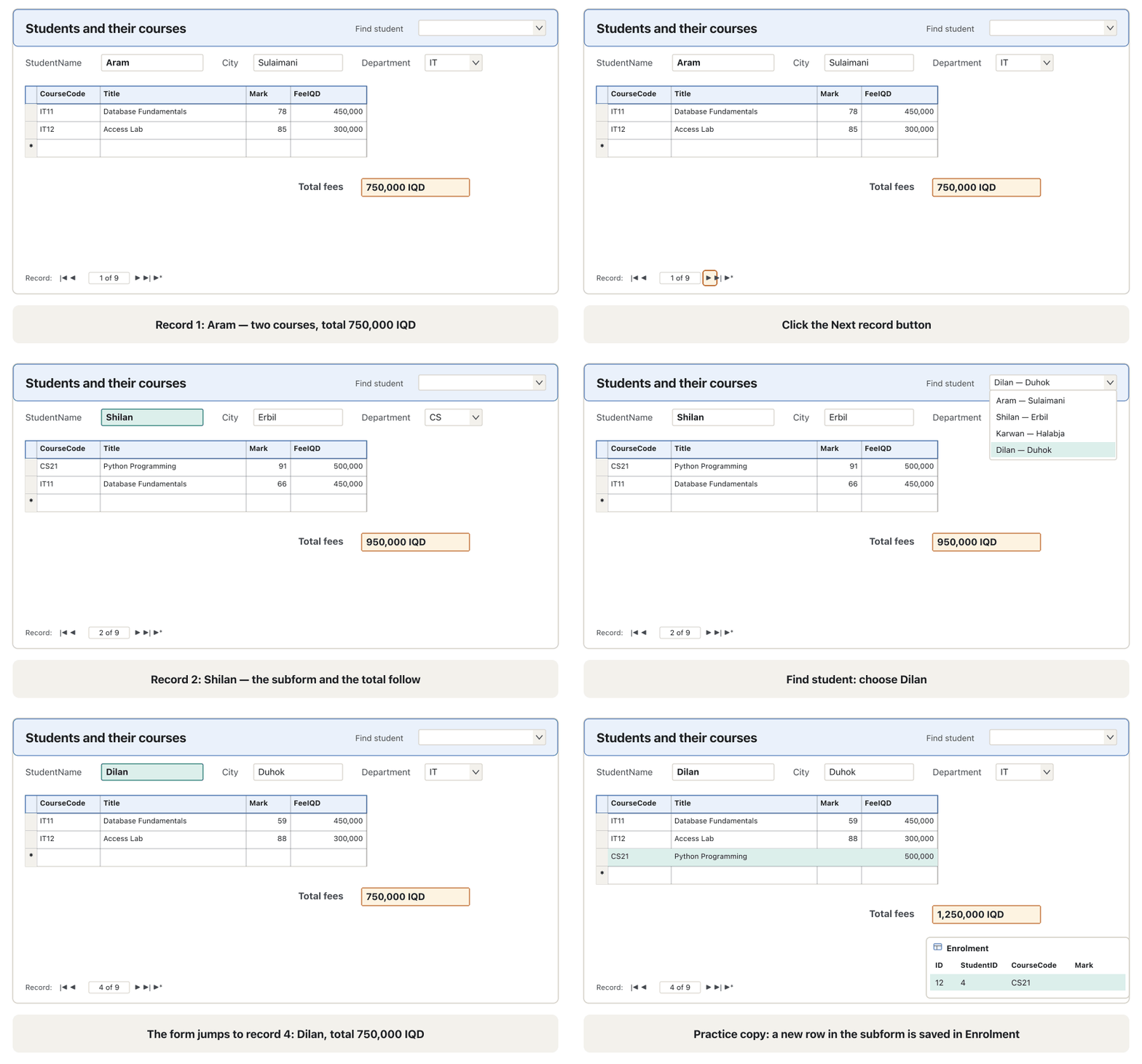
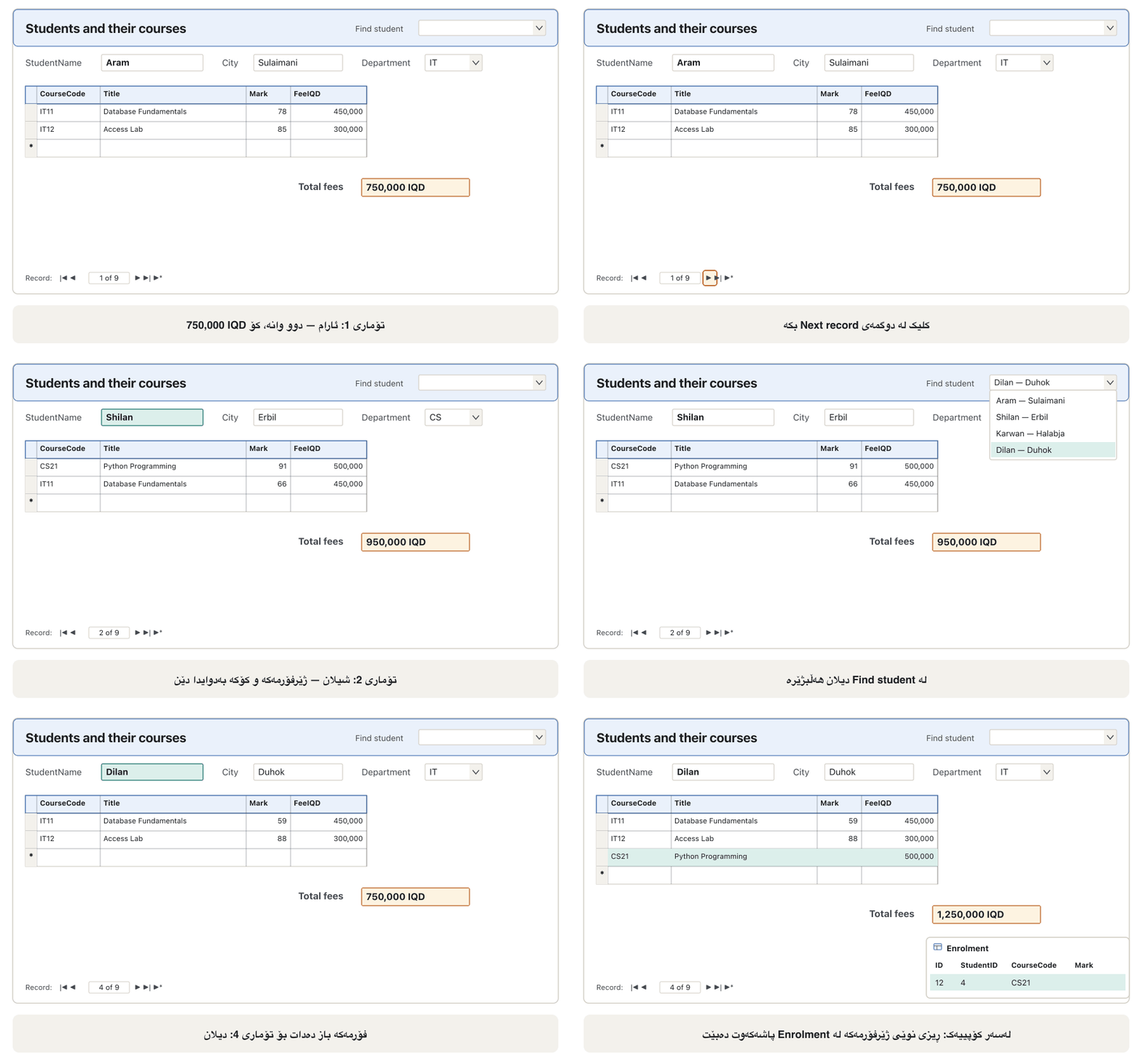
One student has many enrolments. A main form shows the student; a inside it lists that student's enrolments. When you move to the next student, the subform follows. This needs the Student 1–∞ Enrolment relationship of lesson 5 — make relationships first.
یەک قوتابی چەند تۆمارکردنێکی هەیە. سەرەکی قوتابییەکە پیشان دەدات؛ ـێک لە ناویدا تۆمارکردنەکانی ئەو قوتابییە لیست دەکات. کاتێک دەچیتە سەر قوتابیی دواتر، بەدوایدا دێت. ئەمە پێویستی بە Student 1–∞ Enrolmentـی وانەی 5 هەیە — سەرەتا دروست بکە.
Create → Form Wizard. From Table: Student add StudentID, StudentName, Department and City; from Table: Enrolment add CourseCode, EnrolDate and Mark; from Table: Course add Title and FeeIQD. Next.
Create ← Form Wizard. لە Table: Studentـەوە StudentID، StudentName، Department و City زیاد بکە؛ لە Table: Enrolmentـەوە CourseCode، EnrolDate و Mark؛ لە Table: Courseـەوە Title و FeeIQD. Next.
How do you want to view your data? → by Student → Form with subform(s). Next.
لە How do you want to view your data? by Student و پاشان Form with subform(s) هەڵبژێرە. Next.
Subform layout Datasheet. Next. Titles:
frmStudentEnrolmentsandsfrmEnrolment→ Finish. Access saves two forms.ڕێکخستنی Datasheet. Next. ناونیشانەکان:
frmStudentEnrolmentsوsfrmEnrolment← Finish. Access دوو پاشەکەوت دەکات.
In Design view the subform sits in a Subform/Subreport control. Its properties Link Master Fields = StudentID (on the main form) and Link Child Fields = StudentID (in the subform) keep the two in step.
لە لە ناو Subform/Subreportـدایە. تایبەتمەندییەکانی Link Master Fields = StudentID (لەسەر سەرەکی) و Link Child Fields = StudentID (لە ) هەردووکیان هاوکات ڕادەگرن.
A main form with a subformفۆرمی سەرەکی لەگەڵ ژێرفۆرمێک
A total from the subformکۆیەک لە ژێرفۆرمەوە
A total in the main form. Open sfrmEnrolment in Design view and add a text box named txtTotalFees to its Form Footer with the Control Source =Sum([FeeIQD]) (a datasheet does not show its footer, so the main form shows the value). On the main form add a text box labelled Total fees with =[sfrmEnrolment].[Form]![txtTotalFees] and the Format #,##0 "IQD". Aram shows 750,000 IQD, Shilan 950,000 IQD; Rezan's box stays empty because he has no courses. After you type a new enrolment in the subform, the total changes when the record is saved — move to another row first.
کۆیەک لە سەرەکیدا. sfrmEnrolment لە بکەرەوە و Text Boxـێک بە ناوی txtTotalFees بە Control Sourceـی =Sum([FeeIQD]) بۆ Form Footerـەکەی زیاد بکە ( ژێرەوەی خۆی پیشان نادات، بۆیە سەرەکی نرخەکە پیشان دەدات). لەسەر سەرەکی Text Boxـێک بە نووسینی Total fees و =[sfrmEnrolment].[Form]![txtTotalFees] و Formatـی #,##0 "IQD" زیاد بکە. ئارام 750,000 IQD پیشان دەدات، شیلان 950,000 IQD؛ سندووقی ڕێزان بەتاڵ دەمێنێتەوە چونکە هیچ وانەیەکی نییە. دوای نووسینی تۆمارکردنێکی نوێ لە ، کۆکە کاتێک دەگۆڕێت کە پاشەکەوت دەکرێت — سەرەتا بچۆ سەر ڕیزێکی تر.
Find a record with a combo boxدۆزینەوەی تۆمار بە Combo Box
With nine students the ◀ ▶ buttons are fine; with nine hundred you need a search box. A combo box can jump to a record:
بە نۆ قوتابی ◀ ▶ بەسن؛ بە نۆ سەد قوتابی پێویستت بە سندووقی گەڕان دەبێت. Combo Box دەتوانێت باز بدات بۆ :
Open
frmStudentEnrolmentsin Design view. On Form Design → Controls make sure Use Control Wizards is on, choose Combo Box and click in the Form Header.frmStudentEnrolmentsلە بکەرەوە. لە Form Design ← Controls دڵنیابە Use Control Wizards کارایە، Combo Box هەڵبژێرە و لە Form Header بکە.Choose Find a record on my form based on the value I selected in my combo box — the wizard offers it only on a bound form.
Find a record on my form based on the value I selected in my combo box هەڵبژێرە — تەنها لەسەر بەستراو پێشکەشی دەکات.
Pick StudentID, StudentName and City; keep Hide key column. Showing City matters: the list now says Hana — Zakho and Hana — Koya, so the user picks the right Hana.
StudentID، StudentName و City هەڵبژێرە؛ Hide key column بهێڵەوە. پیشاندانی City گرنگە: ئێستا لیستەکە دەڵێت Hana — Zakho و Hana — Koya، بۆیە هانای دروست هەڵدەبژێرێت.
Label it Find student → Finish → Form view. Choose Dilan: the form jumps to record 4 and the subform shows his courses.
ناوی بنێ Find student ← Finish ← Form view. دیلان هەڵبژێرە: باز دەدات بۆ 4 و وانەکانی پیشان دەدات.
The combo box is unbound: choosing a name moves to another record and changes no data. Behind it the wizard stores a small in the combo box's After Update event.
Combo Boxـەکە نەبەستراوە: هەڵبژاردنی ناوێک دەچێتە سەر تر و هیچ ناگۆڕێت. لە پشتیەوە بچووک لە ڕووداوی After Updateـی Combo Boxـەکەدا هەڵدەگرێت.
Command buttons and embedded macrosدوگمەکانی فەرمان و ماکرۆکانی ناوەکی
With Use Control Wizards on, Form Design → Controls → Button starts the Command Button Wizard. It asks for a category and an action, then text or a picture for the button, then a name:
کاتێک Use Control Wizards کارایە، Form Design ← Controls → Button Command Button Wizard دەست پێدەکات. جۆرێک و کارێک دەپرسێت، پاشان دەق یان وێنەیەک بۆ ، پاشان ناوێک:
| Categoryجۆر | Actions (examples)کارەکان (نموونە) | On our formsلەسەر |
|---|---|---|
| Record Navigation | Go To First / Previous / Next / Last Record, Find RecordGo To First / Previous / Next / Last Record، Find Record | ◀ ▶ buttons on a form whose navigation bar is hidden ◀ ▶ لەسەر کە شریتی ڕێنیشاندانی شاراوەیە |
| Record Operations | Add New Record, Delete Record, Save Record, Undo RecordAdd New Record، Delete Record، Save Record، Undo Record | New student on frmStudentNew student لەسەر frmStudent |
| Form Operations | Open Form, Close FormOpen Form، Close Form | Courses opens frmCourseCard; Back closes itCourses frmCourseCard دەکاتەوە؛ Back دایدەخات |
| Report Operations | Preview Report, Print ReportPreview Report، Print Report | Print list (lesson 8)Print list (وانەی 8) |
| Application | Quit Application | Exit closes AccessExit Access دادەخات |
Kurdish: command buttons made with the Command Button Wizard (form operations, find record) and tried in Form view.
بە کوردی: بە Command Button Wizard دروست دەکرێن (Form Operations، Find Record) و لە Form view تاقی دەکرێنەوە.
Kurdish (Sorani), plays 8:15 to the end: the Command Button Wizard's categories and actions, buttons placed on the form, then a Find button opening Find and Replace.
بە کوردیی سۆرانی، لە 8:15 تا کۆتایی پەخش دەبێت: جۆر و کارەکانی Command Button Wizard، دانانی لەسەر ، پاشان Find کە Find and Replace دەکاتەوە.
Command buttons and embedded macrosدوگمەکانی فەرمان و ماکرۆکانی ناوەکی
Embedded macros, not program codeماکرۆکانی ناوەکی، نەک کۆدی بەرنامە
The wizard does not write program code: it stores an embedded in the button's On Click event (Property Sheet → Event shows [Embedded Macro]). A macro is a saved list of actions — OpenForm, CloseWindow, CloseDatabase, QuitAccess — that Access carries out in order (the six object types). A Close Database button, for example, holds the single action CloseDatabase: the database closes and Access stays open. No VBA is needed in this course.
کۆدی نانووسێت: ناوەکی لە ڕووداوی On Clickـی هەڵدەگرێت (Property Sheet ← Event پیشان دەدات [Embedded Macro]). لیستێکی پاشەکەوتکراوی کارەکانە — OpenForm، CloseWindow، CloseDatabase، QuitAccess — کە Access بە ڕیز جێبەجێیان دەکات (شەش جۆرەکەی ئۆبجێکت). بۆ نموونە Close Database تەنها کاری CloseDatabase هەڵدەگرێت: دادەخرێت و Access کراوە دەمێنێتەوە. لەم کۆرسەدا هیچ VBAـیەک پێویست نییە.
Practiceڕاهێنان
Use the Form Wizard to make a Columnar form on Course. Step through the five courses with the record buttons, add a sixth course BI12 Genetics (Biology, stage 1, Bachelor, 420,000) through the form, then open the Course table. Where is the new course?
Form Wizard بەکاربهێنە بۆ دروستکردنی Columnar لەسەر Course. بە بە ناو پێنج وانەکەدا بڕۆ، لە ڕێگەی وانەی شەشەم BI12 Genetics زیاد بکە (Biology، قۆناغی 1، Bachelor، 420,000)، پاشان Course بکەرەوە. وانە نوێیەکە لە کوێیە؟
Show answerوەڵامەکە پیشان بدە
- ▶* (New record) opens an empty record; type the values and move on — the record is saved.
- The table now has six rows, sorted by the key: AC11, BI11, BI12, CS21, IT11, IT12. The form wrote into the table; it has no data of its own.
- Delete BI12 again (on the course form: Home → Records → Delete) so the lab stays as the course uses it.
- ▶* (New record) بەتاڵ دەکاتەوە؛ نرخەکان بنووسە و بڕۆ — پاشەکەوت دەکرێت.
- ئێستا شەش ڕیزی هەیە، بەپێی ڕیزکراو: AC11، BI11، BI12، CS21، IT11، IT12. لە ناو نووسی؛ هیچ خۆی نییە.
- BI12 دووبارە بسڕەوە (لەسەر وانە: Home → Records → Delete) بۆ ئەوەی تاقیگەکە وەک ئەوەی کۆرسەکە بەکاری دەهێنێت بمێنێتەوە.
On University.accdb: (1) make frmStudent with the Form tool; (2) a Tabular form of Course with the Form Wizard; (3) apply a theme; (4) sort frmStudent by City; (5) filter Department = Biology; (6) with Filter by Form, show the students from Iran or Türkiye. Write down how many records each step shows.
لەسەر University.accdb: (1) frmStudent بە ئامرازی Form دروست بکە؛ (2) Tabularـی Course بە Form Wizard؛ (3) دابنێ؛ (4) frmStudent بەپێی City ڕیز بکە؛ (5) Department = Biology بکە؛ (6) بە Filter by Form قوتابیانی Iran یان Türkiye پیشان بدە. بنووسە هەر هەنگاوێک چەند پیشان دەدات.
Show answerوەڵامەکە پیشان بدە
- (1) 9 records; (2) the 5 courses in rows; (3) all forms change look.
- (4) Duhok, Erbil, Erbil, Halabja, Kirkuk, Koya, Ranya, Sulaimani, Zakho — 9 records; (5) Karwan and Lana — 2 records.
- (6) Filter by Form needs CountryID: on the first tab choose Iran (2), on the Or tab Türkiye (3) → Karwan and Dilan — 2 records. (Clear the Biology filter first, or the two filters combine.)
- (1) 9 ؛ (2) 5 وانەکە لە ڕیزدا؛ (3) هەموو ڕووخساریان دەگۆڕێت.
- (4) Duhok، Erbil، Erbil، Halabja، Kirkuk، Koya، Ranya، Sulaimani، Zakho — 9 ؛ (5) کاروان و لانا — 2 .
- (6) Filter by Form پێویستی بە CountryID هەیە: لە تابی یەکەم Iran (2)، لە تابی Or Türkiye (3) هەڵبژێرە ← کاروان و دیلان — 2 . (سەرەتا Biology لابدە، دەنا دوو پێکەوە دەبەسترێن.)
Build frmCourseStudents: Course on the main form (CourseCode, Title, FeeIQD) and its enrolled students in a datasheet subform (StudentName from Student, Mark from Enrolment). Which course shows an empty subform?
frmCourseStudents دروست بکە: Course لەسەر سەرەکی (CourseCode، Title، FeeIQD) و قوتابییە تۆمارکراوەکانی لە Datasheet (StudentName لە Studentـەوە، Mark لە Enrolmentـەوە). کام وانە بەتاڵ پیشان دەدات؟
Show answerوەڵامەکە پیشان بدە
Form Wizard: Course fields, then Enrolment's Mark and Student's StudentName → by Course → Form with subform(s). AC11 Principles of Accounting has an empty subform: nobody enrolled (the same answer Find Unmatched gave in lesson 6). IT11 shows Aram, Shilan, Dilan and Soran.
Form Wizard: Course، پاشان Markـی Enrolment و StudentNameـی Student ← by Course ← Form with subform(s). AC11 Principles of Accounting بەتاڵی هەیە: کەس تۆمار نەکراوە (هەمان وەڵام کە Find Unmatched لە وانەی 6 دای). IT11 ئارام، شیلان، دیلان و سۆران پیشان دەدات.
Common mistakesهەڵە باوەکان
| Mistakeهەڵە | What to doچی بکەیت |
|---|---|
| Trying to type data in Layout viewهەوڵدان بۆ نووسینی لە Layout view | Switch to Form view.بچۆ Form view. |
| Building a main form and subform before the relationship existsدروستکردنی سەرەکی و پێش بوونی | Create the one-to-many relationship first; then the wizard offers by Student.سەرەتا دروست بکە؛ ئینجا by Student پێشکەش دەکات. |
| A subform that shows every record کە هەموو پیشان دەدات | Set Link Master Fields and Link Child Fields (StudentID).Link Master Fields و Link Child Fields (StudentID) دابنێ. |
| Expecting the total to change before the new row is savedچاوەڕوانی گۆڕانی کۆ پێش پاشەکەوتکردنی ڕیزە نوێیەکە | Move to another row (or press Shift+Enter) to save it.بچۆ سەر ڕیزێکی تر (یان Shift+Enter دابگرە) بۆ پاشەکەوتکردنی. |
| Putting a validation rule only on a form controlدانانی تەنها لەسەر | Put it on the table field so every form and query obeys it.لەسەر دایبنێ بۆ ئەوەی هەموو و گوێڕایەڵی بێت. |
| A find-combo box that lists two identical "Hana" rowsCombo Boxـی گەڕان کە دوو ڕیزی وەک یەکی «Hana» لیست دەکات | Show a second column (City) so users can tell the records apart.ستوونێکی دووەم (City) پیشان بدە بۆ ئەوەی بەکارهێنەران لە یەک جیا بکەنەوە. |
| Buttons that do nothing when clicked کە کاتی هیچ ناکەن | The database is not trusted: Enable Content (lesson 8). متمانەی پێ نەکراوە: Enable Content (وانەی 8). |
Summaryپوختە
- A form is an interface made of controls; it enters data, asks for values and navigates. A bound form has a record source, an unbound one does not.
- Create → Forms: Form, Form Design, Blank Form, Form Wizard, Navigation, More Forms (Multiple Items, Datasheet, Split Form, Modal Dialog).
- Form view = use, Layout view = arrange with data, Design view = sections and properties; layouts Columnar, Tabular, Datasheet, Justified.
- Controls are bound (a field), unbound (fixed) or calculated (= expression, such as =Sum([FeeIQD])).
- Sort, common filters (AND) and Filter by Form with Or tabs work in Form view.
- A main form + subform needs a one-to-many relationship and is linked by Link Master/Child Fields; a combo box finds records; command buttons hold embedded macros; a navigation form is the main menu.
- لە پێکهاتووە؛ تۆمار دەکات، نرخ دەپرسێت و ڕێنیشاندان دەکات. بەستراو سەرچاوەی هەیە، نەبەستراو نییەتی.
- Create → Forms: Form، Form Design، Blank Form، Form Wizard، Navigation، More Forms (Multiple Items، Datasheet، Split Form، Modal Dialog).
- Form view = بەکارهێنان، Layout view = ڕێکخستن لەگەڵ ، = بەشەکان و تایبەتمەندییەکان؛ ڕێکخستنەکانی Columnar، Tabular، Datasheet، Justified.
- بەستراون ()، نەبەستراون (جێگیر) یان ژمێردراون (= ، وەک =Sum([FeeIQD])).
- ، باو (AND) و Filter by Form بە تابی Or لە Form view کار دەکەن.
- سەرەکی + پێویستی بە هەیە و بە Link Master/Child Fields دەبەسترێتەوە؛ Combo Box دەدۆزێتەوە؛ فەرمان ناوەکی هەڵدەگرن؛ Navigation لیستی سەرەکییە.
Summaryپوختە
Check yourselfخۆت تاقی بکەرەوە
What is the difference between Layout view and Design view?جیاوازیی Layout view و پیشاندانی Design چییە؟
Layout view shows real data while you arrange controls; Design view shows the sections and every property but no data.
Layout view لە کاتی ڕێکخستنی ڕاستەقینە پیشان دەدات؛ بەشەکان و هەموو تایبەتمەندییەک پیشان دەدات بەڵام هیچ .
Which property makes a form open on an empty record only?کام تایبەتمەندی وا دەکات فۆرم تەنها لەسەر تۆمارێکی بەتاڵ بکرێتەوە؟
Data Entry = Yes (Data tab of the form's Property Sheet).
Data Entry = Yes (تابی Dataـی Property Sheetـی ).
What links a subform to its main form?چی ژێرفۆرم بە فۆرمی سەرەکییەکەیەوە دەبەستێتەوە؟
The Link Master Fields and Link Child Fields properties of the subform control, here StudentID ↔ StudentID.
تایبەتمەندییەکانی Link Master Fields و Link Child Fieldsـی ، لێرەدا StudentID ↔ StudentID.
Videoڤیدیۆ
Watch a videoسەیری ڤیدیۆیەک بکە
A video that viewers liked a lot and praised in their comments, chosen for this lesson.ڤیدیۆیەک کە بینەران زۆریان پێ خۆش بووە و لە کۆمێنتەکانیاندا ستایشیان کردووە، بۆ ئەم وانەیە هەڵبژێردراوە.
Kurdish: what a form is (a paper order form compared), the kinds of form Access can make, and a customer form shaped in Design view.
بە کوردی: چییە (بە بەراورد لەگەڵ کاغەزیی فەرمایشت)، ئەو جۆرانەی کە Access دروستیان دەکات و کڕیار کە لە ڕێک دەخرێت.
Kurdish (Sorani), whole video (19:50): a paper order form as the idea, then forms built in Access, the Property Sheet and an Add/Edit Customer form in Form view.
بە کوردیی سۆرانی، هەموو ڤیدیۆکە (19:50): کاغەزیی فەرمایشت وەک بیرۆکە، پاشان دروستکردنی لە Access، Property Sheet و Add/Edit Customer لە Form view.
Lesson complete!وانەکە تەواو بوو!
Well done. Review the key terms, then go on to the next lesson.دەستخۆش. سەیرێکی زاراوە سەرەکییەکان بکەرەوە، پاشان بڕۆ بۆ وانەی داهاتوو.
Key termsزاراوە سەرەکییەکان
Reports, Import/Export and Database Toolsڕاپۆرتەکان، هێنان/هەناردن و ئامرازەکانی بنکەدراوە
Related lecturesوانە پەیوەندیدارەکان
- Relationships and Referential Integrityپەیوەندییەکان و دروستیی ئاماژەپێدان
- Reports, Import/Export and Database Toolsڕاپۆرتەکان، هێنان/هەناردن و ئامرازەکانی بنکەدراوە
- Field Properties: Sizes, Formats and Input Masksتایبەتمەندییەکانی ستوون: قەبارە، Format و ماسکەکانی نێوخستە
- Database Users and Database Languagesبەکارهێنەرەکانی بنکەدراوە و زمانەکانی بنکەدراوە
- Slide Size and Backgroundقەبارەی سلاید و باکگراوند
References and further readingسەرچاوەکان و خوێندنەوەی زیاتر
This lecture is a first edition. The Kurdish text and terminology are waiting for review by Kurdish IT teachers.ئەم وانەیە چاپی یەکەمە. دەقە کوردییەکە و زاراوەکانی چاوەڕێی پێداچوونەوەی مامۆستایانی کوردی بواری IT ن.