Chapterبەش 2 · Lectureوانە 2.1
Tables, Fields and Datasheetsخشتەکان، ستوونەکان و پەڕەکانی دراوە
Plan the University database, create the Country and Student tables in Datasheet and Design view, choose data types and primary keys, then type, arrange, sort, filter and total records in a datasheet.
University پلان بکە، Country و Student لە و دروست بکە، و هەڵبژێرە، پاشان لە بنووسە، ڕێکیان بخە، ڕیزیان بکە، فلتەریان بکە و کۆیان بکەرەوە.
What you will learnچی فێر دەبیت
- Plan tables on paper and explain why marks need an Enrolment table.
- Create a table in Datasheet view and in Design view, and copy or back up a table.
- Choose a suitable data type for each field and set a primary key.
- Enter, edit, delete, find, sort, filter and total records in a datasheet.
- لەسەر کاغەز پلان بکەیت و ڕوون بکەیتەوە بۆچی نمرە پێویستی بە Enrolment هەیە.
- لە و لە دروست بکەیت و کۆپی بکەیت یان لێ بگریت.
- بۆ هەر گونجاو هەڵبژێریت و دابنێیت.
- لە بنووسیت، دەستکاری بکەیت، بسڕیتەوە، بیاندۆزیتەوە، ڕیزیان بکەیت، فلتەریان بکەیت و کۆیان بکەیتەوە.
Plan before you clickپێش کلیک، پلان دابنێ
A database is easier to build when you first write its tables on paper: one table per subject, one field per fact. This is the plan of our University database. You build Country and Student in this lesson, Course and Enrolment in the practice; Department comes in lesson 5.
ئاسانتر دروست دەبێت ئەگەر سەرەتا لەسەر کاغەز بنووسیت: بۆ هەر بابەتێک یەک ، بۆ هەر زانیارییەک یەک . ئەمە پلانی Universityـمانە. لەم وانەیەدا Country و Student دروست دەکەیت، Course و Enrolment لە ڕاهێنانەکەدا؛ Department لە وانەی 5 دێت.
| Table | Fields | One row is…هەر ڕیزێک… |
|---|---|---|
| Country | CountryID, CountryName | one countryیەک وڵات |
| Student | StudentID, StudentName, Phone, DOB, Married, Age, Department, CountryID, City | one studentیەک قوتابی |
| Course | CourseCode, Title, DeptCode, Stage, CourseType, FeeIQD | one courseیەک وانە |
| Enrolment | EnrolmentID, StudentID, CourseCode, EnrolDate, Mark | one student in one course: the mark lives hereیەک قوتابی لە یەک وانەدا: نمرەکە لێرەدایە |
Plan before you clickپێش کلیک، پلان دابنێ
Why marks need an Enrolment tableبۆچی نمرە پێویستی بە خشتەی Enrolment هەیە
Why does a mark need its own Enrolment table? A mark belongs to one student in one course. If you put student ids and marks inside the Course table, the course's title and fee are typed again for every student, and a student with three courses needs three course rows. That repeating is exactly what normalization removes; here it gives the Enrolment table, which joins students and courses (many-to-many, finished in lesson 5).
بۆچی نمرە پێویستی بە Enrolmentـی تایبەت هەیە؟ نمرە هی یەک قوتابییە لە یەک وانەدا. ئەگەر ژمارەی قوتابی و نمرە بخەیتە ناو Course، ناونیشان و کرێی وانەکە بۆ هەر قوتابییەک دووبارە دەنووسرێتەوە و قوتابییەک بە سێ وانەوە پێویستی بە سێ ڕیزی وانە دەبێت. ئەم دووبارەبوونەوەیە ڕێک ئەوەیە کە نۆرماڵکردن لایدەبات؛ لێرەدا Enrolment دەدات کە قوتابیان و وانەکان بە یەکەوە دەبەستێت (زۆر بۆ زۆر، لە وانەی 5 تەواو دەکرێت).
Ways to create a tableڕێگاکانی دروستکردنی خشتەیەک
Access gives several ways to make a table. This course mostly uses the first two.
Access چەند ڕێگایەک بۆ دروستکردنی دەدات. ئەم کۆرسە زۆرتر دوو ڕێگای یەکەم بەکاردەهێنێت.
| Wayڕێگا | Howچۆن | Good forباشە بۆ |
|---|---|---|
| In Datasheet viewلە | Create → Table | typing data at once and adding fields as you goیەکسەر نووسینی و زیادکردنی لە کاتی کارکردندا |
| In Design viewلە | Create → Table Design | setting every field, type and property firstسەرەتا دیاریکردنی هەموو ، جۆر و تایبەتمەندییەک |
| Application Parts | Create → Application Parts → Quick Start | a ready table such as Comments or Contacts ئامادە وەک Comments یان Contacts |
| From a templateلە | File → New → a template | a whole ready database to learn from تەواوی ئامادە بۆ فێربوون |
| Import or linkهێنان یان بەستنەوە | External Data → New Data Source | data that already exists in Excel or another database (lesson 8) کە پێشتر لە Excel یان تردا هەیە (وانەی 8) |
| Copy a tableلەبەرگرتنەوەی | right-click → Copy, right-click → Paste ڕاست ← Copy، ڕاست ← Paste | an empty copy or a backupکۆپییەکی بەتاڵ یان |
Ways to create a tableڕێگاکانی دروستکردنی خشتەیەک
Application Parts and copying a tableApplication Parts و لەبەرگرتنەوەی خشتەیەک
- A table from Application Partsخشتەیەک لە Application Parts
Create → Application Parts → Quick Start → Comments (or Contacts). Contacts builds a table and also its forms and reports.
Create → Application Parts → Quick Start → Comments (یان Contacts). Contacts و هەروەها و دروست دەکات.
If Access asks how the new table relates to an existing one, choose There is no relationship for now (lesson 5 is about relationships).
ئەگەر Access پرسی نوێیەکە چ پەیوەندییەکی بە هەبووەوە هەیە، بۆ ئێستا There is no relationship هەڵبژێرە (وانەی 5 دەربارەی ).
If a yellow Message Bar appears, click Enable Content so the new objects can work (only in your own files).
ئەگەر Message Barـێکی زەرد دەرکەوت، لە Enable Content بکە بۆ ئەوەی نوێیەکان کار بکەن (تەنها لە خۆتدا).
- Copy a tableلەبەرگرتنەوەی خشتەیەک
In the Navigation Pane right-click the table (for example Country) → Copy.
لە ڕاست لە بکە (بۆ نموونە Country) ← Copy.
Right-click an empty part of the pane → Paste. The Paste Table As dialog opens.
ڕاست لە بەشێکی بەتاڵی بکە ← Paste. Paste Table As دەکرێتەوە.
Type a name and choose: Structure Only (the fields, no rows), Structure and Data (a full copy) or Append Data to Existing Table (add these rows to a table with the same fields).
ناوێک بنووسە و هەڵبژێرە: Structure Only (، بەبێ ڕیز)، Structure and Data (کۆپیی تەواو) یان Append Data to Existing Table (ئەم ڕیزانە بۆ بە هەمان زیاد بکە).
Build a table in Datasheet viewخشتەیەک لە پیشاندانی Datasheetـدا دروست بکە
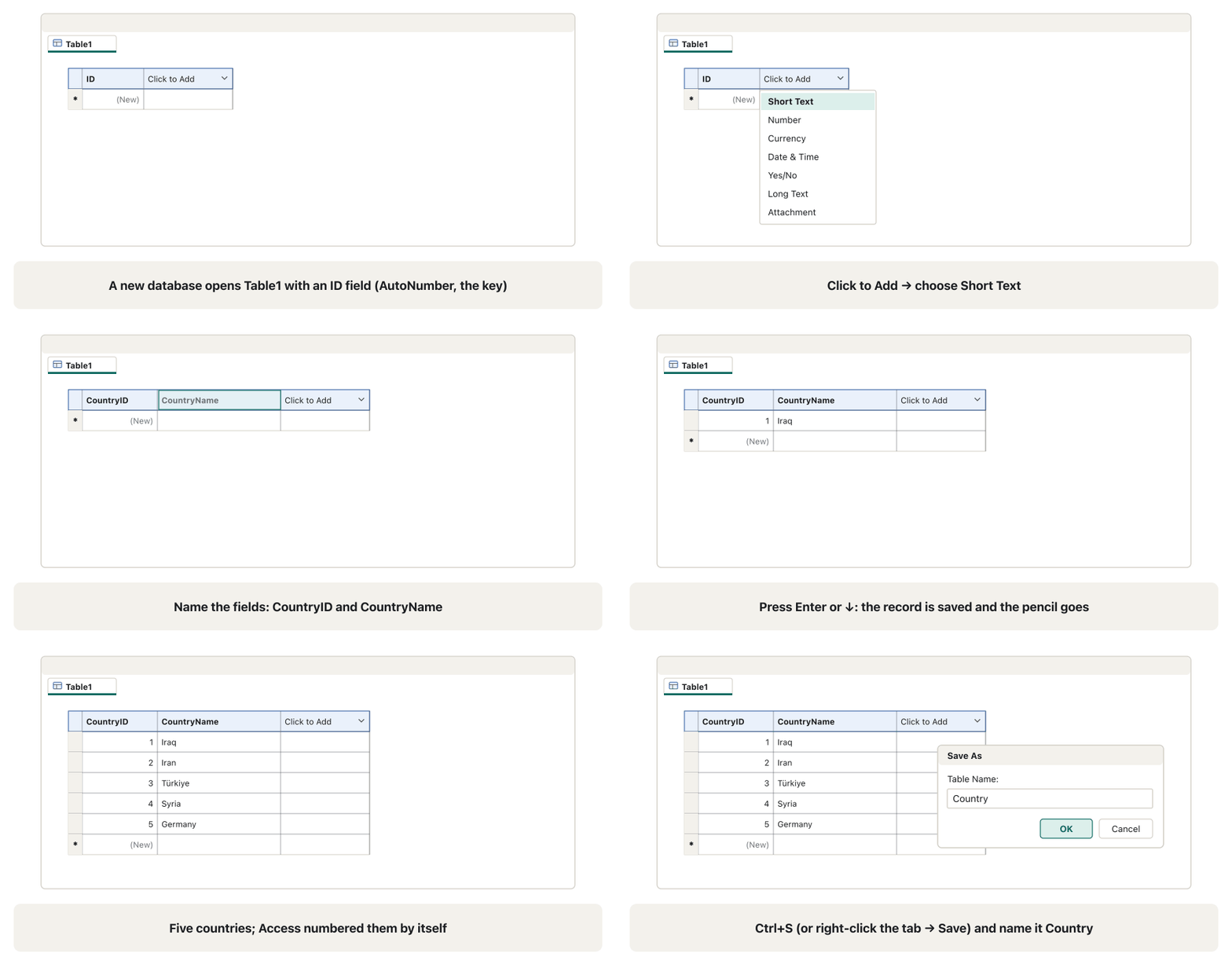
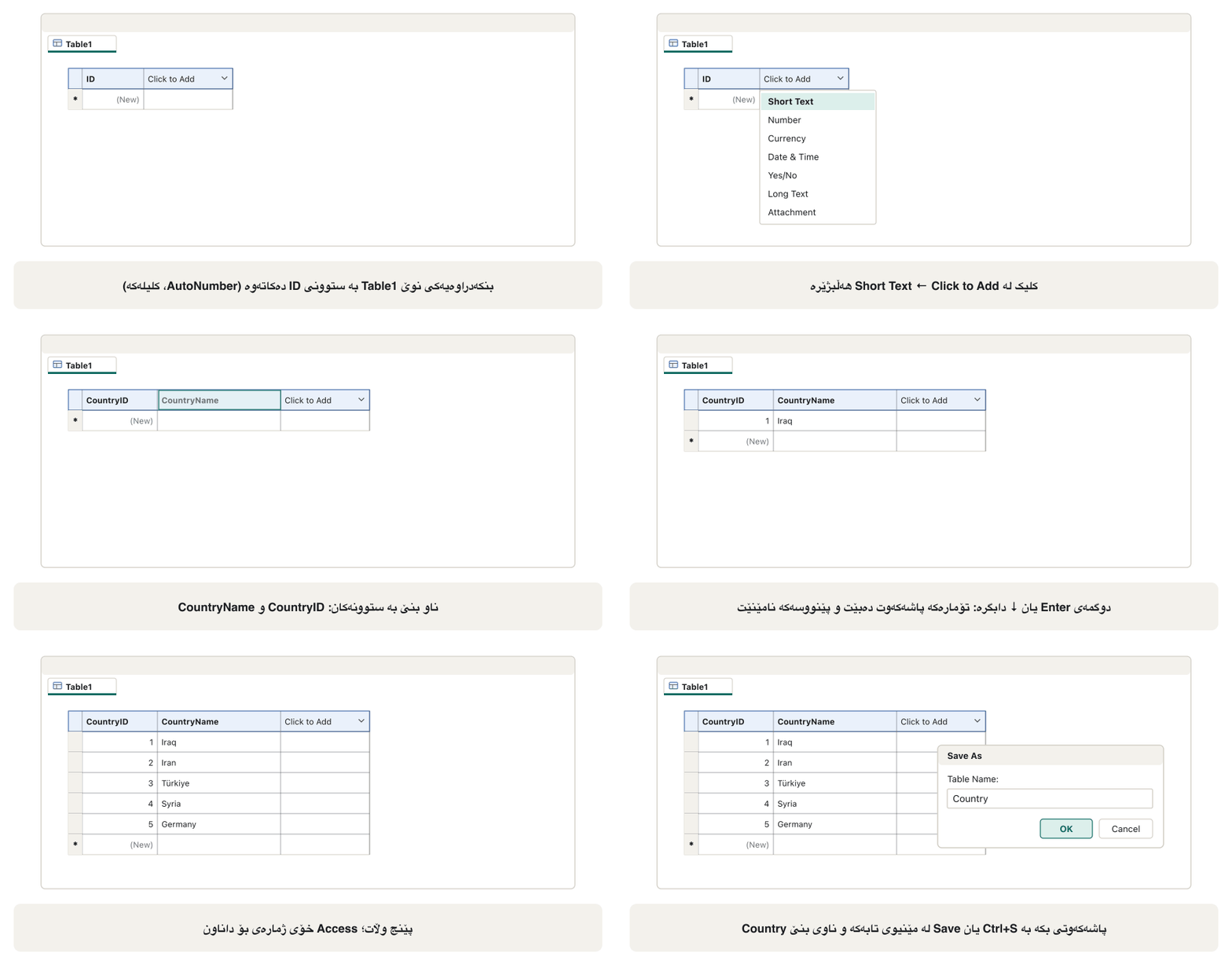
Lesson 1 left University.accdb open with Table1 in . Access has already added one field, ID, of type AutoNumber: it numbers the records 1, 2, 3… by itself and is the table's . Turn Table1 into the Country table:
وانەی 1 University.accdbـی بە Table1ـەوە لە کراوە هێشتەوە. Access پێشتر زیاد کردووە، ID، بە جۆری AutoNumber: خۆی ژمارە دەکات 1، 2، 3… و . Table1 بکە بە Country:
Double-click the ID header and type
CountryID(or right-click it → Rename Field).لە سەری ID بکە و
CountryIDبنووسە (یان ڕاست لێی بکە ← Rename Field).Click Click to Add and choose Short Text. Access adds Field1; type
CountryNameand press Enter.لە Click to Add بکە و Short Text هەڵبژێرە. Access Field1 زیاد دەکات؛
CountryNameبنووسە و Enter دابگرە.Click in the first CountryName cell and type
Iraq. A pencil appears on the record selector: the record is being edited. Press Enter or ↓ and the record is saved.لە یەکەم خانەی CountryName بکە و
Iraqبنووسە. پێنووسێک لەسەر هەڵبژێری دەردەکەوێت: دەستکاری دەکرێت. Enter یان ↓ دابگرە و پاشەکەوت دەبێت.Type the other four: Iran, Türkiye, Syria, Germany. Do not type the numbers; AutoNumber fills CountryID.
چوارەکەی تر بنووسە: Iran، Türkiye، Syria، Germany. ژمارەکان مەنووسە؛ AutoNumber خۆی CountryID پڕ دەکاتەوە.
Press Ctrl+S (or right-click the Table1 tab → Save), type
Countryand click OK.Ctrl+S دابگرە (یان ڕاست لە تابی Table1 بکە ← Save)،
Countryبنووسە و لە OK بکە.
Data types in practiceجۆرەکانی دراوە لە کاری ڕاستەقینەدا
Every field has a . It decides what the field can hold, how much space it takes and what you can do with it. Choose the most specific type: a fee is Currency, not Short Text. The ideas behind data types are in data types today; here is how Access names them, with a field of our database for each:
هەر هەیە. دیاری دەکات چی هەڵدەگرێت، چەند شوێن دەگرێت و چیی پێ دەکرێت. وردترین جۆر هەڵبژێرە: کرێ Currencyـە، نەک Short Text. بیرۆکەکانی پشت لە جۆرەکانی دراوەی ئەمڕۆ ڕوون کراونەتەوە؛ ئەمە ئەوەیە Access چۆن ناویان دەنێت، لەگەڵ بۆ هەر یەکێکیان:
| Data type | Holdsهەڵدەگرێت | Sizeقەبارە | In our databaseلە |
|---|---|---|---|
| Short Text | text, and numbers you never calculate with (phones, codes)دەق و ئەو ژمارانەی هەرگیز ژمێرکارییان پێ ناکەیت (تەلەفۆن، کۆد) | up to 255 charactersتا 255 | StudentName, Phone, City |
| Long Text | long text such as notesدەقی درێژ وەک تێبینی | about 1 GB; controls show the first 64,000 charactersنزیکەی 1 GB؛ یەکەم 64,000 پیشان دەدەن | — |
| Number | numbers you calculate withئەو ژمارانەی ژمێرکارییان پێ دەکەیت | 1–16 bytes, chosen with Field Size (lesson 3)1 تا 16 ، بە Field Size هەڵدەبژێردرێت (وانەی 3) | Age, Mark, Stage |
| Large Number | very large whole numbersژمارەی تەواوی زۆر گەورە | 8 bytes8 شوێن دەگرێت | — |
| Currency | money, exact to 4 decimal placesپارە، ورد تا 4 ژمارەی دوای | 8 bytes8 شوێن دەگرێت | FeeIQD |
| AutoNumber | a unique number Access gives each new recordژمارەیەکی تاک کە Access بە هەر نوێ دەیدات | 4 bytes4 شوێن دەگرێت | StudentID, CountryID, EnrolmentID |
Kurdish: the Access data types one by one in Design view (Short Text, Number, Currency, Yes/No, Hyperlink, Attachment, Calculated) and what each holds.
بە کوردی: Access یەک بە یەک لە (Short Text، Number، Currency، Yes/No، Hyperlink، Attachment، Calculated) و هەریەکەیان چی هەڵدەگرێت.
Kurdish (Sorani), whole video (14:24): fields with Kurdish names get each Access data type in Design view, then Attachment and Hyperlink values are typed in the datasheet.
بە کوردیی سۆرانی، هەموو ڤیدیۆکە (14:24): ناوی کوردییان هەیە و هەریەکەیان لە Access وەردەگرێت، پاشان Attachment و Hyperlink لە دەنووسرێن.
Data types in practiceجۆرەکانی دراوە لە کاری ڕاستەقینەدا
Dates, Yes/No, links and filesڕێکەوت، Yes/No، بەستەر و فایل
| Data type | Holdsهەڵدەگرێت | Sizeقەبارە | In our databaseلە |
|---|---|---|---|
| Date/Time | dates and timesڕێکەوت و کات | 8 bytes8 شوێن دەگرێت | DOB, EnrolDate |
| Date/Time Extended | dates and times with a wider range and more precision (for SQL Server)ڕێکەوت و کات بە سنووری فراوانتر و وردیی زیاتر (بۆ SQL Server) | 42 bytes42 شوێن دەگرێت | — |
| Yes/No | one of two values; Access stores −1 for Yes and 0 for Noیەکێک لە دوو نرخ؛ Access بۆ Yes ژمارەی و بۆ No ژمارەی 0 هەڵدەگرێت | 1 byte1 شوێن دەگرێت | Married |
| Hyperlink | a link to a web page or a file بۆ پەڕەیەکی وێب یان | up to 8,192 charactersتا 8,192 | — |
| Attachment | files such as photos, attached to a record وەک وێنە کە بە دەلکێندرێن | up to about 2 GBتا نزیکەی 2 GB | — |
| Calculated | a value worked out from other fields of the same tableنرخێک کە لە تری هەمان دەژمێردرێت | depends on the resultبەپێی ئەنجامەکە | — (a query does it better: calculated fields)— ( باشتر دەیکات: ستوونە ژمێردراوەکان) |
| OLE Object | old-style embedded files from other Windows programs داکوتراوی شێوازی کۆن لە تری Windows | up to about 2 GBتا نزیکەی 2 GB | — (use Attachment)— (Attachment بەکاربهێنە) |
Data types in practiceجۆرەکانی دراوە لە کاری ڕاستەقینەدا
Lookup Wizard and changing a typeLookup Wizard و گۆڕینی جۆرێکی دراوە
Lookup Wizard… also appears in the Data Type list, but it is not a data type: it is a wizard that turns a field into a lookup field. The old names Text and Memo (Access 2010 and the owner's photos) are today Short Text and Long Text. Phone numbers are Short Text: a number field would drop the leading 0 and cannot hold +.
Lookup Wizard… لە لیستی Data Typeـیش دەردەکەوێت، بەڵام نییە: کە دەکات بە ستوونی هەڵبژاردن. ناوە کۆنەکانی Text و Memo (Access 2010 و وێنەکانی خاوەنی کۆرسەکە) ئەمڕۆ Short Text و Long Textـن. ژمارەی تەلەفۆن Short Textـە: Number سفری سەرەتا لادەبات و ناتوانێت + هەڵبگرێت.
In the Table Fields tab shows the selected field's Data Type and Format boxes (Formatting group). A Date/Time field offers formats such as Short Date and Long Date; a Yes/No field can show Yes/No, True/False or On/Off — the stored value stays −1 or 0. Short Text has no ready formats.
لە Table Fields سندووقەکانی Data Type و Formatـی هەڵبژێردراو پیشان دەدات ( Formatting). Date/Time شێوازی وەک Short Date و Long Date پێشکەش دەکات؛ Yes/No دەتوانێت Yes/No، True/False یان On/Off پیشان بدات — نرخە هەڵگیراوەکە هەر یان 0 دەمێنێتەوە. Short Text شێوازی ئامادەی نییە.
Design viewپیشاندانی Design
shows a table's structure instead of its records. Open it with Home → View → Design View, by right-clicking the table's tab or the table in the Navigation Pane → Design View, or with the Design View button at the right of the status bar. Open Country in Design view: CountryID is AutoNumber with a key icon, CountryName is Short Text, and its Field Size is 255 — too big for a country name; lesson 3 fixes it.
لە جیاتی پێکهاتەی پیشان دەدات. بە Home → View ← Design View، بە ڕاست لە تابی یان لە لە ← Design View، یان بە Design View لە لای ڕاستی بیکەرەوە. Country لە بکەرەوە: CountryID بە کلیلەوە AutoNumberـە، CountryName Short Textـە و Field Sizeـەکەی 255ـە — بۆ ناوی وڵات زۆر گەورەیە؛ وانەی 3 چاکی دەکات.
The upper half is a grid with one row per field: Field Name, Data Type (a drop-down list) and Description (Optional), a note for people who later change the design. The lower half, Field Properties, shows the settings of the selected field on two tabs, General and Lookup; lesson 3 is about them.
نیوەی سەرەوە تۆڕێکە کە بۆ هەر یەک ڕیزی هەیە: Field Name، Data Type () و Description (Optional)، تێبینییەک بۆ ئەو کەسانەی دواتر دیزاینەکە دەگۆڕن. نیوەی خوارەوە، Field Properties، ڕێکخستنەکانی هەڵبژێردراو لە دوو تابدا پیشان دەدات، General و Lookup؛ وانەی 3 دەربارەی ئەوانە.
Design viewپیشاندانی Design
Build the Student tableخشتەی Student دروست بکە
Create → Table Design opens an empty design grid.
Create ← Table Design تۆڕێکی دیزاینی بەتاڵ دەکاتەوە.
Type the nine fields of the plan with their types: StudentID AutoNumber; StudentName Short Text; Phone Short Text; DOB Date/Time; Married Yes/No; Age Number; Department Short Text; CountryID Number; City Short Text. Add a short description where it helps.
نۆ پلانەکە لەگەڵ جۆرەکانیان بنووسە: StudentID AutoNumber؛ StudentName Short Text؛ Phone Short Text؛ DOB Date/Time؛ Married Yes/No؛ Age Number؛ Department Short Text؛ CountryID Number؛ City Short Text. لە شوێنی پێویست وەسفێکی کورت زیاد بکە.
Click the StudentID row and click Primary Key (Table Design tab). A key icon appears.
لە ڕیزی StudentID بکە و لە Primary Key بکە ( Table Design). کلیل دەردەکەوێت.
Press Ctrl+S and name the table
Student.Ctrl+S دابگرە و ناوی بنێ
Student.
The primary keyکلیلی سەرەکی
The primary key is the field whose value identifies each record. In Access you set it in : click the field's row and click Table Design → Primary Key; a key icon appears. Click it again to remove the key.
کلیلی سەرەکی ئەو کە نرخەکەی هەر دەناسێنێت. لە Accessـدا لە دایدەنێیت: لە ڕیزی بکە و لە Table Design ← Primary Key بکە؛ کلیل دەردەکەوێت. بۆ لابردنی، دووبارە لێی بکەرەوە.
- If you save a new table without a key, Access offers to add one. Yes adds an AutoNumber field called ID as the key; No leaves the table without a key.
- A key value is never empty and never repeated: Access builds a unique index on it and refuses a duplicate or an empty key.
- When you open a table, its records are shown in primary-key order.
- In the Relationships window (lesson 5) key fields are shown in bold; other tables point to them with foreign keys.
- A composite key uses two or more fields: hold Ctrl, click their row selectors, then click Primary Key.
- ئەگەر نوێ بەبێ پاشەکەوت بکەیت، Access پێشنیار دەکات یەکێک زیاد بکات. Yes AutoNumber بە ناوی ID وەک زیاد دەکات؛ No بەبێ دەهێڵێتەوە.
- نرخی هەرگیز بەتاڵ نییە و دووبارە نابێتەوە: Access یەکتای لەسەر دروست دەکات و دووبارە یان بەتاڵ ڕەت دەکاتەوە.
- کاتێک دەکەیتەوە، بە ڕیزی پیشان دەدرێن.
- لە Relationships (وانەی 5) بە تۆخی پیشان دەدرێن؛ تر بە ئاماژەیان بۆ دەکەن.
- دوو یان زیاتر بەکاردەهێنێت: Ctrl دابگرە، لە هەڵبژێری ڕیزەکانیان بکە، پاشان لە Primary Key بکە.
The primary keyکلیلی سەرەکی
Two design trapsدوو تەڵەی دیزاین
- A name as the key. If StudentName were the key, the second Hana could never be typed: we have two students called Hana. Names repeat; use an AutoNumber surrogate key.
- A composite key that is too tight. If Enrolment's key were (StudentID, CourseCode), a student could take each course only once ever: Hana (6) failed CS21 with 47 and cannot enrol again next year. Our Enrolment gets its own EnrolmentID. When a composite key is right is explained in composite key.
- ناو وەک . ئەگەر StudentName بوایە، هانای دووەم هەرگیز نەدەنووسرا: دوو قوتابیمان بە ناوی هانا هەیە. ناو دووبارە دەبێتەوە؛ AutoNumber بەکاربهێنە (کلیلی دەستکرد).
- کە زۆر تەنگە. ئەگەر Enrolment (StudentID، CourseCode) بوایە، قوتابی تەنها یەک جار لە ژیانیدا دەیتوانی هەر وانەیەک بخوێنێت: هانا (6) لە CS21 بە 47 دەرنەچوو و ساڵی داهاتوو ناتوانێت دووبارە تۆمار بکرێت. Enrolmentـەکەمان EnrolmentIDـی تایبەتی خۆی وەردەگرێت. کەی دروستە لە کلیلی لێکدراو ڕوون کراوەتەوە.
Entering and editing recordsنووسین و دەستکاریکردنی تۆمارەکان
Open Student in and type these nine students. Leave StudentID alone (AutoNumber). Type dates in the order your Windows uses (for example 14/03/1998 if it uses day/month/year); tick the Married box for Yes. CountryID is the number from Country: 1 Iraq, 2 Iran, 3 Türkiye, 4 Syria.
Student لە بکەرەوە و ئەم نۆ قوتابییە بنووسە. دەست لە StudentID مەدە (AutoNumber). ڕێکەوت بەو ڕیزبەندییە بنووسە کە Windowsـەکەت بەکاری دەهێنێت (بۆ نموونە 14/03/1998 ئەگەر ڕۆژ/مانگ/ساڵ بەکاربهێنێت)؛ بۆ Yes چوارگۆشەی Married نیشان بکە. CountryID ژمارەکەیە لە Countryـەوە: 1 Iraq، 2 Iran، 3 Türkiye، 4 Syria.
| StudentID | StudentName | Phone | DOB | Married | Age | Department | CountryID | City |
|---|---|---|---|---|---|---|---|---|
| 1 | Aram | +964 750 000-1001 | 1998-03-14 | No | 28 | IT | 1 | Sulaimani |
| 2 | Shilan | +964 770 000-1002 | 1999-11-02 | No | 26 | CS | 1 | Erbil |
| 3 | Karwan | +964 751 000-1003 | 1995-06-21 | Yes | 31 | Biology | 2 | Halabja |
| 4 | Dilan | +964 771 000-1004 | 1997-01-30 | No | 29 | IT | 3 | Duhok |
| 5 | Rezan | +964 750 000-1005 | 1992-09-09 | Yes | 34 | Accounting | 1 | Kirkuk |
| 6 | Hana | +964 772 000-1006 | 2000-01-01 | No | 26 | CS | 4 | Zakho |
| 7 | Soran | +964 750 000-1007 | 1994-04-17 | No | 32 | IT | 1 | Erbil |
| 8 | Lana | 1996-12-05 | No | 29 | Biology | 1 | Ranya | |
| 9 | Hana | +964 773 000-1009 | 1993-07-25 | Yes | 33 | IT | 1 | Koya |
Entering and editing recordsنووسین و دەستکاریکردنی تۆمارەکان
Keys for moving and typingدوگمەکان بۆ جووڵە و نووسین
Moving and typing in a datasheet is quicker with the keyboard:
جووڵە و نووسین لە بە خێراترە:
| Keys | What they doچی دەکەن |
|---|---|
| Tab · Shift+Tab | next field · previous field (Enter also moves on) دواتر · پێشوو (Enterـیش دەچێتە پێشەوە) |
| Home · End | first · last field of the recordیەکەم · کۆتا |
| ↑ · ↓ | same field in the previous · next recordهەمان لە پێشوو · دواتر |
| Ctrl+Home · Ctrl+End | first field of the first record · last field of the last recordیەکەم یەکەم · کۆتا کۆتا |
| Ctrl+; | type today's dateڕێکەوتی ئەمڕۆ دەنووسێت |
| Ctrl+Shift+: | type the current timeکاتی ئێستا دەنووسێت |
| Ctrl+' | copy the same field's value from the record aboveنرخی هەمان لە سەرەوە کۆپی دەکات |
| Ctrl++ · Ctrl+− | new record · delete the current record نوێ · سڕینەوەی ئێستا |
| Shift+Enter | save the current record now ئێستا یەکسەر پاشەکەوت دەکات |
| F2 | switch between editing inside a cell and moving between cellsگۆڕین لە نێوان دەستکاری لەناو خانەدا و جووڵە لە نێوان خانەکاندا |
| Shift+F2 | open the Zoom box to read or type a long valueسندووقی Zoom دەکاتەوە بۆ خوێندنەوە یان نووسینی نرخێکی درێژ |
| Esc | undo the typing in this field; press again to undo the whole recordنووسینی ئەم هەڵدەوەشێنێتەوە؛ دووبارە دابگرە بۆ هەموو |
| Insert | switch overtype on or offنووسینی سەر نووسین چالاک یان ناچالاک دەکات |
Entering and editing recordsنووسین و دەستکاریکردنی تۆمارەکان
Saving, editing and deleting recordsپاشەکەوتکردن، دەستکاریکردن و سڕینەوەی تۆمارەکان
- A record is saved when you leave it (another record, closing the table) or press Shift+Enter. There is no Save step for data.
- To delete records, click their record selectors and press Delete (or Home → Records → Delete) and confirm. A deleted record cannot be brought back — Undo does not work for it.
- Edit a value by clicking into the cell and typing over it, for example change a city.
- Access refuses a value that breaks a rule: text in a Number field now; after lessons 4 and 5 also a date outside the allowed range or an Enrolment for a student who does not exist.
- کاتێک بەجێی دەهێڵیت پاشەکەوت دەبێت ( تر، داخستنی ) یان کاتێک Shift+Enter دادەگریت. هیچ هەنگاوێکی Save بۆ نییە.
- بۆ سڕینەوەی ، لە هەڵبژێرەکانیان بکە و Delete دابگرە (یان Home → Records → Delete) و پشتڕاستی بکەرەوە. سڕاوە ناگەڕێتەوە — بۆی کار ناکات.
- نرخێک دەستکاری بکە بە لە ناو خانەکە و نووسین بەسەریدا، بۆ نموونە شارێک بگۆڕە.
- Access نرخێک ڕەت دەکاتەوە کە ڕێسایەک دەشکێنێت: ئێستا دەق لە Numberـدا؛ دوای وانەکانی 4 و 5 هەروەها ڕێکەوتێک لە دەرەوەی سنووری ڕێگەپێدراو یان Enrolmentـێک بۆ قوتابییەک کە بوونی نییە.
Arranging the datasheetڕێکخستنی پەڕەی دراوە
- Column width: drag the right border of a header; double-click the border to fit the widest value. Row height: drag the line between two record selectors (all rows change).
- Exact width: right-click a header → Field Width and type a number. Copy a column: click its header to select it, then Ctrl+C copies all its values (for example to paste into Excel).
- Move a column: click its header, then drag the header to a new place. This changes only the view, not the design.
- Hide / unhide: right-click a header → Hide Fields; right-click any header → Unhide Fields and tick the columns to show.
- Freeze: right-click StudentName's header → Freeze Fields: it stays at the left while you scroll right; Unfreeze All Fields undoes it.
- Find and Replace: Home → Find (Ctrl+F) looks for a value, for example
Erbil; the Replace tab (Ctrl+H) changes it, for example Hawler → Erbil. - Layout changes (widths, order, hidden and frozen columns) are part of the table's design: Access asks to save them when you close the table.
- پانیی ستوون: سنووری ڕاستی سەرێک ڕابکێشە؛ لە سنوورەکە بکە بۆ گونجاندنی لەگەڵ پانترین نرخ. بەرزیی ڕیز: هێڵی نێوان دوو هەڵبژێری ڕابکێشە (هەموو ڕیزەکان دەگۆڕێن).
- پانیی ورد: ڕاست لە سەرێک ← Field Width و ژمارەیەک بنووسە. لەبەرگرتنەوەی ستوون: لە سەرەکەی بکە بۆ هەڵبژاردنی، پاشان Ctrl+C هەموو نرخەکانی کۆپی دەکات (بۆ نموونە بۆ لکاندن لە Excel).
- جووڵاندنی ستوون: لە سەرەکەی بکە، پاشان سەرەکە ڕابکێشە بۆ شوێنێکی نوێ. تەنها پیشاندانەکە دەگۆڕێت، نەک دیزاینەکە.
- شاردنەوە / دەرخستن: ڕاست لە سەرێک ← Hide Fields؛ ڕاست لە هەر سەرێک ← Unhide Fields و ئەو ستوونانە نیشان بکە کە پیشان بدرێن.
- جێگیرکردن: ڕاست لە سەری StudentName ← Freeze Fields: لە لای چەپ دەمێنێتەوە کاتێک بەرەو ڕاست دەڕۆیت؛ Unfreeze All Fields هەڵیدەوەشێنێتەوە.
- : Home ← Find (Ctrl+F) بە دوای نرخێکدا دەگەڕێت، بۆ نموونە
Erbil؛ تابی Replace (Ctrl+H) دەیگۆڕێت، بۆ نموونە Hawler → Erbil. - گۆڕانکارییەکانی ڕێکخستن (پانی، ڕیزبەندی، ستوونی شاراوە و جێگیر) بەشێکن لە دیزاینی : Access کاتی داخستنی دەپرسێت پاشەکەوتیان بکات.
Sort and filterڕیزکردن و فلتەرکردن
Sorting and filtering are quick questions to a table (questions to queries shows the English for them). In :
و پرسیاری خێران لە (questions to queries ئینگلیزییەکەیان پیشان دەدات). لە :
- Sort: click in a column, then Home → Ascending (A→Z, 0→9, oldest date first) or Descending. Remove Sort goes back to key order. Sort Student by StudentName A–Z: Aram, Dilan, Hana, Hana, Karwan, Lana, Rezan, Shilan, Soran.
- Selection filter: click a cell that says IT in Department → Home → Selection → Equals "IT": only the four IT students stay. Does Not Equal keeps the others.
- Column filter: the arrow in a header (or Home → Filter) lists the values with tick boxes, plus Text Filters, Number Filters or Date Filters (for example Age Between 25 and 30, DOB Before 1995-01-01).
- Filters on several columns combine (both must be true). The record bar says Filtered; Toggle Filter switches the filter off and on; Advanced → Clear All Filters removes them.
- : لە ستوونێک بکە، پاشان Home → Ascending (A→Z، 0→9، کۆنترین ڕێکەوت سەرەتا) یان Descending. Remove Sort دەگەڕێتەوە بۆ ڕیزی . Student بەپێی StudentName لە A تا Z ڕیز بکە: Aram، Dilan، Hana، Hana، Karwan، Lana، Rezan، Shilan، Soran.
- Selection: لە خانەیەک بکە کە IT لە Departmentـدا دەڵێت ← Home → Selection ← Equals "IT": تەنها چوار قوتابییەکەی IT دەمێننەوە. Does Not Equal ئەوانی تر دەهێڵێتەوە.
- ستوون: تیری ناو سەرێک (یان Home → Filter) نرخەکان بە چوارگۆشەی نیشانکردنەوە لیست دەکات، لەگەڵ Text Filters، Number Filters یان Date Filters (بۆ نموونە Age Between 25 و 30، DOB Before 1995-01-01).
- لەسەر چەند ستوونێک پێکەوە کار دەکەن (دەبێت هەردووکیان ڕاست بن). شریتی دەڵێت Filtered؛ Toggle Filter دەکوژێنێتەوە و هەڵیدەکاتەوە؛ Advanced ← Clear All Filters هەموویان لادەبات.
Filter by Form (one form for several OR conditions) is taught with forms in lesson 7, and saved questions are queries in lesson 6.
Filter by Form (یەک بۆ چەند OR) لەگەڵ لە وانەی 7 دەخوێنرێت و پرسیارە پاشەکەوتکراوەکان پرسەکانن لە وانەی 6.
Kurdish: sorting and filtering a datasheet - Ascending, Descending, Selection, number filters and Toggle Filter on a sample student table.
بە کوردی: و : Ascending، Descending، Selection، ژمارە و Toggle Filter لەسەر نموونەیی قوتابیان.
Kurdish (Sorani), whole video (15:31): Home > Sort & Filter on a student table - ascending and descending sorts, filter by selection, number filters and Toggle Filter.
بە کوردیی سۆرانی، هەموو ڤیدیۆکە (15:31): Sort & Filter لە Home لەسەر قوتابیان: بە و ، بە Selection، ژمارە و Toggle Filter.
The Total rowڕیزی Total
A datasheet can show a Total row under the last record: Home → Records → Totals. Click a cell of the Total row and choose a function from its list: Sum, Average, Count, Maximum, Minimum, Standard Deviation or Variance for numbers and money; text fields offer Count. Click Totals again to hide the row (it cannot be deleted).
دەتوانێت ڕیزی Total لە ژێر کۆتا پیشان بدات: Home → Records → Totals. لە خانەیەکی ڕیزی Total بکە و لە لیستەکەی هەڵبژێرە: Sum، Average، Count، Maximum، Minimum، Standard Deviation یان Variance بۆ ژمارە و پارە؛ دەق Count پێشکەش دەکەن. دووبارە لە Totals بکە بۆ شاردنەوەی ڕیزەکە (ناسڕدرێتەوە).
| Table | Total row cellخانەی ڕیزی Total | Resultئەنجام |
|---|---|---|
| Student | StudentName → Count | 9 |
| Student | Age → Average | 29.777… (about 29.8)29.777… (نزیکەی 29.8) |
| Course | FeeIQD → Sum | 2,000,000 IQD |
| Enrolment | Mark → Count · Average | 10 · 76.2 (Hana's empty mark is not counted)10 · 76.2 (نمرە بەتاڵەکەی هانا ناژمێردرێت) |
The Total row gives one result for the whole column. Results per group (the average mark of each course) need a totals query in lesson 6.
ڕیزی Total یەک ئەنجام بۆ هەموو ستوونەکە دەدات. ئەنجام بۆ هەر گرووپێک (تێکڕای نمرەی هەر وانەیەک) پێویستی بە پرسێکی کۆکردنەوە هەیە لە وانەی 6.
A backup copy with Save Object Asباکئەپێک بە Save Object As
Before an experiment — changing a data type, deleting rows — make a copy of the table: open Student, then File → Save As → Save Object As → Save As, name it Backup of Student and click OK. A second table with the same fields and the same rows appears in the Navigation Pane. If the experiment goes wrong, you still have the copy.
پێش تاقیکردنەوەیەک — گۆڕینی ، سڕینەوەی ڕیز — کۆپییەکی دروست بکە: Student بکەرەوە، پاشان File ← Save As ← Save Object As ← Save As، ناوی بنێ Backup of Student و لە OK بکە. دووەم بە هەمان و هەمان ڕیزەکان لە دەردەکەوێت. ئەگەر تاقیکردنەوەکە هەڵە بوو، هێشتا کۆپییەکەت هەیە.
Practiceڕاهێنان
In Design view create the two remaining tables and save them. Course: CourseCode (Short Text, the key), Title (Short Text), DeptCode (Short Text), Stage (Number), CourseType (Short Text), FeeIQD (Currency). Enrolment: EnrolmentID (AutoNumber, key), StudentID (Number), CourseCode (Short Text), EnrolDate (Date/Time), Mark (Number). Then type the rows below.
لە دوو تر دروست بکە و پاشەکەوتیان بکە. Course: CourseCode (Short Text، )، Title (Short Text)، DeptCode (Short Text)، Stage (Number)، CourseType (Short Text)، FeeIQD (Currency). Enrolment: EnrolmentID (AutoNumber، )، StudentID (Number)، CourseCode (Short Text)، EnrolDate (Date/Time)، Mark (Number). پاشان ئەم ڕیزانەی خوارەوە بنووسە.
Show answerوەڵامەکە پیشان بدە
| CourseCode | Title | DeptCode | Stage | CourseType | FeeIQD |
|---|---|---|---|---|---|
| IT11 | Database Fundamentals | IT | 1 | Bachelor | 450,000 |
| IT12 | Access Lab | IT | 1 | Diploma | 300,000 |
| CS21 | Python Programming | CS | 2 | Bachelor | 500,000 |
| BI11 | Cell Biology | Biology | 1 | Bachelor | 400,000 |
| AC11 | Principles of Accounting | Accounting | 1 | Diploma | 350,000 |
| EnrolmentID | StudentID | CourseCode | EnrolDate | Mark |
|---|---|---|---|---|
| 1 | 1 | IT11 | 2026-09-14 | 78 |
| 2 | 1 | IT12 | 2026-09-14 | 85 |
| 3 | 2 | CS21 | 2026-09-15 | 91 |
| 4 | 2 | IT11 | 2026-09-15 | 66 |
| 5 | 3 | BI11 | 2026-09-16 | 72 |
| 6 | 4 | IT11 | 2026-09-17 | 59 |
| 7 | 4 | IT12 | 2026-09-17 | 88 |
| 8 | 6 | CS21 | 2026-09-21 | 47 |
| 9 | 7 | IT11 | 2026-09-22 | 95 |
| 10 | 8 | BI11 | 2026-09-24 | 81 |
| 11 | 9 | IT12 | 2026-10-01 | (empty — not graded yet)(بەتاڵ — هێشتا نمرەی پێ نەدراوە) |
Check: Course is sorted by CourseCode when you open it (AC11, BI11, CS21, IT11, IT12) because CourseCode is its key. Leave Mark empty for row 11: an empty Mark means "not graded yet", which is not the same as 0. Rezan and Germany have no enrolment or student on purpose: later lessons look for them.
پشکنین: Course کاتی کردنەوە بەپێی CourseCode ڕیز دەکرێت (AC11، BI11، CS21، IT11، IT12) چونکە CourseCode Courseـە. Mark بۆ ڕیزی 11 بەتاڵ بهێڵەوە: Markـی بەتاڵ واتە «هێشتا نمرەی پێ نەدراوە» کە هەمان 0 نییە. Rezan و Germany بە ئەنقەست هیچ تۆمارکردن و قوتابییەکیان نییە: وانەکانی دواتر بە دوایاندا دەگەڕێن.
Hana keeps a small database of books she lends to friends: Book(BookID AutoNumber key, Title, Author), Friend(LastName key, FirstName, Phone) and Loan(BookID, FriendName, LoanDate, ReturnDate) with the composite key (BookID, FriendName). Find two key mistakes and fix them.
هانا بچووکی هەیە بۆ ئەو کتێبانەی بە هاوڕێکانی قەرز دەدات: Book (BookID AutoNumber ، Title، Author)، Friend (LastName ، FirstName، Phone) و Loan (BookID، FriendName، LoanDate، ReturnDate) بە (BookID، FriendName). دوو هەڵەی بدۆزەرەوە و چاکیان بکە.
Hintئاماژە
Ask for each key: can two rows ever need the same value?
بۆ هەر بپرسە: ئایا هەرگیز دوو ڕیز پێویستیان بە هەمان نرخ دەبێت؟
Show answerوەڵامەکە پیشان بدە
- Friend keyed by LastName: two friends can share a last name (two Ahmeds in one family), so the second could never be added. Add FriendID (AutoNumber) as the key and keep LastName as an ordinary field.
- Loan keyed by (BookID, FriendName): the same friend could borrow the same book only once ever; the second loan would repeat the key. Give Loan its own LoanID (AutoNumber), and store FriendID instead of a name.
- Friend بە LastName وەک : دوو هاوڕێ دەکرێت هەمان ناوی کۆتاییان هەبێت (دوو ئەحمەد لە یەک خێزان)، بۆیە دووەمیان هەرگیز زیاد نەدەکرا. FriendID (AutoNumber) وەک زیاد بکە و LastName وەک ئاسایی بهێڵەوە.
- Loan بە (BookID، FriendName) وەک : هەمان هاوڕێ تەنها یەک جار لە ژیانیدا دەیتوانی هەمان کتێب قەرز بکات؛ قەرزی دووەم دووبارە دەکردەوە. LoanIDـی تایبەت (AutoNumber) بدە بە Loan و لە جیاتی ناو FriendID هەڵبگرە.
In Student: (1) sort by StudentName A–Z; (2) show only the students born before 1996; (3) freeze StudentName and hide Phone; (4) add a Total row that counts the students. Write down the results.
لە Student: (1) بەپێی StudentName لە A تا Z ڕیز بکە؛ (2) تەنها ئەو قوتابیانە پیشان بدە کە پێش 1996 لەدایک بوون؛ (3) StudentName جێگیر بکە و Phone بشارەوە؛ (4) ڕیزی Total زیاد بکە کە قوتابیان دەژمێرێت. ئەنجامەکان بنووسە.
Show answerوەڵامەکە پیشان بدە
- (1) Aram, Dilan, Hana, Hana, Karwan, Lana, Rezan, Shilan, Soran.
- (2) DOB → Date Filters → Before → 1996-01-01: Karwan (1995), Rezan (1992), Soran (1994), Hana (1993) — 4 records.
- (3) right-click StudentName → Freeze Fields; right-click Phone → Hide Fields.
- (4) Home → Totals; in the Total row under StudentName choose Count: 9 (with the filter of (2) still on: 4).
- (1) Aram، Dilan، Hana، Hana، Karwan، Lana، Rezan، Shilan، Soran.
- (2) DOB ← Date Filters ← Before ← 1996-01-01: Karwan (1995)، Rezan (1992)، Soran (1994)، Hana (1993) — چوار .
- (3) ڕاست لە StudentName ← Freeze Fields؛ ڕاست لە Phone ← Hide Fields.
- (4) Home ← Totals؛ لە ڕیزی Total لە ژێر StudentName، Count هەڵبژێرە: 9 (ئەگەر (2) هێشتا چالاک بێت: 4).
Common mistakesهەڵە باوەکان
| Mistakeهەڵە | What to doچی بکەیت |
|---|---|
| Phone numbers in a Number fieldژمارەی تەلەفۆن لە Number | Use Short Text; numbers lose the leading 0 and the +.Short Text بەکاربهێنە؛ ژمارە سفری سەرەتا و + ون دەکات. |
| A person's name as the primary keyناوی کەس وەک | Use an AutoNumber ID; names repeat (two Hanas).IDـی AutoNumber بەکاربهێنە؛ ناو دووبارە دەبێتەوە (دوو هانا). |
| Typing a value into an AutoNumber fieldنووسینی نرخ لە AutoNumber | Leave it; Access fills it. Gaps after deleted rows are normal.بەجێی بهێڵە؛ Access پڕی دەکاتەوە. بۆشایی دوای ڕیزی سڕاو ئاساییە. |
| Marks stored in the Course tableهەڵگرتنی نمرە لە Course | Put student + course + mark in Enrolment.قوتابی و وانە و نمرە بخە ناو Enrolment. |
| Changing a data type on a full field without a backupگۆڕینی لەسەر پڕ بەبێ | Save Object As first; some values may be lost.سەرەتا Save Object As؛ لەوانەیە هەندێک نرخ ون بن. |
| Deleting records and expecting Undoسڕینەوەی و چاوەڕوانی | Deleted records are gone; check before you confirm. سڕاو ناگەڕێنەوە؛ پێش پشتڕاستکردنەوە بپشکنە. |
| Spaces or hyphens in field namesبۆشایی یان هێڵ لە ناوی | Use names like StudentName; queries stay simpler.ناوی وەک StudentName بەکاربهێنە؛ سادەتر دەمێننەوە. |
Summaryپوختە
- Plan the tables first: one subject per table; a mark belongs in Enrolment.
- Create tables in Datasheet view, Design view, from Application Parts or templates, by import, or by copying (Structure Only / Structure and Data / Append).
- Pick the most specific data type; Short Text for phones; Yes/No stores −1/0; Long Text holds about 1 GB.
- Set the primary key in Design view; Access offers an AutoNumber ID; avoid names and over-tight composite keys.
- Records save themselves when you leave them; deleted records cannot be undone.
- Arrange (width, move, hide, freeze), find and replace, sort, filter and add a Total row in Datasheet view; Save Object As makes a backup copy.
- سەرەتا پلان بکە: هەر یەک بابەت؛ نمرە هی Enrolmentـە.
- لە ، ، لە Application Parts یان ، بە هێنان یان بە کۆپیکردن دروست بکە (Structure Only / Structure and Data / Append).
- وردترین هەڵبژێرە؛ Short Text بۆ تەلەفۆن؛ Yes/No یان 0 هەڵدەگرێت؛ Long Text نزیکەی 1 GB هەڵدەگرێت.
- لە دابنێ؛ Access IDـی AutoNumber پێشنیار دەکات؛ خۆت لە ناو و زۆر تەنگ بپارێزە.
- کاتێک بەجێیان دەهێڵیت خۆیان پاشەکەوت دەکەن؛ سڕاو ناگەڕێنەوە.
- لە ڕێک بخە (پانی، جووڵاندن، شاردنەوە، جێگیرکردن)، بدۆزەرەوە و لەجێی دابنێ، ڕیز بکە، فلتەر بکە و ڕیزی Total زیاد بکە؛ Save Object As کۆپییەکی دروست دەکات.
Is Lookup Wizard a data type?ئایا Lookup Wizard جۆری دراوەیە؟
No. It is a wizard that makes a lookup field; the field keeps a real type such as Short Text or Number.
نەخێر. کە دروست دەکات؛ جۆرێکی ڕاستەقینە وەک Short Text یان Number دەهێڵێتەوە.
What does the asterisk (*) on a record selector mean?ئەستێرە (*) لەسەر هەڵبژێری تۆمار واتای چییە؟
It is the empty new-record row; typing there adds a record.
ڕیزی بەتاڵی نوێیە؛ نووسین لەوێ زیاد دەکات.
Which key types today's date in a datasheet?کام دوگمە ڕێکەوتی ئەمڕۆ لە پەڕەیەکی دراوەدا دەنووسێت؟
Ctrl+; (Ctrl and semicolon).
Ctrl+; (Ctrl و ).
Videoڤیدیۆ
Watch a videoسەیری ڤیدیۆیەک بکە
A video that viewers liked a lot and praised in their comments, chosen for this lesson.ڤیدیۆیەک کە بینەران زۆریان پێ خۆش بووە و لە کۆمێنتەکانیاندا ستایشیان کردووە، بۆ ئەم وانەیە هەڵبژێردراوە.
Building a real table in Microsoft Access: fields are the columns, records are the rows, and a key field identifies each record.
ڕاستەقینە لە Microsoft Access دروست دەکرێت: دادەنرێن، دەبنە و وەک هەر لەوانی تر جیا دەکاتەوە.
Plays 5:22-14:36 (chapter 'Tables, fields & records'): two tables built in Datasheet view with Click to Add, data types, an AutoNumber ID and typed records.
لە 5:22 تا 14:36 پەخش دەبێت (بەشی Tables, fields & records): دوو لە بە Click to Add دروست دەکرێن: ، IDـێکی AutoNumber و نووسینی .
Lesson complete!وانەکە تەواو بوو!
Well done. Review the key terms, then go on to the next lesson.دەستخۆش. سەیرێکی زاراوە سەرەکییەکان بکەرەوە، پاشان بڕۆ بۆ وانەی داهاتوو.
Key termsزاراوە سەرەکییەکان
Field Properties: Sizes, Formats and Input Masksتایبەتمەندییەکانی ستوون: قەبارە، Format و ماسکەکانی نێوخستە
Related lecturesوانە پەیوەندیدارەکان
- Field Properties: Sizes, Formats and Input Masksتایبەتمەندییەکانی ستوون: قەبارە، Format و ماسکەکانی نێوخستە
- Relationships and Referential Integrityپەیوەندییەکان و دروستیی ئاماژەپێدان
- Data and Informationدراوە و زانیاری
- Database Keysکلیلەکانی بنکەدراوە
- Databases and SQL basicsبنکەدراوەکان و بنەماکانی SQL
References and further readingسەرچاوەکان و خوێندنەوەی زیاتر
- Microsoft Support: Data types for Access desktop databases
- Microsoft Support: Create a table and add fields
- Microsoft Support: Ways to add, edit, and delete records
- Microsoft Support: Working with datasheets
- Microsoft Support: Display column totals in a datasheet using a Totals row
- Microsoft Support: Keyboard shortcuts for Access
- Microsoft Support: Introduction to data types and field properties
This lecture is a first edition. The Kurdish text and terminology are waiting for review by Kurdish IT teachers.ئەم وانەیە چاپی یەکەمە. دەقە کوردییەکە و زاراوەکانی چاوەڕێی پێداچوونەوەی مامۆستایانی کوردی بواری IT ن.