Chapterبەش 9 · Lectureوانە 9.2
Troubleshooting and Task Managerچارەسەرکردنی کێشە و بەڕێوەبەری ئەرکەکان
CompTIA's seven-step troubleshooting method with a worked example, hardware or software clues and Device Manager, Task Manager in Windows 11 (Processes, End task, the CPU, memory and disk numbers, Performance, Run new task, Startup apps), Force Quit and Activity Monitor on a Mac, a start-up flowchart with first fixes, stop errors and Windows recovery options, where to look for common faults, prevention, and when to stop and escalate.
ڕێبازی حەوت هەنگاوەکەی CompTIA بۆ بە نموونەیەکی چارەسەرکراوەوە، نیشانەکانی یان و Device Manager، لە Windows 11 (Processes، End task، ژمارەکانی CPU، و دیسک، Performance، Run new task، Startup apps)، Force Quit و Activity Monitor لە Mac، دەستپێکردن بە یەکەم چارەسەرەکان، هەڵەی وەستان و بژاردەکانی چاککردنەوەی Windows، کێشە باوەکان لە کوێ بدۆزیتەوە، ڕێگری و کەی بوەستیت و بکەیت.
What you will learnچی فێر دەبیت
- Apply CompTIA's seven troubleshooting steps to an everyday problem.
- Tell hardware faults from software faults and use Device Manager.
- Open Task Manager, read its CPU, memory and disk numbers and end a frozen app safely.
- Use Run new task and turn off unneeded startup apps.
- Do the same jobs on a Mac with Force Quit, Activity Monitor and Login Items.
- Follow a start-up flowchart, try the first fixes for common faults and choose the right Windows recovery option.
- Recognise when to stop and escalate, and write a useful ticket.
- حەوت هەنگاوەکەی CompTIA بۆ لەسەر کێشەیەکی ڕۆژانە جێبەجێ بکەیت.
- کێشەی لە کێشەی جیا بکەیتەوە و Device Manager بەکار بهێنیت.
- بکەیتەوە، ژمارەکانی CPU، و دیسکی بخوێنیتەوە و ئەپێکی گیرخواردوو بە سەلامەتی داخەیت.
- Run new task بەکار بهێنیت و ئەو بکوژێنیتەوە کە پێویستت پێیان نییە.
- هەمان کارەکان لە Mac بە Force Quit، Activity Monitor و Login Items بکەیت.
- دەستپێکردن پەیڕەو بکەیت، یەکەم چارەسەرەکانی کێشە باوەکان تاقی بکەیتەوە و بژاردەی گونجاوی چاککردنەوەی Windows هەڵبژێریت.
- بزانیت کەی بوەستیت و بکەیت و بەسوود بنووسیت.
When something goes wrongکاتێک شتێک تێک دەچێت
A laptop that is slow every morning, an app that freezes, a printer that prints nothing: every computer user meets problems like these. Guessing — restarting, reinstalling, buying a new part — sometimes works and often wastes time or makes things worse. IT professionals follow a method instead. This lesson teaches that method and the tools you use with it: Task Manager on Windows and Activity Monitor on a Mac.
کە هەموو بەیانییەک خاوە، ئەپێک کە تووشی دەبێت، کە هیچ چاپ ناکات: هەموو بەکارهێنەرێکی تووشی کێشەی لەم جۆرە دەبێت. پێشبینیکردن — ، دامەزراندنەوە، کڕینی پارچەیەکی نوێ — هەندێک جار کار دەکات و زۆرجار کات بەفیڕۆ دەدات یان شتەکان خراپتر دەکات. پسپۆڕانی IT لە جیاتی ئەوە ڕێبازێک پەیڕەو دەکەن. ئەم وانەیە ئەو ڕێبازە و ئەو ئامرازانەی لەگەڵیدا بەکار دێن فێر دەکات: لە Windows و Activity Monitor لە Mac.
Troubleshooting is the first skill on the list of a successful IT person — see Technical skills. The English of help-desk calls is practised in Troubleshooting and the Help Desk.
یەکەم کارامەییە لە لیستی کەسێکی سەرکەوتووی IT — سەیری کارامەییە تەکنیکییەکان بکە. ئینگلیزیی پەیوەندیکردن بە لە چارەسەرکردنی کێشە و بەشی یارمەتیدا ڕاهێنانی لەسەر دەکرێت.
Two more places to practise. Troubleshooting thinks like a flowchart: try «When the phone will not charge» in More practice: steps and decisions. And when a system is too damaged to repair, the last step is a clean reinstall, taught in Installing and Setting Up Windows.
دوو شوێنی تر بۆ ڕاهێنان. وەک بیر دەکاتەوە: ڕاهێنانی «کاتێک مۆبایلەکە بارگە ناکرێت» لە ڕاهێنانی زیاتر: هەنگاو و بڕیاردا تاقی بکەرەوە. هەروەها کاتێک سیستەمێک ئەوەندە تێکچووە کە چاک ناکرێتەوە، دوایین هەنگاو کە لە دامەزراندن و ڕێکخستنی Windowsدا فێر دەکرێت.
The seven steps of troubleshootingحەوت هەنگاوەکەی چارەسەرکردنی کێشە
CompTIA, the organisation behind the A+ certificate that most help-desk technicians take, teaches seven steps. Hardware and network troubleshooting is 28% of the A+ Core 1 exam, so the method matters at work, not only in class. The first three steps find the cause; the last four fix it and finish the job.
CompTIA، ئەو دەزگایەی بڕوانامەی A+ دەدات کە زۆربەی تەکنیکارانی وەریدەگرن، حەوت هەنگاو فێر دەکات. و 28%ـی تاقیکردنەوەی A+ Core 1ـە، بۆیە ڕێبازەکە لە کاردا گرنگە، نەک تەنها لە پۆلدا. سێ هەنگاوی یەکەم هۆکارەکە دەدۆزنەوە؛ چوار هەنگاوی کۆتایی چاکی دەکەنەوە و کارەکە تەواو دەکەن.
The seven steps of troubleshootingحەوت هەنگاوەکەی چارەسەرکردنی کێشە
Steps 1–3: find the causeهەنگاوەکانی 1–3: هۆکارەکە بدۆزەوە
- Identify the problemکێشەکە دیاری بکە
Collect facts before you touch anything. Ask the user what happens, since when and what changed — a new app, an update, a move, a dropped laptop. Read any error message. Try to make the problem happen again.
پێش ئەوەی دەست لە هیچ شتێک بدەیت زانیاری کۆ بکەرەوە. لە بەکارهێنەرەکە بپرسە چی ڕوو دەدات، لە کەیەوە و چی گۆڕاوە — ئەپێکی نوێ، ، گواستنەوە، کە کەوتووە. هەر هەبێت بیخوێنەوە. هەوڵ بدە کێشەکە دووبارە ڕوو بداتەوە.
- Establish a theory of probable causeگریمانەیەک بۆ هۆکارە ئەگەرییەکە دابنێ
Make your best guess about the cause. Start with the simple, common causes — a loose cable, a full disk, too many apps at start-up — before the rare ones. Search the maker's help pages and your own notes.
باشترین پێشبینیی خۆت بۆ هۆکارەکە بکە. لە هۆکارە سادە و باوەکانەوە دەست پێ بکە — کێبڵێکی شل، دیسکێکی پڕ، ئەپی زۆر لە کاتی دەستپێکردندا — پێش هۆکارە دەگمەنەکان. لە پەڕەکانی یارمەتیی کۆمپانیای دروستکەر و تێبینییەکانی خۆتدا بگەڕێ.
- Test the theoryگریمانەکە تاقی بکەرەوە
Check whether the theory is true, still without changing settings. Look in Task Manager, swap a cable for one you know works, try the app on another computer. If the theory is wrong, make a new one — or go back to step 1 and collect more facts.
بپشکنە ئایا گریمانەکە ڕاستە، هێشتا بەبێ گۆڕینی . سەیری بکە، کێبڵێک بگۆڕە بە کێبڵێک کە دەزانیت کار دەکات، ئەپەکە لەسەر تر تاقی بکەرەوە. ئەگەر گریمانەکە هەڵە بوو، گریمانەیەکی نوێ دابنێ — یان بگەڕێوە بۆ هەنگاوی 1 و زانیاریی زیاتر کۆ بکەرەوە.
The seven steps of troubleshootingحەوت هەنگاوەکەی چارەسەرکردنی کێشە
Steps 4–7: fix it and finish the jobهەنگاوەکانی 4–7: چاکی بکەرەوە و کارەکە تەواو بکە
- Plan the fix and its effectsپلانی چارەسەر و کاریگەرییەکانی دابنێ
Before you change anything, plan it. Who will be affected, and for how long? Is a backup needed first? Do you need permission? How will you undo the change if it goes wrong?
پێش ئەوەی هیچ شتێک بگۆڕیت، پلانی بۆ دابنێ. کێ کاریگەریی لەسەر دەبێت و بۆ چەند؟ ئایا پێشتر پێویستە؟ ئایا ئیزنت پێویستە؟ ئەگەر هەڵە دەرچوو، چۆن گۆڕانکارییەکە دەگەڕێنیتەوە؟
- Implement the fix — or escalateچارەسەرەکە جێبەجێ بکە — یان بەرزکردنەوەی کێشە
Carry out the plan. If the problem is beyond your knowledge or your permissions, escalate it: pass it to someone who can solve it, with everything you have found.
پلانەکە جێبەجێ بکە. ئەگەر کێشەکە لە زانیاری یان دەسەڵاتی تۆ گەورەتر بوو، بکە: بیدە بە کەسێک کە دەتوانێت چارەسەری بکات، لەگەڵ هەموو ئەوەی دۆزیوتەتەوە.
- Verify and preventدڵنیا ببەرەوە و ڕێگری بکە
Check that everything works — ideally the user tries it. Then stop the problem coming back, for example by fixing the same setting on the other computers in the lab.
دڵنیا ببەرەوە هەموو شتێک کار دەکات — باشتر ئەوەیە بەکارهێنەرەکە خۆی تاقی بکاتەوە. پاشان ڕێگە مەدە کێشەکە بگەڕێتەوە، بۆ نموونە بە چاککردنی هەمان لەسەر تری تاقیگەکە.
- Documentبینووسەوە (بەڵگەنامەکردن)
Write down the symptom, the cause, what you tried and what fixed it. The next person with the same problem — maybe you — will solve it in minutes.
نیشانەکە، هۆکارەکە، ئەوەی تاقیت کردەوە و ئەوەی چاکی کردەوە بنووسە. کەسی داهاتوو کە هەمان کێشەی هەیە — لەوانەیە خۆت بیت — لە چەند خولەکێکدا چارەسەری دەکات.
Hardware or software?ڕەقەواڵە یان نەرمەواڵە؟
Early in steps 1 and 2, decide which side the fault is on: the machine itself (hardware) or the programs (software). First rule out outside causes — unplug external devices such as printers, scanners and external drives, take out USB sticks and discs, and try again. Then read the clues:
لە سەرەتای هەنگاوەکانی 1 و 2دا، بڕیار بدە کێشەکە لە کام لایە: خودی ئامێرەکە () یان (). سەرەتا هۆکارە دەرەکییەکان لاببە — وەک ، و لێ بکەرەوە، و دیسکەکان دەربهێنە و دووبارە تاقی بکەرەوە. پاشان نیشانەکان بخوێنەوە:
| Clueنیشانە | Probablyئەگەری زۆرتر |
|---|---|
| A loud noise, a burning smell or smoke when the fault beganدەنگێکی بەرز، بۆنی سووتان یان دووکەڵ کاتێک کێشەکە دەستی پێ کرد | Hardware — often the power supply. Switch off, unplug and stop: When to stop — زۆرجار . بیکوژێنەوە، لە کارەبا دەری بهێنە و بوەستە: کەی بوەستیت |
| Completely dead, a blank screen, or a broken, scrambled pictureبە تەواوی مردوو، بەتاڵ، یان وێنەیەکی شکاو و تێکچوو | Hardware |
| Beeps or a light code at start-up, before Windows appearsبیپ یان کۆدی ڕووناکی لە کاتی دەستپێکردندا، پێش ئەوەی Windows دەربکەوێت | Hardware: the firmware's power-on self-test (POST) found a fault; the motherboard's manual explains the code — see BIOS and UEFI: پشکنینی خۆیی کاتی هەڵکردنی (POST) هەڵەیەکی دۆزیوەتەوە؛ ڕێبەری کۆدەکە ڕوون دەکاتەوە — سەیری BIOS و UEFI بکە |
| An error code while the computer is startingکۆدی هەڵە لە کاتی دەستپێکردنی | Either — write the code down exactly and search for itهەردووکیان دەکرێت — کۆدەکە ڕێک بنووسە و بەدوایدا بگەڕێ |
| Errors only after Windows has started, or only in one programهەڵە تەنها دوای دەستپێکردنی Windows، یان تەنها لە یەک | Software |
| It began right after a change: a new app, an update, a new part or settingڕاستەوخۆ دوای گۆڕانکارییەک دەستی پێ کرد: ئەپێکی نوێ، ، پارچە یان نوێ | The change — undo it firstگۆڕانکارییەکە — سەرەتا بیگەڕێنەوە |
Hardware or software?ڕەقەواڵە یان نەرمەواڵە؟
Device Manager: the hardware Windows seesDevice Manager: ڕەقەواڵە لە چاوی Windowsـەوە
When Windows starts but one device misbehaves — no sound, no Wi-Fi, a missing camera — open Device Manager: right-click the Start button and choose Device Manager. It lists all the hardware Windows knows, in groups (Audio inputs and outputs, Display adapters, Network adapters …). A device with a problem shows a small warning icon. Double-click it to read its status; on its Driver tab you can update the driver, roll back to the previous one after a bad update, or uninstall the device. What drivers are: Device drivers.
کاتێک Windows دەست پێ دەکات بەڵام ئامێرێک بە باشی کار ناکات — دەنگ نییە، نییە، کامێرا دیار نییە — Device Manager بکەرەوە: کلیکی ڕاست لە دوگمەی Start بکە و Device Manager هەڵبژێرە. هەموو ئەو Windows دەیناسێت بە گروپ لیست دەکات (Audio inputs and outputs، Display adapters، Network adapters …). ئامێرێک کە کێشەی هەیە ئایکۆنێکی بچووکی ئاگادارکردنەوەی لەسەرە. دوو کلیک لەسەری بکە بۆ خوێندنەوەی دۆخەکەی؛ لە تابی Driverـی ئەودا دەتوانیت نوێ بکەیتەوە، دوای خراپ بیگەڕێنیتەوە بۆ وەشانی پێشوو، یان ئامێرەکە لاببەیت. چین: درایڤەرەکانی ئامێر.
Task Manager: a window into the computerبەڕێوەبەری ئەرکەکان: پەنجەرەیەک بۆ ناو کۆمپیوتەر
Task Manager is a special Windows app that lists every open app and process (a running program) and shows how much of the CPU, memory, disk and network each one uses. It is the best tool for testing a theory (step 3) on a Windows computer.
ئەپێکی تایبەتی Windowsـە کە هەموو ئەپ و کراوە ( کە کار دەکات) وەک لیست پیشان دەدات و دەردەخات هەریەکەیان چەند CPU، ، دیسک و بەکار دەهێنێت. باشترین ئامرازە بۆ تاقیکردنەوەی گریمانەیەک (هەنگاوی 3) لەسەر Windows.
- Ctrl + Shift + Esc opens it directly — the fastest way. (The other system shortcuts are in Keyboard Shortcuts.)
- Right-click the Start button and choose Task Manager.
- Ctrl + Alt + Delete shows a full-screen menu first; choose Task Manager there. This route still works when the desktop is frozen.
- Ctrl + Shift + Esc ڕاستەوخۆ دەیکاتەوە — خێراترین ڕێگا. ( تری سیستەم لە کورتەڕێکانی کیبۆرددان.)
- کلیکی ڕاست لە دوگمەی Start بکە و Task Manager هەڵبژێرە.
- Ctrl + Alt + Delete سەرەتا پڕ بە شاشە پیشان دەدات؛ لەوێ Task Manager هەڵبژێرە. ئەم ڕێگایە هێشتا کار دەکات کاتێک ڕوومێزەکە تووشی بووە.
The first time, Task Manager may open as a short list; click More details. In Windows 11 its pages are in a menu on the left: Processes, Performance, App history, Startup apps, Users, Details and Services.
جاری یەکەم لەوانەیە وەک لیستێکی کورت بکرێتەوە؛ کلیک لە More details بکە. لە Windows 11دا لاپەڕەکانی لە لای چەپدان: Processes، Performance، App history، Startup apps، Users، Details و Services.
Closing a frozen app with End taskداخستنی ئەپێکی گیرخواردوو بە End task
When an app has a problem or will not close in the normal way, you can force it to close from Task Manager. On the Processes page, select the app and click End task at the top — or right-click the app in the list and choose End task.
کاتێک ئەپێک کێشەی تێدەکەوێت یان بە شێوەی ئاسایی داناخرێت، دەتوانیت لە بەزۆر دایبخەیت. لە لاپەڕەی Processes ئەپەکە هەڵبژێرە و کلیک لە End task لە سەرەوە بکە — یان کلیکی ڕاست لە ئەپەکە لەناو لیستەکەدا بکە و End task هەڵبژێرە.
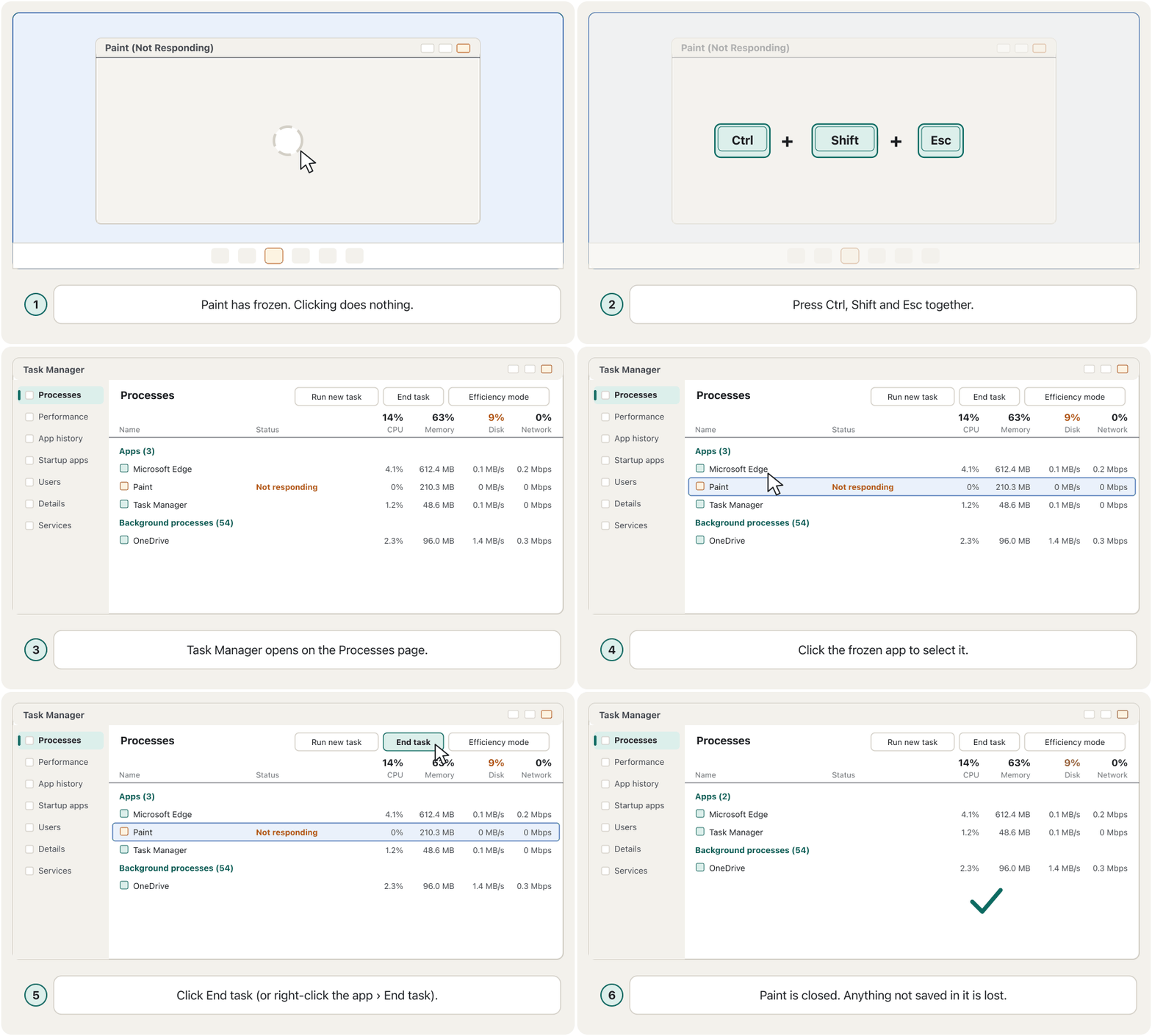
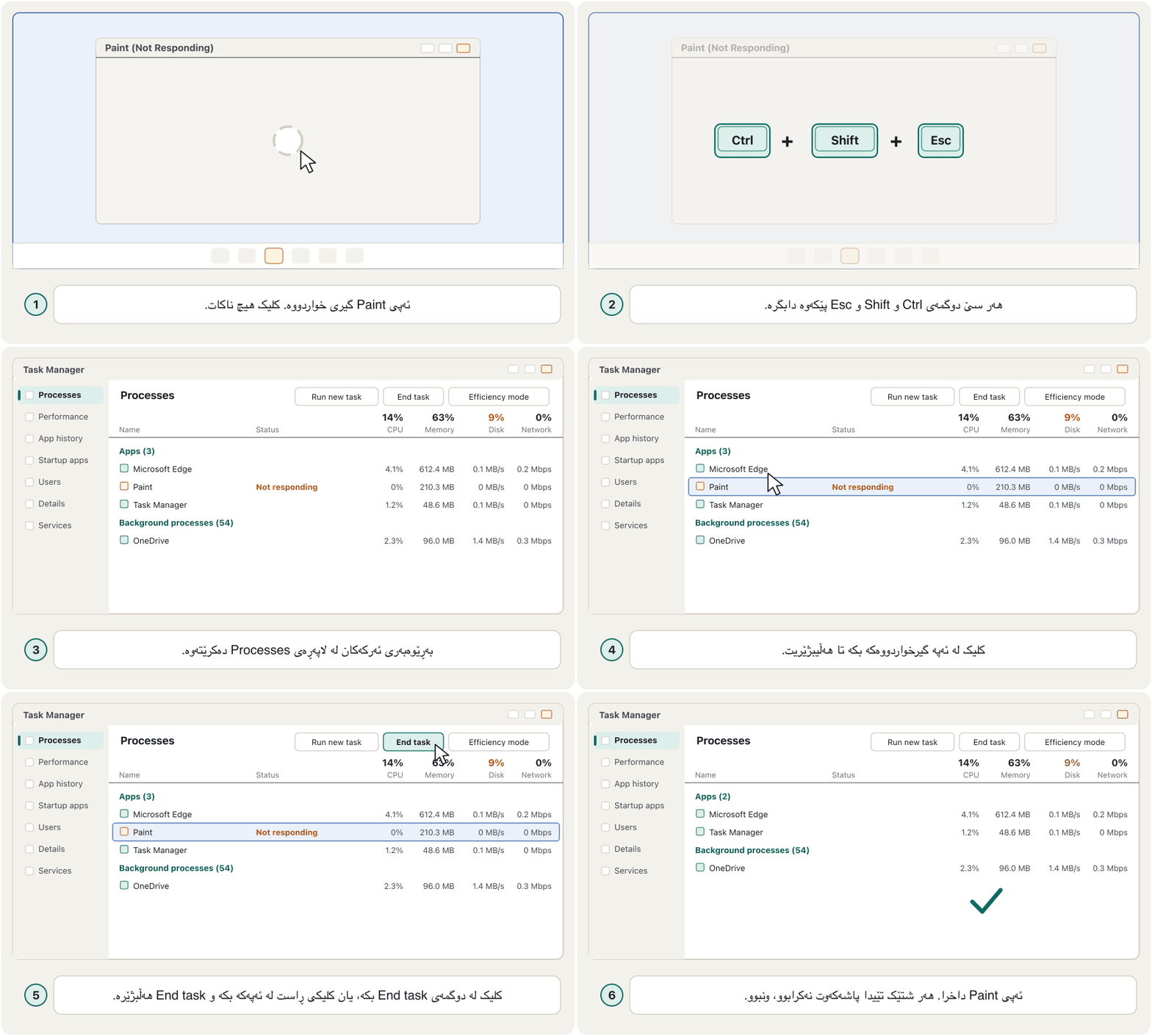
Closing a frozen app with End taskداخستنی ئەپێکی گیرخواردوو بە End task
Leave the Windows processes aloneدەست لە پرۆسێسەکانی Windows مەدە
Below the Apps on the Processes page come Background processes and Windows processes. Ending some of the Windows processes is not a good choice for beginners: Windows needs them, and you first have to learn when one may safely be ended. End the wrong one and the screen can go black, you can be signed out, or Windows restarts and unsaved work everywhere is lost.
لە لاپەڕەی Processes لە خوار Appsـەوە Background processes و Windows processes دێن. کوژاندنەوەی هەندێک لە Windows بژاردەیەکی باش نییە بۆ سەرەتاییەکان: Windows پێویستی پێیانە و سەرەتا دەبێت فێر ببیت کەی یەکێکیان بە سەلامەتی دەکوژێنرێتەوە. هەڵەیەکیان بکوژێنەوە، لەوانەیە شاشەکە ڕەش ببێت، لە هەژمارەکەت بچیتە دەرەوە یان Windows دەست پێ بکاتەوە و کاری پاشەکەوتنەکراو لە هەموو شوێنێک ون ببێت.
A safe example: if you end Windows Explorer, the taskbar and the desktop icons disappear, because Explorer draws them. They come back when you start Explorer again — see «Run new task» below.
نموونەیەکی بێمەترسی: ئەگەر Windows Explorer بکوژێنیتەوە، و ئایکۆنەکانی ڕوومێز نامێنن، چونکە Explorer دەیانکێشێت. کاتێک Explorer دووبارە کار پێ دەکەیتەوە دەگەڕێنەوە — سەیری «Run new task» لە خوارەوە بکە.
Reading the numbers: CPU, memory and diskخوێندنەوەی ژمارەکان: CPU، بیرگە و دیسک
At the top of the Processes page, each column shows how busy one part of the computer is: CPU, Memory, Disk, Network. The report points to the Disk percentage at the top right: it rises when the computer is slow. More exactly, a high number shows that the part is busy, and a busy part can be the cause of slowness — for example Disk at 96% while OneDrive syncs and an update installs. Click a column heading to sort, and the busiest process jumps to the top.
لە سەرەوەی لاپەڕەی Processes، هەر ستوونێک پیشان دەدات بەشێکی چەند سەرقاڵە: CPU، Memory، Disk، Network. ڕاپۆرتەکە ئاماژە بە Disk دەکات لە سەرەوەی لای ڕاست: کاتێک خاوە زیاد دەکات. بە وردی، ژمارەیەکی بەرز پیشان دەدات کە ئەو بەشە سەرقاڵە و بەشێکی سەرقاڵ دەتوانێت هۆکاری خاوی بێت — بۆ نموونە Disk لە 96%دا لە کاتێکدا OneDrive کاری دەکات و دادەمەزرێت. کلیک لە سەردێڕی ستوونێک بکە بۆ ڕیزکردن و سەرقاڵترین بۆ سەرەوە باز دەدات.
Reading the numbers: CPU, memory and diskخوێندنەوەی ژمارەکان: CPU، بیرگە و دیسک
The Performance pageلاپەڕەی Performance
The Performance page draws graphs over time for the CPU, memory, disk, network (Wi-Fi or Ethernet) and graphics processor. If the memory graph stays near full while you work, the computer is short of RAM — see How much RAM, and when to add more.
لاپەڕەی Performance بە درێژایی کات گرافی CPU، ، دیسک، ( یان ) و دەکێشێت. ئەگەر گرافی لە کاتی کارکردندا نزیکی پڕ بمێنێتەوە، RAMـی کەمە — سەیری چەند RAM و کەی زیاتر زیاد بکەیت بکە.
Run new taskدوگمەی Run new task
Task Manager can also start a program. Click Run new task, type the program's name and press OK. This helps when the taskbar or Start menu is not working: type explorer to bring the desktop and taskbar back, or notepad to open Notepad.
دەتوانێت دەست پێ بکات. کلیک لە Run new task بکە، ناوی بنووسە و OK دابگرە. ئەمە یارمەتی دەدات کاتێک یان Start کار ناکات: explorer بنووسە بۆ گەڕاندنەوەی ڕوومێز و ، یان notepad بۆ کردنەوەی Notepad.
Startup apps: a faster startئەپەکانی دەستپێکردن: دەستپێکردنێکی خێراتر
Many apps start by themselves every time the computer switches on. Each one makes the start slower and keeps using memory. Open Startup apps in Task Manager to see them all. Right-click an app you do not need at start-up and choose Disable — it no longer starts automatically, but you can still open it yourself. The Startup impact column (Low, Medium, High) shows which ones slow the start most.
زۆر ئەپ هەموو جارێک کە هەڵدەکرێت خۆیان دەکرێنەوە. هەریەکەیان دەستپێکردن خاوتر دەکات و بەردەوام بەکار دەهێنێت. Startup apps لە بکەرەوە بۆ بینینی هەموویان. کلیکی ڕاست لە ئەپێک بکە کە لە کاتی دەستپێکردندا پێویستت پێی نییە و Disable هەڵبژێرە — چیتر خۆکارانە ناکرێتەوە، بەڵام هێشتا خۆت دەتوانیت بیکەیتەوە. ستوونی Startup impact (Low، Medium، High) پیشان دەدات کامیان زیاتر دەستپێکردن خاو دەکەنەوە.
In Windows 11 Task Manager, open Startup apps, read the impact column and disable apps you do not need at start-up.
لە Windows 11ـدا Startup apps بکەرەوە، Impact بخوێنەوە و ناپێویست ناچالاک بکە.
Plays 5:20-8:41: in Windows 11 Task Manager, open Startup apps and disable apps you do not need when the PC starts.
لە 5:20 تا 8:41 پەخش دەبێت: لە Windows 11ـدا Startup apps دەکرێتەوە و ئەو کاتی دەستپێکردنی پێویست نین ناچالاک دەکرێن.
On a Mac: Force Quit and Activity Monitorلە Mac: Force Quit و Activity Monitor
A Mac has the same tools under other names.
Mac هەمان ئامرازەکانی هەیە بە ناوی ترەوە.
- Force Quit: press Option + Command + Esc (or choose Force Quit from the Apple menu), select the frozen app and click Force Quit. If Finder is frozen, choose it and click Relaunch.
- Activity Monitor (in Applications › Utilities) is the Mac's Task Manager: it shows CPU, memory, energy, disk and network use. Frozen apps say «Not Responding» in red. Select one, click the Stop button at the top and choose Quit, or Force Quit if Quit does not work.
- Login items (Apple's name for startup apps): System Settings › General › Login Items & Extensions.
- Whole Mac frozen: restart from the Apple menu; if even that fails, hold the power button for up to 10 seconds until the Mac switches off.
- Force Quit: Option + Command + Esc دابگرە (یان Force Quit لە Apple هەڵبژێرە)، ئەپە گیرخواردووەکە هەڵبژێرە و کلیک لە Force Quit بکە. ئەگەر Finder تووشی بوو، هەڵیبژێرە و کلیک لە Relaunch بکە.
- Activity Monitor (لە Applications › Utilities) Macـە: بەکارهێنانی CPU، ، وزە، دیسک و پیشان دەدات. ئەپە گیرخواردووەکان بە سووری دەڵێن «Not Responding». یەکێکیان هەڵبژێرە، کلیک لە دوگمەی Stop لە سەرەوە بکە و Quit هەڵبژێرە، یان Force Quit ئەگەر Quit کاری نەکرد.
- Login items (ناوی Apple بۆ ): System Settings › General › Login Items & Extensions.
- هەموو Macـەکە تووشی بووە: لە Apple بکە؛ ئەگەر ئەوەش سەرنەکەوت، دوگمەی پاوەر تا 10 چرکە دابگرە تا Macـەکە دەکوژێتەوە.
| Jobکار | Windows 11 | macOS |
|---|---|---|
| See what is running and what is busyبینینی ئەوەی کار دەکات و ئەوەی سەرقاڵە | Task Manager (Ctrl + Shift + Esc) | Activity Monitor (Applications › Utilities) |
| Close a frozen appداخستنی ئەپێکی گیرخواردوو | Processes › End task | Option + Command + Esc › Force Quit |
| Stop apps starting by themselvesڕاگرتنی خۆکردنەوەی ئەپەکان | Task Manager › Startup apps › Disable | System Settings › General › Login Items & Extensions |
A worked example: «My laptop is slow every morning»نموونەیەکی چارەسەرکراو: «لاپتۆپەکەم هەموو بەیانییەک خاوە»
Hana brings her laptop to the IT office: for the first ten minutes after she switches it on, everything is very slow. Here are the seven steps, one by one:
هانا دەهێنێتە ئۆفیسی IT: لە دە خولەکی یەکەمی دوای هەڵکردنی، هەموو شتێک زۆر خاوە. ئەمانە حەوت هەنگاوەکەن، یەک بە یەک:
- Identifyدیاریکردن
Questions and answers: since when? «Since last week.» Slow all day? «No, only after switching on.» What changed? «I installed a game launcher and a video app.» Any error message? «No.»
پرسیار و وەڵام: لە کەیەوە؟ «لە هەفتەی ڕابردووەوە.» هەموو ڕۆژ خاوە؟ «نەخێر، تەنها دوای هەڵکردن.» چی گۆڕاوە؟ «دەستپێکەری یارییەک و ئەپێکی ڤیدیۆم دامەزراند.» هیچ هەیە؟ «نەخێر.»
- Theoryگریمانە
Simple causes first: the new apps start by themselves with Windows and keep the disk busy.
سەرەتا هۆکارە سادەکان: ئەپە نوێیەکان لەگەڵ Windows خۆیان دەکرێنەوە و دیسکەکە سەرقاڵ دەهێڵنەوە.
- Testتاقیکردنەوە
Right after start-up, Ctrl + Shift + Esc: Disk is at 100%, and the game launcher is at the top of the Disk column. Startup apps shows the launcher and the video app with High impact. Theory confirmed. (Had the disk been quiet and an unknown process been using the CPU, the next theory would be malware — a case to escalate.)
یەکسەر دوای دەستپێکردن، Ctrl + Shift + Esc: Disk لە 100%دایە و دەستپێکەری یارییەکە لە سەرەوەی ستوونی Diskـە. Startup apps دەستپێکەرەکە و ئەپی ڤیدیۆکە بە کاریگەریی High پیشان دەدات. گریمانەکە پشتڕاست بووەوە. (ئەگەر دیسکەکە ئارام بووایە و نەناسراو CPUـی بەکار بهێنایە، گریمانەی داهاتوو دەبوو — حاڵەتێک بۆ .)
A worked example: «My laptop is slow every morning»نموونەیەکی چارەسەرکراو: «لاپتۆپەکەم هەموو بەیانییەک خاوە»
The worked example: fixing it and finishingنموونە چارەسەرکراوەکە: چاککردنەوە و تەواوکردن
- 4 · Plan. Disable the two apps at start-up; keep the antivirus and OneDrive. Nothing is deleted, and the way back is simple: Enable.
- 5 · Implement. Startup apps › right-click › Disable, for each of the two apps.
- 6 · Verify and prevent. Restart: the desktop is ready in about a minute, and Hana agrees it is fixed. Prevention: show her the «start with Windows» box that many installers tick, so she can untick it next time.
- 7 · Document. In the ticket: «Slow start since installing two apps. Cause: high-impact startup apps (Disk 100%). Fix: disabled both at start-up. Result: start-up about 1 minute.»
- 4 · پلان. دوو ئەپەکە لە دەستپێکردندا بکوژێنەوە؛ و OneDrive بهێڵەوە. هیچ شتێک ناسڕدرێتەوە و ڕێگەی گەڕانەوە سادەیە: Enable.
- 5 · جێبەجێکردن. Startup apps › کلیکی ڕاست › Disable، بۆ هەر یەکێک لە دوو ئەپەکە.
- 6 · دڵنیابوونەوە و ڕێگری. : ڕوومێزەکە لە نزیکەی خولەکێکدا ئامادەیە و هانا دەڵێت چاک بووە. ڕێگری: ئەو چوارگۆشەیەی «لەگەڵ Windows دەست پێ بکات»ی پیشان بدە کە زۆر بەرنامەی دامەزراندن نیشانەی دەکەن، تا جاری داهاتوو لای ببات.
- 7 · نووسینەوە. لە : «دەستپێکردنی خاو لە دوای دامەزراندنی دوو ئەپ. هۆکار: بە کاریگەریی بەرز (Disk 100%). چارەسەر: هەردووکیان لە دەستپێکردندا کوژێنرانەوە. ئەنجام: دەستپێکردن نزیکەی 1 خولەک.»
When a computer will not startکاتێک کۆمپیوتەر دەست پێ ناکات
Check a start-up fault in the order the computer starts. Each question rules out one part, and the cheapest checks come first — power and cables long before anything inside the case. Simple causes are common, so do not open the case before you have checked the socket and the cables.
کێشەیەکی دەستپێکردن بە هەمان ڕیزبەندیی دەستپێکردنی بپشکنە. هەر پرسیارێک یەک بەش لادەبات و هەرزانترین پشکنینەکان یەکەم دێن — کارەبا و کێبڵەکان زۆر پێش هەر شتێک لەناو . هۆکارە سادەکان باون، بۆیە پێش ئەوەی سۆکێت و کێبڵەکان بپشکنیت مەکەرەوە.
A technician finds why a PC will not start by checking, in order, the cables, the memory, the CMOS battery and the power supply.
تەکنیکارێک دەدۆزێتەوە بۆچی هەڵناکرێت، بە پشکنینی ئەمانە بە ڕیز: کێبڵەکان، ، و .
Plays from 2:00: checking cables, RAM, the battery and the power supply on a PC that will not start.
لە 2:00 بەدواوە پەخش دەبێت: پشکنینی کێبڵەکان، ، و لەسەر کە هەڵناکرێت.
When a computer will not startکاتێک کۆمپیوتەر دەست پێ ناکات
Symptoms and first fixes: power and pictureنیشانە و یەکەم چارەسەرەکان: کارەبا و وێنە
| Symptomنیشانە | First checksیەکەم پشکنینەکان |
|---|---|
| Will not switch onهەڵناکرێت | Test the socket with a lamp or a phone charger; check the plug, the extension lead or surge protector, and the switch on the back of the power supply.سۆکێتەکە بە گڵۆپێک یان بارگەکەرێکی مۆبایل تاقی بکەرەوە؛ پلەگ، کێبڵی درێژکەرەوە یان پارێزەری کارەبا و پشتەوەی بپشکنە. |
| Fans run, but the screen stays blackپانکەکان کار دەکەن، بەڵام ڕەش دەمێنێتەوە | The monitor's power and its video cable at both ends. Plug into the graphics card's port, not the motherboard's (unless the PC has only built-in graphics), or try another cable. Still black, with beeps or a debug light? Suspect the RAM or the graphics card — see If it does not boot.کارەبای و کێبڵی ڤیدیۆکەی لە هەردوو سەرەوە. کێبڵەکە بە ببەستە، نەک بە (مەگەر تەنها گرافیکی ناوخۆیی هەبێت)، یان کێبڵێکی تر تاقی بکەرەوە. هێشتا ڕەشە و بیپ یان ڕووناکیی هەڵە هەیە؟ گومان لە RAM یان بکە — سەیری ئەگەر بووت نەکرد بکە. |
| The date and time reset at every startڕێکەوت و کات لە هەموو دەستپێکردنێکدا دەگەڕێنەوە بۆ سەرەتا | The coin battery on the motherboard is empty — The CMOS battery.پاترییە دراوییەکەی سەر بەتاڵ بووە — پاتریی CMOS. |
When a computer will not startکاتێک کۆمپیوتەر دەست پێ ناکات
Symptoms and first fixes: apps, devices and printersنیشانە و یەکەم چارەسەرەکان: ئەپ، ئامێر و چاپەر
| Symptomنیشانە | First checksیەکەم پشکنینەکان |
|---|---|
| An app or Windows behaves strangelyئەپێک یان Windows بە شێوەیەکی نامۆ ڕەفتار دەکات | Save your work and restart; then run a virus scan — Signs of malware.کارەکەت پاشەکەوت بکە و بکە؛ پاشان پشکنینی ڤایرۆس بکە — نیشانەکانی نەرمەواڵەی زیانبەخش. |
| An external device does not work کار ناکات | Is it switched on and connected? Try another port or cable; check that it supports your Windows version; install or update its driver — Device Manager.هەڵکراوە و بەستراوە؟ یان کێبڵێکی تر تاقی بکەرەوە؛ دڵنیا ببەرەوە کە پشتگیریی وەشانی Windowsـەکەت دەکات؛ دابمەزرێنە یان نوێی بکەرەوە — Device Manager. |
| The printer prints nothing هیچ چاپ ناکات | Paper, ink or toner, and the printer's own screen. Switch it off, unplug it for 30 seconds and on again. Open its print queue — Settings › Bluetooth & devices › Printers & scanners › your printer › Open print queue — cancel a stuck job, and make sure «Use Printer Offline» is not ticked.کاغەز، مەرەکەب یان و شاشەی خودی . بیکوژێنەوە، بۆ 30 چرکە لە کارەبا دەری بهێنە و دووبارە هەڵی بکەرەوە. ڕیزی چاپکردنەکەی بکەرەوە — Settings › Bluetooth & devices › Printers & scanners › › Open print queue — کارێکی گیرخواردوو هەڵبوەشێنەرەوە و دڵنیا ببەرەوە کە «Use Printer Offline» نیشانە نەکراوە. |
When a computer will not startکاتێک کۆمپیوتەر دەست پێ ناکات
When Windows crashes: the stop errorکاتێک Windows دەکەوێت: هەڵەی وەستان
A stop error means Windows met a problem it cannot survive. It shows «Your device ran into a problem and needs to restart», with a stop code at the bottom such as MEMORY_MANAGEMENT, and restarts. For years this screen was blue — the famous «blue screen of death»; since Windows 11 version 24H2 it is black. Write the stop code down. Common causes are a faulty driver, a hardware problem (memory, power, heat) or damaged system files. Microsoft's first steps: remove hardware you added just before, check Device Manager, free some disk space (about 10–15% of the drive) and install Windows updates.
هەڵەی وەستان (stop error) واتە Windows گەیشتووەتە کێشەیەک کە ناتوانێت لەگەڵیدا بەردەوام بێت. پەیامی «Your device ran into a problem and needs to restart» پیشان دەدات، بە کۆدێکی وەستان لە خوارەوە وەک MEMORY_MANAGEMENT و دەکات. بۆ چەندین ساڵ ئەم شاشەیە شین بوو — «شاشە شینەکەی مەرگ»ی بەناوبانگ؛ لە Windows 11 وەشانی 24H2ـەوە ڕەشە. کۆدەکە بنووسە. هۆکارە باوەکان خراپ، کێشەیەکی (، کارەبا، گەرمی) یان سیستەم. یەکەم هەنگاوەکانی Microsoft: ئەو پێش کێشەکە زیادت کرد لایبەرە، Device Manager بپشکنە، هەندێک شوێنی دیسک بەتاڵ بکەرەوە (نزیکەی 10–15%ـی درایڤەکە) و Windows دابمەزرێنە.
What a Windows 'blue screen' crash is and why it happens, for example because of a bad driver or faulty hardware.
« شین» چییە کە Windows لە کاتی پیشانی دەدات و بۆچی ڕوودەدات: بۆ نموونە کاتێک یان پارچەیەکی تێکچووە.
Plays 0:00-4:32 (stops before the sponsor): common causes of the blue screen.
لە 0:00 تا 4:32 پەخش دەبێت (پێش ڕیکلامی سپۆنسەر ڕادەوەستێت): هۆکارە باوەکانی « شین».
When a computer will not startکاتێک کۆمپیوتەر دەست پێ ناکات
Windows recovery optionsبژاردەکانی چاککردنەوەی Windows
If the trouble began after a change, undo the change. Windows' recovery options, from the gentlest:
ئەگەر کێشەکە دوای گۆڕانکارییەک دەستی پێ کرد، گۆڕانکارییەکە بگەڕێنەوە. بژاردەکانی چاککردنەوەی Windows، لە نەرمترینەوە:
- Uninstall a recent update (Settings › Windows Update › Update history › Uninstall updates) — your files and apps stay.
- System Restore — takes system files and settings back to a restore point; your personal files stay.
- Startup Repair — in the Windows Recovery Environment (Windows RE), which opens by itself after two failed starts in a row.
- Reset this PC — reinstalls Windows and lets you keep or remove your personal files.
- A clean reinstall from a USB drive comes last — Installing and Setting Up Windows.
- دوایین لاببە (Settings › Windows Update › Update history › Uninstall updates) — و ئەپەکانت دەمێننەوە.
- System Restore — و سیستەم دەگەڕێنێتەوە بۆ خاڵێکی گەڕاندنەوە (restore point)؛ کەسییەکانت دەمێننەوە.
- Startup Repair — لەناو ژینگەی چاککردنەوەی Windows (Windows RE)، کە دوای دوو دەستپێکردنی سەرنەکەوتووی لە دوای یەک خۆی دەکرێتەوە.
- Reset this PC — Windows دادەمەزرێنێتەوە و ڕێگەت دەدات کەسییەکانت بهێڵیتەوە یان لایانبەیت.
- لە دوایین هەنگاوە — دامەزراندن و ڕێکخستنی Windows.
Where to look for common faultsکێشە باوەکان لە کوێ بدۆزیتەوە
Many faults belong to one part of the computer, and the course explains them in that part's lesson. Use this table as a map:
زۆر کێشە پەیوەندییان بە یەک بەشی هەیە و کۆرسەکە لە وانەی ئەو بەشەدا ڕوونیان دەکاتەوە. ئەم خشتەیە وەک نەخشە بەکار بهێنە:
| Symptomنیشانە | Readبخوێنەوە |
|---|---|
| A new PC will not start نوێ دەست پێ ناکات | The first bootیەکەم بووتکردن |
| The hard disk clicks, or files will not open چرکەچرک دەکات، یان ناکرێنەوە | Five ways a hard disk failsپێنج ڕێگای تێکچوونی هارد دیسک |
| Slow with many apps open; memory always fullخاو لەگەڵ کردنەوەی زۆر ئەپ؛ هەمیشە پڕ | How much RAMچەند RAM |
| Hot, loud fan, sudden shut-downsگەرم، پانکەی بەدەنگ، کوژانەوەی کتوپڕ | Heat and coolingگەرمی و ساردکردنەوە |
| A device works badly after an updateئامێرێک دوای خراپ کار دەکات | Device driversوانەی درایڤەرەکانی ئامێر |
| No internet at home لە ماڵەوە نییە | The router at homeڕاوتەری ماڵەوە |
| Pop-ups, strange programs, a ransom messageپەنجەرەی کتوپڕ، نامۆ، نامەی داوای بارمتە | Malwareوانەی نەرمەواڵەی زیانبەخش |
Prevention: regular maintenanceڕێگری: چاککاریی پێشوەختە
Prevention costs less than repair. A few regular habits stop many of the faults in this lesson; each is taught in detail in its own lesson:
ڕێگری لە چاککردنەوە هەرزانترە. چەند خوویەکی بەردەوام ڕێگە لە زۆر لە کێشەکانی ئەم وانەیە دەگرن؛ هەریەکەیان بە وردی لە وانەی خۆیدا فێر دەکرێت:
- Dust: clean fans, vents and filters — Caring for a PC.
- Power: check cables, sockets and extension leads; switch off at the wall in a power cut; a UPS helps — Everyday habits.
- Updates and protection: install Windows and app updates and keep the antivirus on — After installing.
- Free space: a nearly full disk slows everything. Settings › System › Storage shows what fills it, and «Temporary files» can be removed safely.
- Check the drive for errors now and then: File Explorer › This PC › right-click the drive › Properties › Tools › Check. In Command Prompt,
chkdskonly reports;chkdsk C: /frepairs (as administrator; for drive C: it runs at the next restart) — Command Prompt. - Backups before every big change — The 3-2-1 rule.
- تۆز: پانکە، کونی هەوا و فلتەرەکان پاک بکەرەوە — چاودێریکردنی کۆمپیوتەر.
- کارەبا: کێبڵ، سۆکێت و کێبڵی درێژکەرەوە بپشکنە؛ لە کاتی بڕانی کارەبادا لە سۆکێتی دیوارەوە بیکوژێنەوە؛ یارمەتی دەدات — خووە ڕۆژانەکان.
- و پاراستن: Windows و ئەپەکان دابمەزرێنە و هەڵکراو بهێڵەوە — دوای دامەزراندن.
- شوێنی بەتاڵ: دیسکێکی نزیکەی پڕ هەموو شتێک خاو دەکاتەوە. Settings › System › Storage پیشان دەدات چی پڕی کردووە و «Temporary files» () بە سەلامەتی دەسڕدرێنەوە.
- درایڤەکە بۆ هەڵە بپشکنە جار جار: File Explorer › This PC › کلیکی ڕاست لە درایڤەکە › Properties › Tools › Check. لە Command Promptـدا
chkdskتەنها ڕاپۆرت دەدات؛chkdsk C: /fچاکی دەکاتەوە (وەک بەڕێوەبەر؛ بۆ درایڤی C: لە داهاتوودا کار دەکات) — Command Prompt. - پێش هەموو گۆڕانکارییەکی گەورە — ڕێسای باکئەپی 3-2-1.
When to stop and ask for helpکەی بوەستیت و داوای یارمەتی بکەیت
Step 5 says «implement the solution or escalate». Escalating is not giving up; it is sending the problem to the person who can fix it safely. Stop and ask the help desk or a technician when:
هەنگاوی 5 دەڵێت «چارەسەرەکە جێبەجێ بکە یان ». وازهێنان نییە؛ ناردنی کێشەکەیە بۆ ئەو کەسەی دەتوانێت بە سەلامەتی چاکی بکاتەوە. بوەستە و داوای یارمەتی لە یان تەکنیکارێک بکە کاتێک:
- The fix needs knowledge, tools or permissions you do not have — an administrator password, opening a laptop that is under warranty, a server.
- Many people have the same problem at once — the network or the e-mail server, not one PC.
- You see signs of an attack: a ransom message, programs you did not install, an account that sends messages by itself. Report it at once and do not try to clean it yourself.
- Data is at risk: a disk that clicks or grinds. Stop using it — every minute can damage it more.
- There is danger: a burning smell, smoke or a swollen battery. Switch off, unplug, and do not open it.
- You have tested your theories and none was confirmed.
- چارەسەرەکە پێویستی بە زانیاری، ئامراز یان دەسەڵاتێکە کە نیتە — بەڕێوەبەر، کردنەوەی کە هێشتا لە ماوەی گەرەنتیدایە، .
- زۆر کەس لە هەمان کاتدا هەمان کێشەیان هەیە — یان ئیمەیڵ، نەک یەک کۆمپیوتەر.
- نیشانەی هێرش دەبینیت: نامەی داوای بارمتە، کە خۆت دانەتمەزراندووە، هەژمارێک کە خۆی نامە دەنێرێت. یەکسەر ڕاپۆرتی بکە و هەوڵ مەدە خۆت پاکی بکەیتەوە.
- لە مەترسیدایە: دیسکێک کە چرکەچرک یان قرچەقرچ دەکات. واز لە بەکارهێنانی بهێنە — هەر خولەکێک دەتوانێت زیاتر زیانی پێ بگەیەنێت.
- مەترسی هەیە: بۆنی سووتان، دووکەڵ یان پاترییەکی پەنەماو. بیکوژێنەوە، لە کارەبای دەربهێنە و مەیکەرەوە.
- گریمانەکانت تاقی کردووەتەوە و هیچیان پشتڕاست نەبوونەوە.
When to stop and ask for helpکەی بوەستیت و داوای یارمەتی بکەیت
Write a useful ticketتیکێتێکی پشتگیریی بەسوود بنووسە
When you escalate, write a useful ticket: the device, what happens and since when, the exact error message (a screenshot helps) and everything you already tried. How a ticket travels is shown in How a problem travels: the ticket; the English for the call is in How a help desk works.
کاتێک دەکەیت، بەسوود بنووسە: ئامێرەکە، چی ڕوو دەدات و لە کەیەوە، بە وردی ( یارمەتی دەدات) و هەموو ئەوەی پێشتر تاقیت کردووەتەوە. چۆنیەتیی ڕۆیشتنی لە کێشەیەک چۆن دەڕوات: تیکێتی پشتگیریدا پیشان دراوە؛ ئینگلیزیی پەیوەندییەکە لە بەشی یارمەتی چۆن کار دەکاتدایە.
Common mistakesهەڵە باوەکان
- Changing things before asking questions. Step 1 often solves half the problem.
- Changing several things at once. You will not know which change helped — or which one broke something else.
- Ending Windows processes «to free memory». It can crash or restart Windows; end only apps you know.
- Holding the power button first. It throws away unsaved work in every app. Try End task or Force Quit first.
- Forgetting step 7. Without notes, the next person starts from zero.
- گۆڕینی شتەکان پێش پرسیارکردن. هەنگاوی 1 زۆرجار نیوەی کێشەکە چارەسەر دەکات.
- گۆڕینی چەند شتێک پێکەوە. نازانیت کام گۆڕانکاری یارمەتی دا — یان کامیان شتێکی تری تێکدا.
- کوژاندنەوەی Windows «بۆ بەتاڵکردنی ». دەتوانێت Windows بخات یان دەستی پێ بکاتەوە؛ تەنها ئەو ئەپانە دابخە کە دەیانناسیت.
- یەکەمجار داگرتنی دوگمەی پاوەر. کاری پاشەکەوتنەکراوی هەموو ئەپەکان فڕێ دەدات. سەرەتا End task یان Force Quit تاقی بکەرەوە.
- لەبیرکردنی هەنگاوی 7. بەبێ تێبینی، کەسی داهاتوو لە سفرەوە دەست پێ دەکات.
Exercisesڕاهێنانەکان
Order these: verify and prevent; establish a theory; document; identify the problem; implement or escalate; test the theory; plan the fix.
ئەمانە ڕیز بکە: دڵنیابوونەوە و ڕێگری؛ دانانی گریمانە؛ نووسینەوە؛ دیاریکردنی کێشەکە؛ جێبەجێکردن یان ؛ تاقیکردنەوەی گریمانەکە؛ پلانی چارەسەر.
Show answerوەڵامەکە پیشان بدە
- Identify the problem
- Establish a theory of probable cause
- Test the theory
- Plan the fix and its effects
- Implement or escalate
- Verify and prevent
- Document
- دیاریکردنی کێشەکە
- دانانی گریمانەی هۆکاری ئەگەری
- تاقیکردنەوەی گریمانەکە
- پلانی چارەسەر و کاریگەرییەکانی
- جێبەجێکردن یان
- دڵنیابوونەوە و ڕێگری
- نووسینەوە
Karwan clicks Print, but the printer in the office prints nothing. Write three questions for step 1, two simple theories for step 2 and one test for each theory.
کاروان کلیک لە Print دەکات، بەڵام ئۆفیسەکە هیچ چاپ ناکات. سێ پرسیار بۆ هەنگاوی 1، دوو گریمانەی سادە بۆ هەنگاوی 2 و بۆ هەر گریمانەیەک یەک تاقیکردنەوە بنووسە.
Show answerوەڵامەکە پیشان بدە
Questions: does it print for anyone else? Is there an error on the printer's screen? Did anything change — a new printer, a moved cable, an update? Theories: the printer is off, out of paper or jammed (test: look at the printer and its screen); the job went to a different printer (test: check which printer was chosen in the Print window and look at the print queue).
پرسیارەکان: بۆ کەسانی تر چاپ دەکات؟ لەسەر شاشەی هەیە؟ شتێک گۆڕاوە — نوێ، کێبڵێکی جوڵێنراو، ؟ گریمانەکان: کوژاوەتەوە، کاغەزی نەماوە یان کاغەزی تێدا گیراوە (تاقیکردنەوە: سەیری و شاشەکەی بکە)؛ کارەکە بۆ تر چووە (تاقیکردنەوە: بپشکنە لە پەنجەرەی Print کام هەڵبژێردرا و سەیری ڕیزی چاپکردن بکە).
Task Manager shows: CPU 98% (a video editor uses 90%), Memory 60%, Disk 4%. The laptop is slow while the video is exported. What is busy, and what would you advise?
پیشان دەدات: CPU 98% (دەستکاریکەرێکی ڤیدیۆ 90% بەکار دەهێنێت)، Memory 60%، Disk 4%. لە کاتی دەرهێنانی ڤیدیۆکەدا خاوە. چی سەرقاڵە و چ ئامۆژگارییەک دەکەیت؟
Show answerوەڵامەکە پیشان بدە
The CPU is busy, because exporting video is heavy work; nothing is broken. Advice: let the export finish, or close other apps meanwhile. End task is not needed — the app is working, not frozen.
CPU سەرقاڵە، چونکە دەرهێنانی ڤیدیۆ کارێکی قورسە؛ هیچ شتێک تێکنەچووە. ئامۆژگاری: با دەرهێنانەکە تەواو بێت، یان لەو ماوەیەدا ئەپەکانی تر دابخە. End task پێویست نییە — ئەپەکە کار دەکات، تووشی نەبووە.
For each job, write the Windows 11 way and the macOS way: (a) close a frozen app; (b) see which app uses the most memory; (c) stop an app opening by itself at start-up.
بۆ هەر کارێک ڕێگای Windows 11 و ڕێگای macOS بنووسە: (أ) داخستنی ئەپێکی گیرخواردوو؛ (ب) بینینی ئەوەی کام ئەپ زۆرترین بەکار دەهێنێت؛ (ج) ڕاگرتنی خۆکردنەوەی ئەپێک لە کاتی دەستپێکردندا.
Show answerوەڵامەکە پیشان بدە
- (a) Ctrl + Shift + Esc › select › End task; Option + Command + Esc › Force Quit.
- (b) Task Manager › Processes, sort by Memory; Activity Monitor › Memory.
- (c) Task Manager › Startup apps › Disable (or Settings › Apps › Startup); System Settings › General › Login Items & Extensions.
- (أ) Ctrl + Shift + Esc › هەڵبژاردن › End task؛ Option + Command + Esc › Force Quit.
- (ب) Task Manager › Processes، ڕیزکردن بەپێی Memory؛ Activity Monitor › Memory.
- (ج) Task Manager › Startup apps › Disable (یان Settings › Apps › Startup)؛ System Settings › General › Login Items & Extensions.
Decide for each: (a) one app is frozen on your own laptop; (b) nobody in the faculty can open e-mail; (c) your laptop battery has swollen and the case is bending; (d) a startup app slows your laptop.
بۆ هەریەکەیان بڕیار بدە: (أ) ئەپێک لەسەر خۆت تووشی بووە؛ (ب) هیچ کەسێک لە کۆلێژەکەدا ناتوانێت ئیمەیڵ بکاتەوە؛ (ج) پاتریی پەنەماوە و قاپەکەی چەماوەتەوە؛ (د) خاو دەکاتەوە.
Show answerوەڵامەکە پیشان بدە
- (a) Fix it yourself: End task.
- (b) Escalate: many users means a server or network problem.
- (c) Escalate at once — switch off, unplug, do not open it: it is a fire risk.
- (d) Fix it yourself: Startup apps › Disable.
- (أ) خۆت چاکی بکە: End task.
- (ب) : زۆر بەکارهێنەر واتە کێشەی یان .
- (ج) یەکسەر — بیکوژێنەوە، لە کارەبای دەربهێنە، مەیکەرەوە: مەترسیی ئاگرکەوتنەوەی هەیە.
- (د) خۆت چاکی بکە: Startup apps › Disable.
For each case, say hardware or software, and give the first thing you would do: (a) the PC beeps and shows nothing; (b) only Excel closes, and only with one workbook; (c) there is a burning smell from the case; (d) the date goes back to 1 January every morning; (e) after a driver update the sound stopped.
بۆ هەر حاڵەتێک بڵێ یان و یەکەم کار بنووسە کە دەیکەیت: (أ) بیپ دەکات و هیچ پیشان نادات؛ (ب) تەنها Excel دادەخرێت، ئەویش تەنها لەگەڵ یەک ؛ (ج) بۆنی سووتان لە دێت؛ (د) ڕێکەوت هەموو بەیانییەک دەگەڕێتەوە بۆ 1ی کانوونی دووەم؛ (هـ) دوای دەنگ نەما.
Show answerوەڵامەکە پیشان بدە
- (a) Hardware: the POST found a fault — note the beeps and check the RAM and graphics card (or escalate).
- (b) Software: that program or that file — try another file, repair or update Excel.
- (c) Hardware, probably the power supply: switch off, unplug, do not open it — escalate.
- (d) Hardware: the CMOS battery is empty — replace it.
- (e) Software: the driver — roll it back in Device Manager.
- (أ) : POST هەڵەیەکی دۆزیەوە — بیپەکان بنووسە و RAM و بپشکنە (یان بکە).
- (ب) : ئەو یان ئەو — تر تاقی بکەرەوە، Excel چاک یان نوێ بکەرەوە.
- (ج) ، ئەگەری زۆرتر : بیکوژێنەوە، لە کارەبا دەری بهێنە، مەیکەرەوە — بکە.
- (د) : بەتاڵ بووە — بیگۆڕە.
- (هـ) : — لە Device Manager بیگەڕێنەوە.
Summaryپوختە
- Troubleshoot with CompTIA's seven steps: identify, theory, test, plan, implement or escalate, verify and prevent, document.
- Decide early whether a fault is hardware (noise, smoke, no power, beeps, no picture) or software (errors after Windows starts, in one program); Device Manager shows devices with problems.
- Task Manager (Ctrl + Shift + Esc) lists apps and processes and shows how busy the CPU, memory, disk and network are.
- End task closes a frozen app, and its unsaved work is lost; leave Windows processes alone.
- Run new task starts a program; Startup apps › Disable makes start-up faster.
- On a Mac: Option + Command + Esc (Force Quit), Activity Monitor and Login Items.
- A PC that will not start: check power, then picture, then Windows. Stop errors: note the stop code; undo the last change, then use the recovery options; reinstall last.
- Prevention is cheaper than repair: dust, power, updates, free space, drive checks and backups.
- Escalate when it needs more knowledge or permission, affects many people, risks data or safety — with a clear ticket.
- بە حەوت هەنگاوەکەی CompTIA بکە: دیاریکردن، گریمانە، تاقیکردنەوە، پلان، جێبەجێکردن یان ، دڵنیابوونەوە و ڕێگری، نووسینەوە.
- زوو بڕیار بدە کێشەکە (دەنگ، دووکەڵ، کارەبا نییە، بیپ، وێنە نییە) یان (هەڵە دوای دەستپێکردنی Windows، لە یەک )؛ Device Manager ئەو ئامێرانە پیشان دەدات کە کێشەیان هەیە.
- (Ctrl + Shift + Esc) ئەپ و لیست دەکات و پیشان دەدات CPU، ، دیسک و چەند سەرقاڵن.
- End task ئەپێکی گیرخواردوو دادەخات و کاری پاشەکەوتنەکراوی ون دەبێت؛ دەست لە Windows مەدە.
- Run new task دەست پێ دەکات؛ Startup apps › Disable دەستپێکردن خێراتر دەکات.
- لە Mac: Option + Command + Esc (Force Quit)، Activity Monitor و Login Items.
- کە دەست پێ ناکات: کارەبا، پاشان وێنە، پاشان Windows بپشکنە. هەڵەی وەستان: کۆدی وەستان بنووسە؛ دوایین گۆڕانکاری بگەڕێنەوە، پاشان بژاردەکانی چاککردنەوە بەکار بهێنە؛ دامەزراندنەوە دوایین هەنگاوە.
- ڕێگری لە چاککردنەوە هەرزانترە: تۆز، کارەبا، ، شوێنی بەتاڵ، پشکنینی درایڤ و .
- کاتێک زانیاری یان دەسەڵاتی زیاتری دەوێت، کاریگەریی لەسەر زۆر کەس هەیە، یان یان سەلامەتی دەخاتە مەترسییەوە، بکە — بە ڕوون.
Lesson complete!وانەکە تەواو بوو!
Well done. Review the key terms, then go on to the next lesson.دەستخۆش. سەیرێکی زاراوە سەرەکییەکان بکەرەوە، پاشان بڕۆ بۆ وانەی داهاتوو.
Key termsزاراوە سەرەکییەکان
Related lecturesوانە پەیوەندیدارەکان
- IT Jobs and the Skills They Needکارەکانی IT و ئەو کارامەییانەی پێویستیانە
- Troubleshooting and the Help Deskچارەسەرکردنی کێشە و بەشی یارمەتی
- Building and Caring for a PCپێکەوەنان و چاودێریکردنی کۆمپیوتەر
- Memory: RAM, ROM and Cacheبیرگە: RAM، ROM و کاش
- Hard Disk Drivesهارد دیسکەکان
- Malware: Viruses, Worms, Trojans, Ransomware and Spywareنەرمەواڵەی زیانبەخش: ڤایرۆسەکانی کۆمپیوتەر، کرمەکان، ئەسپەکانی ترۆیا، نەرمەواڵەی بارمتەگر و نەرمەواڵەی سیخوڕی
- Incident Response: Six Phasesوەڵامدانەوەی ڕووداو: شەش قۆناغ
- Installing and Setting Up Windowsجێگیرکردن و ڕێکخستنی Windows
- The System Unit, Motherboard and Power Supplyکەیس، بۆردی سەرەکی و سەرچاوەی وزە
- The Command Line: Command Prompt Basicsڕووکاری هێڵی فەرمان: بنەماکانی Command Prompt
- Algorithms, Pseudocode and Flowchartsئەلگۆریزمەکان، نیمچەکۆد و هێڵکارییەکانی ڕەوت
References and further readingسەرچاوەکان و خوێندنەوەی زیاتر
- CompTIA: Use a troubleshooting methodology for more efficient IT support (the seven steps)
- CompTIA A+ Core 1 (220-1201): exam domains (hardware and network troubleshooting 28%)
- Microsoft Learn: Troubleshoot processes by using Task Manager
- Microsoft Support: Tips to improve PC performance in Windows (Ctrl + Shift + Esc, Startup apps, Storage)
- Microsoft Support: Configure startup applications in Windows (Settings › Apps › Startup; startup impact)
- Microsoft Support: Keyboard shortcuts in Windows (Ctrl + Shift + Esc)
- Apple Support 102586: How to force an app to quit on your Mac
- Activity Monitor User Guide: Quit a process
- Activity Monitor User Guide (overview)
- Mac User Guide: Change Login Items & Extensions settings
- Microsoft Support: Troubleshooting blue screen (stop) errors — black screen on Windows 11 24H2 and later; first steps
- Microsoft Support: Recovery options in Windows (uninstall updates, System Restore, Reset this PC)
- Microsoft Learn: Windows Recovery Environment (opens after two failed starts)
- Microsoft Support: Update drivers through Device Manager in Windows
- Microsoft Support: Fix printer connection and printing problems in Windows
- Microsoft Support: Troubleshooting offline printer problems in Windows (Open print queue; Use Printer Offline)
- Microsoft Learn: chkdsk
This lecture is a first edition. The Kurdish text and terminology are waiting for review by Kurdish IT teachers.ئەم وانەیە چاپی یەکەمە. دەقە کوردییەکە و زاراوەکانی چاوەڕێی پێداچوونەوەی مامۆستایانی کوردی بواری IT ن.