Chapterبەش 5 · Lectureوانە 5.6
Word Processing Essentialsبنەماکانی بەرنامەی نووسینی دەق
Work faster in Microsoft Word: select and format text, align paragraphs, copy and paste, find and replace, and the file shortcuts (with the Mac keys); then give a document structure with styles and headings, the Navigation pane and an automatic table of contents; set the page layout, headers and a cover page; style tables, pictures and callouts; insert links and an Excel object; track changes; and build the =rand() lab report.
خێراتر لە Microsoft Wordـدا کار بکە: دیاریکردن و نووسین، ڕێکخستنی پەرەگراف، و ، و کورتەڕێکانی فایل (لەگەڵ دوگمەکانی Mac)؛ پاشان بە و سەرباس، و خۆکار پێکهاتە بدە بە بەڵگەنامەکە؛ ، و ڕێک بخە؛ ، وێنە و ڕازێنەرەوە؛ و Excel دابنێ؛ بەکار بهێنە و ڕاپۆرتی تاقیگەی =rand() دروست بکە.
What you will learnچی فێر دەبیت
- Format text and paragraphs with the ribbon and the correct Windows and Mac shortcuts.
- Copy, cut, paste, find and replace text safely.
- Save, print and close documents with the file shortcuts.
- Explain why heading styles matter and use them with the Navigation pane and an automatic table of contents.
- Set margins, orientation, page breaks, headers, footers and a cover page.
- Insert and style tables, pictures, shapes, hyperlinks and an Excel object.
- Review a document with Track Changes and comments.
- نووسین و پەرەگراف بە و کورتەڕێ دروستەکانی Windows و Mac بگۆڕیت.
- نووسین بە سەلامەتی کۆپی بکەیت، ببڕیت، بلکێنیت، بیدۆزیتەوە و بیگۆڕیت.
- بە کورتەڕێکانی فایل بەڵگەنامە پاشەکەوت بکەیت، چاپ بکەیت و دایبخەیت.
- ڕوونی بکەیتەوە بۆچی گرنگن و لەگەڵ و خۆکار بەکاریان بهێنیت.
- پەراوێز، ئاڕاستە، پچڕانی لاپەڕە، ، و ڕێک بخەیت.
- ، وێنە، ، و Excel دابنێیت و ڕێکیان بخەیت.
- بەڵگەنامەیەک بە و پێدا بچیتەوە.
What a word processor doesبەرنامەی نووسینی دەق چی دەکات؟
A word processor is an app for writing documents: letters, reports, CVs, exam papers. You type the words, then you shape how they look and how they are organised. Microsoft Word is the most used one; Google Docs, LibreOffice Writer and Apple Pages do the same jobs with slightly different menus. This lesson uses Word for Microsoft 365 on Windows, with the Mac keys beside the Windows keys.
بۆ نووسینی بەڵگەنامە: نامە، ڕاپۆرت، CV، پرسیارنامەی تاقیکردنەوە. وشەکان دەنووسیت، پاشان دیاری دەکەیت چۆن دەربکەون و چۆن ڕێک بخرێن. Microsoft Word زۆرترین بەکارهێنەری هەیە؛ Google Docs، LibreOffice Writer و Apple Pages هەمان کار دەکەن بە لیستی کەمێک جیاواز. ئەم وانەیە Wordـی Microsoft 365 لەسەر Windows بەکار دەهێنێت و دوگمەکانی Macیش لە تەنیشتیانەوە دەنووسێت.
An for writing, editing and formatting documents such as letters, reports and CVs, for example Microsoft Word or Google Docs.
بەرنامەیەکە بۆ نووسین، دەستکاریکردن و ڕێکخستنی شێوەی بەڵگەنامەکانی وەک نامە، ڕاپۆرت و ژیاننامە، بۆ نموونە Microsoft Word یان Google Docs.
What a word processor doesبەرنامەی نووسینی دەق چی دەکات؟
The Word windowپەنجەرەی Word
Every Office app has the same kind of window: tabs at the top (File, Home, Insert, Layout, References, Review, View), and under them the ribbon, where the commands sit in named groups. You already know this window if you studied The PowerPoint Screen: the ribbon, the Quick Access Toolbar and the contextual tabs work the same way in Word, so they are not taught again here.
هەموو Office هەمان جۆری پەنجەرەیان هەیە: لە سەرەوە (File، Home، Insert، Layout، References، Review، View) و لە ژێریاندا ، کە تێیدا لە ناودار ڕیز کراون. ئەگەر شاشەی PowerPointـت خوێندبێت، ئەم پەنجەرەیە دەناسیت: ، و لە Wordـیشدا هەمان شێوە کار دەکەن، بۆیە لێرەدا دووبارە نابنەوە.
Select, then format: bold, italic, underline and fontsدیاریکردن، پاشان فۆرمات: تۆخ، لار، هێڵبەژێرداهێنان و فۆنتەکان
Formatting changes how text looks, not what it says. First select the text: drag over it with the mouse, double-click one word, or press Ctrl+A to select all the text in the document. Then use the buttons in the Font group of the Home tab, or their shortcuts:
شێوەی نووسین دەگۆڕێت، نەک مانای نووسینەکە. سەرەتا نووسینەکە دیاری بکە: بە بەسەریدا ڕایبکێشە، دوو جار کلیک لە وشەیەک بکە، یان Ctrl+A دابگرە بۆ ئەوەی هەموو نووسینەکانی بەڵگەنامەکە دیاری بکەیت. پاشان دوگمەکانی گرووپی Font لە Home بەکار بهێنە، یان کورتەڕێکانیان:
| Windows | Mac | What it doesچی دەکات |
|---|---|---|
Ctrl+A | Command+A | Selects all the text in the document.هەموو نووسینەکانی بەڵگەنامەکە دیاری دەکات. |
Ctrl+B | Command+B | Makes the selected text bold (thick).نووسینی دیاریکراو دەکات. |
Ctrl+I | Command+I | Makes the selected text italic (slanted).نووسینی دیاریکراو دەکات. |
Ctrl+U | Command+U | Draws a line under the selected text (underline).هێڵێک بە ژێر نووسینی دیاریکراودا دەهێنێت (). |
Ctrl+D | Command+D | Opens the Font dialog box: font name, style, size, colour, effects. Ctrl+Shift+F does the same on Windows. Font دەکاتەوە: ناوی ، شێوە، قەبارە، ڕەنگ و کاریگەری. لە Windowsـدا Ctrl+Shift+Fیش هەمان کار دەکات. |
Ctrl+] | Command+] | Makes the font one point bigger (Ctrl+[ one point smaller).قەبارەی یەک پۆینت گەورەتر دەکات (Ctrl+[ یەک پۆینت بچووکتر). |
Shift+F3 | Shift+F3 | Switches English text between UPPER CASE, lower case and Title Case.نووسینی ئینگلیزی لە نێوان پیتی گەورە، پیتی بچووک و Title Caseـدا دەگۆڕێت. |
Select, then format: bold, italic, underline and fontsدیاریکردن، پاشان فۆرمات: تۆخ، لار، هێڵبەژێرداهێنان و فۆنتەکان
Switching formats on and offهەڵکردن و کوژاندنەوەی فۆرمات
The same keys switch the format off again: select bold text and press Ctrl+B once more. They also work before you type: press Ctrl+B, type a word, press Ctrl+B again, and only that word is bold.
هەمان دوگمەکان لادەبەنەوە: نووسینێکی تۆخ دیاری بکە و دووبارە Ctrl+B دابگرە. پێش نووسینیش کار دەکەن: Ctrl+B دابگرە، وشەیەک بنووسە، دووبارە Ctrl+B دابگرە، تەنها ئەو وشەیە تۆخ دەبێت.
Aligning paragraphs: left, centre, right and justifyڕێکخستنی دەق: چەپ، ناوەڕاست، ڕاست و هەردوو لا
Alignment decides where the lines of a paragraph sit between the left and the right margin. Alignment works on whole paragraphs, so you only need to click inside the paragraph — no need to select it.
دیاری دەکات دێڕەکانی پەرەگرافێک لە نێوان پەراوێزی چەپ و ڕاستدا لە کوێ دابنرێن. لەسەر هەموو پەرەگرافەکە کار دەکات، بۆیە تەنها کلیک لە ناو پەرەگرافەکە بکە — پێویست ناکات دیاری بکەیت.
| Windows | Mac | What it doesچی دەکات |
|---|---|---|
Ctrl+L | Command+L | Aligns the paragraph to the left.پەرەگرافەکە دەخاتە لای چەپ. |
Ctrl+E | Command+E | Centres the paragraph (titles, cover pages).پەرەگرافەکە دەخاتە ناوەڕاست (سەردێڕ، ). |
Ctrl+R | Command+R | Aligns the paragraph to the right — the normal choice for Kurdish text.پەرەگرافەکە دەخاتە لای ڕاست — هەڵبژاردنی ئاسایی بۆ نووسینی کوردی. |
Ctrl+J | Command+J | Justifies the paragraph: Word stretches the spaces so that each line touches both margins.پەرەگرافەکە ڕێک دەکات لە هەردوو لاوە: Word بۆشایی نێوان وشەکان درێژ دەکاتەوە تا هەموو دێڕێک بگاتە هەردوو پەراوێز. |
Ctrl+Q | (no Mac shortcut)(کورتەڕێی Macـی نییە) | Removes the paragraph formatting and returns to the style's own settings. پەرەگرافەکە لادەبات و دەیگەڕێنێتەوە بۆ ڕێکخستنی . |
Aligning paragraphs: left, centre, right and justifyڕێکخستنی دەق: چەپ، ناوەڕاست، ڕاست و هەردوو لا
Two notes on alignmentدوو تێبینی لەسەر ڕێکخستنی دەق
Copy, cut, paste and undoکۆپیکردن، بڕین، لکاندن و پاشگەزبوونەوە
When you copy (Ctrl+C) or cut (Ctrl+X) selected text, Word puts it on the Clipboard, a hidden holding place in memory. Copy leaves the original where it is; cut removes it. Paste (Ctrl+V) puts the Clipboard's contents where the cursor is — as many times as you like. Together, cut and paste move text.
کاتێک نووسینی دیاریکراو (Ctrl+C) یان (Ctrl+X) دەکەیت، Word دەیخاتە سەر ، شوێنێکی شاراوە لە بیرگەدا بۆ هەڵگرتنی کاتی. ئەسڵەکە لە شوێنی خۆی دەهێڵێتەوە؛ لای دەبات. (Ctrl+V) ناوەڕۆکی دەخاتە شوێنی — هەر چەند جارێک بتەوێت. و پێکەوە نووسین دەگوازنەوە.
| Windows | Mac | What it doesچی دەکات |
|---|---|---|
Ctrl+C | Command+C | Copies the selected text to the Clipboard.نووسینی دیاریکراو کۆپی دەکات بۆ سەر . |
Ctrl+X | Command+X | Cuts the selected text: removes it and keeps it on the Clipboard.نووسینی دیاریکراو دەبڕێت: لای دەبات و لەسەر هەڵیدەگرێت. |
Ctrl+V | Command+V | Pastes the cut or copied text at the cursor.نووسینی بڕاو یان کۆپیکراو لە شوێنی دەلکێنێت. |
Ctrl+Shift+V | Command+Shift+V | Pastes text only, without the colours and fonts of the place you copied from.تەنها نووسین دەلکێنێت، بێ ڕەنگ و ئەو شوێنەی لێی کۆپی کراوە. |
Ctrl+Z | Command+Z | Undo: cancels your last action. Press it again to go further back.: دوایین کارت هەڵدەوەشێنێتەوە. دووبارە دایبگرە بۆ ئەوەی زیاتر بگەڕێیتەوە. |
Ctrl+Y | Command+Y | Redo: does again what you just undid.: ئەوەی تازە هەڵتوەشاندەوە دووبارە دەکاتەوە. |
Copy, cut, paste and undoکۆپیکردن، بڕین، لکاندن و پاشگەزبوونەوە
Why X and V?بۆچی X و V؟
Why X for cut and V for paste? Look at the bottom-left row of the keyboard: Z X C V sit side by side, under your left hand, next to Ctrl. People often explain the letters like this: C is for Copy; X looks like a cross that deletes, which fits cutting; and V is next to C, because you use them together — it even looks like an arrow pointing down, 'put it here'. P could not be Paste because Ctrl+P was already Print.
بۆچی X بۆ و V بۆ ؟ سەیری ڕیزی خوارەوەی لای چەپی بکە: Z X C V لە تەنیشت یەکترن، لە ژێر دەستی چەپتدا، نزیک Ctrl. خەڵک زۆرجار پیتەکان بەم شێوەیە ڕوون دەکەنەوە: C بۆ Copyـیە؛ X وەک خاچێکی سڕینەوە وایە، کە لەگەڵ بڕین دەگونجێت؛ و V لە تەنیشت Cـەوەیە، چونکە پێکەوە بەکاریان دەهێنیت — تەنانەت وەک تیرێک دەچێت کە ڕوو لە خوارەوە دەکات: «لێرە دایبنێ». P نەیتوانی ببێتە Paste، چونکە Ctrl+P پێشتر بۆ چاپکردن دانرابوو.
Ctrl+C, Ctrl+X, Ctrl+V, Ctrl+Z and Ctrl+S are not only Word keys: they work in almost every app on Windows (and with Command on a Mac). The system-wide ones are listed in Everyday editing shortcuts.
Ctrl+C، Ctrl+X، Ctrl+V، Ctrl+Z و Ctrl+S تەنها دوگمەی Word نین: لە نزیکەی هەموو Windowsـدا کار دەکەن (و بە Command لە Macـدا). ئەوانەی لە هەموو سیستەمەکەدا کار دەکەن لە دەستکاریی ڕۆژانەـدا ڕیز کراون.
Find and replaceدۆزینەوە و لەجێدانان
In a long report you cannot read every page to find one word. Ctrl+F opens the Navigation pane with a search box: type a word and Word highlights every place it appears and lists them in the pane, so you can jump from one to the next.
لە ڕاپۆرتێکی درێژدا ناتوانیت هەموو لاپەڕەکان بخوێنیتەوە بۆ دۆزینەوەی یەک وشە. Ctrl+F بە خانەیەکی گەڕانەوە دەکاتەوە: وشەیەک بنووسە و Word هەموو ئەو شوێنانەی تێیدا هاتووە ڕەنگ دەکات و لە پانێڵەکەدا ڕیزیان دەکات، تا بتوانیت لە یەکێکەوە بۆ ئەوی تر باز بدەیت.
Ctrl+H opens Find and Replace (on a Mac: Control+H). Type the text to find and the new text, then press Replace to change one place at a time or Replace All to change every place at once. It saves a great deal of time when a name or a spelling is wrong all through a document.
Ctrl+H دەکاتەوە (لە Macـدا: Control+H). ئەو نووسینەی دەگەڕێیت بەدوایدا و نووسینە نوێیەکە بنووسە، پاشان Replace دابگرە بۆ گۆڕینی یەک شوێن لە هەر جارێکدا یان Replace All بۆ گۆڕینی هەموو شوێنەکان پێکەوە. کاتێکی زۆر دەگەڕێنێتەوە کاتێک ناوێک یان ڕێنووسێک لە هەموو بەڵگەنامەکەدا هەڵەیە.
Find and replaceدۆزینەوە و لەجێدانان
Replace All, safelyReplace All بە بێ مەترسی
- Open the boxپەنجەرەکە بکەرەوە
Press
Ctrl+H.Ctrl+Hدابگرە. - Find whatچی بدۆزرێتەوە
Type
Hawlerin Find what.لە Find whatدا
Hawlerبنووسە. - Replace withلە جێی چی دابنرێت
Type
Hewlêrin Replace with.لە Replace withدا
Hewlêrبنووسە. - Check, then replaceبپشکنە، پاشان بیگۆڕە
Press Find Next once to see the first match, then Replace All. Word tells you how many replacements it made.
یەک جار Find Next دابگرە بۆ بینینی یەکەم شوێن، پاشان Replace All. Word پێت دەڵێت چەند گۆڕانکاری کردووە.
New, save, print and closeنوێ، پاشەکەوتکردن، چاپ و داخستن
Four more shortcuts work on the whole document (the file) rather than on selected text:
چوار کورتەڕێی تر لەسەر هەموو بەڵگەنامەکە (فایلەکە) کار دەکەن نەک لەسەر نووسینی دیاریکراو:
| Windows | Mac | What it doesچی دەکات |
|---|---|---|
Ctrl+N | Command+N | Opens a new, empty document.بەڵگەنامەیەکی نوێی بەتاڵ دەکاتەوە. |
Ctrl+S | Command+S | Saves the document. The first time, Word asks for a name and a place.بەڵگەنامەکە پاشەکەوت دەکات. یەکەم جار Word ناو و شوێنێکت لێ دەپرسێت. |
F12 | Command+Shift+S | Save As: saves a copy with a new name, place or file type (for example PDF).: کۆپییەک بە ناوێکی نوێ، لە شوێنێکی نوێ یان بە نوێ پاشەکەوت دەکات (بۆ نموونە PDF). |
Ctrl+P | Command+P | Opens Print, to print the document.Print دەکاتەوە بۆ چاپکردنی بەڵگەنامەکە. |
Ctrl+W | Command+W | Closes the document. If there are unsaved changes, Word first asks whether to save them.بەڵگەنامەکە دادەخات. ئەگەر گۆڕانکاریی پاشەکەوتنەکراو هەبێت، Word سەرەتا دەپرسێت ئایا پاشەکەوتیان بکات. |
New, save, print and closeنوێ، پاشەکەوتکردن، چاپ و داخستن
Dialog boxes and promptsپەنجەرەکانی گفتوگۆ و prompt
The question Word shows before closing is a dialog box: a small window that stops and asks you something, and waits until you click a button (Save, Don't Save or Cancel). In everyday computer English this is also called a prompt: the program prompts you for an answer.
ئەو پرسیارەی Word پێش داخستن پیشانی دەدات : پەنجەرەیەکی بچووکە کە ڕادەوەستێت و شتێکت لێ دەپرسێت، چاوەڕێ دەکات تا کلیک لە دوگمەیەک دەکەیت (Save، Don't Save یان Cancel). لە ئینگلیزیی ڕۆژانەی پێی دەوترێت promptـیش: داوای وەڵامت لێ دەکات.
A small that appears to ask you a question or show a message, for example "Do you want to save your changes?" with Yes, No and Cancel buttons.
بچووکە کە دەردەکەوێت بۆ ئەوەی پرسیارێکت لێ بکات یان پەیامێک پیشان بدات، بۆ نموونە «دەتەوێت گۆڕانکارییەکان هەڵبگریت؟» لەگەڵ دوگمەکانی Yes و No و Cancel.
Styles and headings: the structure of a documentشێوازەکان و سەرباسەکان: پێکهاتەی بەڵگەنامە
A style is a named set of formatting: font, size, colour and spacing together. The Styles gallery on the Home tab holds them: Normal for ordinary paragraphs, Title, and Heading 1, Heading 2, Heading 3 for the titles of chapters, sections and smaller parts. Click in a paragraph and click a style: everything changes at once.
کۆمەڵەیەکی ناونراوی : ، قەبارە، ڕەنگ و بۆشایی پێکەوە. گەلەری Styles لە Home هەڵیان دەگرێت: Normal بۆ پەرەگرافی ئاسایی، Title و Heading 1، Heading 2، Heading 3 بۆ سەردێڕی بەش، بەشی ناوەوە و بەشی بچووکتر. کلیک لە پەرەگرافێک بکە و کلیک لە بکە: هەموو شتێک پێکەوە دەگۆڕێت.
A named set of (font, size, colour, spacing) that a applies in one click. Change the style once and every paragraph that uses it changes too. are styles that also mark the structure of a document.
کۆمەڵەیەکی ناونراوی (، قەبارە، ڕەنگ، بۆشایی) کە بە یەک کلیک جێبەجێی دەکات. ئەگەر شێوازەکە یەک جار بگۆڕیت، هەموو ئەو پەرەگرافانەی بەکاری دەهێنن دەگۆڕێن. ئەو شێوازانەن کە پێکهاتەی بەڵگەنامەکەش دیاری دەکەن.
| Windows | Mac | Style |
|---|---|---|
Ctrl+Alt+1 | Command+Option+1 | Heading 1 |
Ctrl+Alt+2 | Command+Option+2 | Heading 2 |
Ctrl+Alt+3 | Command+Option+3 | Heading 3 |
Ctrl+Shift+N | Command+Shift+N | Normal |
What a style is, how Heading 1 and Heading 2 give a document structure, and how changing one style changes every heading at once.
چییە، Heading 1 و Heading 2 چۆن پێکهاتە دەدەنە بەڵگەنامەیەک؛ هەروەها گۆڕینی یەک چۆن هەموو سەرباسەکان پێکەوە دەگۆڕێت.
Whole video (8 min): applying and modifying styles; headings then feed the Navigation pane and table of contents.
هەموو ڤیدیۆکە (8 خولەک): بەکارهێنان و گۆڕینی ؛ پاشان سەرباسەکان دەبنە سەرچاوەی و .
Styles and headings: the structure of a documentشێوازەکان و سەرباسەکان: پێکهاتەی بەڵگەنامە
Why styles beat bold and bigبۆچی شێوازەکان لە تۆخ و گەورەکردن باشترن
Why not just make titles big and bold by hand? Because a style is one rule for many paragraphs. If your lecturer asks for headings in size 16 instead of 18, change the Heading 1 style once (right-click it > Modify) and every heading in a 40-page report changes. A heading style also tells Word this is a title: that feeds the Navigation pane, the automatic table of contents, and the screen readers that blind students use.
بۆچی بە دەست سەردێڕەکان گەورە و تۆخ نەکەین؟ چونکە یەک یاسایە بۆ چەندین پەرەگراف. ئەگەر مامۆستاکەت داوای سەرباسی قەبارە 16 بکات لە جیاتی 18، Heading 1 یەک جار بگۆڕە (کلیکی ڕاست > Modify) و هەموو سەرباسەکانی ڕاپۆرتێکی 40 لاپەڕەیی دەگۆڕێن. بە Wordـیش دەڵێت «ئەمە سەردێڕە»: ئەمە ، خۆکار و ئەو پڕ دەکاتەوە کە قوتابیانی نابینا بەکاریان دەهێنن.
A ready-made style (Heading 1, Heading 2 …) that marks a line as a heading. Word uses these styles to build the and an automatic .
شێوازێکی ئامادەیە (Heading 1، Heading 2 …) کە دێڕێک وەک سەرباس نیشانە دەکات. Word ئەم شێوازانە بەکار دەهێنێت بۆ دروستکردنی و خۆکار.
Heading 1 is a floor of the school, Heading 2 a classroom on that floor, Heading 3 a desk in the classroom. The Navigation pane is the sign in the entrance hall that lists the floors and rooms; the table of contents is the same sign printed on paper with page numbers.
Heading 1 نهۆمێکی قوتابخانەکەیە، Heading 2 پۆلێکە لەو نهۆمەدا و Heading 3 مێزێکە لە پۆلەکەدا. ئەو تابلۆیەیە لە هۆڵی چوونەژوورەوە کە نهۆم و ژوورەکان ڕیز دەکات؛ هەمان تابلۆیە کە لەسەر کاغەز بە ژمارەی لاپەڕەوە چاپ کراوە.
Where the analogy stops workingسنووری ئەم نموونەیە
A real building does not move when you redraw the sign; in Word, dragging a heading in the pane really moves the text.
بینایەکی ڕاستەقینە بە گۆڕینی تابلۆکە ناجووڵێت؛ لە Wordـدا ڕاکێشانی سەرباسێک لە پانێڵەکەدا بەڕاستی نووسینەکە دەگوازێتەوە.
Styles and headings: the structure of a documentشێوازەکان و سەرباسەکان: پێکهاتەی بەڵگەنامە
An automatic table of contentsپێڕستی ناوەڕۆکی خۆکار
A table of contents lists the headings with their page numbers. Do not type it by hand: Word builds it from the heading styles. Click where it should go (usually the second page, after the cover), then choose References > Table of Contents > Automatic Table 1.
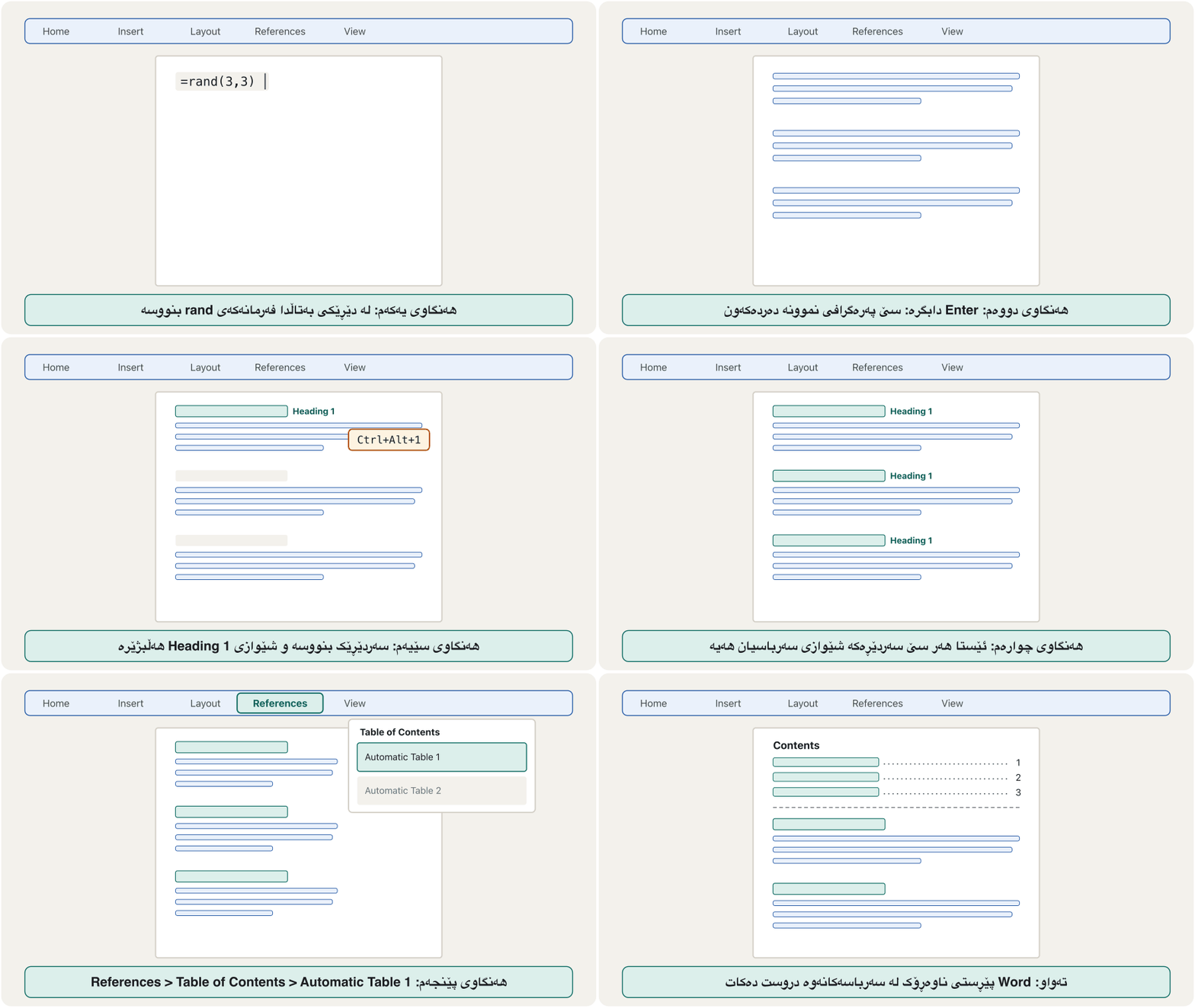
سەرباسەکان لەگەڵ ژمارەی لاپەڕەکانیان ڕیز دەکات. بە دەست مەینووسە: Word لە دروستی دەکات. کلیک لەو شوێنە بکە کە دەبێت تێیدا بێت (زۆرجار لاپەڕەی دووەم، دوای )، پاشان References > Table of Contents > Automatic Table 1 هەڵبژێرە.
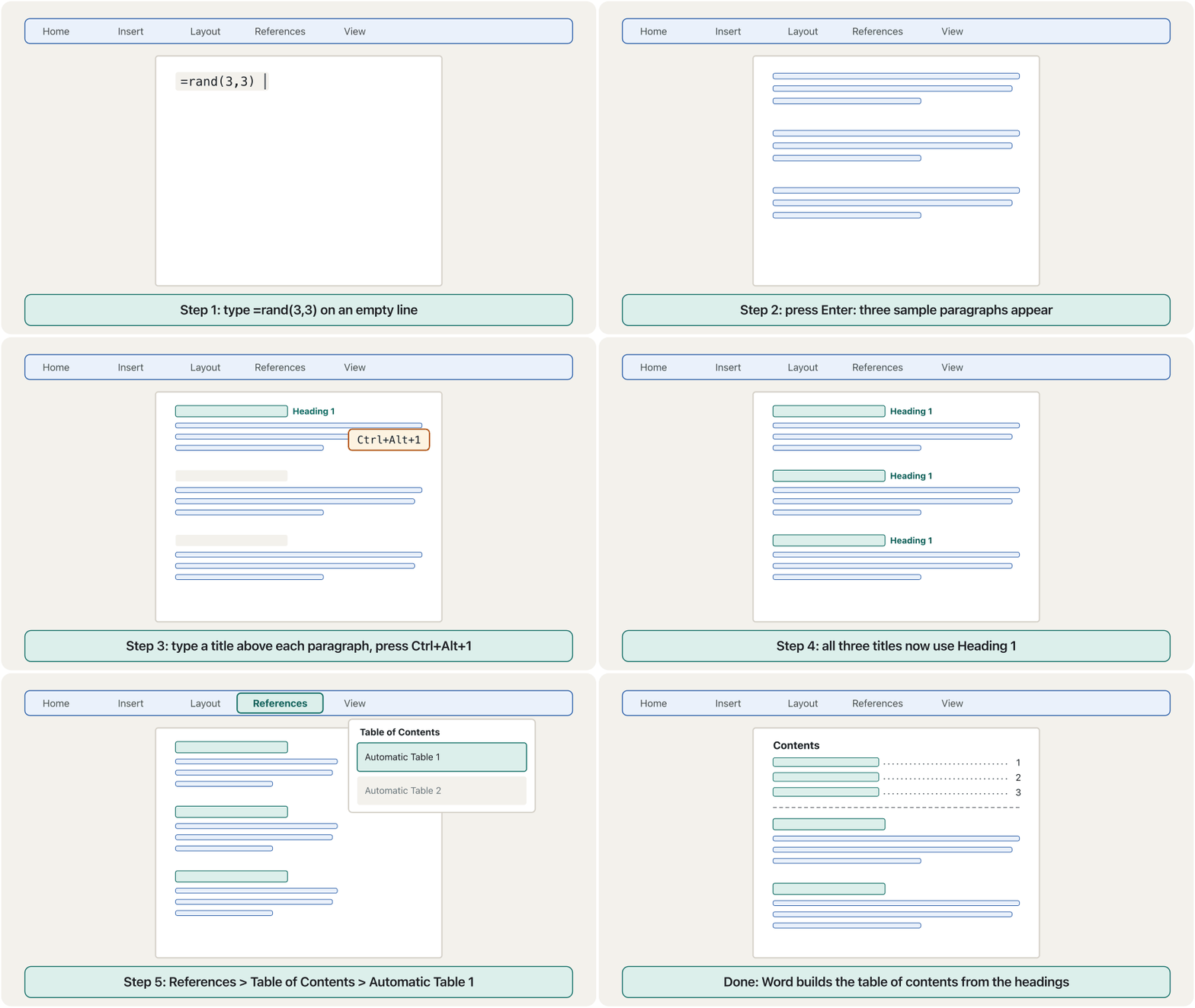
The table does not change by itself while you write. After you add headings or pages, click inside it and press Update Table (or right-click it, or press F9): choose Update page numbers only if you changed only the pages, or Update entire table if you added or renamed headings. Each entry is a link: Ctrl+click it to jump to that heading.
لە کاتی نووسیندا خۆی ناگۆڕێت. دوای ئەوەی سەرباس یان لاپەڕە زیاد دەکەیت، کلیک لە ناویدا بکە و Update Table دابگرە (یان کلیکی ڕاستی لێ بکە، یان F9 دابگرە): Update page numbers only هەڵبژێرە ئەگەر تەنها لاپەڕەکان گۆڕاون، یان Update entire table ئەگەر سەرباست زیاد کردووە یان ناوت گۆڕیون. هەر دێڕێکی : Ctrl+clickـی لێ بکە بۆ ئەوەی بچیتە سەر ئەو سەرباسە.
Page layout: margins, orientation and page breaksڕێکخستنی لاپەڕە: پەراوێز، ئاڕاستە و لاپەڕەی نوێ
The Layout tab decides the shape of the paper. Margins are the empty borders around the text (Normal is 2.54 cm on each side). Orientation is Portrait (tall, the usual choice) or Landscape (wide, for a big table). Size is the paper: A4 in Kurdistan and most of the world, Letter in the USA. Columns splits the text into newspaper columns.
Layout شێوەی کاغەزەکە دیاری دەکات. Margins (پەراوێزەکان) ئەو لێوارە بەتاڵانەن کە دەوری نووسینەکەیان داوە (Normal لە هەر لایەک 2.54 cmـە). Orientation (ئاڕاستە) یان Portraitـە (درێژ، هەڵبژاردنی ئاسایی) یان Landscape (پان، بۆ خشتەیەکی گەورە). Size قەبارەی کاغەزەکەیە: A4 لە کوردستان و زۆربەی جیهان، Letter لە ئەمریکا. Columns نووسینەکە دەکاتە چەند ستوونێکی وەک ڕۆژنامە.
To start a new page — for example before each chapter — never press Enter many times: when the text above grows, your 'empty lines' move and the chapter lands in the middle of a page. Press Ctrl+Enter (Mac: Command+Return) for a page break: the next text always starts at the top of a new page.
بۆ دەستپێکردنی لاپەڕەیەکی نوێ — بۆ نموونە پێش هەر بەشێک — هەرگیز چەندین جار Enter دامەگرە: کاتێک نووسینی سەرەوە زیاد دەکات، «دێڕە بەتاڵەکانت» دەجووڵێن و بەشەکە دەکەوێتە ناوەڕاستی لاپەڕەیەک. Ctrl+Enter دابگرە (Mac: Command+Return) بۆ پچڕانی لاپەڕە: نووسینی دواتر هەمیشە لە سەرەوەی لاپەڕەیەکی نوێوە دەست پێ دەکات.
Page layout: margins, orientation and page breaksڕێکخستنی لاپەڕە: پەراوێز، ئاڕاستە و لاپەڕەی نوێ
Headers, footers and a cover pageسەرپەڕە، ژێرپەڕە و لاپەڕەی بەرگ
A header is the strip at the top of every page, a footer the strip at the bottom: you type once and the text repeats on all pages — the report title, your name, the date, the page number. Choose Insert > Header and pick a design. The lab asks for a three-column header: in the gallery it is called Blank (Three Columns), with one place on the left, one in the middle and one on the right. Double-click the body text, or press Close Header and Footer, to go back to the page.
ئەو بەشەیە لە سەرەوەی هەموو لاپەڕەیەک و ئەو بەشەیە لە خوارەوە: یەک جار دەنووسیت و نووسینەکە لە هەموو لاپەڕەکاندا دووبارە دەبێتەوە — ناوی ڕاپۆرت، ناوت، ڕێکەوت، ژمارەی لاپەڕە. Insert > Header هەڵبژێرە و دیزاینێک دیاری بکە. تاقیگەکە داوای سێ ستوونی دەکات: لە گەلەرییەکەدا ناوی Blank (Three Columns)ـە، شوێنێک لە چەپ، یەکێک لە ناوەڕاست و یەکێک لە ڕاست. دوو جار کلیک لە نووسینی لاپەڕەکە بکە، یان Close Header and Footer دابگرە، بۆ گەڕانەوە بۆ لاپەڕەکە.
In Kurdish: how to put page numbers into a report, and how to number the first pages with letters before the numbers start.
بە کوردی: چۆن ژمارەی لاپەڕە دەخەیتە ناو ؛ هەروەها چۆن یەکەم لاپەڕەکان بە پیت ژمارە بکەیت پێش ئەوەی ژمارەکان دەست پێبکەن.
Kurdish (Sorani) video, 4:43: inserting page numbers in the header or footer of a research report.
ڤیدیۆیەکی کوردیی سۆرانی (4:43): دانانی ژمارەی لاپەڕە لە یان توێژینەوەدا.
A cover pageلاپەڕەی بەرگ
A cover page is the first page of a report: title, subtitle, author and date in a ready-made design. Insert > Cover Page (in the Pages group) offers a gallery — the lab uses Austin. Word always puts the cover page first, whatever page you are on, and it does not count it in the header's page numbers. Click each [placeholder] on it and type your own text.
یەکەم لاپەڕەی ڕاپۆرتە: ناونیشان، ناونیشانی لاوەکی، نووسەر و ڕێکەوت لە دیزاینێکی ئامادەدا. Insert > Cover Page (لە گرووپی Pages) گەلەرییەک پێشکەش دەکات — تاقیگەکە Austin بەکار دەهێنێت. Word هەمیشە دەخاتە پێش هەموو لاپەڕەکان، لە هەر لاپەڕەیەکدا بیت. کلیک لە هەر شوێنگرێکی سەری بکە و نووسینی خۆت بنووسە.
Tables, pictures and shapesخشتەکان، وێنە و شێوەکان
Word inserts tables, pictures and shapes from the Insert tab in the same way as PowerPoint. When you click one of them, a contextual tab appears for it: Table Design and Layout for a table, Picture Format for a picture, Shape Format for a shape. The PowerPoint lessons explain these tabs in detail; here are the three steps of the Word lab:
Word ، وێنە و لە Insert هەمان شێوەی PowerPoint دادەنێت. کاتێک کلیک لە یەکێکیان دەکەیت، بۆی دەردەکەوێت: Table Design و Layout بۆ ، Picture Format بۆ وێنە، Shape Format بۆ . وانەکانی PowerPoint ئەم تابانە بە وردی ڕوون دەکەنەوە؛ ئەمە سێ هەنگاوی تاقیگەی Wordـن:
In Sorani Kurdish: tables in Microsoft Word: inserting a table, changing its rows and columns, colouring cells and table styles.
بە کوردیی سۆرانی: لە Microsoft Wordـدا — دانانی ، گۆڕینی و ، ڕەنگکردنی و .
In Sorani, plays 0:00–13:40: insert a table, change its rows and columns, colour the cells, then table styles.
بە سۆرانی، لە 0:00 تا 13:40 پەخش دەبێت: دانانی ، گۆڕینی و ، ڕەنگکردنی ، پاشان .
Tables, pictures and shapesخشتەکان، وێنە و شێوەکان
The lab: table, picture and callout stylesتاقیگەکە: شێوازی خشتە، وێنە و ڕوونکردنەوە
- A table styleشێوازی خشتە
Insert > Table, then click inside the table. On Table Design, open the Table Styles gallery and choose Grid Table 5 Dark – Accent 1. The Table Style Options (Header Row, Banded Rows…) switch parts of the style on or off. More: Table Layout and Design.
Insert > Table، پاشان کلیک لە ناو بکە. لە Table Design، گەلەری Table Styles بکەرەوە و Grid Table 5 Dark – Accent 1 هەڵبژێرە. Table Style Options (Header Row، Banded Rows…) بەشەکانی هەڵدەکەن یان دەکوژێننەوە. زیاتر: ڕێکخستن و دیزاینی خشتە.
- A picture styleشێوازی وێنە
Insert > Pictures, then select the picture. On Picture Format, in the Picture Styles gallery, choose Bevel Perspective (a tilted frame with a soft edge). More: Pictures.
Insert > Pictures، پاشان وێنەکە دیاری بکە. لە Picture Format، لە گەلەری Picture Styles، Bevel Perspective هەڵبژێرە (چوارچێوەیەکی لار بە لێوارێکی نەرم). زیاتر: وێنەکان.
- A callout shapeشێوەیەک بۆ ڕوونکردنەوە
Insert > Shapes. Under Callouts, choose the rectangle with a pointer (Speech Bubble: Rectangle), drag it on the page and type in it. More: Shapes.
Insert > Shapes. لە ژێر Callouts، ئەو لاکێشەیە هەڵبژێرە کە سەرێکی تیژی هەیە (Speech Bubble: Rectangle)، لەسەر لاپەڕەکە ڕایبکێشە و تێیدا بنووسە. زیاتر: شێوەکان.
Hyperlinks and embedded objectsبەستەرەکان و ئۆبجێکتەکان
A link joins two places: click it and you go to a chosen place — a website, a file, a folder, an e-mail address, or a heading in the same document. Select the text, press Ctrl+K (Mac: Command+K) or choose Insert > Link, then pick what to link to on the left (Existing File or Web Page, Place in This Document, E-mail Address) and type or choose the address.
دوو شوێن پێکەوە دەبەستێتەوە: کلیکی لێ بکە و دەچیتە شوێنێکی دیاریکراو — ، فایل، فۆڵدەر، ، یان سەرباسێک لە هەمان بەڵگەنامەدا. نووسینەکە دیاری بکە، Ctrl+K دابگرە (Mac: Command+K) یان Insert > Link هەڵبژێرە، پاشان لە لای چەپ دیاری بکە بۆ چی بیبەستیتەوە (Existing File or Web Page، Place in This Document، E-mail Address) و ناونیشانەکە بنووسە یان هەڵیبژێرە.
Clickable text or an image that takes you to another page, file or place. In it is made with the <a> and its href .
دەق یان وێنەیەکە کە ئەگەر کرتەی لێ بکەیت دەتبات بۆ لاپەڕە، فایل یان شوێنێکی تر. لە بە <a> و href دروست دەکرێت.
In Word, a plain click on a link only puts the cursor in it, so that you can edit the text. To follow the link, hold Ctrl and click (Ctrl+click). This is a Word setting: File > Options > Advanced > Use CTRL + Click to follow hyperlink. That is why the lab says you must press Ctrl to open the linked folder.
لە Wordـدا کلیکی ئاسایی لەسەر تەنها دەخاتە ناوی، بۆ ئەوەی بتوانیت نووسینەکە دەستکاری بکەیت. بۆ کردنەوەی ، Ctrl دابگرە و کلیک بکە (Ctrl+click). ئەمە ڕێکخستنێکی Wordـە: File > Options > Advanced > Use CTRL + Click to follow hyperlink. لەبەر ئەمەیە تاقیگەکە دەڵێت دەبێت Ctrl داگریت بۆ کردنەوەی فۆڵدەری بەستراو.
Hyperlinks and embedded objectsبەستەرەکان و ئۆبجێکتەکان
Embedded and linked objectsئۆبجێکتەکانی داکوتراو و بەستراو
An object is a piece of another program placed inside the document. Insert > Object (in the Text group) > Create New > Microsoft Excel Worksheet puts a small Excel sheet in your report: double-click it and the Excel ribbon appears inside Word, so you can type numbers and formulas. Such an object is embedded: its data is stored inside the Word file. With Create from File and Link to file, the document only keeps a link to an Excel file elsewhere and shows its latest numbers — but the link breaks if that file is moved.
پارچەیەکە لە تر کە خراوەتە ناو بەڵگەنامەکەوە. Insert > Object (لە گرووپی Text) > Create New > Microsoft Excel Worksheet پەڕەیەکی بچووکی Excel دەخاتە ناو ڕاپۆرتەکەتەوە: دوو جار کلیکی لێ بکە و Excel لە ناو Wordـدا دەردەکەوێت، تا بتوانیت ژمارە و هاوکێشە بنووسیت. ئەم جۆرە داکوتراوە: لە ناو فایلی Wordـەکەدا هەڵدەگیرێت. بە Create from File و Link to file، بەڵگەنامەکە تەنها بەستنەوەیەک بۆ فایلێکی Excel لە شوێنێکی تر هەڵدەگرێت و دوایین ژمارەکانی پیشان دەدات — بەڵام ئەگەر ئەو فایلە بگوازرێتەوە، بەستنەوەکە دەپچڕێت.
Content made by another app that is placed inside a document, for example an Excel worksheet inside a Word report. An embedded object is stored inside the document; a linked object only points to the original file.
ناوەڕۆکێکە کە تر دروستی کردووە و خراوەتە ناو بەڵگەنامەیەکەوە، بۆ نموونە پەڕەیەکی Excel لەناو ڕاپۆرتێکی Wordـدا. ئۆبجێکتی داکوتراو لەناو بەڵگەنامەکەدا هەڵدەگیرێت؛ ئۆبجێکتی بەستراو تەنها ئاماژە بۆ فایلە ئەسڵییەکە دەکات.
What you can do inside the worksheet — cells, formulas, functions and charts — is taught in Spreadsheet Essentials.
ئەوەی دەتوانیت لە ناو پەڕە خشتەییەکەدا بیکەیت — ، هاوکێشە، و هێڵکاری — لە بنەماکانی بەرنامەی خشتەییـدا فێر دەبیت.
Track changes and commentsتۆمارکردنی گۆڕانکارییەکان و سەرنجەکان
When a classmate or a lecturer corrects your report, you want to see what they changed. On the Review tab, turn on Track Changes (Ctrl+Shift+E; Mac Command+Shift+E). From then on Word marks every edit: added words are underlined, deleted words are crossed out, each reviewer has a colour, and the margin shows who did what.
کاتێک هاوپۆلێک یان مامۆستایەک ڕاپۆرتەکەت ڕاست دەکاتەوە، دەتەوێت ببینیت چی گۆڕیوە. لە Review، Track Changes هەڵبکە (Ctrl+Shift+E؛ Mac Command+Shift+E). لەو کاتەوە Word هەموو دەستکارییەک نیشان دەکات: وشەی زیادکراو هێڵی بە ژێردا دێت، وشەی سڕاوە هێڵی پێدا دێت، هەر پێداچووەرێک ڕەنگێکی هەیە و پەراوێزەکە پیشان دەدات کێ چی کردووە.
A feature that records every insertion, deletion and formatting change, and who made it. The author then accepts or rejects each change.
تایبەتمەندییەکی کە هەموو زیادکردنێک، سڕینەوەیەک و گۆڕانێکی تۆمار دەکات، لەگەڵ ناوی ئەو کەسەی کردوویەتی. پاشان نووسەرەکە هەر گۆڕانکارییەک قبووڵ یان ڕەت دەکاتەوە.
Then you decide: go through the changes with Next and press Accept or Reject for each one, or Accept All Changes. A comment (Ctrl+Alt+M; Mac Command+Option+A) is a note in the margin that does not change the text — for questions like Is this date right? Several people can also edit a file saved in OneDrive at the same time (co-authoring), as explained in Working together: share and co-author.
پاشان تۆ بڕیار دەدەیت: بە Next بە ناو گۆڕانکارییەکاندا بڕۆ و بۆ هەر یەکێکیان Accept یان Reject دابگرە، یان Accept All Changes. (Ctrl+Alt+M؛ Mac Command+Option+A) تێبینییەکە لە پەراوێزدا کە نووسینەکە ناگۆڕێت — بۆ پرسیاری وەک ئایا ئەم ڕێکەوتە دروستە؟ چەند کەسێکیش دەتوانن هاوکات فایلێک دەستکاری بکەن کە لە OneDriveـدا پاشەکەوت کراوە ()، وەک لە کارکردنی پێکەوە: هاوبەشکردن و هاونووسینـدا ڕوون کراوەتەوە.
Lab: build a short report with =rand()تاقیگە: ڕاپۆرتێکی کورت بە =rand() دروست بکە
Practising needs text, but typing paragraphs takes time. Word can write sample text for you: on an empty line, type =rand() and press Enter. Word inserts a few paragraphs of sample text (how many depends on the Word version). Give it numbers to choose the size: =rand(p,l) makes p paragraphs, and l sets how long each one is — Microsoft's page calls it lines, but Word writes l sentences, which may wrap over more lines. For example =rand(5,4). =lorem() gives meaningless Latin-like text instead. (If nothing happens, Replace text as you type is switched off in File > Options > Proofing > AutoCorrect Options.)
ڕاهێنان پێویستی بە نووسین هەیە، بەڵام نووسینی پەرەگراف کات دەبات. Word دەتوانێت نووسینی نموونەت بۆ بنووسێت: لە دێڕێکی بەتاڵدا =rand() بنووسە و Enter دابگرە. Word چەند پەرەگرافێکی نموونە دادەنێت (ژمارەکەی بەستراوەتەوە بە وەشانی Word). ژمارەی پێ بدە بۆ دیاریکردنی قەبارەکەی: =rand(p,l) بە ژمارەی p پەرەگراف دروست دەکات و l درێژیی هەر یەکێکیان دیاری دەکات — پەڕەکەی Microsoft پێی دەڵێت دێڕ، بەڵام Word بە ژمارەی l ڕستە دەنووسێت، کە لەوانەیە بە چەند دێڕێکدا درێژ ببنەوە. بۆ نموونە =rand(5,4). =lorem() لە جیاتی ئەوە نووسینێکی بێمانای وەک لاتینی دەدات. (ئەگەر هیچ ڕووی نەدا، Replace text as you type لە File > Options > Proofing > AutoCorrect Options کوژاوەتەوە.)
Make a four-page practice report. (1) On page 1 type =rand(6,5) and press Enter. (2) Type four short titles between the paragraphs and make them Heading 1 or Heading 2. (3) Set the lab fonts: Times New Roman everywhere, size 14 for paragraphs, 16 for headings and 18 for the title (change the styles, not each paragraph). (4) Add the Austin cover page. (5) Open the Navigation pane and check that your headings are listed. (6) Insert Automatic Table 1 on the page after the cover. (7) Insert a picture and give it the Bevel Perspective style. (8) Add a rectangular callout that points to the picture. (9) Add a three-column header. (10) Make a hyperlink to a folder and open it with Ctrl+click. (11) Insert a Microsoft Excel Worksheet object and type three numbers in it.
ڕاپۆرتێکی ڕاهێنانی چوار لاپەڕەیی دروست بکە. (1) لە لاپەڕەی یەکەمدا =rand(6,5) بنووسە و Enter دابگرە. (2) چوار سەردێڕی کورت لە نێوان پەرەگرافەکاندا بنووسە و بیانکە Heading 1 یان Heading 2. (3) تاقیگەکە دابنێ: Times New Roman لە هەموو شوێنێک، قەبارە 14 بۆ پەرەگراف، 16 بۆ سەرباس و 18 بۆ ناونیشان ( بگۆڕە، نەک هەر پەرەگرافێک بە جیا). (4) Austin زیاد بکە. (5) بکەرەوە و بپشکنە کە سەرباسەکانت تێیدا ڕیز کراون. (6) Automatic Table 1 لە لاپەڕەی دوای بەرگەکەدا دابنێ. (7) وێنەیەک دابنێ و شێوازی Bevel Perspectiveـی پێ بدە. (8) ڕوونکردنەوەی لاکێشەیی زیاد بکە کە ئاماژە بە وێنەکە بکات. (9) سێ ستوونی زیاد بکە. (10) بۆ فۆڵدەرێک دروست بکە و بە Ctrl+click بیکەرەوە. (11) Microsoft Excel Worksheet دابنێ و سێ ژمارەی تێدا بنووسە.
Hintئاماژە
Do the styles before the table of contents, then update the table at the end.
سەرەتا ڕێک بخە، پاشان دابنێ و لە کۆتاییدا نوێی بکەرەوە.
Show answerوەڵامەکە پیشان بدە
- Type
=rand(6,5)and press Enter: six paragraphs, each five sentences long. - Click in each title, press
Ctrl+Alt+1(orCtrl+Alt+2). - Home > Styles: right-click Normal > Modify > Times New Roman 14; do the same for Heading 1 and Heading 2 (16) and Title (18).
- Insert > Cover Page > Austin; type the title and your name in the placeholders.
- View > Navigation Pane > Headings: every title must appear; if one is missing, it has no heading style.
- Click at the top of page 2,
Ctrl+Enter, then References > Table of Contents > Automatic Table 1. - Insert > Pictures; Picture Format > Picture Styles > Bevel Perspective.
- Insert > Shapes > Callouts > Speech Bubble: Rectangle; drag its yellow handle to the picture.
- Insert > Header > Blank (Three Columns); type in the three places.
- Select a word,
Ctrl+K> Existing File or Web Page > choose the folder > OK;Ctrl+clickthe link. - Insert > Object > Create New > Microsoft Excel Worksheet > OK; type the numbers; click outside to return to Word.
=rand(6,5)بنووسە و Enter دابگرە: شەش پەرەگراف، هەر یەکەیان پێنج ڕستە.- کلیک لە هەر سەردێڕێک بکە،
Ctrl+Alt+1(یانCtrl+Alt+2) دابگرە. - Home > Styles: کلیکی ڕاست لەسەر Normal > Modify > Times New Roman 14؛ هەمان کار بۆ Heading 1 و Heading 2 (16) و Title (18) بکە.
- Insert > Cover Page > Austin؛ ناونیشان و ناوت لە شوێنگرەکاندا بنووسە.
- View > Navigation Pane > Headings: هەموو سەردێڕێک دەبێت دەربکەوێت؛ ئەگەر یەکێکیان نەبوو، نییە.
- کلیک لە سەرەوەی لاپەڕەی 2 بکە،
Ctrl+Enter، پاشان References > Table of Contents > Automatic Table 1. - Insert > Pictures؛ Picture Format > Picture Styles > Bevel Perspective.
- Insert > Shapes > Callouts > Speech Bubble: Rectangle؛ دەسکە زەردەکەی بۆ لای وێنەکە ڕابکێشە.
- Insert > Header > Blank (Three Columns)؛ لە سێ شوێنەکەدا بنووسە.
- وشەیەک دیاری بکە،
Ctrl+K> Existing File or Web Page > فۆڵدەرەکە هەڵبژێرە > OK؛Ctrl+clickلە بکە. - Insert > Object > Create New > Microsoft Excel Worksheet > OK؛ ژمارەکان بنووسە؛ کلیک لە دەرەوە بکە بۆ گەڕانەوە بۆ Word.
Common mistakesهەڵە باوەکان
| Mistakeهەڵە | Do this insteadلە جیاتی ئەوە ئەمە بکە |
|---|---|
| Making titles big and bold by hand.گەورە و تۆخکردنی سەردێڕەکان بە دەست. | Use Heading 1/2/3; then the Navigation pane and the table of contents work.Heading 1/2/3 بەکار بهێنە؛ ئەو کاتە و کار دەکەن. |
| Pressing Enter or Space many times to move text or start a page.چەندین جار داگرتنی Enter یان Space بۆ جووڵاندنی نووسین یان دەستپێکردنی لاپەڕە. | Use alignment, indents and a page break (Ctrl+Enter).، و پچڕانی لاپەڕە (Ctrl+Enter) بەکار بهێنە. |
| Typing the table of contents by hand.نووسینی بە دەست. | Insert an automatic one and press Update Table before you print.یەکێکی خۆکار دابنێ و پێش چاپکردن Update Table دابگرە. |
Thinking Ctrl+J aligns left and Ctrl+D aligns right.بیرکردنەوە لەوەی Ctrl+J دەیخاتە چەپ و Ctrl+D دەیخاتە ڕاست. | Ctrl+J justifies, Ctrl+D opens Font; left and right are Ctrl+L and Ctrl+R.Ctrl+J لە هەردوو لاوە ڕێک دەکات، Ctrl+D Font دەکاتەوە؛ چەپ و ڕاست Ctrl+L و Ctrl+Rـن. |
| Replace All without checking.Replace All بێ پشکنین. | Use Find Next first, tick Find whole words only, and keep Ctrl+Z ready.سەرەتا Find Next بەکار بهێنە، Find whole words only دیاری بکە و Ctrl+Z ئامادە بێت. |
| Pasting from a website and getting its strange fonts.لکاندن لە و هاتنی سەیرەکانی. | Paste text only: Ctrl+Shift+V.تەنها نووسین بلکێنە: Ctrl+Shift+V. |
Exercisesڕاهێنانەکان
Write the Windows shortcut for each job: (a) select the whole document; (b) underline; (c) open the Font dialog box; (d) justify a paragraph; (e) open Find and Replace; (f) insert a hyperlink; (g) save; (h) close the document.
کورتەڕێی Windows بۆ هەر کارێک بنووسە: (أ) دیاریکردنی هەموو بەڵگەنامەکە؛ (ب) ؛ (ج) کردنەوەی Font؛ (د) ڕێکخستنی پەرەگرافێک لە هەردوو لاوە؛ (هـ) کردنەوەی ؛ (و) دانانی ؛ (ز) پاشەکەوتکردن؛ (ح) داخستنی بەڵگەنامەکە.
Show answerوەڵامەکە پیشان بدە
(a) Ctrl+A (b) Ctrl+U (c) Ctrl+D or Ctrl+Shift+F (d) Ctrl+J (e) Ctrl+H (f) Ctrl+K (g) Ctrl+S (h) Ctrl+W. On a Mac use Command, except Find and Replace, which is Control+H.
(أ) Ctrl+A (ب) Ctrl+U (ج) Ctrl+D یان Ctrl+Shift+F (د) Ctrl+J (هـ) Ctrl+H (و) Ctrl+K (ز) Ctrl+S (ح) Ctrl+W. لە Macـدا Command بەکار بهێنە، جگە لە کە Control+Hـە.
A student's notes say: 'Ctrl+L/J: left; Ctrl+D/R: right; Ctrl+K: save.' Correct them.
تێبینییەکانی قوتابییەک دەڵێن: «Ctrl+L/J بۆ چەپ؛ Ctrl+D/R بۆ ڕاست؛ Ctrl+K بۆ پاشەکەوتکردن.» ڕاستیان بکەرەوە.
Show answerوەڵامەکە پیشان بدە
Left is only Ctrl+L (Ctrl+J justifies). Right is only Ctrl+R (Ctrl+D opens the Font dialog box). Save is Ctrl+S (Ctrl+K inserts a hyperlink).
چەپ تەنها Ctrl+Lـە (Ctrl+J لە هەردوو لاوە ڕێک دەکات). ڕاست تەنها Ctrl+Rـە (Ctrl+D Font دەکاتەوە). پاشەکەوتکردن Ctrl+Sـە (Ctrl+K دادەنێت).
Karwan's 30-page report has 12 chapter titles made big and bold by hand. His lecturer wants a table of contents and all chapter titles in size 16 instead of 20. Explain the fastest way.
ڕاپۆرتی 30 لاپەڕەیی کاروان 12 سەردێڕی بەشی هەیە کە بە دەست گەورە و تۆخ کراون. مامۆستاکەی و هەموو سەردێڕەکان بە قەبارەی 16 لە جیاتی 20 دەوێت. خێراترین ڕێگا ڕوون بکەرەوە.
Show answerوەڵامەکە پیشان بدە
Give the 12 titles the Heading 1 style (click in each, Ctrl+Alt+1). Modify the Heading 1 style once to size 16 — all 12 change. Then References > Table of Contents > Automatic Table 1. Later edits only need Update Table.
Heading 1 بدە بە 12 سەردێڕەکە (کلیک لە هەر یەکێکیان، Ctrl+Alt+1). Heading 1 یەک جار بگۆڕە بۆ قەبارەی 16 — هەر 12ـەکە دەگۆڕێن. پاشان References > Table of Contents > Automatic Table 1. دەستکارییەکانی دواتر تەنها Update Tableـیان دەوێت.
Hana puts this month's sales table from Excel into her Word report and e-mails the report to her manager. Should the Excel object be embedded or linked? Why?
هانا خشتەی فرۆشتنی ئەم مانگەی لە Excelـەوە دەخاتە ناو ڕاپۆرتی Wordـەکەیەوە و ڕاپۆرتەکە بە بۆ بەڕێوەبەرەکەی دەنێرێت. ئایا Excelـەکە دەبێت داکوتراو بێت یان بەستراو؟ بۆچی؟
Show answerوەڵامەکە پیشان بدە
Embedded. A linked object needs the Excel file at its original place, which the manager's computer does not have; an embedded object carries its data inside the Word file.
داکوتراو. بەستراو پێویستی بە فایلی Excelـەکە هەیە لە شوێنە ئەسڵییەکەیدا، کە بەڕێوەبەرەکە نییەتی؛ داکوتراو لە ناو فایلی Wordـەکەدا لەگەڵ خۆی دەبات.
Summaryپوختە
- Select first, then format:
Ctrl+Bbold,Ctrl+Iitalic,Ctrl+Uunderline,Ctrl+Dthe Font dialog box. - Alignment:
Ctrl+Lleft,Ctrl+Ecentre,Ctrl+Rright,Ctrl+Jjustify;Ctrl+Qremoves paragraph formatting. - Clipboard:
Ctrl+Ccopy,Ctrl+Xcut,Ctrl+Vpaste;Ctrl+Zundo,Ctrl+Yredo. Ctrl+Fsearches in the Navigation pane;Ctrl+Hfinds and replaces.- File:
Ctrl+Nnew,Ctrl+Ssave (F12Save As),Ctrl+Pprint,Ctrl+Wclose;Ctrl+Kinserts a hyperlink. - Heading styles build the structure: the Navigation pane and the automatic table of contents read them.
- Layout sets margins, orientation, size; headers/footers repeat on every page; the cover page comes first.
- Links open with
Ctrl+click; an embedded Excel object lives inside the Word file; Track Changes records every edit.
- سەرەتا دیاری بکە، پاشان :
Ctrl+B،Ctrl+I،Ctrl+U،Ctrl+DFont. - :
Ctrl+Lچەپ،Ctrl+Eناوەڕاست،Ctrl+Rڕاست،Ctrl+Jهەردوو لا؛Ctrl+Qپەرەگراف لادەبات. - :
Ctrl+C،Ctrl+X،Ctrl+V؛Ctrl+Z،Ctrl+Y. Ctrl+Fلە دەگەڕێت؛Ctrl+Hدەکات.- فایل:
Ctrl+Nنوێ،Ctrl+Sپاشەکەوتکردن (F12)،Ctrl+Pچاپ،Ctrl+Wداخستن؛Ctrl+Kدادەنێت. - پێکهاتەکە دروست دەکەن: و خۆکار ئەوان دەخوێننەوە.
- Layout پەراوێز، ئاڕاستە و قەبارە دیاری دەکات؛ و لە هەموو لاپەڕەیەکدا دووبارە دەبنەوە؛ یەکەم دێت.
- بە
Ctrl+clickدەکرێنەوە؛ داکوتراوی Excel لە ناو فایلی Wordـدا دەژی؛ هەموو دەستکارییەک تۆمار دەکات.
What does =rand(3,2) insert?=rand(3,2) چی دادەنێت؟
Three paragraphs of sample text, each two sentences long (Microsoft calls them lines).
سێ پەرەگرافی نووسینی نموونە، هەر یەکەیان دوو ڕستە (Microsoft پێیان دەڵێت دێڕ).
Why does the table of contents need Update Table?بۆچی پێڕستی ناوەڕۆک پێویستی بە Update Table هەیە؟
It is built once from the headings; Word does not rebuild it by itself while you write.
یەک جار لە سەرباسەکانەوە دروست دەکرێت؛ Word لە کاتی نووسیندا خۆی دووبارە دروستی ناکاتەوە.
What is the difference between copy and cut?جیاوازی نێوان کۆپیکردن و بڕین چییە؟
Both put the text on the Clipboard; cut also removes it from its place.
هەردووکیان نووسینەکە دەخەنە سەر ؛ لە شوێنی خۆیشی لای دەبات.
Lesson complete!وانەکە تەواو بوو!
Well done. Review the key terms, then go on to the next lesson.دەستخۆش. سەیرێکی زاراوە سەرەکییەکان بکەرەوە، پاشان بڕۆ بۆ وانەی داهاتوو.
Key termsزاراوە سەرەکییەکان
Spreadsheet Essentialsبنەماکانی بەرنامەی خشتەیی
Related lecturesوانە پەیوەندیدارەکان
- The PowerPoint Screenپەنجەرەی PowerPoint
- Slides and the Home Tabسلایدەکان و تابی Home
- Table Layout and Designڕێکخستن و دیزاینی خشتە
- Picturesوێنەکان
- Shapes, Merge Shapes and Edit Pointsشێوەکان، بەیەککردنی شێوەکان و دەستکاریی خاڵەکان
- Links, Symbols and Mediaبەستەرەکان، هێماکان و میدیا
- Language, Comments and Sharingزمان، سەرنجەکان و هاوبەشکردن
- Applicationsئەپەکان
- Keyboard Shortcuts for Windows and Macکورتەڕێکانی کیبۆرد بۆ Windows و Mac
- Spreadsheet Essentialsبنەماکانی بەرنامەی خشتەیی
References and further readingسەرچاوەکان و خوێندنەوەی زیاتر
- Microsoft Support: Keyboard shortcuts in Word (Windows and macOS tabs)
- Microsoft Support: How to insert sample text in Word (=rand(), =rand(p,l), =lorem())
- Microsoft Support: Insert a table of contents
- Microsoft Support: Update a table of contents
- Microsoft Support: Use the Navigation pane in Word
- Microsoft Support: Track changes in Word
- Microsoft Support: Create or edit a hyperlink in Word
- Microsoft Support: Insert an object (embedded vs linked, Link to file, Display as icon)
- Microsoft Support: Add a cover page
This lecture is a first edition. The Kurdish text and terminology are waiting for review by Kurdish IT teachers.ئەم وانەیە چاپی یەکەمە. دەقە کوردییەکە و زاراوەکانی چاوەڕێی پێداچوونەوەی مامۆستایانی کوردی بواری IT ن.