Chapterبەش 9 · Lectureوانە 9.1
Installing and Setting Up Windowsجێگیرکردن و ڕێکخستنی Windows
A complete clean installation of Windows 11, merged from the course's Windows 7 deck and the course owner's formatting report: when to reinstall and why to back up first; Windows 11's requirements next to the old Windows 7 and 10 figures; partitions, file systems and what formatting really does (Disk Management, the format command, Setup; quick or full); the Media Creation Tool and an 8 GB USB drive; the boot-menu key; Setup step by step (with an animation), upgrade or clean install, choosing the partition safely; restarts and «do not press a key»; the first start; activation by digital licence or product key; updates, drivers and apps; and practising in a virtual machine.
تەواوی Windows 11، کۆکراوە لە سلایدەکانی Windows 7ـی کۆرسەکە و ڕاپۆرتی فۆرماتکردنی خاوەنی کۆرسەکە: کەی دووبارە جێگیری بکەیتەوە و بۆچی سەرەتا بگریت؛ Windows 11 لە تەنیشت ژمارە کۆنەکانی Windows 7 و 10؛ ، و ئەوەی لە ڕاستیدا دەیکات (Disk Management، format، Setup؛ خێرا یان تەواو)؛ Media Creation Tool و USBـی 8 GB؛ دوگمەی ؛ Setup هەنگاو بە هەنگاو (بە جوڵەوێنە)، یان ، هەڵبژاردنی سەلامەتی پارتیشن؛ و «هیچ دوگمەیەک دامەگرە»؛ یەکەم دەستپێکردن؛ بە یان ؛ ، و ئەپەکان؛ و ڕاهێنان لە .
What you will learnچی فێر دەبیت
- Decide when to reinstall, and back up before you do.
- Check a PC against Windows 11's minimum requirements.
- Explain partitions, file systems and quick or full formatting, and name three ways to format.
- Make a Windows 11 USB installer and start a PC from it.
- Run Setup, choose between upgrade and clean install, and pick the right partition safely.
- Complete the first start, check activation and finish with updates, drivers and apps.
- بڕیار بدەیت کەی دووبارە جێگیر بکەیتەوە و پێش ئەوە بگریت.
- بە بەراورد لەگەڵ کەمترین Windows 11 بپشکنیت.
- ، و فۆرماتکردنی خێرا یان تەواو ڕوون بکەیتەوە و سێ ڕێگای فۆرماتکردن ناو ببەیت.
- USBـی دامەزراندنی Windows 11 دروست بکەیت و لێوە دەست پێ بکەیت.
- Setup کار پێ بکەیت، لە نێوان و هەڵبژێریت و دروست بە سەلامەتی هەڵبژێریت.
- یەکەم دەستپێکردن تەواو بکەیت، بپشکنیت و بە ، و ئەپەکان کۆتایی پێ بهێنیت.
When do you install Windows?کەی Windows جێگیر دەکەیت؟
You install an operating system on a new PC or a new drive, and you reinstall it when the old system is too broken to repair — full of malware, or failing after every fix in Troubleshooting and Task Manager and the Windows recovery options. People in Kurdistan often call this «formatting the computer». In fact formatting is only one step of it; the whole job is a clean installation, and this lesson walks through it for Windows 11.
لەسەر نوێ یان درایڤێکی نوێ جێگیر دەکەیت و دووبارە جێگیری دەکەیتەوە کاتێک سیستەمە کۆنەکە ئەوەندە تێکچووە کە چاک نابێتەوە — پڕ لە ، یان دوای هەموو چارەسەرێکی چارەسەرکردنی کێشە و بەڕێوەبەری ئەرکەکان و بژاردەکانی چاککردنەوەی Windows هێشتا تێک دەچێت. لە کوردستان زۆرجار پێی دەڵێن «فۆرماتکردنی ». لە ڕاستیدا تەنها یەک هەنگاوـە لەو کارە؛ هەموو کارەکە و ئەم وانەیە هەنگاو بە هەنگاو بۆ Windows 11 پیشانی دەدات.
The course material installed Windows 7 from a DVD. Windows 7 lost support on 14 January 2020 and Windows 10 on 14 October 2025, so this lesson teaches Windows 11 from a USB flash drive and keeps the old steps where they still apply.
کەرەستەکانی کۆرسەکە Windows 7ـیان لە DVDـەوە جێگیر دەکرد. Windows 7 لە ١٤ی کانوونی دووەمی ٢٠٢٠دا و Windows 10 لە ١٤ی ئۆکتۆبەری ٢٠٢٥دا گەیشتنە ، بۆیە ئەم وانەیە Windows 11 لە فێر دەکات و هەنگاوە کۆنەکان لەو شوێنانەدا دەهێڵێتەوە کە هێشتا ڕاستن.
A clean install is like emptying a shop in the bazaar to the bare walls before you open again: you take your goods home first (the backup), clear the shelves (formatting), put up new shelves (installing) and then bring back only what you need (apps and files).
وەک ئەوەیە دوکانێکی بازاڕ تا دیوارە ڕووتەکان بەتاڵ بکەیتەوە پێش ئەوەی دووبارە بیکەیتەوە: سەرەتا کاڵاکانت دەبەیتەوە ماڵەوە ()، ڕەفەکان پاک دەکەیتەوە ()، ڕەفی نوێ دادەنێیت () و پاشان تەنها ئەوە دەگەڕێنیتەوە کە پێویستتە (ئەپ و ).
Where the analogy stops workingسنووری ئەم نموونەیە
In a shop you can see what you forgot; on a formatted drive the forgotten files are gone.
لە دوکاندا دەبینیت چیت لەبیر چووە؛ لەسەر درایڤێکی فۆرماتکراو ئەو لەبیرت چوون نەماون.
Back up firstسەرەتا باکئەپ
A clean install deletes everything on the Windows partition: documents, photos, apps and settings. Before you start, copy what matters to another place — an external drive, a USB flash drive and the cloud — following the 3-2-1 rule.
هەموو شتێک دەسڕێتەوە لەسەر Windows: بەڵگە، وێنە، ئەپ و . پێش دەستپێکردن، ئەوەی گرنگە کۆپی بکە بۆ شوێنێکی تر — ، و — بە پێی ڕێسای باکئەپی 3-2-1.
- Your folders: Desktop, Documents, Pictures, Videos, Downloads — and files saved anywhere else.
- Browser bookmarks and passwords (sign in to the browser's sync, or export them).
- A list of your apps and their product keys or licence e-mails.
- Your Microsoft account e-mail and password, and the Wi-Fi password — you will need both during setup.
- Check the backup: open a few files from it on another computer before you delete anything.
- : Desktop، Documents، Pictures، Videos، Downloads — و ئەو لە هەر شوێنێکی تر هەڵتگرتوون.
- نیشانەکانی و (بچۆ ناو ، یان دەریان بهێنە).
- لیستێکی ئەپەکانت و یان مۆڵەتیان.
- و هەژماری Microsoftـەکەت و — لە کاتی دامەزراندندا پێویستت بە هەردووکیانە.
- بپشکنە: پێش سڕینەوەی هەر شتێک چەند لەسەر تر بکەرەوە.
Will it run? Windows 11 requirementsکار دەکات؟ پێداویستییەکانی Windows 11
Every version of Windows lists minimum requirements: the least hardware it needs. The course gives the figures for Windows 7 and Windows 10; Windows 11 asks for much more, and for two security features — UEFI with Secure Boot and a TPM 2.0 chip.
هەموو وەشانێکی Windows کەمترین لیست دەکات: کەمترین کە پێویستیەتی. کۆرسەکە ژمارەکانی Windows 7 و Windows 10 دەدات؛ Windows 11 زۆر زیاتر داوا دەکات و دوو تایبەتمەندیی ئاسایشیش — لەگەڵ Secure Boot و 2.0.
| Partپارچە | Windows 7 (course)Windows 7 (کۆرسەکە) | Windows 10 (course)Windows 10 (کۆرسەکە) | Windows 11 (2026) |
|---|---|---|---|
| Processorپرۆسێسەر | 1 GHz | 1 GHz | 1 GHz or faster, 2 or more cores, compatible 64-bit1 GHz یان خێراتر، 2 ناوک یان زیاتر، 64-bitـی گونجاو |
| RAM | 1 GB (32-bit) / 2 GB (64-bit) | 1 GB (32-bit) / 2 GB (64-bit) | 4 GB |
| Storageشوێنی خەزنکردن | 16 GB (32-bit) / 20 GB (64-bit) | 16 GB (32-bit) / 20 GB (64-bit) | 64 GB or larger64 GB یان زیاتر |
| Graphicsگرافیک | 128 MB graphics memory128 MB گرافیک | — | DirectX 12 or later, WDDM 2.0 driverDirectX 12 یان دواتر، درایڤەری WDDM 2.0 |
| Firmware and security و ئاسایش | — | — | UEFI, Secure Boot capable; TPM 2.0UEFI بە توانای Secure Boot؛ TPM 2.0 |
| Displayشاشە | — | — | HD (720p), larger than 9 inches diagonallyHD (720p)، لە 9 ئینج گەورەتر بە شێوەی لار |
| Install mediaناوەندی دامەزراندن | DVD driveدرایڤی DVD | — | USB flash drive (8 GB or more) or an ISO file (8 GB یان زیاتر) یان ISO |
| Internet and account و هەژمار | — | — | Home and Pro for personal use: internet and a Microsoft account during first setupHome و Pro بۆ بەکارهێنانی کەسی: و هەژماری Microsoft لە یەکەم ڕێکخستندا |
Will it run? Windows 11 requirementsکار دەکات؟ پێداویستییەکانی Windows 11
Old figures, and checking a PCژمارە کۆنەکان و پشکنینی کۆمپیوتەرێک
More on what the end of support means for older Windows versions is in Software and Operating Systems.
زیاتر دەربارەی ئەوەی بۆ وەشانە کۆنەکانی Windows چی دەگەیەنێت لە نەرمەواڵە و سیستەمەکانی وەگەڕخەردایە.
In Kurdish: check with Microsoft's PC Health Check app whether a computer can run Windows 11.
بە کوردی: بە PC Health Checkـی Microsoft بپشکنە ئایا دەتوانێت Windows 11 کار پێبکات.
Kurdish (Sorani): checking a PC for Windows 11 with the PC Health Check app.
بە کوردیی سۆرانی: پشکنینی بۆ Windows 11 بە PC Health Check.
Partitions, file systems and formattingپارتیشنەکان، سیستەمەکانی فایل و فۆرماتکردنی دیسک
One physical drive can be divided into partitions, separate parts that Windows treats like separate drives. A partition that has a file system and usually a drive letter (C:, D:) is a volume. Windows Setup itself makes several small partitions next to the big Windows one:
یەک درایڤی فیزیکی دەتوانرێت بە دابەش بکرێت، بەشی جیاواز کە Windows وەک درایڤی جیا مامەڵەیان لەگەڵ دەکات. کە هەیە و زۆرجار ـی هەیە (C:، D:) ـە. Windows Setup خۆی چەند بچووک لە تەنیشت گەورەکەی Windows دروست دەکات:
Formatting a drive or partition prepares it for an operating system: it deletes all the data on it and sets up a new file system, the system of tables that lets Windows read and write files there. (How a disk is divided into tracks and sectors at the factory is in Hard Disk Drives.)
فۆرماتکردنی درایڤ یان ئامادەی دەکات بۆ : هەموو سەری دەسڕێتەوە و نوێ دادەمەزرێنێت، ئەو سیستەمە لە خشتانە کە ڕێگە بە Windows دەدات لەوێ بخوێنێتەوە و بنووسێت. (ئەوەی دیسک چۆن لە کارگەدا بە و دابەش دەکرێت لە هارد دیسکەکاندایە.)
What a partition is, what a volume is, and how drive letters and file systems belong to volumes in Windows.
چییە و چییە؛ هەروەها لە Windowsـدا و چۆن سەر بە .
Plays 3:53-10:09: partitions and volumes explained.
لە 3:53 تا 10:09 پەخش دەبێت: ڕوونکردنەوەی و .
Partitions, file systems and formattingپارتیشنەکان، سیستەمەکانی فایل و فۆرماتکردنی دیسک
File systems, quick and full formatسیستەمەکانی فایل، فۆرماتکردنی خێرا و تەواو
| File system | Where you meet itلە کوێ دەیبینیت |
|---|---|
| NTFS | Windows' own drives: C: must be NTFS. Handles huge files and file permissions.درایڤەکانی خودی Windows: C: دەبێت NTFS بێت. زۆر گەورە و مۆڵەتەکانی بەڕێوە دەبات. |
| FAT32 | Old and understood everywhere, also by UEFI firmware — but no single file can be 4 GB or larger.کۆنە و لە هەموو شوێنێک تێدەگات، UEFIـیش — بەڵام هیچ ناتوانێت 4 GB یان گەورەتر بێت. |
| exFAT | USB flash drives and memory cards: works on Windows and Mac, no 4 GB limit. و : لەسەر Windows و Mac کار دەکات، بەبێ سنووری 4 GB. |
| APFS / ext4 | macOS and Linux drives.درایڤەکانی macOS و Linux. |
A quick format only deletes the file table and the root folder, so it takes seconds — the old data is still on the disk until it is overwritten, and recovery tools may find it (see Before you give a drive away). A full format also checks every sector for damage and, since Windows Vista, writes zeros over the whole partition, so it takes much longer and the old data cannot be recovered afterwards. Use quick format only on drives you know are healthy.
فۆرماتکردنی خێرا (quick format) تەنها خشتەی و دەسڕێتەوە، بۆیە چەند چرکەیەک دەخایەنێت — کۆنەکە هێشتا لەسەر دیسکەکەیە تا لەسەری دەنووسرێتەوە و ئامرازەکانی گەڕاندنەوە لەوانەیە بیدۆزنەوە (بڕوانە پێش ئەوەی درایڤێک بدەیت بە کەسێکی تر). فۆرماتکردنی تەواو (full format) هەموو بۆ تێکچوون دەپشکنێت و لە Windows Vistaـەوە سفر بەسەر هەموو دەنووسێت، بۆیە زۆر زیاتر دەخایەنێت و کۆنەکە دواتر ناگەڕێتەوە. فۆرماتکردنی خێرا تەنها لەسەر ئەو درایڤانە بەکار بهێنە کە دەزانیت ساغن.
Partitions, file systems and formattingپارتیشنەکان، سیستەمەکانی فایل و فۆرماتکردنی دیسک
Three ways to formatسێ ڕێگا بۆ فۆرماتکردنی دیسک
Windows gives three tools. All of them erase the chosen partition, so first make sure you have picked the right one.
Windows سێ ئامراز دەدات. هەموویان هەڵبژێردراوەکە دەسڕنەوە، بۆیە سەرەتا دڵنیا بە کە دروستەکەت هەڵبژاردووە.
- Disk Managementئامرازی Disk Management
Right-click Start › Disk Management. It shows every disk and partition with its letter, size and file system. Right-click a partition › Format…, choose a volume label and a file system, tick Perform a quick format if you want, and click OK.
ڕاست لە Start › Disk Management بکە. هەموو دیسک و بە پیت، قەبارە و پیشان دەدات. ڕاست لە › Format…، ناوێک و هەڵبژێرە، ئەگەر دەتەوێت Perform a quick format نیشانە بکە و لە OK بکە.
- The format commandفەرمانی format
In Command Prompt as administrator:
format E: /fs:exFAT /v:USB /qformats drive E: as exFAT, names it USB and does a quick format. Windows asks to confirm. Typing the wrong letter here is a classic disaster — see The Command Line.لە Command Prompt وەک بەڕێوەبەر:
format E: /fs:exFAT /v:USB /qدرایڤی E: بە exFAT فۆرمات دەکات، ناوی دەنێت USB و فۆرماتکردنی خێرا دەکات. Windows داوای پشتڕاستکردنەوە دەکات. نووسینی پیتی هەڵە لێرەدا کارەساتێکی ناسراوە — سەیری ڕووکاری هێڵی فەرمان بکە. - Windows Setupلەناو Windows Setup
During installation, the Select location page lists the partitions and lets you delete, create and format them (below, in Setup step by step).
لە کاتی دامەزراندندا، لاپەڕەی Select location لیست دەکات و ڕێگەت دەدات بیانسڕیتەوە، دروستیان بکەیت و فۆرماتیان بکەیت (لە خوارەوە، لە Setup هەنگاو بە هەنگاو).
format E: /fs:exFAT /v:USB /qExplain the codeڕوونکردنەوەی کۆدەکە
- Lineدێڕی 1
E: is the drive letter — check it in File Explorer first. /fs: file system, /v: label, /q: quick.
E: — سەرەتا لە File Explorerـدا بیپشکنە. /fs: ، /v: ناو، /q: خێرا.
What you needچیت پێویستە
- Windows 11 from Microsoft — from microsoft.com/software-download/windows11. The page offers the Installation Assistant (upgrade this PC), the Media Creation Tool (make a USB installer or an ISO) and the ISO file itself (for a virtual machine or another USB tool).
- A blank USB flash drive of at least 8 GB. Everything on it will be deleted.
- A working PC with internet to make the USB drive (it can be a friend's), and the target PC that meets the requirements.
- A licence: a digital licence already linked to the PC or your Microsoft account, or a 25-character product key.
- Windows 11 لە Microsoftـەوە — لە microsoft.com/software-download/windows11. لاپەڕەکە Installation Assistant ( ئەم )، Media Creation Tool (دروستکردنی USBـی دامەزراندن یان ISO) و خودی ISO (بۆ یان ئامرازێکی تری USB) پێشکەش دەکات.
- بەتاڵی لانیکەم 8 GB. هەموو شتێکی سەری دەسڕدرێتەوە.
- کارا بە بۆ دروستکردنی USBـەکە (دەتوانێت هی هاوڕێیەک بێت) و مەبەست کە پڕ دەکاتەوە.
- مۆڵەت: کە پێشتر بە یان هەژماری Microsoftـەکەتەوە بەستراوە، یان ٢٥ پیتی.
What you needچیت پێویستە
Make the bootable USB driveدروستکردنی USBـی بووتکەر
An installer USB drive holds Windows Setup in a form the PC can boot from. The course owner's report did it with a small burner app (ISO2Disc): plug in the USB drive, open the app, Browse to the ISO, choose Burn to USB Flash Drive, click Start Burn, and answer Yes to «All data on the selected USB flash drive will be destroyed!». The idea is the same today; the tool is Microsoft's:
USBـی دامەزراندن Windows Setup بە شێوەیەک هەڵدەگرێت کە دەتوانێت لێیەوە دەست پێ بکات (). ڕاپۆرتەکەی خاوەنی کۆرسەکە ئەمەی بە ئەپێکی بچووکی نووسین کرد (ISO2Disc): USBـەکە بخە، ئەپەکە بکەرەوە، بە Browse ISO هەڵبژێرە، Burn to USB Flash Drive هەڵبژێرە، لە Start Burn بکە و وەڵامی «All data on the selected USB flash drive will be destroyed!» بە Yes بدەوە. بیرۆکەکە ئەمڕۆش هەمانە؛ ئامرازەکە هی Microsoftـە:
On a working PC, download and run the Media Creation Tool from Microsoft's Windows 11 download page, and accept the licence terms.
لەسەر کارا، Media Creation Tool لە لاپەڕەی Windows 11ـی Microsoft دابەزێنە و کاری پێ بکە و مەرجەکانی مۆڵەت قبووڵ بکە.
Keep the recommended language and edition, or choose the language you will use during setup.
زمان و وەشانی پێشنیارکراو بهێڵەوە، یان ئەو زمانە هەڵبژێرە کە لە کاتی دامەزراندندا بەکاری دەهێنیت.
Choose USB flash drive, pick the right drive in the list — check its size — and continue.
USB flash drive هەڵبژێرە، درایڤە دروستەکە لە لیستەکەدا هەڵبژێرە — قەبارەکەی بپشکنە — و بەردەوام بە.
Wait while it downloads Windows and writes the drive, until it says the USB flash drive is ready.
چاوەڕێ بکە تا Windows دادەبەزێنێت و درایڤەکە دەنووسێت، تا دەڵێت ئامادەیە.
Start the PC from the USB driveدەستپێکردنی کۆمپیوتەر لە USBـەوە
A PC normally starts Windows from its internal drive. To install, it must start from the USB drive instead, just once:
بە ئاسایی Windows لە درایڤی ناوەوەی دەست پێ دەکات. بۆ دامەزراندن، دەبێت تەنها یەک جار لە USBـەکەوە دەست پێ بکات:
Plug the USB installer into the PC you will install on.
USBـی دامەزراندن بخە ئەو کە Windowsـی لەسەر جێگیر دەکەیت.
Restart it and, as soon as the maker's logo appears, press the boot-menu key several times. Common keys are Esc, F10 and F12 (others use F8 or F11); the right one depends on the maker and is often shown on the screen for a moment. The course owner's PC used F12.
دەستی پێ بکەرەوە و هەر کە لۆگۆی کۆمپانیای دروستکەر دەرکەوت، چەند جار دوگمەی دابگرە. دوگمە باوەکان Esc، F10 و F12ـن (هەندێک F8 یان F11 بەکار دەهێنن)؛ دوگمە دروستەکە پەیوەستە بە کۆمپانیای دروستکەر و زۆرجار بۆ ساتێک لەسەر شاشە پیشان دەدرێت. خاوەنی کۆرسەکە F12ـی بەکار هێنا.
In the menu, choose the USB drive — for example UEFI: USB Storage Device or the drive's brand name — with the arrow keys and press Enter. Windows Setup starts.
لە لیستەکەدا، USBـەکە هەڵبژێرە — بۆ نموونە UEFI: USB Storage Device یان ناوی مارکەی درایڤەکە — بە و Enter دابگرە. Windows Setup دەست پێ دەکات.
If the USB drive is not in the list, try another USB port, check that the drive was made for UEFI PCs, and read the maker's support page — Microsoft's own advice is to check with the PC manufacturer how to start the PC from media.
ئەگەر USBـەکە لە لیستەکەدا نەبوو، دەرچەیەکی تری USB تاقی بکەرەوە، بپشکنە کە درایڤەکە بۆ UEFI دروست کراوە و لاپەڕەی پشتگیریی کۆمپانیای دروستکەر بخوێنەوە — ئامۆژگاریی خودی Microsoft ئەوەیە کە لە کۆمپانیای دروستکەر بپرسیت چۆن لە ناوەندێکەوە دەست پێ دەکرێت.
Start the PC from the USB driveدەستپێکردنی کۆمپیوتەر لە USBـەوە
Setup key or boot-menu key?دوگمەی ڕێکخستن یان دوگمەی مێنیوی بووتکردن؟
Windows Setup step by stepWindows Setup هەنگاو بە هەنگاو
Setup asks a few questions, then works by itself. The animation shows the whole journey; the steps below follow Microsoft's own instructions for a clean install of Windows 11.
Setup چەند پرسیارێک دەکات، پاشان خۆی کار دەکات. جوڵەوێنەکە هەموو گەشتەکە پیشان دەدات؛ هەنگاوەکانی خوارەوە ڕێنماییەکانی خودی Microsoft بۆ Windows 11 دەگرنەبەر.
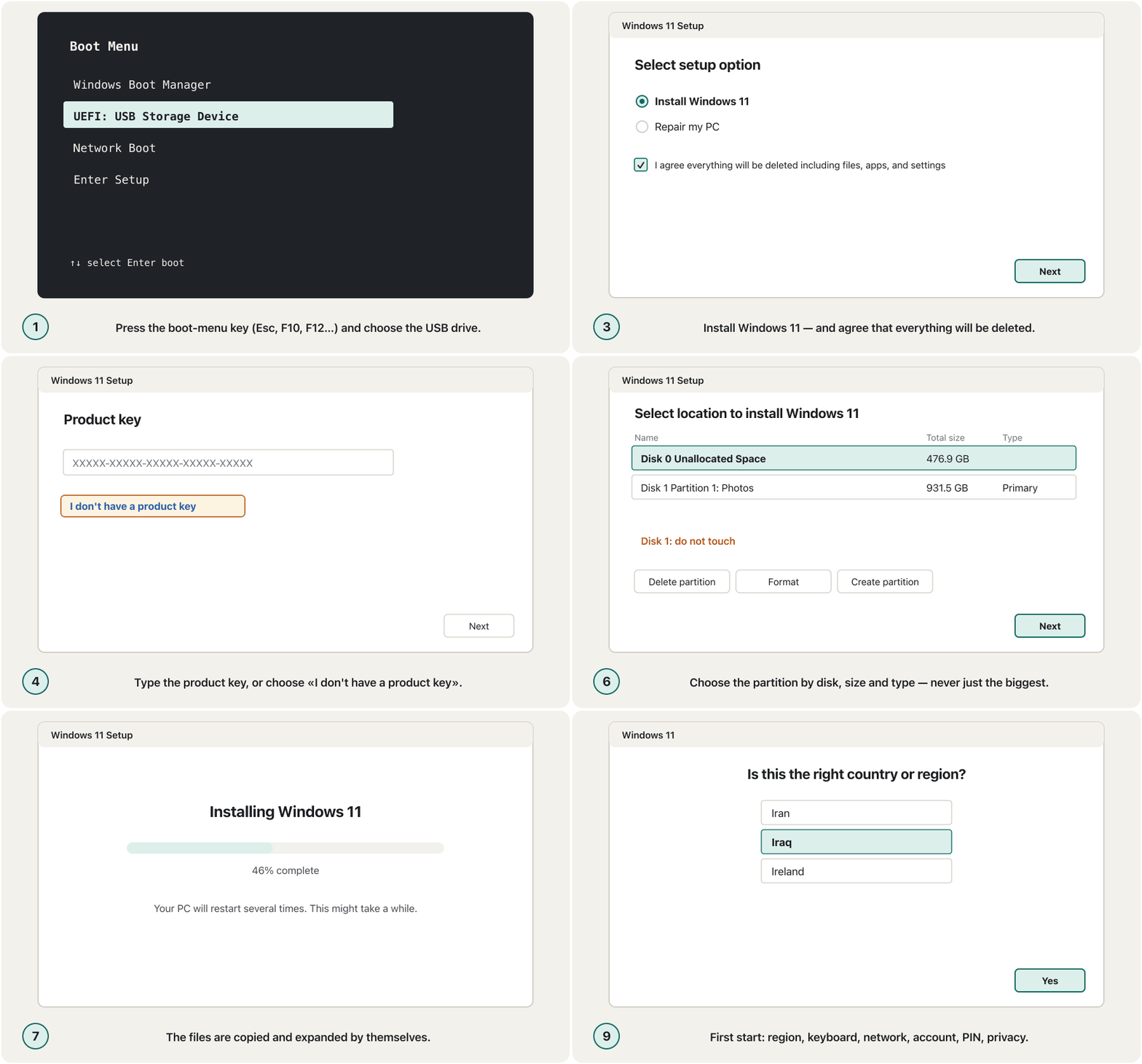
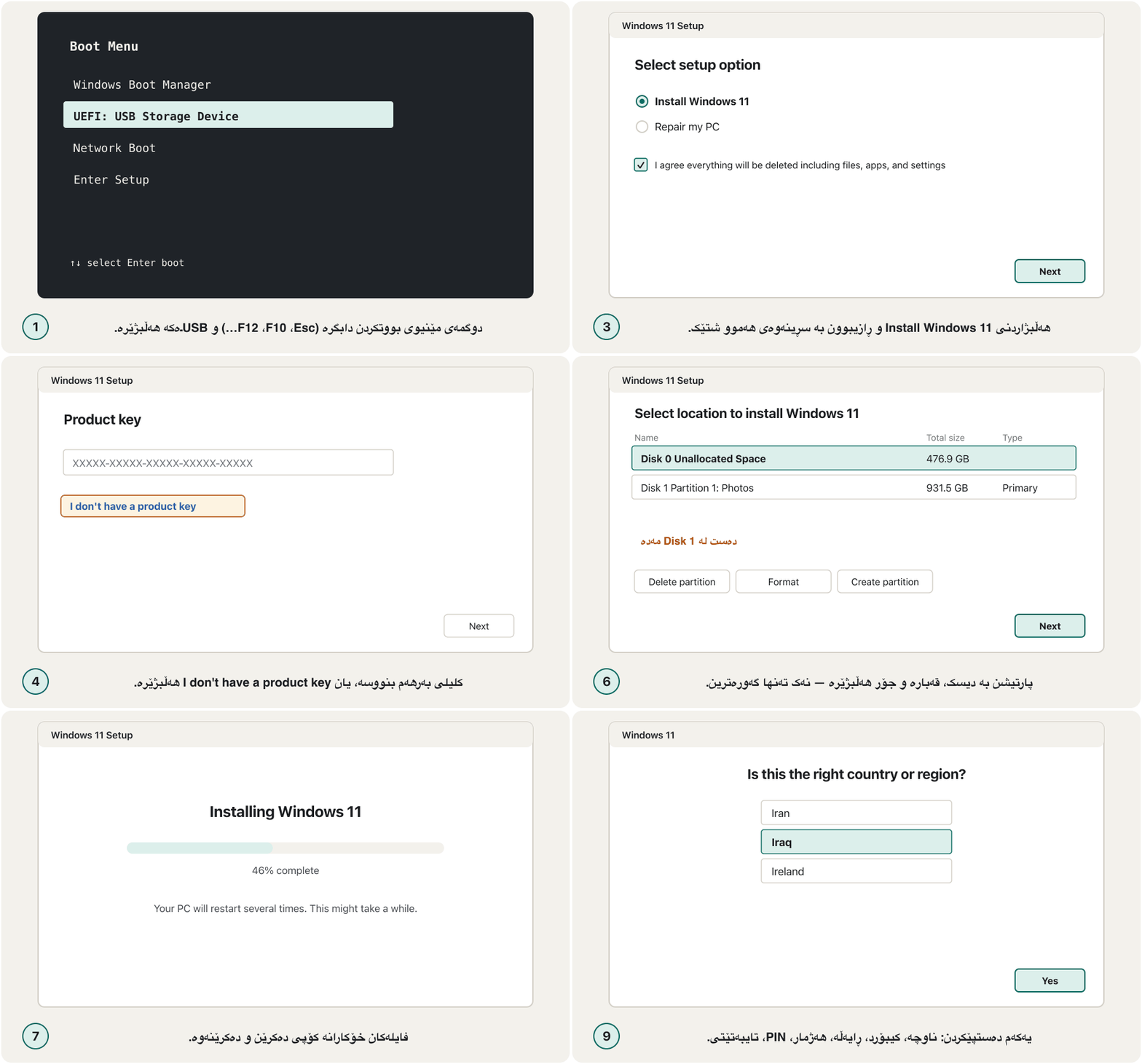
- Languageزمان
Select language settings: the language to install and the time and currency format → Next. Then choose the keyboard layout → Next (an English layout is fine; you add Central Kurdish later).
Select language settings: زمانی دامەزراندن و شێوەی کات و دراو ← Next. پاشان شێوەی هەڵبژێرە ← Next (شێوەیەکی ئینگلیزی باشە؛ کوردیی ناوەندی دواتر زیاد دەکەیت).
- Install, not repairدامەزراندن، نەک چاککردنەوە
Select setup option: choose Install Windows 11 (not Repair my PC), tick the box that agrees that everything will be deleted, → Next.
Select setup option: Install Windows 11 هەڵبژێرە (نەک Repair my PC)، ئەو چوارگۆشەیە نیشانە بکە کە ڕازی دەبیت هەموو شتێک دەسڕدرێتەوە، ← Next.
- Product keyکلیلی بەرهەم
Type the 25-character product key, or choose I don't have a product key if the PC has a digital licence (on a PC whose key is stored in its firmware, Setup may not even ask); then pick the edition (Home or Pro) that matches your licence.
٢٥ پیتییەکە بنووسە، یان I don't have a product key هەڵبژێرە ئەگەر هەیە (لەسەر کە کلیلەکەی لە ، لەوانەیە Setup هەر نەپرسێت)؛ پاشان ئەو وەشانە (Home یان Pro) هەڵبژێرە کە لەگەڵ مۆڵەتەکەتدا دەگونجێت.
- Licence termsمەرجەکانی مۆڵەت
Read Applicable notices and license terms and select Accept. What a software licence is: Software licences in one screen.
Applicable notices and license terms بخوێنەوە و Accept هەڵبژێرە. چییە: مۆڵەتەکانی بەکارهێنان لە یەک شاشەدا.
- Where to installلە کوێ جێگیر بکرێت
Select location to install Windows 11: choose the partition — carefully (next screens) → Next.
Select location to install Windows 11: هەڵبژێرە — بە وردی (شاشەکانی داهاتوو) ← Next.
- Installدامەزراندن
Ready to install → Install. From here Setup works alone.
Ready to install ← Install. لێرەوە Setup خۆی بە تەنها کار دەکات.
A real clean install of Windows 11: boot from the USB drive, answer each Setup question, choose the drive and let Setup install.
Windows 11 بە لەسەر دادەنرێت: دەستپێکردن لە ، وەڵامدانەوەی هەر پرسیارێکی Setup، هەڵبژاردنی درایڤەکە، پاشان Setup تەواو دەکات.
Plays 7:05-8:32: the PC boots from the USB drive and Windows 11 Setup runs: language, Install Windows 11, no product key, edition, licence, the drive, Install.
لە 7:05 تا 8:32 پەخش دەبێت: لە دەست پێدەکات و Setupـی Windows 11 کار دەکات: زمان، Install Windows 11، بێ ، جۆری Windows (edition)، ، درایڤەکە، Install.
Windows Setup step by stepWindows Setup هەنگاو بە هەنگاو
Upgrade or clean install?بەرزکردنەوەی وەشان یان جێگیرکردنی پاک؟
The course's Setup asked «Which type of installation do you want?» with two answers: Upgrade keeps your files, settings and apps when an older Windows is installed; Custom (advanced) installs a fresh copy, a clean install. The course owner's report chose Custom.
Setupـی کۆرسەکە دەیپرسی «Which type of installation do you want?» بە دوو وەڵام: Upgrade ، و ئەپەکانت دەپارێزێت کاتێک Windowsـێکی کۆنتر جێگیر کراوە؛ Custom (advanced) کۆپییەکی تازە جێگیر دەکات، واتە . ڕاپۆرتەکەی خاوەنی کۆرسەکە Customـی هەڵبژارد.
| Wayڕێگا | What staysچی دەمێنێتەوە | How in Windows 11چۆن لە Windows 11دا |
|---|---|---|
| In-place upgrade | Files, apps and settings، ئەپ و | Inside Windows: open the USB drive, run setup.exe (or use the Installation Assistant) › Change what to keep › Keep personal files and apps.لەناو Windows: USBـەکە بکەرەوە، setup.exe کار پێ بکە (یان Installation Assistant بەکار بهێنە) › Change what to keep › Keep personal files and apps. |
| Keep files onlyتەنها بمێنن | Personal files کەسییەکان | The same, with Keep personal files only.هەمان شت، بە Keep personal files only. |
| Clean install (Custom) (Custom) | Nothing on the Windows partitionهیچ شتێک لەسەر Windows | Start the PC from the USB drive › Install Windows 11 › choose the partition. لە USBـەوە دەست پێ بکە › Install Windows 11 › هەڵبژێرە. |
Windows Setup step by stepWindows Setup هەنگاو بە هەنگاو
Choose the partition safelyپارتیشنەکە بە سەلامەتی هەڵبژێرە
The Select location page lists every disk and partition with its name, total size, free space and type. Buttons let you delete, create (New), format and extend partitions — the course's Drive options (advanced). Setup may warn that it will create extra partitions for system files: that is normal (the EFI, MSR and Recovery partitions) → OK.
لاپەڕەی Select location هەموو دیسک و بە ناو، کۆی قەبارە، شوێنی بەتاڵ و جۆرەکەیەوە لیست دەکات. دوگمەکان ڕێگەت دەدەن بسڕیتەوە، دروست بکەیت (New)، فۆرمات بکەیت و گەورە بکەیت — ئەوەی کۆرسەکە پێی دەڵێت Drive options (advanced). Setup لەوانەیە ئاگادارت بکاتەوە کە زیادە بۆ سیستەم دروست دەکات: ئەوە ئاساییە ( EFI، MSR و Recovery) ← OK.
- One disk, start freshیەک دیسک، دەستپێکردنی تازە
On a PC with one drive, Microsoft's advice is to delete every partition on Disk 0 until only Disk 0 Unallocated Space is left, select it and click Next. Setup makes the partitions it needs. Do not change any partition on other disks.
لەسەر بە یەک درایڤ، ئامۆژگاریی Microsoft ئەوەیە کە هەموو Disk 0 بسڕیتەوە تا تەنها Disk 0 Unallocated Space بمێنێتەوە، هەڵیبژێرە و لە Next بکە. Setup ئەو دروست دەکات کە پێویستیەتی. دەست لە هیچ دیسکەکانی تر مەدە.
- Keep a data partitionپاراستنی پارتیشنێکی دراوە
If the same disk also holds a D: partition with files you keep, select only the Windows partition and Format it (or delete just the Windows-related partitions). Setup warns that the partition «might contain recovery files, system files, or important software from your computer manufacturer» and that its data will be lost → OK.
ئەگەر هەمان دیسک D:ـیشی هەیە کە تێدایە و دەتەوێت بمێنێت، تەنها Windows هەڵبژێرە و Formatـی بکە (یان تەنها ئەو بسڕەوە کە پەیوەستن بە Windowsـەوە). Setup ئاگادار دەکاتەوە کە «لەوانەیە Recovery، سیستەم یان نەرمەواڵەی گرنگی کۆمپانیای دروستکەری تێدابێت» و لەناو دەچێت ← OK.
Windows Setup step by stepWindows Setup هەنگاو بە هەنگاو
The biggest partition is not always Windowsگەورەترین پارتیشن هەمیشە Windows نییە
| Nameناو | Total sizeکۆی قەبارە | Typeجۆر | What it isچییە |
|---|---|---|---|
| Disk 0 Partition 1 | 100 MB | System | EFI: starts the PCEFI: دەست پێ دەکات |
| Disk 0 Partition 2 | 16 MB | MSR (Reserved) | Reserved for Windowsبۆ Windows پاشەکەوتکراوە |
| Disk 0 Partition 3 | 237.4 GB | Primary | Windows (C:) — the one to replaceWindows (C:) — ئەوەی دەبێت بگۆڕدرێت |
| Disk 0 Partition 4 | 755 MB | Recovery | Repair toolsئامرازەکانی چاککردنەوە |
| Disk 1 Partition 1 | 931.5 GB | Primary | A second drive full of family photosدرایڤێکی دووەم پڕ لە وێنەی خێزان |
Copying, restarts and «do not press a key»کۆپیکردن، دەستپێکردنەوەکان و «هیچ دوگمەیەک دامەگرە»
Now Setup works alone. It copies the Windows files to the partition, expands (decompresses) them, installs features and updates, and shows its progress. On the old DVD the copying step finished almost at once; from a USB drive it takes a few minutes. Then the PC restarts by itself — the old Setup waited 15 seconds or let you click Restart now — and it may restart several more times.
ئێستا Setup خۆی بە تەنها کار دەکات. Windows کۆپی دەکات بۆ سەر پارتیشنەکە، دەیانکاتەوە (لە پەستاندن دەریان دەهێنێت)، تایبەتمەندی و جێگیر دەکات و پێشکەوتنەکەی پیشان دەدات. لە DVDـە کۆنەکەدا هەنگاوی نزیکەی یەکسەر تەواو دەبوو؛ لە USBـەوە چەند خولەکێک دەخایەنێت. پاشان خۆی دەست پێ دەکاتەوە — Setupـی کۆن 15 چرکە چاوەڕێی دەکرد یان ڕێگەی دەدا لە Restart now بکەیت — و لەوانەیە چەند جارێکی تریش دەست پێ بکاتەوە.
- After the first restart Setup continues; this last part takes the longest. Do not switch the PC off, and keep a laptop on its charger.
- On a PC with two operating systems, Windows Boot Manager may ask which one to start: choose with the arrow keys and press Enter — the course owner chose the new Windows.
- دوای یەکەم Setup بەردەوام دەبێت؛ ئەم بەشە کۆتاییە زۆرترین کات دەخایەنێت. مەکوژێنەوە و لەسەر شەحنەکەرەکەی بهێڵەوە.
- لەسەر بە دوو ، Windows Boot Manager لەوانەیە بپرسێت کامیان دەست پێ بکات: بە هەڵبژێرە و Enter دابگرە — خاوەنی کۆرسەکە Windows نوێیەکەی هەڵبژارد.
First start: region, keyboard, account, privacyیەکەم دەستپێکردن: ناوچە، کیبۆرد، هەژمار، تایبەتێتی
After the last restart Windows asks its first-start questions (Microsoft calls them the out-of-box experience). The old Setup asked for a user name, a computer name and a password; Windows 11 asks in this order:
دوای کۆتا Windows پرسیارەکانی یەکەم دەستپێکردن دەکات (Microsoft پێیان دەڵێت out-of-box experience). Setupـی کۆن داوای ، ناوی و دەکرد؛ Windows 11 بەم ڕیزە دەپرسێت:
- Regionناوچە
Is this the right country or region? Choose Iraq.
Is this the right country or region? Iraq هەڵبژێرە.
- Keyboardکیبۆرد
Choose a keyboard layout, then Add layout for Central Kurdish — or add it later, as in Typing Kurdish.
شێوەیەکی هەڵبژێرە، پاشان بە Add layout Central Kurdish زیاد بکە — یان دواتر زیادی بکە، وەک لە نووسینی کوردیدا هاتووە.
- Networkڕایەڵە
Connect to Wi-Fi. Windows 11 Home and Pro need the internet here.
بە پەیوەست بە. Windows 11 Home و Pro لێرەدا پێویستیان بە .
- Device nameناوی ئامێر
Name your device: a short name without spaces, such as
LAB-PC-07. The old Setup filled in a computer name from the user name.Name your device: ناوێکی کورت بەبێ بۆشایی، وەک
LAB-PC-07. Setupـی کۆن ناوی لە پڕ دەکردەوە.
First start: region, keyboard, account, privacyیەکەم دەستپێکردن: ناوچە، کیبۆرد، هەژمار، تایبەتێتی
Account, PIN and privacyهەژمار، PIN و تایبەتێتی
- Accountهەژمار
Sign in with your Microsoft account (or choose the work or school option if your organisation gave you an account). Linking the account also stores your digital licence.
بە هەژماری Microsoftـەکەت بچۆ ژوورەوە (یان بژاردەی کار یان قوتابخانە هەڵبژێرە ئەگەر دامەزراوەکەت هەژمارێکی پێداویت). بەستنەوەی هەژمارەکە هەڵدەگرێت.
- PINدانانی PIN
Create a PIN (Windows Hello). It replaces the old optional password step; a PIN works only on this one device.
Create a PIN (Windows Hello). جێی هەنگاوە ئارەزوومەندانەکەی کۆن دەگرێتەوە؛ PIN تەنها لەسەر ئەم یەک ئامێرە کار دەکات.
- Privacyتایبەتێتی
Choose privacy settings for your device: switch off what you do not need — for example inking and typing data, tailored experiences and the advertising ID — and send only the required diagnostic data. You can change them later in Settings › Privacy & security.
Choose privacy settings for your device: ئەوە بکوژێنەوە کە پێویستت پێی نییە — بۆ نموونە نووسین و تایپکردن، ئەزموونی تایبەتکراو و ناسنامەی ڕیکلام — و تەنها پێویستی دیاگنۆستیک بنێرە. دواتر دەتوانیت لە Settings › Privacy & security بیانگۆڕیت.
First start: region, keyboard, account, privacyیەکەم دەستپێکردن: ناوچە، کیبۆرد، هەژمار، تایبەتێتی
The old Setup and Windows 11Setupـی کۆن و Windows 11
| The old Setup (course)Setupـی کۆن (کۆرسەکە) | Windows 11 todayWindows 11ـی ئەمڕۆ |
|---|---|
| Windows Update: «Use recommended settings»Windows Update: «Use recommended settings» (ڕێکخستنی پێشنیارکراو) | Updates install automatically; check Settings › Windows Update. خۆکارانە جێگیر دەبن؛ Settings › Windows Update بپشکنە. |
| Time zone, date and time: the course owner chose (UTC+03:00) Baghdad، بەروار و کات: خاوەنی کۆرسەکە (UTC+03:00) Baghdadـی هەڵبژارد | Set automatically from the region and the internet; check Settings › Time & language › Date & time — (UTC+03:00) Baghdad for Kurdistan and Iraq.خۆکارانە لە ناوچە و دادەنرێت؛ Settings › Time & language › Date & time بپشکنە — (UTC+03:00) Baghdad بۆ کوردستان و عێراق. |
| Network location: Home, Work or Publicشوێنی : Home، Work یان Public | Network profile: Public (the safe choice) or Private for your own home network — Settings › Network & internet › your network.پرۆفایلی : Public (هەڵبژاردنی سەلامەت) یان Private بۆ ماڵی خۆت — Settings › Network & internet › . |
| «Finalizing your settings», Welcome, «Preparing your desktop»«Finalizing your settings»، Welcome، «Preparing your desktop» | Still the same idea: a few minutes of waiting, then the desktop. Windows is installed.هێشتا هەمان بیرۆکە: چەند خولەکێک چاوەڕوانی، پاشان . Windows جێگیر بوو. |
Activation: digital licence or product keyچالاککردن: مۆڵەتی دیجیتاڵی یان کلیلی بەرهەم
Activation checks with Microsoft that your copy of Windows is genuine and licensed for this PC. Windows 11 activates in one of two ways:
لای Microsoft دەپشکنێت کە کۆپییەکەی Windowsـەکەت ڕەسەنە و مۆڵەتی هەیە بۆ ئەم . Windows 11 بە یەکێک لەم دوو ڕێگایە چالاک دەبێت:
- Digital licence: stored by Microsoft for your hardware and linked to your Microsoft account — for example after a free upgrade from a genuine Windows 10, or an upgrade bought in the Microsoft Store. You type nothing; after reinstalling the same edition choose I don't have a product key and Windows activates online.
- Product key: a 25-character code like
XXXXX-XXXXX-XXXXX-XXXXX-XXXXX. A PC sold with Windows usually has its key stored in its firmware, so Setup finds it by itself; a key bought in a shop comes on a card or in an e-mail. Type it during Setup or later in Settings › System › Activation › Change product key.
- : Microsoft بۆ هەڵیدەگرێت و بە هەژماری Microsoftـەکەتەوە دەبەسترێتەوە — بۆ نموونە دوای بێبەرانبەر لە Windows 10ـێکی ڕەسەنەوە، یان کە لە Microsoft Store کڕدراوە. هیچ شتێک نانووسیت؛ دوای دامەزراندنەوەی هەمان وەشان I don't have a product key هەڵبژێرە و Windows بە ئۆنلاین چالاک دەبێت.
- : کۆدێکی ٢٥ پیتی وەک
XXXXX-XXXXX-XXXXX-XXXXX-XXXXX. کە بە Windowsـەوە فرۆشرابێت زۆرجار کلیلەکەی لە هەڵگیراوە، بۆیە Setup خۆی دەیدۆزێتەوە؛ کلیلێک کە لە فرۆشگا دەکڕدرێت لەسەر کارتێک یان لە دێت. لە کاتی Setupـدا یان دواتر لە Settings › System › Activation › Change product key بینووسە.
Activation: digital licence or product keyچالاککردن: مۆڵەتی دیجیتاڵی یان کلیلی بەرهەم
Check activation — and the old 30-day ruleپشکنینی چالاککردن — و یاسا کۆنەکەی 30 ڕۆژ
Check it any time in Settings › System › Activation: the activation state should say that Windows is active. After a big hardware change such as a new motherboard, Windows may no longer be activated; if the digital licence is linked to your Microsoft account, the Activation troubleshooter can activate it again.
هەر کاتێک بتەوێت لە Settings › System › Activation بیپشکنە: دۆخی دەبێت بڵێت Windows چالاکە. دوای گۆڕانکارییەکی گەورەی وەک نوێ، لەوانەیە Windows چیتر چالاک نەبێت؛ ئەگەر بە هەژماری Microsoftـەوە بەسترابێت، Activation troubleshooter دەتوانێت دووبارە چالاکی بکاتەوە.
After installing: updates, drivers, appsدوای دامەزراندن: نوێکردنەوەکان، درایڤەرەکانی ئامێر، ئەپەکان
- Windows Updateپشکنینی Windows Update
Settings › Windows Update › Check for updates. Install, restart, and check again until it says you are up to date: a freshly installed Windows lacks months of security fixes (why that matters: Patching). Driver updates often wait under Advanced options › Optional updates.
Settings › Windows Update › Check for updates. جێگیر بکە، دەستی پێ بکەرەوە و دووبارە بپشکنە تا دەڵێت نوێیت: Windowsـی تازە جێگیرکراو چەند مانگێکی پێ نییە (بۆچی گرنگە: پینەکردن). زۆرجار لە ژێر Advanced options › Optional updates چاوەڕێن.
- Driversدرایڤەرەکانی ئامێر
Windows Update installs most drivers. Get the rest — often graphics and printer drivers — from the maker's own website, never a random «driver» site. See Device drivers.
Windows Update زۆربەی جێگیر دەکات. ئەوانی تر — زۆرجار گرافیک و — لە ماڵپەڕی خودی کۆمپانیای دروستکەر وەربگرە، هەرگیز لە ماڵپەڕێکی هەڕەمەکیی «درایڤەر». سەیری درایڤەرەکانی ئامێر بکە.
- Appsئەپەکان
Install the apps you need from the Microsoft Store or the makers' websites — see Installing and updating apps safely — then copy your files back from the backup.
ئەو ئەپانەی پێویستتن لە Microsoft Store یان ماڵپەڕی کۆمپانیا دروستکەرەکانەوە جێگیر بکە — سەیری جێگیرکردن و نوێکردنەوەی ئەپ بە سەلامەتی بکە — پاشان لە بگەڕێنەوە.
| The slide's «basic things to install»«شتە بنەڕەتییەکان بۆ »ـی سلایدەکە | In 2026لە 2026دا |
|---|---|
| 1. Antivirusیەکەم: | Microsoft Defender Antivirus is built in and already on (Windows Security). A second antivirus is not needed.Microsoft Defender Antivirus لە ناوەوەیە و پێشتر هەڵکراوە (Windows Security). دووەم پێویست نییە. |
| 2. Microsoft Officeدووەم: Microsoft Office | Microsoft 365, or a free office suite such as LibreOffice.Microsoft 365، یان بێبەرانبەر وەک LibreOffice. |
| 3. Browsersسێیەم: | Microsoft Edge is already there; add Firefox or Chrome only from their official websites.Microsoft Edge پێشتر هەیە؛ Firefox یان Chrome تەنها لە ماڵپەڕە فەرمییەکانیانەوە زیاد بکە. |
| 4. Printersچوارەم: | Connect the printer; Windows Update or the maker's app installs its driver. ببەستەوە؛ Windows Update یان ئەپی کۆمپانیای دروستکەر جێگیر دەکات. |
Practise safely in a virtual machineبە سەلامەتی لە ئامێرێکی گریمانەییدا ڕاهێنان بکە
Your first installation should not be on the family PC. A virtual machine is a computer made by software inside your own computer — how it works is explained in Cloud Computing. Installing Windows in it touches nothing on your real drive.
یەکەم دامەزراندنت نابێت لەسەر خێزان بێت. کە نەرمەواڵە لەناو خۆتدا دروستی دەکات — چۆن کار دەکات لە هەورەژمێرکاریدا ڕوون کراوەتەوە. دامەزراندنی Windows تێیدا دەست لە هیچ شتێکی درایڤە ڕاستەقینەکەت نادات.
Install a hypervisor app: Hyper-V (built into Windows 11 Pro, Enterprise and Education) or the free VirtualBox.
ئەپێکی جێگیر بکە: Hyper-V (لە Windows 11 Pro، Enterprise و Educationـدا هەیە) یان VirtualBoxـی بێبەرانبەر.
Download the Windows 11 ISO from Microsoft's download page.
ISOـی Windows 11 لە لاپەڕەی Microsoftـەوە دابەزێنە.
Create a new virtual machine with at least 4 GB of memory, a 64 GB virtual disk, and UEFI with Secure Boot and a TPM turned on (in Hyper-V: a Generation 2 machine with the TPM enabled).
دروست بکە بە لانیکەم 4 GB ، دیسکێکی گریمانەیی 64 GB و UEFI بە Secure Boot و TPMـی هەڵکراو (لە Hyper-V: ئامێرێکی Generation 2 بە TPMـی چالاک).
Attach the ISO as the virtual DVD drive, start the machine and follow every step of this lesson. Break it, delete it, start again.
ISOـەکە وەک درایڤی DVDـی گریمانەیی بلکێنە، ئامێرەکە دەست پێ بکە و هەموو هەنگاوێکی ئەم وانەیە بکە. تێکی بدە، بیسڕەوە، دووبارە دەست پێ بکەرەوە.
Common mistakesهەڵە باوەکان
- No backup. «I will only reinstall Windows» — and the Desktop folder full of homework is gone.
- Choosing the biggest partition. Pick by disk number, size and type; never touch other disks.
- Pressing a key at a restart. Setup starts again from the beginning.
- Writing the installer onto the wrong USB drive. Unplug other drives first.
- Downloading Windows or an «activator» from an unknown site. Use Microsoft's download page and a real licence.
- Stopping after the desktop appears. Run Windows Update, install drivers, then restore your files.
- هیچ . «تەنها Windows دووبارە جێگیر دەکەمەوە» — و Desktop کە پڕ بوو لە ئەرکی ماڵەوە نەما.
- هەڵبژاردنی گەورەترین . بە ژمارەی دیسک، قەبارە و جۆر هەڵبژێرە؛ هەرگیز دەست لە دیسکەکانی تر مەدە.
- داگرتنی دوگمەیەک لە . Setup دووبارە لە سەرەتاوە دەست پێ دەکاتەوە.
- نووسینی دامەزرێنەر لەسەر USBـی هەڵە. سەرەتا درایڤەکانی تر دەربهێنە.
- Windows یان «activator» لە ماڵپەڕێکی نەناسراو. لاپەڕەی Microsoft و مۆڵەتێکی ڕاستەقینە بەکار بهێنە.
- وەستان دوای دەرکەوتنی . Windows Update کار پێ بکە، جێگیر بکە، پاشان بگەڕێنەوە.
Exercisesڕاهێنانەکان
Order these: choose the partition; back up your files; first start (region, account, PIN); make the USB drive; Windows Update and drivers; boot from the USB drive; accept the licence terms; check the requirements; copying and restarts; language and keyboard; restore your files; Install Windows 11; product key.
ئەمانە ڕیز بکە: هەڵبژاردنی پارتیشن؛ ؛ یەکەم دەستپێکردن (ناوچە، هەژمار، PIN)؛ دروستکردنی USB؛ Windows Update و ؛ دەستپێکردن لە USBـەوە؛ قبووڵکردنی مەرجەکانی مۆڵەت؛ پشکنینی ؛ و دەستپێکردنەوەکان؛ زمان و ؛ گەڕاندنەوەی ؛ Install Windows 11؛ .
Show answerوەڵامەکە پیشان بدە
- Back up your files
- Check the requirements
- Make the USB drive with the Media Creation Tool
- Boot from the USB drive (boot-menu key)
- Language and keyboard
- Install Windows 11 and agree that everything will be deleted
- Product key or «I don't have a product key»
- Accept the licence terms
- Choose the partition
- Copying and restarts — do not press a key
- First start: region, keyboard, network, account, PIN, privacy
- Windows Update, drivers and apps
- Restore your files
- بگرە
- بپشکنە
- USBـەکە بە Media Creation Tool دروست بکە
- لە USBـەوە دەست پێ بکە (دوگمەی )
- زمان و
- Install Windows 11 و ڕازیبوون بە سڕینەوەی هەموو شتێک
- یان «I don't have a product key»
- قبووڵکردنی مەرجەکانی مۆڵەت
- هەڵبژاردنی
- و — هیچ دوگمەیەک دامەگرە
- یەکەم دەستپێکردن: ناوچە، ، ، هەژمار، PIN،
- Windows Update، و ئەپەکان
- گەڕاندنەوەی
Setup shows: Disk 0 Partition 1 System 100 MB; Disk 0 Partition 2 MSR 16 MB; Disk 0 Partition 3 Primary 120 GB; Disk 0 Partition 4 Recovery 800 MB; Disk 0 Partition 5 Primary 350 GB (labelled DATA in Disk Management). Shilan wants a clean Windows but must keep the files on DATA. What does she do?
Setup پیشان دەدات: Disk 0 Partition 1 System 100 MB؛ Disk 0 Partition 2 MSR 16 MB؛ Disk 0 Partition 3 Primary 120 GB؛ Disk 0 Partition 4 Recovery 800 MB؛ Disk 0 Partition 5 Primary 350 GB (لە Disk Managementـدا ناوی DATAـیە). شیلان Windowsـێکی پاکی دەوێت بەڵام دەبێت سەر DATA بمێنن. چی دەکات؟
Show answerوەڵامەکە پیشان بدە
She backs up DATA anyway, then selects Disk 0 Partition 3 (the 120 GB Windows partition), formats it and installs there — or deletes only partitions 1–4 and installs into the unallocated space. She must not touch Partition 5, even though it is the biggest.
هەر چۆنێک بێت DATA دەگرێت، پاشان Disk 0 Partition 3 هەڵدەبژێرێت ( 120 GBـی Windows)، فۆرماتی دەکات و لەوێ جێگیری دەکات — یان تەنها 1 تا 4 دەسڕێتەوە و لە شوێنە دابەشنەکراوەکەدا جێگیری دەکات. نابێت دەست لە Partition 5 بدات، هەرچەندە گەورەترینە.
Choose for each: (a) a Windows 10 laptop that works well, whose owner wants Windows 11 with all his apps; (b) a PC so full of malware that the antivirus cannot clean it; (c) a PC with a brand-new, empty SSD.
بۆ هەریەکەیان هەڵبژێرە: (أ) Windows 10 کە باش کار دەکات و خاوەنەکەی Windows 11ـی دەوێت لەگەڵ هەموو ئەپەکانی؛ (ب) ئەوەندە پڕ لە کە ناتوانێت پاکی بکاتەوە؛ (ج) بە SSDـێکی تازە و بەتاڵ.
Show answerوەڵامەکە پیشان بدە
- (a) In-place upgrade (Installation Assistant or setup.exe › Keep personal files and apps) — after a backup.
- (b) Back up only the personal files (scan them), then a clean install from the USB drive.
- (c) Clean install: there is nothing to keep.
- (أ) (Installation Assistant یان setup.exe › Keep personal files and apps) — دوای .
- (ب) تەنها کەسییەکان بکە (بیانپشکنە)، پاشان لە USBـەوە.
- (ج) : هیچ شتێک نییە بۆ پاراستن.
PC A: 64-bit dual-core 2.0 GHz, 8 GB RAM, 256 GB SSD, UEFI with Secure Boot, TPM 2.0. PC B: 32-bit single-core 1.6 GHz, 2 GB RAM, 80 GB hard disk, old BIOS.
A: 64-bit دوو ناوکی 2.0 GHz، 8 GB RAM، SSDـی 256 GB، UEFI بە Secure Boot، TPM 2.0. B: 32-bit یەک ناوکی 1.6 GHz، 2 GB RAM، 80 GB، BIOSـی کۆن.
Show answerوەڵامەکە پیشان بدە
- A: yes — it meets every minimum (check its processor on Microsoft's list with PC Health Check).
- B: no — 32-bit, one core, 2 GB of RAM and no UEFI/TPM are all below Windows 11's minimum. It could run Linux, or be retired.
- A: بەڵێ — هەموو کەمترین ئاستێک پڕ دەکاتەوە (پرۆسێسەرەکەی بە PC Health Check لە لیستی Microsoft بپشکنە).
- B: نەخێر — 32-bit، یەک ناوک، 2 GB RAM و نەبوونی UEFI/TPM هەموویان لە خوار کەمترین ئاستی Windows 11ـەوەن. دەتوانێت Linux کار پێ بکات، یان لە کار بخرێت.
Summaryپوختە
- A clean install replaces Windows completely; «formatting the computer» is only one step of it. Back up first (3-2-1).
- Windows 11 needs a 64-bit 1 GHz dual-core CPU, 4 GB RAM, 64 GB storage, UEFI with Secure Boot and TPM 2.0. Windows 7 (2020) and Windows 10 (2025) are past their end of support.
- Formatting gives one partition a new, empty file system (NTFS for Windows; FAT32 or exFAT for USB) — by Disk Management, the format command or Setup.
- Make the installer with Microsoft's Media Creation Tool on a blank USB drive of 8 GB or more; start the PC from it with the boot-menu key (Esc, F10, F12…).
- Setup: language, Install Windows 11, product key, licence, partition (by disk, size and type — never «the biggest»), then copying and restarts: do not press a key.
- First start: region, keyboard (add Central Kurdish), network, Microsoft account, PIN, private settings; activation by digital licence or product key.
- Afterwards: Windows Update, drivers, apps from official sources, restore the backup. Practise first in a virtual machine.
- Windows بە تەواوی دەگۆڕێت؛ «فۆرماتکردنی » تەنها یەک هەنگاوە لێی. سەرەتا (3-2-1).
- Windows 11 پێویستی بە CPUـی 64-bitـی 1 GHzـی دوو ناوکی، 4 GB RAM، 64 GB شوێنی خەزنکردن، UEFI بە Secure Boot و TPM 2.0 هەیە. Windows 7 (2020) و Windows 10 (2025) گەیشتوونەتە .
- نوێ و بەتاڵ دەداتە یەک (NTFS بۆ Windows؛ FAT32 یان exFAT بۆ USB) — بە Disk Management، format یان Setup.
- دامەزرێنەر بە Media Creation Toolـی Microsoft لەسەر بەتاڵی 8 GB یان زیاتر دروست بکە؛ بە دوگمەی (Esc، F10، F12…) لێوە دەست پێ بکە.
- Setup: زمان، Install Windows 11، ، مۆڵەت، (بە دیسک، قەبارە و جۆر — هەرگیز «گەورەترین» نا)، پاشان و : هیچ دوگمەیەک دامەگرە.
- یەکەم دەستپێکردن: ناوچە، (کوردیی ناوەندی زیاد بکە)، ، هەژماری Microsoft، PIN، ڕێکخستنی تایبەت؛ بە یان .
- دواتر: Windows Update، ، ئەپ لە سەرچاوە فەرمییەکانەوە، گەڕاندنەوەی . سەرەتا لە ڕاهێنان بکە.
Videoڤیدیۆ
Watch a videoسەیری ڤیدیۆیەک بکە
A video that viewers liked a lot and praised in their comments, chosen for this lesson.ڤیدیۆیەک کە بینەران زۆریان پێ خۆش بووە و لە کۆمێنتەکانیاندا ستایشیان کردووە، بۆ ئەم وانەیە هەڵبژێردراوە.
In Sorani Kurdish: a real clean install of Windows 11 on a PC: the boot menu, the Setup screens, choosing the partition and copying the files.
بە کوردیی سۆرانی: Windows 11 لەسەر — ، شاشەکانی Setup، هەڵبژاردنی و کۆپیکردنی .
Plays 18:18–31:40 of a 50-minute video: the boot menu (F11 on this PC), language and Setup options, choosing the partition, Ready to install and Installing Windows 11. The earlier Rufus part, which switches off Windows 11's TPM and Secure Boot checks, is left out.
لە 18:18 تا 31:40ی ڤیدیۆیەکی 50 خولەکی پەخش دەبێت: (لەم F11)، زمان و هەڵبژاردنەکانی Setup، هەڵبژاردنی ، Ready to install و Installing Windows 11. بەشی پێشووی Rufus، کە پشکنینی TPM و Secure Bootی Windows 11 دەکوژێنێتەوە، پەخش ناکرێت.
Lesson complete!وانەکە تەواو بوو!
Well done. Review the key terms, then go on to the next lesson.دەستخۆش. سەیرێکی زاراوە سەرەکییەکان بکەرەوە، پاشان بڕۆ بۆ وانەی داهاتوو.
Key termsزاراوە سەرەکییەکان
Troubleshooting and Task Managerچارەسەرکردنی کێشە و بەڕێوەبەری ئەرکەکان
Related lecturesوانە پەیوەندیدارەکان
- Building and Caring for a PCپێکەوەنان و چاودێریکردنی کۆمپیوتەر
- Troubleshooting and Task Managerچارەسەرکردنی کێشە و بەڕێوەبەری ئەرکەکان
- Hard Disk Drivesهارد دیسکەکان
- Cloud Computingهەورەژمێرکاری
- Software and Operating Systemsنەرمەواڵە و سیستەمەکانی وەگەڕخەر
- Malware: Viruses, Worms, Trojans, Ransomware and Spywareنەرمەواڵەی زیانبەخش: ڤایرۆسەکانی کۆمپیوتەر، کرمەکان، ئەسپەکانی ترۆیا، نەرمەواڵەی بارمتەگر و نەرمەواڵەی سیخوڕی
References and further readingسەرچاوەکان و خوێندنەوەی زیاتر
- Microsoft: Windows 11 specifications and system requirements
- Microsoft: Download Windows 11 (Installation Assistant, Media Creation Tool, ISO; USB of at least 8 GB)
- Microsoft Support: Reinstall Windows (in-place upgrade with setup.exe; clean install from installation media)
- Microsoft Learn: Install Windows from a USB flash drive (boot-menu keys Esc/F10/F12; FAT32)
- Microsoft Learn: UEFI/GPT-based hard drive partitions (EFI, MSR, Windows, Recovery)
- Microsoft Learn: Overview of Disk Management
- Microsoft Learn: format command
- Microsoft Learn: Change in the behavior of the format command in Windows Vista and later (a full format writes zeros)
- Microsoft Support: Activate Windows (digital license after a free upgrade or Store purchase; product key, also preinstalled on PCs sold with Windows; Settings › System › Activation)
- Microsoft Learn: Windows 7 lifecycle (support ended January 2020)
- Microsoft Learn: Windows 10 Home and Pro lifecycle (end of support 14 October 2025)
This lecture is a first edition. The Kurdish text and terminology are waiting for review by Kurdish IT teachers.ئەم وانەیە چاپی یەکەمە. دەقە کوردییەکە و زاراوەکانی چاوەڕێی پێداچوونەوەی مامۆستایانی کوردی بواری IT ن.