Chapterبەش 5 · Lectureوانە 5.7
Spreadsheet Essentialsبنەماکانی بەرنامەی خشتەیی
What a spreadsheet is for (Word vs Excel vs PowerPoint); workbooks, worksheets, cells, addresses and ranges, the Name Box and the Formula Bar; entering text, numbers and dates; formulas with = and the order of operations; SUM, AVERAGE, MIN, MAX and COUNT; the fill handle with relative and absolute references; IF for Passed or Failed; number formats and conditional formatting; a column chart; the same skills in Google Sheets and LibreOffice Calc; and the practical exam's mark sheet as a lab.
بۆ چییە (Word و Excel و PowerPoint)؛ ، ، ، و ، و ؛ نووسینی دەق، ژمارە و بەروار؛ بە = و ؛ SUM، AVERAGE، MIN، MAX و COUNT؛ لەگەڵ و ؛ IF بۆ دەرچوو یان کەوتوو؛ و ؛ ؛ هەمان شارەزایی لە Google Sheets و LibreOffice Calc؛ و خشتەی نمرەی تاقیکردنەوە کردارییەکە وەک تاقیگە.
What you will learnچی فێر دەبیت
- Say what a spreadsheet is best for, compared with Word and PowerPoint.
- Name the parts of the Excel window and write cell addresses and ranges.
- Write formulas with operators and brackets, and use SUM, AVERAGE, MIN, MAX and COUNT.
- Copy formulas with the fill handle and choose relative or absolute references.
- Use IF with a comparison to show Passed or Failed.
- Format numbers, colour cells with conditional formatting and make a column chart.
- Build the practical exam's mark sheet from start to finish.
- بڵێیت بۆ چی باشترینە، بەراورد بە Word و PowerPoint.
- بەشەکانی پەنجەرەی Excel ناو ببەیت و و بنووسیت.
- بە و کەوانە بنووسیت و SUM، AVERAGE، MIN، MAX و COUNT بەکار بهێنیت.
- بە کۆپی بکەیت و یان هەڵبژێریت.
- IF لەگەڵ بەراوردێک بەکار بهێنیت بۆ پیشاندانی Passed یان Failed.
- ژمارەکان ڕێک بخەیت، خانەکان بە ڕەنگ بکەیت و دروست بکەیت.
- خشتەی نمرەی تاقیکردنەوە کردارییەکە لە سەرەتاوە تا کۆتایی دروست بکەیت.
What a spreadsheet is forبەرنامەی خشتەیی بۆ چییە؟
A spreadsheet program such as Microsoft Excel keeps numbers and text in a grid of small boxes called cells, and calculates with them. Change one number and every total that depends on it changes at once. That is why teachers keep marks in it, shops keep stock lists, and families keep budgets in it.
، وەک Microsoft Excel، ژمارە و دەق لە تۆڕێکی سندووقی بچووکدا هەڵدەگرێت کە پێیان دەوترێت و ژمێرکارییان لەسەر دەکات. ژمارەیەک بگۆڕە و هەموو ئەو کۆیانەی پشتی پێ دەبەستن دەستبەجێ دەگۆڕێن. هەر بۆیە مامۆستایان نمرەی تێدا هەڵدەگرن، دوکانەکان لیستی کاڵا و خێزانەکان بودجەی ماڵ.
A program, such as Excel, that keeps numbers and text in a grid of cells and can do calculations with them. The file you make with it is also called a spreadsheet.
بەرنامەیەکە، وەک Excel، کە ژمارە و دەق لەناو خانەکانی خشتەیەکی گەورەدا (ڕیز و ستوون) ڕێک دەخات و دەتوانێت ژمێرکارییان لەسەر بکات. فایلەکەش بە ئینگلیزی هەر پێی دەوترێت spreadsheet.
Each Office program has its own job. A Kurdish comparison card puts it simply: Excel is the best tool for tracking and analysing data and organising it with charts, and for recording information over time — but it is not the best tool for presenting data to an audience. For that, PowerPoint is better.
هەر بەرنامەیەکی Office کاری تایبەتی خۆی هەیە. کارتێکی بەراوردکاریی کوردی بە سادەیی دەیڵێت: Excel باشترین ئامرازە بۆ بەدواداچوون و شیکردنەوەی و ڕێکخستنی بە و بۆ تۆمارکردنی زانیاری بە تێپەڕبوونی کات — بەڵام باشترین ئامراز نییە بۆ پێشکەشکردنی بە بینەران. بۆ ئەوە PowerPoint باشترە.
| Programبەرنامە | Best forباشترینە بۆ | Exampleنموونە |
|---|---|---|
| Word — a Word، کە | Documents that need careful wording and layout: reports, proposals, contractsبەڵگەنامە کە وشە و ڕێکخستنی وردیان دەوێت: ڕاپۆرت، پێشنیارنامە، گرێبەست | A lab reportڕاپۆرتێکی تاقیگە |
| Excel — a spreadsheetExcel، کە | Tracking, calculating and analysing data; charts; records kept over timeبەدواداچوون، ژمێرکاری و شیکردنەوەی ؛ ؛ تۆماری درێژخایەن | The class mark sheetخشتەی نمرەی پۆلەکە |
| PowerPoint — PowerPoint، کە | Presenting ideas and data to an audience as a slide showپێشکەشکردنی بیرۆکە و بە بینەران وەک | The results presented at a meetingئەنجامەکان کە لە کۆبوونەوەیەکدا پێشکەش دەکرێن |
The Excel window: workbook, worksheets and cellsپەنجەرەی Excel: کتێبی کار، پەڕەکانی کار و خانەکان
One Excel file is a workbook. A workbook holds one or more worksheets, shown as tabs at the bottom (Sheet1, Sheet2…). Each worksheet is a grid: columns are named with letters (A, B, C … Z, AA … up to XFD, 16,384 columns) and rows with numbers (1 to 1,048,576). Where a column and a row meet is a cell, named by its column and row: B2.
یەک فایلی Excel . یەک یان چەند لەخۆ دەگرێت کە وەک تاب لە خوارەوە دەردەکەون (Sheet1، Sheet2…). هەر تۆڕێکە: بە پیت ناو دەنرێن (A، B، C … Z، AA … تا XFD، 16384 ) و بە ژمارە (1 تا 1048576). ئەو شوێنەی و بەیەک دەگەن کە بە و ناو دەنرێت: B2.
| Partبەش | What it doesچی دەکات |
|---|---|
| 1 Name Boxژمارە 1: | Shows the address of the active cell. Type an address (H2) and press Enter to jump there.ناونیشانی پیشان دەدات. ناونیشانێک (H2) بنووسە و Enter دابگرە بۆ ئەوەی بچیتە ئەوێ. |
| 2 Formula Barژمارە 2: | Shows what the cell really contains — the formula, not only its result. You can edit there.پیشان دەدات لە ڕاستیدا چی تێدایە — ، نەک تەنها ئەنجامەکەی. دەتوانیت لەوێ دەستکاری بکەیت. |
| 3–4 Column letters, row numbersژمارە 3 و 4: پیتی ، ژمارەی | Click one to select a whole column or row. لە یەکێکیان بکە بۆ هەڵبژاردنی هەموو یان . |
| 5 Active cellژمارە 5: | The selected cell, with a thick border. What you type goes here. هەڵبژێردراوەکە، بە چوارچێوەیەکی ئەستوور. ئەوەی دەینووسیت دەچێتە ئێرە. |
| 6 Fill handleژمارە 6: | The small square at the corner. Drag it to copy a formula or continue a series.چوارگۆشە بچووکەکەی گۆشەکە. ڕایبکێشە بۆ کۆپیکردنی یان درێژەدان بە زنجیرەیەک. |
| 7 Sheet tabsژمارە 7: تابەکانی | Switch between worksheets; + adds one; double-click a tab to rename it.لە نێوان دەگۆڕێت؛ + یەکێک زیاد دەکات؛ دوو لەسەر تابێک بکە بۆ گۆڕینی ناوەکەی. |
| 8 Ribbonژمارە 8: | The same tabs and groups as in Word and PowerPoint — see the PowerPoint screen.هەمان و وەک Word و PowerPoint — بڕوانە شاشەی PowerPoint. |
One file, for example marks.xlsx. A workbook holds one or more , shown as tabs at the bottom of the window.
یەک فایلی ، بۆ نموونە marks.xlsx. یەک یان چەند لەخۆ دەگرێت کە وەک تاب لە خوارەوەی پەنجەرەکە دەردەکەون.
The Excel window: workbook, worksheets and cellsپەنجەرەی Excel: کتێبی کار، پەڕەکانی کار و خانەکان
Cell addresses and rangesناونیشانەکانی خانە و مەوداکانی خانەکان
A cell reference names one cell. A range names a block of neighbouring cells: the first cell, a colon, the last cell. Functions work on ranges, so you will write them all the time.
ناوی یەک دەڵێت. ناوی کۆمەڵێک لە تەنیشت یەکەوە دەڵێت: یەکەم خانە، دوو خاڵ، دوایین خانە. لەسەر کار دەکەن، بۆیە هەمیشە دەیاننووسیت.
| You writeدەینووسیت | It meansواتای |
|---|---|
B2 | One cell: column B, row 2یەک خانە: B، 2 |
C2:E2 | Three cells in row 2: C2, D2, E2سێ خانە لە 2: C2، D2، E2 |
C2:C6 | Five cells in column C: C2 to C6پێنج خانە لە C: C2 تا C6 |
C2:E6 | A block of 3 columns and 5 rows: cellsبلۆکێکی 3 و 5 : خانە |
5:5 | All of row 5هەموو 5 |
H:H | All of column Hهەموو H |
Entering data: text, numbers and datesنووسینی دراوە: دەق، ژمارە و بەروار
Click a cell, type, and press Enter (the next cell down becomes active) or Tab (the next cell to the right). To change a cell, double-click it or press F2; Esc cancels what you are typing; Ctrl+Z undoes. Excel decides what you typed:
لە خانەیەک بکە، بنووسە و Enter دابگرە (خانەی خوارەوە دەبێت بە ) یان Tab (خانەی لای ڕاست). بۆ گۆڕینی خانەیەک، دوو لەسەر بکە یان F2 دابگرە؛ Esc ئەوەی دەینووسیت هەڵدەوەشێنێتەوە؛ Ctrl+Z دەکات. Excel بڕیار دەدات چیت نووسیوە:
- Numbers line up on the right of the cell, so their digits sit under each other.
- Text lines up on the left. A «number» on the left is a warning: it was stored as text (for example typed after an apostrophe, '75, or pasted from a web page with a hidden space) and calculations will ignore it.
- Dates such as 23/10/2026 are stored as numbers too, so you can subtract them to count days. How they look depends on the computer's regional settings.
- ##### fills a cell when the column is too narrow for the number. Double-click the right edge of the column letter to widen it.
- ژمارەکان لە لای ڕاستی خانەکەدا ڕیز دەبن، بۆ ئەوەی ژمارەکانیان لە ژێر یەکەوە بن.
- دەق لە لای چەپ ڕیز دەبێت. «ژمارە»یەک لە لای چەپ ئاگادارکردنەوەیە: وەک دەق هەڵگیراوە (بۆ نموونە لە دوای ' نووسراوە، '75، یان لە کۆپی کراوە و بۆشاییەکی شاراوەی تێدایە) و ژمێرکارییەکان گوێی پێ نادەن.
- بەرواری وەک 23/10/2026 هەروەها وەک ژمارە هەڵدەگیرێت، بۆیە دەتوانیت لە یەکتریان دەربکەیت بۆ ژماردنی ڕۆژەکان. شێوەیان بەپێی ڕێکخستنە ناوچەییەکانی دەگۆڕێت.
- ##### خانەیەک پڕ دەکاتەوە کاتێک بۆ ژمارەکە زۆر تەسکە. دوو لە لێواری ڕاستی پیتی بکە بۆ پانکردنەوەی.
Formulas: every calculation starts with =فۆرمولەکان: هەموو ژمێرکارییەک بە = دەست پێ دەکات
A formula is a calculation in a cell. It always starts with an equals sign — without it Excel just shows your text. Use cell references instead of typing the numbers again: =C2+D2 adds whatever is in C2 and D2, so if a mark is corrected, the answer updates by itself.
ژمێرکارییەکە لە ناو خانەیەکدا. هەمیشە بە نیشانەی یەکسان دەست پێ دەکات — بەبێ ئەوە Excel تەنها دەقەکەت پیشان دەدات. لە جیاتی نووسینەوەی ژمارەکان بەکار بهێنە: =C2+D2 هەرچی لە C2 و D2دا بێت کۆی دەکاتەوە، بۆیە ئەگەر نمرەیەک ڕاست بکرێتەوە، وەڵامەکە خۆی نوێ دەبێتەوە.
A rule written with symbols that says how to calculate a value, such as the area of a circle . In a a formula starts with =; for example, =SUM(B2:B10) adds the numbers in cells B2 to B10.
یاسایەکی نووسراوە بە هێما کە دەڵێت بەهایەک چۆن دەژمێردرێت، وەک ڕووبەری بازنە . لە فۆرمولە بە = دەست پێدەکات؛ بۆ نموونە =SUM(B2:B10) ژمارەکانی ناو B2 تا B10 کۆ دەکاتەوە.
| Operator | Meaningواتا | Exampleنموونە | Resultئەنجام |
|---|---|---|---|
+ | addکۆکردنەوە | =70+90 | 160 |
- | subtractلێدەرکردن | =90-70 | 20 |
* | multiplyلێکدان | =4*25 | 100 |
/ | divideدابەشکردن | =240/3 | 80 |
^ | powerتوان | =2^3 | 8 |
% | percent | =50%*80 | 40 |
Excel follows the order of operations you know from maths: brackets first, then powers, then × and ÷, then + and −; equal levels go left to right. Brackets change the answer completely:
Excel پەیڕەو دەکات کە لە بیرکارییەوە دەیناسیت: سەرەتا کەوانە، پاشان توان، پاشان × و ÷، پاشان + و −؛ ئاستە یەکسانەکان لە چەپەوە بۆ ڕاست. کەوانە وەڵامەکە بە تەواوی دەگۆڕێت:
=5+2*3            → 11      (2*3 first)
=(5+2)*3          → 21
=70+90+80/3       → 186.67  (only 80 is divided!)
=(70+90+80)/3     → 80      (the average of three marks)
Explain the codeڕوونکردنەوەی کۆدەکە
- Lineدێڕی 3-4
Forgetting the brackets is the classic average mistake. A function avoids it:
=AVERAGE(C2:E2).لەبیرچوونی کەوانەکان هەڵەی بەناوبانگی تێکڕایە. ڕێگەی لێ دەگرێت:
=AVERAGE(C2:E2).
Functions: SUM, AVERAGE, MIN, MAX, COUNTفەنکشنەکان: SUM، AVERAGE، MIN، MAX، COUNT
A function is a ready-made calculation with a name. You write the name and, in brackets, its arguments — usually a range: =SUM(C2:C6). Five functions do most everyday work. Here they are on the IT marks of the class (C2:C6 = 70, 60, 40, 75, 40):
ژمێرکارییەکی ئامادەیە کە ناوێکی هەیە. ناوەکە دەنووسیت و لە ناو کەوانەدا — زۆرجار : =SUM(C2:C6). پێنج زۆربەی کاری ڕۆژانە دەکەن. ئەمە ئەوانن لەسەر نمرەکانی ITـی پۆلەکە (C2:C6 = 70، 60، 40، 75، 40):
A ready-made calculation in a that you call by its name inside a , with its inputs in brackets: SUM(C2:C6), AVERAGE(C2:E2), IF(…). It saves you from typing long calculations.
ژمێرکارییەکی ئامادەیە لە کە لە ناو بە ناوەکەی بانگی دەکەیت و ئەو بەهایانەی پێویستیەتی لە ناو کەوانەدا دەنووسیت: SUM(C2:C6)، AVERAGE(C2:E2)، IF(…). لە نووسینی ژمێرکاریی درێژ ڕزگارت دەکات.
| Function | Doesچی دەکات | Formula | Resultئەنجام |
|---|---|---|---|
| SUM | adds the numbersژمارەکان کۆ دەکاتەوە | =SUM(C2:C6) | 285 |
| AVERAGE | the mean: sum ÷ countتێکڕا: کۆ ÷ ژمارە | =AVERAGE(C2:C6) | 57 |
| MIN | the smallest numberبچووکترین ژمارە | =MIN(C2:C6) | 40 |
| MAX | the largest numberگەورەترین ژمارە | =MAX(C2:C6) | 75 |
| COUNT | how many cells hold numbersچەند خانە ژمارەیان تێدایە | =COUNT(C2:C6) | 5 |
- AutoSum: select the cell under a column of numbers and click Home › AutoSum (Σ), or press Alt+= (Mac: Shift+⌘+T). Excel writes
=SUM(…)and highlights the range it guessed — check it, then press Enter. The small arrow next to Σ offers Average, Count Numbers, Max and Min. - Insert Function (fx beside the Formula Bar, or Shift+F3) lists every function with a short help text.
- AutoSum: ئەو خانەیە هەڵبژێرە کە لە ژێر ژمارەدایە و لە Home › AutoSum (Σ) بکە، یان Alt+= دابگرە (Mac: Shift+⌘+T). Excel
=SUM(…)دەنووسێت و ئەو مەزەندەی کردووە ڕووناک دەکاتەوە — بیپشکنە، پاشان Enter دابگرە. تیرە بچووکەکەی تەنیشت Σ، Average، Count Numbers، Max و Min پێشکەش دەکات. - Insert Function (fx لە تەنیشت ، یان Shift+F3) هەموو لەگەڵ ڕوونکردنەوەیەکی کورت ڕیز دەکات.
Copying formulas: the fill handle and relative referencesکۆپیکردنی فۆرمولەکان: دەسکی پڕکردنەوە و ناونیشانە ڕێژەییەکان
You never type the same formula five times. Write it once in F2, then drag the fill handle — the small square at the bottom-right corner of the cell — down to F6 (or select F2:F6 and press Ctrl+D; double-clicking the fill handle fills down as far as the data beside it goes). Watch what happens to the references:
هەرگیز هەمان پێنج جار نانووسیت. یەک جار لە F2 بینووسە، پاشان — چوارگۆشە بچووکەکەی گۆشەی خوارەوەی ڕاستی خانەکە — بۆ خوارەوە تا F6 ڕابکێشە (یان F2:F6 هەڵبژێرە و Ctrl+D دابگرە؛ دوو لەسەر تا ئەو شوێنەی تەنیشتی دەڕوات پڕی دەکاتەوە). سەیر بکە چی بەسەر ناونیشانەکاندا دێت:
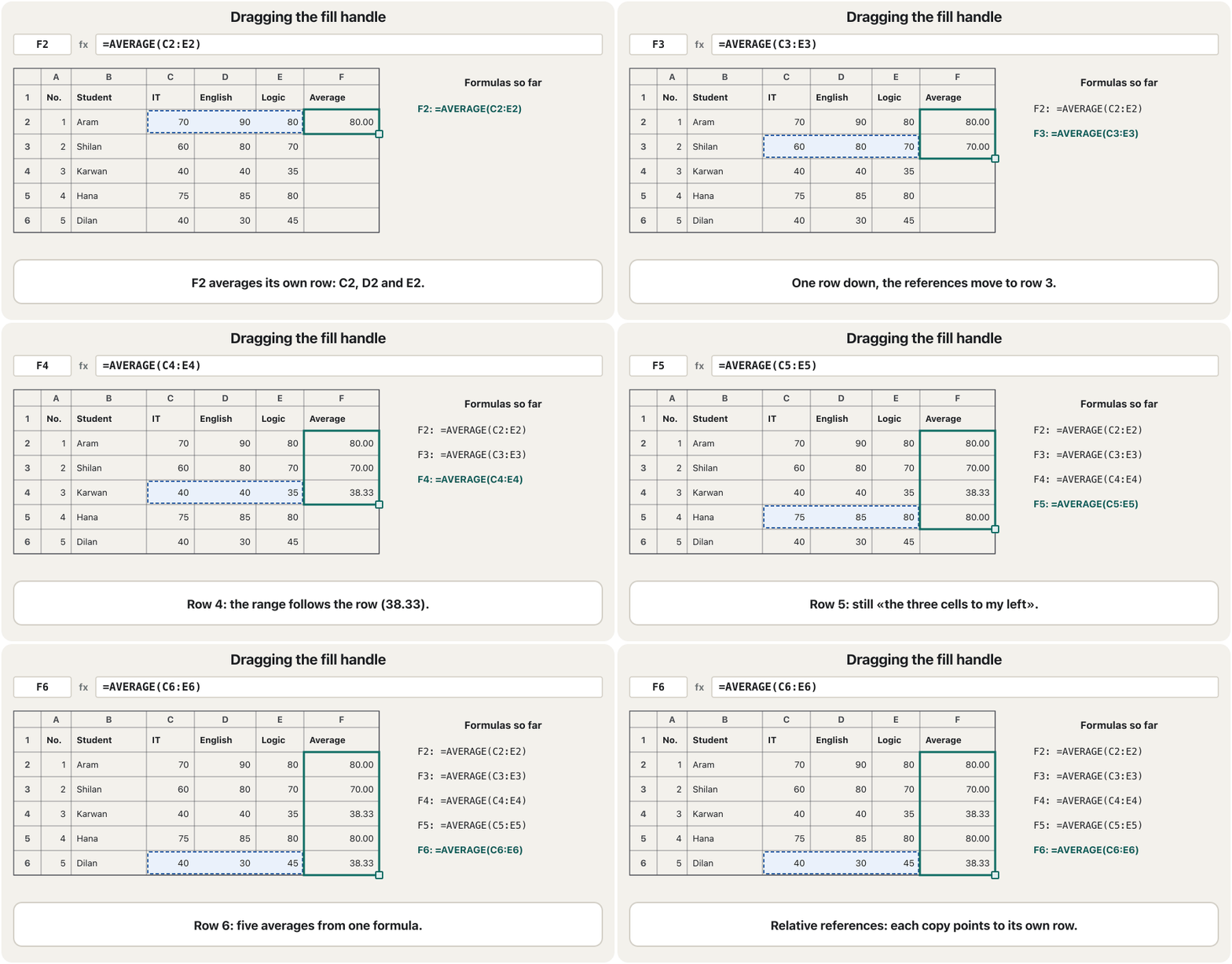
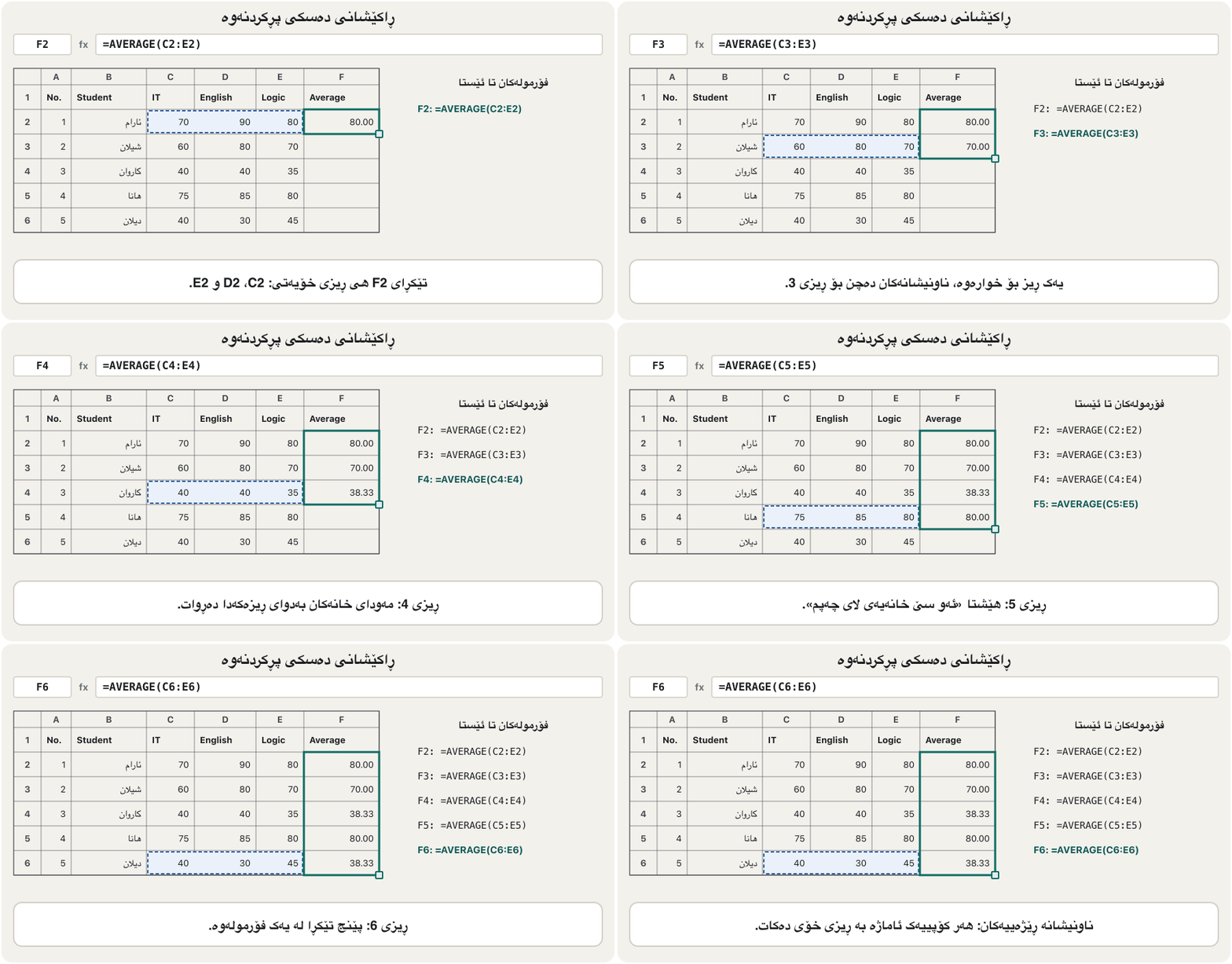
Why does C2:E2 become C3:E3? Because a normal reference is relative: Excel does not remember «C2», it remembers «the three cells to the left of me in my own row». Copied one row down, «my row» is row 3. This is exactly what you want for a column of averages.
بۆچی C2:E2 دەبێت بە C3:E3؟ چونکە ناونیشانێکی ئاسایی ڕێژەیییە: Excel «C2» لەبیر ناگرێت، «ئەو سێ خانەیەی لای چەپی من لە خۆمدا» لەبیر دەگرێت. کاتێک یەک بۆ خوارەوە کۆپی دەکرێت، « من» 3ـە. ئەمە ڕێک ئەوەیە کە بۆ تێکڕا دەتەوێت.
A normal such as C2. When the is copied one row down it becomes C3, because the spreadsheet remembers the position («two cells to the left»), not the fixed address.
ئاسایی وەک C2. کاتێک یەک بۆ خوارەوە کۆپی دەکرێت دەبێت بە C3، چونکە شوێنە پەیوەندییەکە لەبیر دەگرێت («دوو خانە بەرەو چەپ»)، نەک ناونیشانێکی جێگیر.
Copying formulas: the fill handle and relative referencesکۆپیکردنی فۆرمولەکان: دەسکی پڕکردنەوە و ناونیشانە ڕێژەییەکان
Absolute references: one cell for everyoneناونیشانە ڕەهاکان: یەک خانە بۆ هەمووان
Sometimes every row must use the same cell. Suppose the pass mark is kept in one cell, H2 = 50, so it can be changed in one place. If G2 says =IF(F2>=H2,…), copying it down turns H2 into H3, H4 … — empty cells. Lock it with dollar signs: $H$2 is an absolute reference and stays $H$2 in every row. Click the reference in the Formula Bar and press F4 (Mac: ⌘+T) to add the dollar signs.
هەندێک جار هەموو دەبێت هەمان خانە بەکار بهێنێت. وا دابنێ نمرەی دەرچوون لە یەک خانەدا هەڵگیراوە، H2 = 50، بۆ ئەوەی لە یەک شوێندا بگۆڕدرێت. ئەگەر G2 بڵێت =IF(F2>=H2,…)، کۆپیکردنی بۆ خوارەوە H2 دەکات بە H3، H4 … — خانەی بەتاڵ. بە نیشانەی دۆلار قفڵی بکە: $H$2 و لە هەموو هەر $H$2 دەمێنێتەوە. لە ناونیشانەکە لە بکە و F4 (Mac: ⌘+T) دابگرە بۆ زیادکردنی نیشانەکانی دۆلار.
G2: =IF(F2>=$H$2,"Passed","Failed")
G3: =IF(F3>=$H$2,"Passed","Failed")    ← F changes, $H$2 stays
G6: =IF(F6>=$H$2,"Passed","Failed")

Change H2 from 50 to 75 → Shilan (70) now shows Failed: one cell changed every result.Why a copied formula changes its cell references, and how $ signs or the F4 key lock one cell for every row.
بۆچی کاتێک دەکەیت، دەگۆڕێن؛ هەروەها $ یان F4 چۆن یەک بۆ هەموو جێگیر دەکەن.
Plays 0:00-3:57: relative reference, why it breaks when copied, absolute reference with $ and F4.
لە 0:00 تا 3:57 پەخش دەبێت: ، بۆچی دوای تێک دەچێت، پاشان بە $ و F4.
IF: Passed or FailedIF: دەرچوو یان کەوتوو
IF checks a condition and gives one of two answers. Its form is:
IF دەپشکنێت و یەکێک لە دوو وەڵام دەدات. شێوەکەی ئەمەیە:
=IF(condition, value_if_true, value_if_false)
=IF(F2>=50, "Passed", "Failed")
Explain the codeڕوونکردنەوەی کۆدەکە
- Lineدێڕی 2
If the average in F2 is 50 or more, show Passed; otherwise show Failed. Text answers go in double quotes.
ئەگەر تێکڕای F2 50 یان زیاتر بێت، Passed پیشان بدە؛ ئەگەر نا Failed پیشان بدە. وەڵامی دەقی لە ناو جووتە کۆتەیشندا دەنووسرێت.
The condition uses a comparison operator. The exam says the pass mark is «equal to or greater than 50 %», so the right operator is >=: a student with exactly 50 passes. With > they would fail.
بەکار دەهێنێت. تاقیکردنەوەکە دەڵێت نمرەی دەرچوون «یەکسان یان گەورەترە لە 50%»، بۆیە دروستەکە >=ـە: قوتابییەک کە ڕێک 50ـی هەیە دەردەچێت. بە > دەکەوێت.
| Operator | Meansواتا | Example (F2 = 50)نموونە (F2 = 50) |
|---|---|---|
= | equal toیەکسان بە | F2=50 → TRUE |
<> | not equal toیەکسان نییە بە | F2<>50 → FALSE |
> | greater thanگەورەتر لە | F2>50 → FALSE |
>= | greater than or equal toگەورەتر یان یەکسان بە | F2>=50 → TRUE |
< | less thanبچووکتر لە | F2<50 → FALSE |
<= | less than or equal toبچووکتر یان یەکسان بە | F2<=50 → TRUE |
How the IF function checks a condition and shows one of two answers, the same way the lesson shows Passed or Failed.
IF چۆن دەپشکنێت و یەکێک لە دوو وەڵام پیشان دەدات، هەروەک وانەکە Passed یان Failed پیشان دەدات.
Plays 0:00-2:12 only: the simple IF formula; the later IFS, AND and SUMIFS parts are left out.
تەنها لە 0:00 تا 2:12 پەخش دەبێت: سادەی IF؛ بەشەکانی دواتری IFS، AND و SUMIFS لابراون.
Formatting: decimals and conditional coloursفۆرمات: ژمارەی دوای فاریزە و ڕەنگی مەرجدار
The average looks untidy. A number format changes how a number is shown, not the number itself: select F2:F6 and use Home › Number › Decrease Decimal until two decimals remain (or Ctrl+1 › Number › Decimal places: 2). The cell now shows 38.33, but calculations still use 38.3333…; if you need the stored value rounded, use =ROUND(F2,2).
تێکڕای ناڕێک دەردەکەوێت. شێوەی پیشاندانی ژمارەیەک دەگۆڕێت، نەک خودی ژمارەکە: F2:F6 هەڵبژێرە و Home › Number › Decrease Decimal بەکار بهێنە تا تەنها دوو ژمارەی دوای دەمێننەوە (یان Ctrl+1 › Number › Decimal places: 2). ئێستا خانەکە 38.33 پیشان دەدات، بەڵام ژمێرکارییەکان هێشتا 38.3333… بەکار دەهێنن؛ ئەگەر پێویستت بە بەها هەڵگیراوەکە هەیە، =ROUND(F2,2) بەکار بهێنە.
How a shows a number — decimal places, percent, currency, date — without changing the number itself. 38.3333… shown with two decimals is 38.33, but calculations still use the full value.
ئەوەی چۆن ژمارەیەک پیشان دەدات — ژمارەی دوای خاڵ، ڕێژەی سەدی، دراو، بەروار — بێ ئەوەی خودی ژمارەکە بگۆڕێت. 38.3333… بە دوو ژمارەی دوای خاڵ دەبێت بە 38.33، بەڵام ژمێرکارییەکان هێشتا بەهای تەواو بەکار دەهێنن.
Conditional formatting colours cells automatically when they meet a rule. Select G2:G6 and choose Home › Conditional Formatting › Highlight Cells Rules › Equal To…, type Failed and pick Light Red Fill with Dark Red Text. If a mark is corrected and the result becomes Passed, the red disappears by itself.
کاتێک خانەکان لەگەڵ یاسایەک دەگونجێن بە شێوەی خۆکار ڕەنگیان دەکات. G2:G6 هەڵبژێرە و Home › Conditional Formatting › Highlight Cells Rules › Equal To… هەڵبژێرە، Failed بنووسە و Light Red Fill with Dark Red Text هەڵبژێرە. ئەگەر نمرەیەک ڕاست بکرێتەوە و ئەنجامەکە ببێت بە Passed، ڕەنگی سوور خۆی نامێنێت.
A chart of the averagesهێڵکارییەک بۆ تێکڕاکان
To compare the students at a glance, turn the averages into a column chart. Select the names (B1:B6), hold Ctrl and select the averages (F1:F6), then choose Insert › Recommended Charts › Clustered Column (or press Alt+F1 for an instant chart). Use Chart Design › Add Chart Element to add a chart title and axis titles.
بۆ بەراوردکردنی قوتابیان بە یەک نیگا، تێکڕاکان بکە بە . ناوەکان هەڵبژێرە (B1:B6)، Ctrl ڕابگرە و تێکڕاکان هەڵبژێرە (F1:F6)، پاشان Insert › Recommended Charts › Clustered Column هەڵبژێرە (یان Alt+F1 دابگرە بۆ دەستبەجێ). Chart Design › Add Chart Element بەکار بهێنە بۆ زیادکردنی ناونیشانی و ناونیشانی تەوەرەکان.
A column chart compares amounts; a line chart shows change over time; a pie chart shows parts of one whole. How to choose, and how PowerPoint charts use the same kind of worksheet, is in Charts and Putting your numbers into the chart.
بڕەکان بەراورد دەکات؛ هێڵی گۆڕان بە تێپەڕبوونی کات پیشان دەدات؛ بەشەکانی یەک گشت پیشان دەدات. چۆن هەڵبژێریت و چۆن PowerPoint هەمان جۆری بەکار دەهێنن، لە هێڵکارییەکان و نووسینی ژمارەکانت بۆ هێڵکاریدایە.
The same skills in Google Sheets and LibreOffice Calcهەمان شارەزایی لە Google Sheets و LibreOffice Calc
Everything in this lesson works almost the same in other spreadsheet programs, because they all use cells, ranges, = formulas and the same function names:
هەموو شتێکی ئەم وانەیە نزیکەی بە هەمان شێوە لە تردا کار دەکات، چونکە هەموویان خانە، ، = و هەمان ناوی بەکار دەهێنن:
| Programبەرنامە | Costنرخ | Good to knowباشە بیزانیت |
|---|---|---|
| Excel (Microsoft 365) | Paid; a free Excel for the web in the browserپارەدار؛ Excelـی بێپارەی وێب لە | .xlsx files; the most featuresفایلی .xlsx؛ زۆرترین تایبەتمەندی |
| Google Sheets | Free with a Google accountبێپارە بە هەژمارێکی Google | Runs in the browser; several people edit the same sheet at once; opens and saves .xlsxلە کار دەکات؛ چەند کەسێک لە یەک کاتدا دەستکاریی هەمان دەکەن؛ .xlsx دەکاتەوە و هەڵدەگرێت |
| LibreOffice Calc | Free, open sourceبێپارە، | Native .ods files, also opens and saves .xlsx; Name Box, Formula Bar and a Function Wizard like Excel's Insert Functionفایلی .odsـی خۆی، .xlsxـیش دەکاتەوە و هەڵدەگرێت؛ ، و Function Wizard وەک Insert Functionـی Excel |
Lab: the practical exam's mark sheetتاقیگە: خشتەی نمرەی تاقیکردنەوە کردارییەکە
This is the spreadsheet question of the course's practical final exam, with neutral names. Build it step by step; every skill of this lesson is used once.
ئەمە پرسیاری Excelـی تاقیکردنەوەی کۆتایی کردارییەکەی کۆرسەکەیە، بە ناوی بێلایەن. هەنگاو بە هەنگاو دروستی بکە؛ هەموو شارەزاییەکی ئەم وانەیە یەک جار بەکار دێت.
| No. | Student | IT | English | Logic | Average | Result |
|---|---|---|---|---|---|---|
| 1 | Aramئارام | 70 | 90 | 80 | 80.00 | Passed |
| 2 | Shilanشیلان | 60 | 80 | 70 | ? | ? |
| 3 | Karwanکاروان | 40 | 40 | 35 | ? | ? |
| 4 | Hanaهانا | 75 | 85 | 80 | ? | ? |
| 5 | Dilanدیلان | 40 | 30 | 45 | ? | ? |
(1) In a new workbook type the headings in A1:G1 and the five students in rows 2 to 6. (2) Task 1: find the average mark of every student. (3) Show the averages with two decimals. (4) Task 2: in the Result column show Passed or Failed — a student passes with an average of 50 % or more. (5) Colour every Failed cell red. (6) Make a column chart of the averages. (7) Save the workbook as marks.xlsx.
(1) لە Excel بکەرەوە (File › New › Blank workbook) و سەردێڕەکان لە A1:G1 و پێنج قوتابییەکە لە 2 تا 6 بنووسە. (2) ئەرکی یەکەم: تێکڕای نمرەی هەموو قوتابییەک بدۆزەوە. (3) تێکڕاکان بە دوو ژمارەی دوای پیشان بدە. (4) ئەرکی دووەم: لە Resultـدا Passed یان Failed پیشان بدە — قوتابییەک بە تێکڕای 50% یان زیاتر دەردەچێت. (5) هەموو خانەیەکی Failed سوور بکە. (6) بۆ تێکڕاکان دروست بکە. (7) وەک marks.xlsx هەڵبگرە.
Hintئاماژە
Write the two formulas only once, in row 2, and copy them with the fill handle.
دوو تەنها یەک جار لە 2دا بنووسە و بە کۆپییان بکە.
Show answerوەڵامەکە پیشان بدە
F2: type
=AVERAGE(C2:E2)and press Enter → 80. Drag the fill handle down to F6.F2:
=AVERAGE(C2:E2)بنووسە و Enter دابگرە ← 80. بۆ خوارەوە تا F6 ڕابکێشە.Select F2:F6 › Home › Number › Decrease (or Increase) Decimal until two decimals show.
F2:F6 هەڵبژێرە › Home › Number › Decrease (یان Increase) Decimal تا دوو ژمارەی دوای دەردەکەون.
G2: type
=IF(F2>=50,"Passed","Failed")and fill down to G6.G2:
=IF(F2>=50,"Passed","Failed")بنووسە و بۆ خوارەوە تا G6 پڕی بکەرەوە.Select G2:G6 › Conditional Formatting › Highlight Cells Rules › Equal To… Failed › Light Red Fill with Dark Red Text.
G2:G6 هەڵبژێرە › Conditional Formatting › Highlight Cells Rules › Equal To… Failed › Light Red Fill with Dark Red Text.
Select B1:B6, hold Ctrl, select F1:F6 › Insert › Recommended Charts › Clustered Column. Save with Ctrl+S as marks.xlsx.
B1:B6 هەڵبژێرە، Ctrl ڕابگرە، F1:F6 هەڵبژێرە › Insert › Recommended Charts › Clustered Column. بە Ctrl+S وەک marks.xlsx هەڵیبگرە.
| Studentقوتابی | Formula in F لە F | Averageتێکڕا | Resultئەنجام |
|---|---|---|---|
| Aramئارام | =AVERAGE(C2:E2) | 80.00 | Passed |
| Shilanشیلان | =AVERAGE(C3:E3) | 70.00 | Passed |
| Karwanکاروان | =AVERAGE(C4:E4) | 38.33 | Failed |
| Hanaهانا | =AVERAGE(C5:E5) | 80.00 | Passed |
| Dilanدیلان | =AVERAGE(C6:E6) | 38.33 | Failed |
Exam practice: two semestersڕاهێنانی تاقیکردنەوە: دوو وەرز
Create the sheet ID, student_name, semester1, semester2, average, result for: Aram 70 and 90 (the exam shows 80.00, Passed), Shilan 60 and 80, Karwan 40 and 40, Hana 75 and 85, Dilan 40 and 31. Find each average and show Passed or Failed with a pass mark of 50 %.
بە ID، student_name، semester1، semester2، average، result دروست بکە بۆ: ئارام 70 و 90 (تاقیکردنەوەکە 80.00، Passed پیشان دەدات)، شیلان 60 و 80، کاروان 40 و 40، هانا 75 و 85، دیلان 40 و 31. تێکڕای هەر یەکەیان بدۆزەوە و Passed یان Failed پیشان بدە بە نمرەی دەرچوونی 50%.
Hintئاماژە
Two marks, so the range is C2:D2, not C2:E2.
دوو نمرە، بۆیە C2:D2ـە، نەک C2:E2.
Show answerوەڵامەکە پیشان بدە
The columns move one place to the left: the average is in E and the result in F. E2: =AVERAGE(C2:D2), F2: =IF(E2>=50,"Passed","Failed"), both filled down to row 6.
یەک شوێن بەرەو چەپ دەچن: تێکڕا لە Eـدایە و ئەنجام لە F. E2: =AVERAGE(C2:D2)، F2: =IF(E2>=50,"Passed","Failed")، هەردووکیان بۆ خوارەوە تا 6 پڕ دەکرێنەوە.
| Studentقوتابی | average | result |
|---|---|---|
| Aramئارام | 80.00 | Passed |
| Shilanشیلان | 70.00 | Passed |
| Karwanکاروان | 40.00 | Failed |
| Hanaهانا | 80.00 | Passed |
| Dilanدیلان | 35.50 | Failed |
Common mistakesهەڵە باوەکان
| Mistakeهەڵە | What happensچی ڕوودەدات | Fixچارەسەر |
|---|---|---|
Forgetting the =: AVERAGE(C2:E2)لەبیرچوونی =: AVERAGE(C2:E2) | Excel shows the text, not a resultExcel دەقەکە پیشان دەدات، نەک ئەنجام | Start every formula with =هەموو بە = دەست پێ بکە |
| Typing the answer (80) instead of a formulaنووسینی وەڵام (80) لە جیاتی | Correct a mark and the average stays wrongنمرەیەک ڕاست بکەرەوە و تێکڕاکە هەر هەڵە دەمێنێتەوە | Always calculate with referencesهەمیشە بە ژمێرکاری بکە |
| Numbers stored as text (left-aligned)ژمارەی هەڵگیراو وەک دەق (بەلای چەپدا) | SUM and AVERAGE ignore themSUM و AVERAGE گوێیان پێ نادەن | Retype them without the apostrophe or hidden spaceبێ ' و بۆشایی شاراوە دووبارە بیاننووسەوە |
A wrong range: =AVERAGE(C2:D2) for three subjects هەڵە: =AVERAGE(C2:D2) بۆ سێ بابەت | Karwan gets 40 instead of 38.33کاروان 40 وەردەگرێت لە جیاتی 38.33 | Check the highlighted range before Enterپێش Enter بپشکنە کە ڕووناک کراوەتەوە |
=70+90+80/3 without brackets=70+90+80/3 بێ کەوانە | 186.67 instead of 80186.67 لە جیاتی 80 | Use brackets or AVERAGEکەوانە یان AVERAGE بەکار بهێنە |
| > instead of >= for «50 or more»> لە جیاتی >= بۆ «50 یان زیاتر» | A student with exactly 50 failsقوتابییەک بە ڕێک 50 دەکەوێت | Read the rule: «or more» means >=یاساکە بخوێنەوە: «یان زیاتر» واتە >= |
| Passed without quotes in IFPassed بێ کۆتەیشن لە IF | #NAME? | Put text answers in "double quotes"وەڵامی دەقی لە "جووتە کۆتەیشن"دا دابنێ |
| H2 instead of $H$2 for the pass markH2 لە جیاتی $H$2 بۆ نمرەی دەرچوون | The copies look at empty cellsکۆپییەکان سەیری خانەی بەتاڵ دەکەن | Press F4 to lock itF4 دابگرە بۆ قفڵکردنی |
| Thinking ##### is an error in the formulaبیرکردنەوە لەوەی ##### هەڵەیەکە لە | The column is only too narrow تەنها زۆر تەسکە | Double-click the column borderدوو لە سنووری بکە |
Exercisesڕاهێنانەکان
On the lab's mark sheet, what do these give? (a) =MAX(F2:F6) (b) =MIN(C2:E2) (c) =SUM(D2:D6) (d) =COUNT(A1:G1) (e) =AVERAGE(F2:F6)
لەسەر خشتەی نمرەی تاقیگەکە، ئەمانە چی دەدەن؟ (أ) =MAX(F2:F6) (ب) =MIN(C2:E2) (ج) =SUM(D2:D6) (د) =COUNT(A1:G1) (هـ) =AVERAGE(F2:F6)
Show answerوەڵامەکە پیشان بدە
- (a) 80 — the highest average.
- (b) 70 — Aram's lowest mark (70, 90, 80).
- (c) 325 — all English marks: .
- (d) 0 — row 1 holds only headings (text), and COUNT counts numbers.
- (e) 61.33 — , using the full values.
- (أ) 80 — بەرزترین تێکڕا.
- (ب) 70 — نزمترین نمرەی ئارام (70، 90، 80).
- (ج) 325 — هەموو نمرەکانی English: .
- (د) سفر — 1 تەنها سەردێڕی تێدایە (دەق) و COUNT ژمارە دەژمێرێت.
- (هـ) 61.33 — ، بە بەکارهێنانی بەها تەواوەکان.
H2 holds the pass mark 50. Cell G2 holds =IF(F2>=$H$2,"Passed","Failed"). Write the formula Excel puts in G6 when you fill down. Then say what changes if you had written H2 instead of $H$2.
H2 نمرەی دەرچوونی 50ـی تێدایە. G2 =IF(F2>=$H$2,"Passed","Failed")ـی تێدایە. ئەو بنووسە کە Excel لە G6 دایدەنێت کاتێک بۆ خوارەوە پڕی دەکەیتەوە. پاشان بڵێ چی دەگۆڕێت ئەگەر لە جیاتی $H$2 تەنها H2ـت نووسیبا.
Show answerوەڵامەکە پیشان بدە
G6: =IF(F6>=$H$2,"Passed","Failed"). With plain H2 it would become H6, an empty cell (treated as 0), so every student would pass.
G6: =IF(F6>=$H$2,"Passed","Failed"). بە H2ـی سادە دەبوو بە H6، خانەیەکی بەتاڵ (وەک 0 مامەڵەی لەگەڵ دەکرێت)، بۆیە هەموو قوتابییەک دەردەچوو.
A stationery shop in Erbil sells: notebook 1,500 IQD × 4, pen 500 IQD × 10, calculator 12,000 IQD × 1, school bag 18,000 IQD × 1. Put price in B, quantity in C, write a formula for the line total in D and the grand total under it. A 10 % discount is kept in F1. Write the discounted price in E2 so that it can be filled down.
دوکانێکی پێداویستیی قوتابخانە لە هەولێر دەفرۆشێت: دەفتەر 1500 دینار × 4، پێنووس 500 دینار × 10، 12000 دینار × 1، جانتای قوتابخانە 18000 دینار × 1. نرخ لە B، ژمارە لە C دابنێ، بۆ کۆی هەر دێڕێک لە D و کۆی گشتی لە ژێریدا بنووسە. داشکاندنی 10% لە F1 هەڵگیراوە. نرخی داشکێنراو لە E2 بنووسە بە شێوەیەک کە بۆ خوارەوە پڕ بکرێتەوە.
Show answerوەڵامەکە پیشان بدە
D2: =B2*C2          → 6,000   (then 5,000 · 12,000 · 18,000)
D6: =SUM(D2:D5)     → 41,000
E2: =D2*(1-$F$1)    → 5,400   (then 4,500 · 10,800 · 16,200)
E6: =SUM(E2:E5)     → 36,900
$F$1 stays fixed when E2 is filled down; D2 and the other relative references move with each row.
$F$1 جێگیر دەمێنێتەوە کاتێک E2 بۆ خوارەوە پڕ دەکرێتەوە؛ D2 و ناونیشانە ڕێژەییەکانی تر لەگەڵ هەر دەجووڵێن.
Each formula is wrong. Say why and correct it: (a) AVERAGE(C2:E2) (b) =IF(F2>=50,Passed,Failed) (c) =(C2+D2+E2/3) (d) =SUM(C2;E2) in an English Excel, meant to add C2, D2 and E2.
هەر هەڵەیە. بڵێ بۆچی و ڕاستی بکەرەوە: (أ) AVERAGE(C2:E2) (ب) =IF(F2>=50,Passed,Failed) (ج) =(C2+D2+E2/3) (د) =SUM(C2;E2) لە Excelـی ئینگلیزیدا، بە مەبەستی کۆکردنەوەی C2، D2 و E2.
Show answerوەڵامەکە پیشان بدە
- (a) No equals sign →
=AVERAGE(C2:E2). - (b) Text without quotes gives #NAME? →
=IF(F2>=50,"Passed","Failed"). - (c) Only E2 is divided →
=(C2+D2+E2)/3. - (d) A semicolon is not the separator here, and two cells are not a range →
=SUM(C2:E2).
- (أ) نیشانەی یەکسان نییە ←
=AVERAGE(C2:E2). - (ب) دەق بێ کۆتەیشن #NAME? دەدات ←
=IF(F2>=50,"Passed","Failed"). - (ج) تەنها E2 دابەش دەکرێت ←
=(C2+D2+E2)/3. - (د) خاڵبۆر لێرەدا جیاکەرەوە نییە و دوو خانە نین ←
=SUM(C2:E2).
Summaryپوختە
- A spreadsheet tracks, calculates and analyses data; PowerPoint is better for presenting it, Word for documents.
- A workbook (.xlsx) holds worksheets; a cell is named by column letter and row number (B2); a range is first:last (C2:E2).
- The Name Box shows the active cell's address; the Formula Bar shows what the cell really contains.
- Formulas start with =, use references and follow the order of operations; brackets matter.
- SUM, AVERAGE, MIN, MAX and COUNT work on ranges; AutoSum is Alt+= (Mac Shift+⌘+T).
- The fill handle copies formulas: relative references move with the row; $H$2 stays fixed (F4).
=IF(F2>=50,"Passed","Failed"): a condition, then the answer if true, then the answer if false; text in quotes.- Number formats change how values look; conditional formatting colours cells by a rule; a column chart compares amounts.
- بەدواداچوون، ژمێرکاری و شیکردنەوەی دەکات؛ PowerPoint بۆ پێشکەشکردنی باشترە و Word بۆ بەڵگەنامە.
- (.xlsx) لەخۆ دەگرێت؛ بە پیتی و ژمارەی ناو دەنرێت (B2)؛ یەکەم:دوایینە (C2:E2).
- ناونیشانی پیشان دەدات؛ پیشان دەدات خانەکە لە ڕاستیدا چی تێدایە.
- بە = دەست پێ دەکەن، بەکار دەهێنن و پەیڕەو دەکەن؛ کەوانە گرنگە.
- SUM، AVERAGE، MIN، MAX و COUNT لەسەر کار دەکەن؛ AutoSum بریتییە لە Alt+= (Mac: Shift+⌘+T).
- کۆپی دەکات: لەگەڵ دەجووڵێن؛ $H$2 جێگیر دەمێنێتەوە (F4).
=IF(F2>=50,"Passed","Failed"): ، پاشان وەڵام ئەگەر ڕاست بێت، پاشان وەڵام ئەگەر هەڵە بێت؛ دەق لە ناو کۆتەیشندا.- شێوەی بەهاکان دەگۆڕن؛ خانەکان بەپێی یاسایەک ڕەنگ دەکات؛ بڕەکان بەراورد دەکات.
Why write =AVERAGE(C2:E2) instead of typing 80?بۆچی =AVERAGE(C2:E2) بنووسیت لە جیاتی نووسینی 80؟
Because the formula recalculates when a mark changes; a typed 80 would stay wrong.
چونکە کاتێک نمرەیەک دەگۆڕێت دووبارە ژمێرکاری دەکات؛ 80ـی نووسراو هەڵە دەمێنێتەوە.
What is the difference between C2 and $C$2 when a formula is copied?جیاوازی نێوان C2 و $C$2 چییە کاتێک فۆرمولەیەک کۆپی دەکرێت؟
C2 is relative and changes with the new position; $C$2 is absolute and always points to the same cell.
C2 ڕێژەییە و لەگەڵ شوێنە نوێکەدا دەگۆڕێت؛ $C$2 ڕەهایە و هەمیشە ئاماژە بە هەمان خانە دەکات.
A cell shows #####. Is the formula wrong?خانەیەک ##### پیشان دەدات. ئایا فۆرمولەکە هەڵەیە؟
Usually not: the column is too narrow for the number. Widen it.
زۆرجار نا: بۆ ژمارەکە زۆر تەسکە. پانی بکەرەوە.
Videoڤیدیۆ
Watch a videoسەیری ڤیدیۆیەک بکە
A video that viewers liked a lot and praised in their comments, chosen for this lesson.ڤیدیۆیەک کە بینەران زۆریان پێ خۆش بووە و لە کۆمێنتەکانیاندا ستایشیان کردووە، بۆ ئەم وانەیە هەڵبژێردراوە.
Builds a real spreadsheet step by step: cells, rows and columns, entering and formatting data, a chart, and simple formulas with SUM.
هەنگاو بە هەنگاو لە Excel خشتەیەکی ڕاستەقینە دروست دەکات: ، ڕیز و ستوون، نووسین و ڕێکخستنی ، و سادە وەک SUM.
Plays 0:00-7:21: cells, data, number formats, conditional formatting, a chart, SUM, sort and filter; stops before the Copilot part.
لە 0:00 تا 7:21 پەخش دەبێت: ، ، ، ، ، SUM، و ؛ پێش بەشی Copilot ڕادەوەستێت.
Lesson complete!وانەکە تەواو بوو!
Well done. Review the key terms, then go on to the next lesson.دەستخۆش. سەیرێکی زاراوە سەرەکییەکان بکەرەوە، پاشان بڕۆ بۆ وانەی داهاتوو.
Key termsزاراوە سەرەکییەکان
Computer Communicationsپەیوەندیی کۆمپیوتەر
Related lecturesوانە پەیوەندیدارەکان
- Databases and Dataبنکەدراوەکان و دراوە
- Applicationsئەپەکان
- What Is Microsoft Access?Microsoft Access چییە؟
- Databases and SQL basicsبنکەدراوەکان و بنەماکانی SQL
- From Files to Databasesلە فایلەوە بۆ بنکەدراوە
- SmartArt and ChartsSmartArt و هێڵکارییەکان
- The PowerPoint Screenپەنجەرەی PowerPoint
- Keyboard Shortcuts for Windows and Macکورتەڕێکانی کیبۆرد بۆ Windows و Mac
References and further readingسەرچاوەکان و خوێندنەوەی زیاتر
- Microsoft Support: Overview of formulas in Excel (=, A1 references, relative/absolute/mixed)
- Microsoft Support: IF function
- Microsoft Support: Calculation operators and precedence in Excel
- Microsoft Support: Switch between relative, absolute, and mixed references
- Microsoft Support: Use AutoSum to sum numbers in Excel
- Microsoft Support: Keyboard shortcuts in Excel (Windows and macOS)
- Microsoft Support: Copy a formula by dragging the fill handle
- Microsoft Support: How to correct a ##### error
- Microsoft Support: Use conditional formatting to highlight information
- Microsoft Support: Create a chart from start to finish
- LibreOffice Getting Started Guide 25.2, chapter 3: Getting Started with Calc
This lecture is a first edition. The Kurdish text and terminology are waiting for review by Kurdish IT teachers.ئەم وانەیە چاپی یەکەمە. دەقە کوردییەکە و زاراوەکانی چاوەڕێی پێداچوونەوەی مامۆستایانی کوردی بواری IT ن.