Chapterبەش 5 · Lectureوانە 5.3
Using Windows: Desktop, Files and Everyday Toolsبەکارهێنانی Windows: ڕوومێز، فایلەکان و ئامرازە ڕۆژانەکان
A hands-on tour of Windows 11: the desktop, Start, the taskbar and Quick Settings; shutting down, restarting, sleeping and signing out; folders by right-click (create, copy, move, rename, delete) with a copy animation; the Recycle Bin and what skips it; Settings › System › About; background, lock screen and screen saver; Paint (crop, resize by percentage or pixels, save as), Photos and Snipping Tool; zip files and Windows 11's built-in RAR and 7z support; passwords and split volumes with 7-Zip; and connecting a projector with ⊞ + P and ⊞ + K.
گەشتێکی پراکتیکی بە Windows 11دا: ، Start، و Quick Settings؛ ، ، و ؛ بە ڕاست (دروستکردن، کۆپی، گواستنەوە، ، سڕینەوە) بە جوڵەوێنەیەکی ؛ و ئەوەی بەسەریدا باز دەدات؛ Settings › System › About؛ ، و ؛ Paint (، گۆڕینی قەبارە بە یان ، )، Photos و Snipping Tool؛ zip و پشتگیریی ناوەوەی Windows 11 بۆ RAR و 7z؛ و پارچەکردن بە 7-Zip؛ و بەستنەوەی بە ⊞ + P و ⊞ + K.
What you will learnچی فێر دەبیت
- Name the parts of the Windows 11 desktop and use Start, search, the taskbar and Quick Settings.
- Choose correctly between Shut down, Restart, Sleep, Sign out and Lock.
- Create, copy, move, rename and delete folders, and restore or permanently delete them in the Recycle Bin.
- Find your PC's details and personalise the background, lock screen and screen saver.
- Crop and resize a picture in Paint without distorting it, and take screenshots with Snipping Tool.
- Zip and unzip files, and protect or split an archive with 7-Zip.
- Connect a projector and pick the right ⊞ + P mode.
- بەشەکانی Windows 11 ناو ببەیت و Start، گەڕان، و Quick Settings بەکار بهێنیت.
- بە دروستی لە نێوان ، ، ، و قفڵکردندا هەڵبژێریت.
- دروست بکەیت، کۆپی بکەیت، بیانگوازیتەوە، ناویان بگۆڕیت و بیانسڕیتەوە و لە بیانگەڕێنیتەوە یان بە یەکجاری بیانسڕیتەوە.
- زانیارییەکانی بدۆزیتەوە و ، و بە دڵی خۆت بگۆڕیت.
- لێواری وێنەیەک لە Paintـدا ببڕیت () و قەبارەکەی بگۆڕیت بەبێ تێکدانی و بە Snipping Tool بگریت.
- zip و unzip بکەیت و ئەرشیفێک بە 7-Zip بپارێزیت یان پارچەی بکەیت.
- ببەستیتەوە و دۆخی دروستی ⊞ + P هەڵبژێریت.
The Windows 11 desktopڕوومێزی Windows 11
After you sign in, Windows shows the desktop: the main screen where every app opens in its own window. This lesson is the hands-on part of the course: you will use the desktop, folders, the Recycle Bin, Settings and the tools that come with Windows. What an operating system does is explained in Software and Operating Systems, and what files, folders and paths are in Applications and Files.
دوای ، Windows پیشان دەدات: شاشە سەرەکییەکە کە هەموو ئەپێک لە خۆیدا تێیدا دەکرێتەوە. ئەم وانەیە بەشی پراکتیکیی کۆرسەکەیە: ، ، ، Settings و ئەو ئامرازانەی لەگەڵ Windowsـدا دێن بەکار دەهێنیت. ئەوەی چی دەکات لە نەرمەواڵە و سیستەمەکانی وەگەڕخەردا ڕوون کراوەتەوە و ئەوەی ، و چین لە ئەپ و فایلەکاندا.
- Start (the Windows logo): opens the Start menu — pinned apps, All apps, recommended files, your account and the Power button.
- Search: type the name of an app, a file or a setting and press Enter (⊞ + S opens it).
- Taskbar: the bar along the bottom. It holds pinned apps and every open app; a short line under an icon means the app is open.
- Start (لۆگۆی Windows): Start دەکاتەوە — ئەپە جێگیرکراوەکان، هەموو ئەپەکان (All)، پێشنیارکراوەکان، و دوگمەی Power.
- گەڕان (Search): ناوی ئەپێک، یان ڕێکخستنێک بنووسە و Enter دابگرە (⊞ + S دەیکاتەوە).
- : شریتەکەی خوارەوە. ئەپە جێگیرکراوەکان و هەموو ئەپێکی کراوە لەخۆ دەگرێت؛ هێڵێکی کورت لە ژێر واتە ئەپەکە کراوەیە.
The Windows 11 desktopڕوومێزی Windows 11
Notification area and Quick Settingsناوچەی ئاگادارکردنەوەکان و Quick Settings
At the right end of the taskbar, and on the desktop itself:
لە سەری ڕاستی و لەسەر خودی :
- Notification area (the right end of the taskbar): the clock and date, Wi-Fi, sound and battery. Click the clock to see notifications and the calendar.
- Quick Settings (click the Wi-Fi, sound or battery icon, or press ⊞ + A): buttons for Wi-Fi, Bluetooth, Airplane mode and Cast, and sliders for brightness and volume.
- Desktop icons: the Recycle Bin and any shortcuts or folders you put on the desktop.
- ناوچەی ئاگادارکردنەوەکان (سەری ڕاستی ): کاتژمێر و بەروار، ، دەنگ و پاتری. لە کاتژمێرەکە بکە بۆ بینینی و ساڵنامە.
- Quick Settings ( لە ، دەنگ یان پاتری بکە، یان ⊞ + A دابگرە): دوگمەکانی ، ، Airplane mode و Cast و هێڵی ڕێکخستنی ڕووناکی و دەنگ.
- : و هەر کورتەڕێ یان کە خۆت دایدەنێیت لەسەر .
The Windows 11 desktopڕوومێزی Windows 11
Windows 10 or Windows 11?Windows 10 یان Windows 11؟
Shut down, restart, sleep and sign outکوژاندنەوە، دەستپێکردنەوە، دۆخی خەو و چوونەدەرەوە
Never switch a computer off by pulling the plug or holding the power button while Windows is working: Windows must close the apps, save its own files and stop the drive safely. The course shows two routes; both still work in Windows 11.
هەرگیز بە دەرهێنانی وایەر یان داگرتنی دوگمەی پاوەر مەکوژێنەوە لە کاتێکدا Windows کار دەکات: Windows دەبێت ئەپەکان دابخات، خۆی پاشەکەوت بکات و درایڤەکە بە سەلامەتی ڕابگرێت. کۆرسەکە دوو ڕێگا پیشان دەدات؛ هەردووکیان لە Windows 11ـیشدا کار دەکەن.
- From the Start menuلە مێنیوی Start
Select Start, then the Power button (⏻) at the bottom, then Shut down, Restart or Sleep.
Start هەڵبژێرە، پاشان دوگمەی Power (⏻) لە خوارەوە، پاشان Shut down، Restart یان Sleep.
- From the Quick Link menuلە مێنیوی Quick Link
Right-click Start (or press ⊞ + X), point to Shut down or sign out, and choose Sign out, Sleep, Shut down or Restart.
ڕاست لە Start بکە (یان ⊞ + X دابگرە)، بچۆ سەر Shut down or sign out و Sign out، Sleep، Shut down یان Restart هەڵبژێرە.
Shut down, restart, sleep and sign outکوژاندنەوە، دەستپێکردنەوە، دۆخی خەو و چوونەدەرەوە
Which one should you choose?کامیان هەڵبژێریت؟
| Choiceهەڵبژاردن | What happensچی ڕوو دەدات | Use it when…کەی بەکاری بهێنیت |
|---|---|---|
| Shut down | All apps close and the computer turns off completely.هەموو ئەپەکان دادەخرێن و بە تەواوی دەکوژێتەوە. | You finish for the day, before you open the case, before a long trip.کارەکەت بۆ ئەمڕۆ تەواو دەبێت، پێش کردنەوەی ، پێش گەشتێکی درێژ. |
| Restart | Shut down and start again in one step; memory is emptied. و هەڵکردنەوە بە یەک هەنگاو؛ بەتاڵ دەکرێتەوە. | After installing updates, or when something behaves strangely.دوای ، یان کاتێک شتێک سەیر ڕەفتار دەکات. |
| Sleep | Very little power is used; your open work stays in memory and returns in seconds.وزەیەکی زۆر کەم بەکار دێت؛ کارە کراوەکەت لە دەمێنێتەوە و لە چەند چرکەیەکدا دەگەڕێتەوە. | A short break: lunch, a lecture, the bus home.پشووێکی کورت: نانی نیوەڕۆ، وانەیەک، پاسی ماڵەوە. |
| Sign out | Your apps and your account close, but the computer stays on for the next person.ئەپەکان و دادەخرێن، بەڵام بۆ کەسی دواتر هەڵکراو دەمێنێت. | You finish on a shared lab or library PC.کارت لەسەر هاوبەشی تاقیگە یان کتێبخانە تەواو دەبێت. |
| Lock (⊞ + L) | Everything stays open; your password or PIN is needed to come back.هەموو شتێک کراوە دەمێنێت؛ بۆ گەڕانەوە یان PINـەکەت پێویستە. | You leave your desk for a few minutes.بۆ چەند خولەکێک مێزەکەت جێ دەهێڵیت. |
What shutting down a computer does, and how it is different from sleep and hibernate, so you know which to use.
چی دەکات و چ جیاوازییەکی لەگەڵ Sleep و Hibernate هەیە، بۆ ئەوەی بزانیت کامیان بەکار بهێنیت.
Whole video (4:10): sleep, hibernate and shut down compared, and when to choose each.
هەموو ڤیدیۆکە (4:10): ، Hibernate و بەراورد دەکرێن؛ هەروەها کەی هەر یەکەیان هەڵبژێریت.
Shut down, restart, sleep and sign outکوژاندنەوە، دەستپێکردنەوە، دۆخی خەو و چوونەدەرەوە
Why restart? And what is Hibernate?بۆچی دەستپێکردنەوە؟ و Hibernate چییە؟
Folders by right-click: create, copy, move, rename, deleteفۆڵدەرەکان بە کلیکی ڕاست: دروستکردن، کۆپی، گواستنەوە، ناونانەوە، سڕینەوە
Right-click means pressing the right mouse button (on a touch screen: press and hold). It opens a context menu with the commands for the thing under the pointer. In Windows 11 the most common commands — Cut, Copy, Rename and Delete — sit as a row of small icons in that menu; Show more options opens the longer, older menu.
ڕاست واتە داگرتنی دوگمەی ڕاستی (لەسەر شاشەی دەستلێدان: داگرە و ڕایبگرە). دەکاتەوە کە ئەو شتەی تێدایە کە لەسەرە. لە Windows 11دا باوترین — Cut، Copy، Rename و Delete — وەک ڕیزێک بچووک لەو لیستەدان؛ Show more options لیستە درێژ و کۆنەکە دەکاتەوە.
- Create a folderدروستکردنی فۆڵدەر
Right-click an empty area (on the desktop or inside a folder) › New › Folder. Type a name and press Enter.
ڕاست لە شوێنێکی بەتاڵ بکە (لەسەر یان لەناو ) › New › Folder. ناوێک بنووسە و Enter دابگرە.
- Copy a folderکۆپیکردنی فۆڵدەر
Right-click the folder › Copy. Open the place where the copy should go, right-click an empty area › Paste. Now there are two folders.
ڕاست لە بکە › Copy. ئەو شوێنە بکەرەوە کە کۆپییەکە دەبێت بچێتە ناوی، ڕاست لە شوێنێکی بەتاڵ بکە › Paste. ئێستا دوو هەن.
- Move a folder (cut)گواستنەوەی فۆڵدەر (بڕین)
Right-click the folder › Cut. Right-click an empty area in the new place › Paste. The folder leaves its old place.
ڕاست لە بکە › Cut. ڕاست لە شوێنێکی بەتاڵی شوێنە نوێیەکە بکە › Paste. شوێنە کۆنەکەی جێ دەهێڵێت.
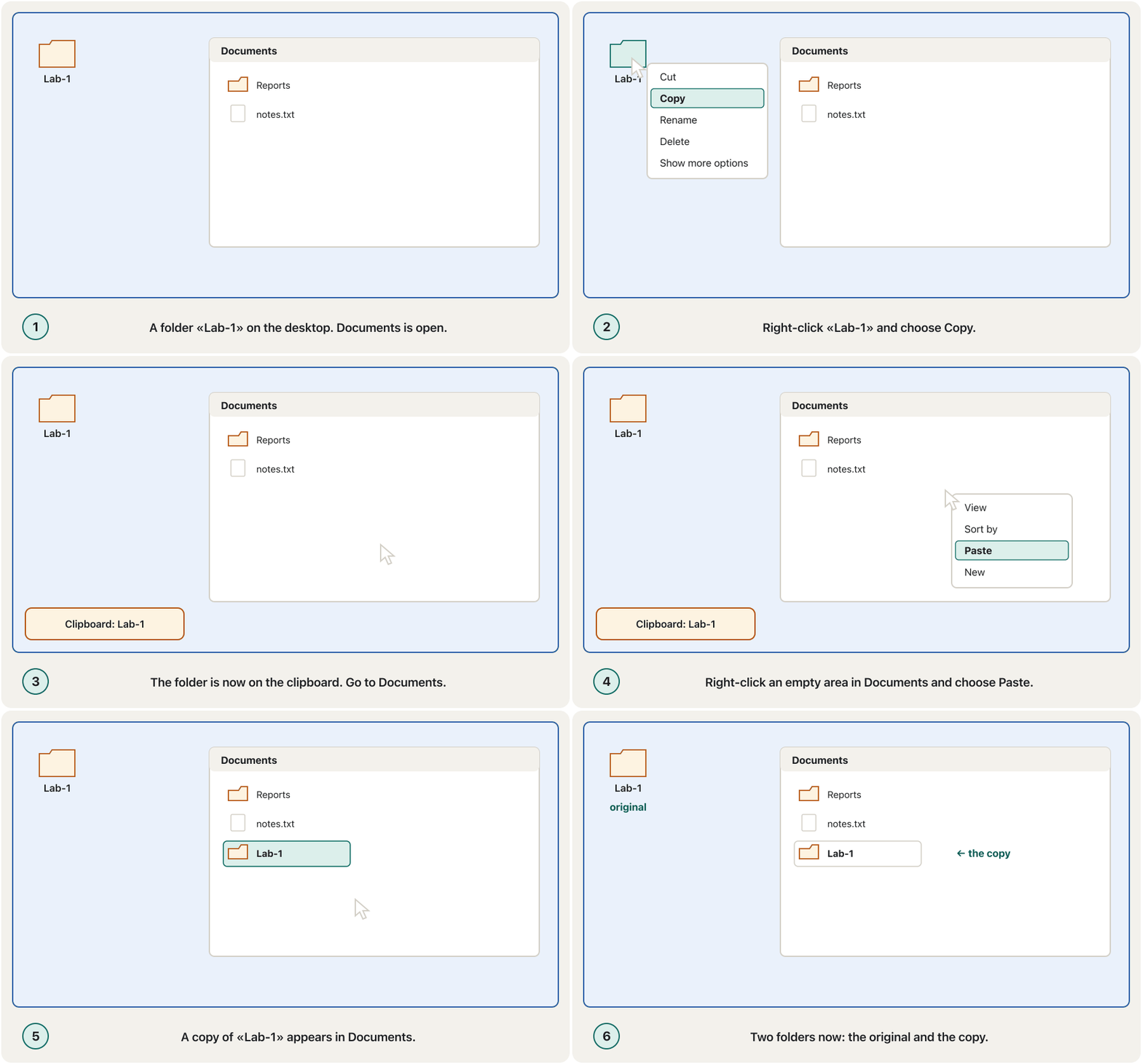
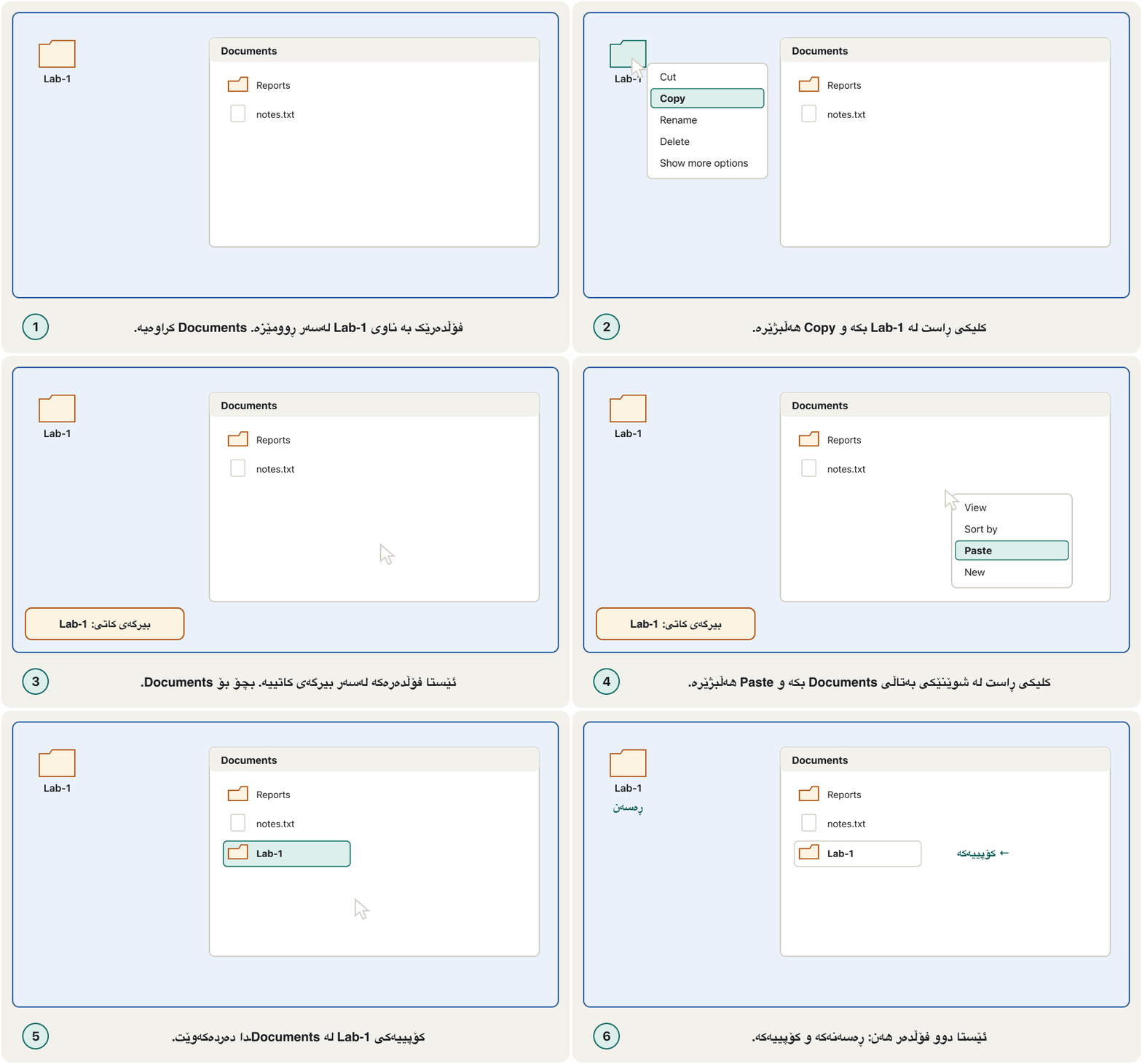
Folders by right-click: create, copy, move, rename, deleteفۆڵدەرەکان بە کلیکی ڕاست: دروستکردن، کۆپی، گواستنەوە، ناونانەوە، سڕینەوە
Rename and delete, with the mouse or the keyboardناونانەوە و سڕینەوە، بە ماوس یان بە کیبۆرد
- Rename a folderناونانەوەی فۆڵدەر
Right-click the folder › Rename, type the new name and press Enter.
ڕاست لە بکە › Rename، ناوە نوێیەکە بنووسە و Enter دابگرە.
- Delete a folderسڕینەوەی فۆڵدەر
Right-click the folder › Delete. It goes to the Recycle Bin, and you can still bring it back.
ڕاست لە بکە › Delete. دەچێتە ناو و هێشتا دەتوانیت بیگەڕێنیتەوە.
Copy, Cut and Paste also work from the keyboard: Ctrl + C, Ctrl + X and Ctrl + V (see Keyboard Shortcuts). In File Explorer, Ctrl + Shift + N makes a new folder, F2 renames the selected item and Delete deletes it. Good folder names — and the characters Windows refuses — are in Applications and Files.
Copy، Cut و Paste بە دەکرێن: Ctrl + C، Ctrl + X و Ctrl + V (سەیری کورتەڕێکانی کیبۆرد بکە). لە File Explorerـدا Ctrl + Shift + N نوێ دروست دەکات، F2 ناوی شتی هەڵبژێردراو دەگۆڕێت و Delete دەیسڕێتەوە. ناوی باش بۆ — و ئەو پیتانەی Windows ڕەتیان دەکاتەوە — لە ئەپ و فایلەکاندان.
Folders by right-click: create, copy, move, rename, deleteفۆڵدەرەکان بە کلیکی ڕاست: دروستکردن، کۆپی، گواستنەوە، ناونانەوە، سڕینەوە
Dragging: copy or move?ڕاکێشان: کۆپیکردن یان گواستنەوە؟
You can also drag a file or folder with the mouse. What happens depends on where you drop it:
دەتوانیت یان بە ڕابکێشیت (). ئەوەی ڕوو دەدات پەیوەستە بەوەی لە کوێ بەری دەدەیت:
- Same drive (for example from the desktop to Documents, both on C:): Windows moves it.
- Another drive (for example onto a USB flash drive): Windows copies it, so the original stays safe.
- Hold Ctrl while you drop to force a copy, or Shift to force a move. Drag with the right mouse button and Windows asks: Copy here or Move here.
- هەمان درایڤ (بۆ نموونە لە بۆ Documents، هەردووکیان لەسەر C:): Windows دەیگوازێتەوە.
- درایڤێکی تر (بۆ نموونە بۆ سەر ): Windows کۆپیی دەکات، بۆیە ڕەسەنەکە پارێزراو دەمێنێت.
- لە کاتی بەردانەوەدا Ctrl ڕابگرە بۆ ئەوەی هەر کۆپی بکات، یان Shift بۆ ئەوەی هەر بیگوازێتەوە. بە دوگمەی ڕاستی ڕایبکێشە و Windows دەپرسێت: Copy here یان Move here.
The Recycle Bin: a second chanceسەبەتەی سڕاوەکان: دەرفەتێکی دووەم
When you delete a file or folder from the computer's own drive, Windows does not destroy it at once. It moves it to the Recycle Bin, so you can change your mind. It is gone for good only when you delete it from the bin, or empty the bin.
کاتێک یان لە درایڤی ناوەوەی دەسڕیتەوە، Windows یەکسەر لەناوی نابات. دەیگوازێتەوە بۆ ، بۆ ئەوەی بتوانیت بیروڕات بگۆڕیت. تەنها کاتێک بە یەکجاری دەڕوات کە لە بیسڕیتەوە، یان بەتاڵ بکەیتەوە.
- Restoreگەڕاندنەوە (Restore)
Open the Recycle Bin (double-click it, or right-click › Open). Right-click the deleted item › Restore. It goes back to the folder it came from.
بکەرەوە ( لێی بکە، یان ڕاست › Open). ڕاست لە شتە سڕاوەکە بکە › Restore. دەگەڕێتەوە بۆ ئەو لێیەوە هاتبوو.
- Delete for everسڕینەوە بە یەکجاری
In the Recycle Bin, right-click the item › Delete, then click Yes. Windows asks because this cannot be undone.
لە ، ڕاست لە شتەکە بکە › Delete، پاشان لە Yes بکە. Windows دەپرسێت چونکە ئەمە ناگەڕێتەوە.
- Empty the whole binبەتاڵکردنەوەی هەموو سەبەتەی سڕاوەکان
Right-click the Recycle Bin on the desktop › Empty Recycle Bin › Yes. Everything in it is deleted for ever and the space is freed.
ڕاست لە سەر بکە › Empty Recycle Bin › Yes. هەموو شتێکی ناوی بە یەکجاری دەسڕێتەوە و شوێنەکە بەتاڵ دەبێتەوە.
The Recycle Bin: a second chanceسەبەتەی سڕاوەکان: دەرفەتێکی دووەم
What skips the Recycle Binئەوەی بەسەر سەبەتەی سڕاوەکاندا باز دەدات
The Recycle Bin also uses drive space, so empty it now and then — but only after checking what is inside. Even an emptied bin does not wipe the data at once: Deleting is not erasing. For files you cannot lose, the real protection is a backup: the 3-2-1 rule.
شوێنی درایڤیش دەگرێت، بۆیە جار جار بەتاڵی بکەرەوە — بەڵام تەنها دوای ئەوەی سەیری ناوەوەی دەکەیت. تەنانەت دوای بەتاڵکردنەوەی ، یەکسەر لەناو ناچێت: سڕینەوە بە واتای لەناوبردن نییە. بۆ ئەو ناتوانیت لەدەستیان بدەیت، پاراستنی ڕاستەقینە : ڕێسای باکئەپی 3-2-1.
What is inside my PC? Settings › System › Aboutکۆمپیوتەرەکەم چی تێدایە؟ Settings › System › About
Before you install a program or ask for help, you need to know your computer: its processor, its memory and its Windows version. The course opened these details from This PC › Properties; in Windows 11 they are on one Settings page.
پێش یان داوای یارمەتی، پێویستە بناسیت: پرۆسێسەرەکەی، و وەشانی Windowsـەکەی. کۆرسەکە ئەم زانیارییانەی لە This PC › Propertiesـەوە دەکردەوە؛ لە Windows 11دا لە یەک لاپەڕەی Settingsـدان.
Select Start › Settings › System › About. (Shortcuts: ⊞ + Pause opens the same page; right-clicking This PC › Properties, the course's route, also leads here.)
Start › Settings › System › About هەڵبژێرە. (کورتەڕێ: ⊞ + Pause هەمان لاپەڕە دەکاتەوە؛ ڕاست لە This PC › Properties، ڕێگاکەی کۆرسەکە، دیسان دەگاتە ئێرە.)
| On the About pageلە لاپەڕەی About | What it tells youچی پێت دەڵێت |
|---|---|
| Device name | The computer's name on the network.ناوی لەسەر . |
| Processor | The CPU model and its speed — see The CPU.مۆدێلی CPU و خێراییەکەی — سەیری CPU بکە. |
| Installed RAM | How much memory the PC has, for example 16.0 GB. چەند هەیە، بۆ نموونە 16.0 GB. |
| System type | 64-bit or 32-bit, and x64 or ARM processor. Windows 11 is 64-bit only.64-bit یان 32-bit و پرۆسێسەری x64 یان ARM. Windows 11 تەنها 64-bitـە. |
| Edition / Version / OS build | Windows 11 Home or Pro, the yearly version (such as 25H2) and the exact build number.Windows 11 Home یان Pro، وەشانی ساڵانە (وەک 25H2) و ژمارەی build. |
Free space on the drives is shown in Settings › System › Storage and in File Explorer under This PC.
شوێنی بەتاڵی درایڤەکان لە Settings › System › Storage و لە File Explorer لە ژێر This PC پیشان دەدرێت.
Make it yours: background, lock screen, screen saverبیکە هی خۆت: باکگراوندی ڕوومێز، شاشەی قفڵ، پارێزەری شاشە
Right-click an empty area of the desktop › Personalize. This opens Settings › Personalization, where you change how Windows looks.
ڕاست لە شوێنێکی بەتاڵی بکە › Personalize. ئەمە Settings › Personalization دەکاتەوە، کە لێیەوە شێوەی Windows دەگۆڕیت.
- Desktop backgroundباکگراوندی ڕوومێز
Personalization › Background. Choose Picture (one photo), Solid color, Slideshow (pictures from a folder that change every few minutes) or Windows spotlight (a new photo every day). A shortcut: right-click any photo › Set as desktop background.
Personalization › Background. Picture (یەک وێنە)، Solid color (ڕەنگێکی تاک)، Slideshow (وێنەکانی کە هەر چەند خولەکێک دەگۆڕێن) یان Windows spotlight (هەموو ڕۆژێک وێنەیەکی نوێ) هەڵبژێرە. کورتەڕێیەک: ڕاست لە هەر وێنەیەک بکە › Set as desktop background.
- Lock screenشاشەی قفڵ
Personalization › Lock screen: the picture you see before you sign in, and what it shows (for example the weather).
Personalization › Lock screen: ئەو وێنەیەی پێش دەیبینیت و ئەوەی پیشانی دەدات (بۆ نموونە کەشوهەوا).
- Screen saverپارێزەری شاشە
Personalization › Lock screen › Screen saver (under Related settings). Choose a screen saver, set Wait (minutes), tick On resume, display logon screen and click OK.
Personalization › Lock screen › Screen saver (لە ژێر Related settings). هەڵبژێرە، Wait (خولەک) دابنێ، On resume, display logon screen نیشانە بکە و لە OK بکە.
Pictures: Paint, Photos and Snipping Toolوێنە: Paint، Photos و Snipping Tool
A picture can say in a second what a long paragraph needs a minute for: a diagram of a network, a screenshot of an error message, a photo of a broken cable. Pictures make an idea clear and help people remember it — so every IT student needs a few picture skills.
وێنەیەک دەتوانێت لە چرکەیەکدا ئەوە بڵێت کە بڕگەیەکی درێژ خولەکێکی پێویستە: هێڵکارییەکی ، ، وێنەی کێبڵێکی شکاو. وێنە بیرۆکە ڕوون دەکاتەوە و یارمەتی خەڵک دەدات لەبیری بێت — بۆیە هەموو قوتابییەکی IT پێویستی بە چەند کارامەییەکی وێنەیە.
| Built-in appئەپی ناوەوە | Use it to…بەکاری بهێنە بۆ… |
|---|---|
| Paint | Draw, crop, resize and rotate a picture, and save it in another format.وێنەکێشان، ، گۆڕینی قەبارە و سووڕاندنی وێنە و بە جۆرێکی تر. |
| Photos | View your pictures and videos and make simple edits: crop, rotate, brightness.بینینی وێنە و ڤیدیۆکانت و دەستکاریی سادە: ، سووڕاندن، ڕووناکی. |
| Snipping Tool | Take a screenshot or record the screen.گرتنی یان . |
Pictures: Paint, Photos and Snipping Toolوێنە: Paint، Photos و Snipping Tool
Paint: crop, resize, rotate, save asPaint: بڕینی لێوار، گۆڕینی قەبارە، سووڕاندن، پاشەکەوتکردن وەک
Open Paint from Start: type Paint and select it. To edit a photo you already have, right-click it › Open with › Paint. Paint opens, edits and saves picture files.
Paint لە Startـەوە بکەرەوە: Paint بنووسە و هەڵیبژێرە. بۆ دەستکاریی وێنەیەک کە هەتە، ڕاست لێی بکە › Open with › Paint. Paint وێنە دەکاتەوە، دەستکاریان دەکات و پاشەکەوتیان دەکات.
- Crop and resize pictures (the Image group: Select, Crop, Resize and skew, Rotate).
- Save in another format with File › Save as: PNG for screenshots and drawings, JPEG for photos, also BMP and GIF.
- Draw: the Pencil and Brushes for freehand lines, Shapes (lines, curves, rectangles, arrows), the Fill bucket to colour an area, Text and the Eraser.
- Undo, Redo and Save are small buttons at the very top; the slides call that row the Quick Access Toolbar. Brushes and Shapes open a list with more choices.
- و گۆڕینی قەبارەی وێنە (گرووپی Image: Select، Crop، Resize and skew، Rotate).
- بە جۆرێکی تر بە File › Save as: PNG بۆ و وێنەکێشان، JPEG بۆ وێنەی کامێرا، هەروەها BMP و GIF.
- وێنەکێشان: Pencil و Brushes بۆ هێڵی دەستی، Shapes (هێڵ، چەماوە، چوارگۆشە، تیر)، سەتڵی Fill بۆ ڕەنگکردنی ناوچەیەک، Text و Eraser.
- ، و دوگمەی بچووکن لە سەرەوەی سەرەوە؛ سلایدەکان ئەو ڕیزە بە ناو دەبەن. Brushes و Shapes لیستێک بە هەڵبژاردەی زیاتر دەکەنەوە.
In the course's Paint, the Home tab started with two groups: Clipboard (Paste, Cut, Copy) and Image (Select, Crop, Resize, Rotate). Windows 11's Paint keeps the same tools in one toolbar; Cut, Copy and Paste also work with Ctrl + X, Ctrl + C and Ctrl + V on a selection.
لە Paintـی کۆرسەکەدا، Home بە دوو دەستی پێ دەکرد: Clipboard (Paste، Cut، Copy) و Image (Select، Crop، Resize، Rotate). Paintـی Windows 11 هەمان ئامرازەکان لە یەک دەهێڵێتەوە؛ Cut، Copy و Paste هەروەها بە Ctrl + X، Ctrl + C و Ctrl + V لەسەر بەشێکی هەڵبژێردراو کار دەکەن.
Pictures: Paint, Photos and Snipping Toolوێنە: Paint، Photos و Snipping Tool
Resize, crop and save a copyگۆڕینی قەبارە، بڕینی لێوار و پاشەکەوتکردنی کۆپییەک
- Resizeگۆڕینی قەبارە
Select Resize and skew (Ctrl + W). Choose Percentage or Pixels, keep Maintain aspect ratio ticked, type the new width — the height changes by itself — and click OK.
Resize and skew هەڵبژێرە (Ctrl + W). Percentage یان Pixels هەڵبژێرە، Maintain aspect ratio بە نیشانەکراوی بهێڵەوە، پانییە نوێیەکە بنووسە — بەرزییەکە خۆی دەگۆڕێت — و لە OK بکە.
- Cropبڕینی لێوار
Choose Select, drag a rectangle around the part you want to keep, then click Crop (Ctrl + Shift + X). Everything outside the rectangle is cut away.
Select هەڵبژێرە، چوارگۆشەیەک بە دەوری ئەو بەشەدا ڕابکێشە کە دەتەوێت بیهێڵیتەوە، پاشان لە Crop بکە (Ctrl + Shift + X). هەموو شتێکی دەرەوەی چوارگۆشەکە دەبڕدرێت.
- Save as a new fileپاشەکەوتکردن وەک فایلێکی نوێ
File › Save as, pick the format and a new name (for example
trip-small.jpg), so the original photo stays untouched.File › Save as، جۆرەکە و ناوێکی نوێ هەڵبژێرە (بۆ نموونە
trip-small.jpg)، بۆ ئەوەی وێنە ڕەسەنەکە دەستی لێ نەدرێت.
A phone photo is 4000 × 3000 pixels. At 25% it becomes 1000 × 750. Typing a width of 1200 pixels with Maintain aspect ratio gives a height of 900, so the picture keeps its 4 : 3 shape.
وێنەیەکی مۆبایل . بە 25% دەبێتە . نووسینی پانیی 1200 لەگەڵ Maintain aspect ratio بەرزیی 900 دەدات، بۆیە وێنەکە شێوەی ـی خۆی دەپارێزێت.
Pictures: Paint, Photos and Snipping Toolوێنە: Paint، Photos و Snipping Tool
Photos and Snipping ToolPhotos و Snipping Tool
Photos opens when you double-click a picture. Use Edit to crop, rotate or brighten it, then Save as copy to keep the original. It replaces the old MS Office Picture Manager that the course lists.
Photos دەکرێتەوە کاتێک لە وێنەیەک دەکەیت. Edit بەکار بهێنە بۆ ، سووڕاندن یان ڕووناککردنەوە، پاشان Save as copy بۆ پاراستنی ڕەسەنەکە. جێی MS Office Picture Managerـی کۆن دەگرێتەوە کە کۆرسەکە ناوی دەبات.
Press ⊞ + Shift + S (or the Print Screen key). The screen dims and a small bar appears at the top.
⊞ + Shift + S دابگرە (یان دوگمەی Print Screen). شاشەکە تاریک دەبێت و شریتێکی بچووک لە سەرەوە دەردەکەوێت.
Choose a mode: Rectangle, Window, Full screen or Freeform, and select the area.
دۆخێک هەڵبژێرە: Rectangle، Window، Full screen یان Freeform و ناوچەکە هەڵبژێرە.
The snip is copied to the clipboard (paste it into a chat or document with Ctrl + V) and saved automatically in Pictures › Screenshots. Click the notification to open it in Snipping Tool, draw on it, and Save as.
وێنەکە دەچێتە (بە Ctrl + V لە چات یان Wordـدا بیلکێنە) و خۆکارانە لە Pictures › Screenshots پاشەکەوت دەکرێت. لە ئاگادارکردنەوەکە بکە بۆ کردنەوەی لە Snipping Tool، شتی لەسەر بکێشە و Save as بکە.
All the screenshot keys, and where each one saves the picture, are in Keyboard Shortcuts.
هەموو دوگمەکانی و ئەوەی هەریەکەیان وێنەکە لە کوێ پاشەکەوت دەکات، لە کورتەڕێکانی کیبۆرددان.
How to take a screenshot in Windows 11 with Print Screen, Windows+Shift+S and the Snipping Tool.
چۆن لە Windows 11دا بگریت: بە Print Screen، بە Windows+Shift+S و بە Snipping Tool.
Plays 2:22-5:37: Snipping Tool, delayed screenshots and annotating.
لە 2:22 تا 5:37 پەخش دەبێت: Snipping Tool، بە دواخستن و نووسینی تێبینی لەسەر وێنەکە.
Compressed files: zip and unzipفایلە پەستێنراوەکان: zip و unzip
A compressed file (an archive) packs many files and folders into one smaller file: easier to send by e-mail, faster to upload, tidier to keep. Why compression saves space is explained in Software and Operating Systems; the extensions .zip, .7z and .rar are in Applications and Files.
(ئەرشیف) چەندین و لە یەک بچووکتردا کۆ دەکاتەوە: ناردنی بە ئاسانترە، بارکردنی خێراترە، هەڵگرتنی ڕێکترە. ئەوەی بۆچی شوێن دەگەڕێنێتەوە لە نەرمەواڵە و سیستەمەکانی وەگەڕخەردا ڕوون کراوەتەوە؛ .zip، .7z و .rar لە ئەپ و فایلەکاندان.
- Zipپەستاندن (Zip)
Select the files or folder, right-click › Show more options › Send to › Compressed (zipped) folder. A new .zip file appears next to them; rename it.
یان هەڵبژێرە، ڕاست › Show more options › Send to › Compressed (zipped) folder. .zipـی نوێ لە تەنیشتیانەوە دەردەکەوێت؛ ناوی بگۆڕە.
- Unzipدەرهێنان (Unzip)
Right-click the .zip › Extract All…, choose where to put the files, and click Extract. Always extract before you edit the files inside.
ڕاست لە .zip بکە › Extract All…، شوێنی هەڵبژێرە و لە Extract بکە. هەمیشە پێش دەستکاریکردنی ناوی، دەریان بهێنە.
Microsoft's help page says that Windows 11, version 24H2, supports the ZIP, RAR, 7z and TAR archive formats, so you no longer need an extra app just to open a .rar or .7z file. Windows cannot work with encrypted (password-protected) archives, though; for those Microsoft points to 7-Zip (free and open source) or WinRAR (a paid program with a free trial) — the program the course used.
پەڕەی یارمەتیی Microsoft دەڵێت Windows 11، وەشانی 24H2، پشتگیریی جۆرەکانی ئەرشیفی ZIP، RAR، 7z و TAR دەکات، بۆیە چیتر پێویستت بە ئەپێکی زیادە نییە تەنها بۆ کردنەوەی .rar یان .7z. بەڵام Windows ناتوانێت کار لەگەڵ ئەرشیفی شفرەکراو (پارێزراو بە ) بکات؛ بۆ ئەوانە Microsoft ئاماژە بە 7-Zip ( و ) یان WinRAR دەکات ( پارەدار بە تاقیکردنەوەی بێبەرانبەر) — ئەوەی کۆرسەکە بەکاری هێنا.
Common file formats and their extensions, such as .jpg, .png, .pdf and .docx, and what kind of data each one holds.
باوترین و ، وەک .jpg، .png، .pdf و .docx و هەر یەکەیان چ جۆرە هەڵدەگرێت.
Plays 11:39-13:03: compressed file formats.
لە 11:39 تا 13:03 پەخش دەبێت: جۆرەکانی (ZIP، RAR و 7z).
Compressed files: zip and unzipفایلە پەستێنراوەکان: zip و unzip
From WinRAR to 7-Zipلە WinRARـەوە بۆ 7-Zip
The course opened WinRAR and used its Archive name and parameters window. The free 7-Zip has the same ideas in its Add to archive window (right-click › Show more options › 7-Zip › Add to archive…). The table matches the two:
کۆرسەکە WinRARـی دەکردەوە و Archive name and parametersـی بەکار دەهێنا. 7-Zipـی بێبەرانبەر هەمان بیرۆکەکانی لە Add to archiveـدا هەیە ( ڕاست › Show more options › 7-Zip › Add to archive…). خشتەکە ئەم دووانە بەراورد دەکات:
| WinRAR (the course)WinRAR (کۆرسەکە) | 7-Zipلە 7-Zipـدا | What it doesچی دەکات |
|---|---|---|
| Archive name | Archive | The name and folder of the new archive.ناو و ئەرشیفە نوێیەکە. |
| Archive format: RAR / ZIP | Archive format: 7z / zip / tar | The type of archive. ZIP opens everywhere; 7z and RAR usually pack smaller.جۆری ئەرشیف. ZIP لە هەموو شوێنێک دەکرێتەوە؛ 7z و RAR زۆرجار بچووکتر دەپەستێنن. |
| Compression method | Compression level | Faster, or smaller. «Best» takes longer.خێراتر، یان بچووکتر. «Best» کاتی زیاتری دەوێت. |
| Split to volumes, size | Split to volumes, bytes | Cuts the archive into parts of a size you choose.ئەرشیفەکە بە پارچەی ئەو قەبارەیەی هەڵیدەبژێریت دەبڕێت. |
| Set password… + Encrypt file names | Encryption: Enter / Reenter password + Encrypt file names | Locks the archive with a password.ئەرشیفەکە بە قفڵ دەکات. |
| Delete files after archiving | Delete files after compression | Removes the originals when the archive is ready.ڕەسەنەکان لادەبات کاتێک ئەرشیفەکە ئامادە بوو. |
| Create SFX archive | Create SFX archive | Makes a self-extracting .exe that opens without any archive app. .exe دروست دەکات کە خۆی دەکرێتەوە بەبێ هیچ ئەپێکی ئەرشیف. |
| Solid archive, Add recovery record, Test archived files, Lock archive | Solid block size; 7-Zip has no recovery record or lockSolid block size؛ 7-Zip recovery record و lockـی نییە | Extra WinRAR options: pack similar files together, add repair data, check the result, block later changes.هەڵبژاردەی زیادەی WinRAR: پەستاندنی هاوشێوە پێکەوە، زیادکردنی زانیاریی چاککردنەوە، پشکنینی ئەنجام، ڕێگرتن لە گۆڕانکاریی دواتر. |
Compressed files: zip and unzipفایلە پەستێنراوەکان: zip و unzip
Lock an archive with a passwordقفڵکردنی ئەرشیف بە تێپەڕەوشە
- Lock with a passwordقفڵکردن بە تێپەڕەوشە
In Add to archive, choose the format 7z. In Encryption, type the password in Enter password and again in Reenter password, tick Encrypt file names, and click OK. (In WinRAR: Advanced tab › Set password… › type it twice › tick Encrypt file names › OK.)
لە Add to archive، جۆری 7z هەڵبژێرە. لە Encryption، لە Enter password بنووسە و دووبارە لە Reenter password، Encrypt file names نیشانە بکە و لە OK بکە. (لە WinRAR: تابی Advanced › Set password… › دوو جار بینووسە › Encrypt file names نیشانە بکە › OK.)
Compressed files: zip and unzipفایلە پەستێنراوەکان: zip و unzip
Split an archive into partsدابەشکردنی ئەرشیف بۆ چەند پارچەیەک
Split to volumes cuts one big archive into equal parts. A 20 MB archive split at 5 MB becomes four 5 MB files — small enough for an e-mail or an upload limit. 7-Zip names them photos.7z.001, photos.7z.002 and so on. To unpack, put all parts in one folder and open the first one.
Split to volumes ئەرشیفێکی گەورە بە پارچەی یەکسان دەبڕێت. ئەرشیفێکی 20 MB کە بە 5 MB پارچە بکرێت دەبێتە چوار 5 MB — ئەوەندە بچووک کە بۆ یان سنووری بارکردن بگونجێت. 7-Zip ناویان دەنێت photos.7z.001، photos.7z.002 و هتد. بۆ دەرهێنان، هەموو پارچەکان بخە یەک و یەکەمیان بکەرەوە.
| Preset size (WinRAR, in the course)قەبارەی ئامادە (WinRAR، لە کۆرسەکە) | Why that sizeبۆچی ئەو قەبارەیە |
|---|---|
| 5 MB | Old e-mail attachment limits.سنووری کۆنی هاوپێچی . |
| 100 MB | Upload limits of many websites.سنووری بارکردنی زۆر ماڵپەڕ. |
| 700 MB (CD-700) | Fits on one CD.لەسەر یەک CD جێی دەبێتەوە. |
| 4,095 MB (FAT32) | FAT32 drives cannot hold a single file of 4 GB or more.درایڤی FAT32 ناتوانێت یەک 4 GB یان زیاتر هەڵبگرێت. |
| 4,481 MB (DVD+R) | Fits on one single-layer DVD.لەسەر یەک DVDـی یەک چین جێی دەبێتەوە. |
| Autodetect | WinRAR measures the free space on the target disk.WinRAR شوێنی بەتاڵی دیسکی مەبەست دەپێوێت. |
A 1,500 MB video split at 700 MB gives three parts: 700 MB, 700 MB and the last 100 MB.
ڤیدیۆیەکی 1500 MB کە بە 700 MB پارچە بکرێت سێ پارچە دەدات: 700 MB، 700 MB و دواییەکەی 100 MB.
A projector or a second screenپرۆجێکتەر یان شاشەی دووەم
For a presentation you connect the laptop to a projector (people often call it a «data show») or to a big monitor, using a cable into one of the laptop's video ports. How projectors and interactive whiteboards work is in Printers and Other Output.
بۆ پێشکەشکردن، بە (کە خەڵک زۆرجار پێی دەڵێن «داتاشۆ») یان بە شاشەیەکی گەورە دەبەستیتەوە، بە کێبڵێک لە یەکێک لە دەرچەکانی ڤیدیۆی . ئەوەی و چۆن کار دەکەن لە چاپەرەکان و ئامێرەکانی تری دەرخستەدایە.
Turn the projector on first and let it warm up.
سەرەتا هەڵبکە و با گەرم بێتەوە.
Plug the cable into the laptop: HDMI, DisplayPort or USB-C on today's laptops. An old VGA or DVI projector needs an adapter — see Video ports.
کێبڵەکە بخە : ، یان لە ئەمڕۆدا. کۆنی یان DVI پێویستی بە ئەداپتەرە — سەیری دەرچەکانی ڤیدیۆ بکە.
With the projector's remote, choose the input you used (for example HDMI 1).
بە ڕیمۆتی ، ئەو بەکارت هێنا هەڵبژێرە (بۆ نموونە HDMI 1).
Press ⊞ + P and choose how Windows uses the two screens (next screen). If nothing appears, open Settings › System › Display › Multiple displays › Detect.
⊞ + P دابگرە و هەڵبژێرە Windows چۆن دوو شاشەکە بەکار بهێنێت (شاشەی داهاتوو). ئەگەر هیچ دەرنەکەوت، Settings › System › Display › Multiple displays › Detect بکەرەوە.
A projector or a second screenپرۆجێکتەر یان شاشەی دووەم
⊞ + P: four ways to use two screens⊞ + P: چوار ڕێگا بۆ بەکارهێنانی دوو شاشە
Press ⊞ + P and Windows 11 offers four modes. Pick the one that fits what the audience should see.
⊞ + P دابگرە و Windows 11 چوار دۆخ پێشکەش دەکات. ئەوەیان هەڵبژێرە کە لەگەڵ ئەوەدا دەگونجێت کە بینەران دەبێت بیبینن.
| Mode (Windows 11)دۆخ (Windows 11) | What you seeچی دەبینیت | Good forباشە بۆ |
|---|---|---|
| PC screen only | Only the laptop screen works; the projector shows nothing.تەنها شاشەی کار دەکات؛ هیچ پیشان نادات. | Preparing before the audience arrives.ئامادەکاری پێش هاتنی بینەران. |
| Duplicate | The same picture on both screens.هەمان وێنە لەسەر هەردوو شاشە. | Teaching and demos: you see what they see.وانەوتنەوە و نمایش: ئەوە دەبینیت کە ئەوان دەیبینن. |
| Extend | One wide desktop across both screens; move windows between them.یەک پان بەسەر هەردوو شاشەدا؛ لە نێوانیاندا دەگوازیتەوە. | PowerPoint's Presenter View, or a second monitor for work.Presenter Viewـی PowerPoint، یان شاشەی دووەم بۆ کار. |
| Second screen only | The laptop screen turns off; only the projector shows the desktop.شاشەی دەکوژێتەوە؛ تەنها پیشان دەدات. | A laptop with its lid closed on a desk monitor. بە سەری داخراوەوە لەگەڵ شاشەیەکی مێز. |
No cable? Press ⊞ + K (or Quick Settings › Cast) to send the screen to a wireless display, a smart TV or a projector that supports Miracast. And Settings › System › Display › Identify shows a big number on each screen, so you know which is which. The ⊞ + P key itself is also listed in Keyboard Shortcuts.
کێبڵ نییە؟ ⊞ + K دابگرە (یان Quick Settings › Cast) بۆ ناردنی شاشەکە بۆ شاشەیەکی ، تەلەفزیۆنێکی زیرەک یان کە پشتگیریی Miracast دەکات. هەروەها Settings › System › Display › Identify ژمارەیەکی گەورە لەسەر هەر شاشەیەک پیشان دەدات، بۆ ئەوەی بزانیت کامیان کامەیە. دوگمەی ⊞ + P خۆی لە کورتەڕێکانی کیبۆردـیشدا هاتووە.
Then and now: what changed since the slidesئەوسا و ئێستا: چی گۆڕاوە لە دوای سلایدەکانەوە
Common mistakesهەڵە باوەکان
- Looking in the Recycle Bin for a file deleted from a USB drive. Removable drives skip the bin — copy important files somewhere safe before deleting.
- Emptying the Recycle Bin without looking inside. Open it first; once it is empty, there is no second chance.
- Cut instead of Copy. Cut + Paste moves the only copy. If you want a spare, use Copy.
- Choosing Extend in a presentation. The audience sees an empty desktop. Use Duplicate, or drag the slide show to the projector.
- Resizing without Maintain aspect ratio, or saving over the original photo. Keep the ratio locked and Save as a new name.
- Pulling the plug instead of Shut down, or leaving a shared PC without signing out.
- Sending one part of a split archive. All the parts are needed to unpack it.
- گەڕان لە بۆ کە لە USB سڕاوەتەوە. درایڤە لابراوەکان بەسەر باز دەدەن — پێش سڕینەوە گرنگەکان لە شوێنێکی پارێزراودا کۆپی بکە.
- بەتاڵکردنەوەی بەبێ سەیرکردنی ناوەوەی. سەرەتا بیکەرەوە؛ کە بەتاڵ بوو، دەرفەتی دووەم نییە.
- Cut لە جیاتی Copy. Cut + Paste تاکە کۆپییەکە دەگوازێتەوە. ئەگەر یەدەگێکت دەوێت، Copy بەکار بهێنە.
- هەڵبژاردنی Extend لە پێشکەشکردندا. بینەران بەتاڵ دەبینن. Duplicate بەکار بهێنە، یان نمایشەکە ڕابکێشە بۆ .
- گۆڕینی قەبارە بەبێ Maintain aspect ratio، یان لەسەر وێنە ڕەسەنەکە. ڕێژەکە قفڵ بکە و بە ناوێکی نوێ پاشەکەوتی بکە (Save as).
- دەرهێنانی وایەر لە جیاتی ، یان جێهێشتنی هاوبەش بەبێ .
- ناردنی تەنها یەک پارچەی ئەرشیفێکی پارچەکراو. بۆ دەرهێنان هەموو پارچەکان پێویستن.
Exercisesڕاهێنانەکان
Do this on a Windows PC and write down what you see after each step: (a) make a folder IT-Lab on the desktop; (b) inside it make a folder Week1; (c) copy Week1 into Documents; (d) rename the copy Week1-copy; (e) delete Week1-copy; (f) restore it; (g) delete it again and remove it from the Recycle Bin for ever.
ئەمە لەسەر Windows بکە و دوای هەر هەنگاوێک بینووسە چی دەبینیت: (أ) بە ناوی IT-Lab لەسەر دروست بکە؛ (ب) لەناویدا بە ناوی Week1 دروست بکە؛ (ج) Week1 کۆپی بکە بۆ Documents؛ (د) ناوی کۆپییەکە بگۆڕە بۆ Week1-copy؛ (هـ) Week1-copy بسڕەوە؛ (و) بیگەڕێنەوە؛ (ز) دووبارە بیسڕەوە و بە یەکجاری لە لای ببە.
Show answerوەڵامەکە پیشان بدە
Right-click the desktop › New › Folder › type IT-Lab › Enter.
ڕاست لە › New › Folder › IT-Lab بنووسە › Enter.
Open IT-Lab › right-click › New › Folder › Week1.
IT-Lab بکەرەوە › ڕاست › New › Folder › Week1.
Right-click Week1 › Copy › open Documents › right-click › Paste. Week1 is now in both places.
ڕاست لە Week1 › Copy › Documents بکەرەوە › ڕاست › Paste. ئێستا Week1 لە هەردوو شوێنە.
In Documents: right-click Week1 › Rename › Week1-copy › Enter.
لە Documents: ڕاست لە Week1 › Rename › Week1-copy › Enter.
Right-click Week1-copy › Delete. It disappears from Documents and appears in the Recycle Bin.
ڕاست لە Week1-copy › Delete. لە Documents ون دەبێت و لە دەردەکەوێت.
Open the Recycle Bin › right-click Week1-copy › Restore. It is back in Documents.
بکەرەوە › ڕاست لە Week1-copy › Restore. دەگەڕێتەوە بۆ Documents.
Delete it again; in the Recycle Bin right-click it › Delete › Yes. Now it cannot be restored.
دووبارە بیسڕەوە؛ لە ڕاست لێی بکە › Delete › Yes. ئێستا ناگەڕێتەوە.
A photo is 3000 × 2000 pixels. (a) What size is it at 50%? (b) With Maintain aspect ratio, you type a width of 750 pixels. What is the height?
وێنەیەک . (أ) بە 50% قەبارەکەی چەند دەبێت؟ (ب) لەگەڵ Maintain aspect ratio، پانیی 750 دەنووسیت. بەرزییەکەی چەندە؟
Show answerوەڵامەکە پیشان بدە
You have a 1,800 MB archive and must upload it to a site that accepts at most 700 MB per file. How many parts do you make, and how big is the last one?
ئەرشیفێکی 1800 MBـت هەیە و دەبێت بیبەیتە سەر ماڵپەڕێک کە بۆ هەر زۆرترین 700 MB وەردەگرێت. چەند پارچە دروست دەکەیت و پارچەی کۆتایی چەند گەورەیە؟
Show answerوەڵامەکە پیشان بدە
Three parts: two of 700 MB and a last one of 400 MB. Send all three.
سێ پارچە: دوو پارچەی 700 MB و دواییەکەی 400 MB. هەر سێکیان بنێرە.
Which ⊞ + P mode fits each case? (a) A teacher shows a website and wants to see exactly what the class sees. (b) A speaker wants the slide on the projector and her notes on the laptop. (c) A laptop sits closed on a desk with a big monitor.
کام دۆخی ⊞ + P لەگەڵ هەر حاڵەتێک دەگونجێت؟ (أ) مامۆستایەک ماڵپەڕێک پیشان دەدات و دەیەوێت ڕێک ئەوە ببینێت کە پۆلەکە دەیبینێت. (ب) قسەکەرێک دەیەوێت سلایدەکە لەسەر بێت و تێبینییەکانی لەسەر . (ج) بە داخراوی لەسەر مێزێکە لەگەڵ شاشەیەکی گەورە.
Show answerوەڵامەکە پیشان بدە
- (a) Duplicate.
- (b) Extend (PowerPoint's Presenter View uses it).
- (c) Second screen only.
- (أ) دۆخی Duplicate.
- (ب) Extend (Presenter Viewـی PowerPoint بەکاری دەهێنێت).
- (ج) دۆخی Second screen only.
With 7-Zip, describe how to pack the folder Project into a password-protected archive in 100 MB parts whose file names are hidden too.
بە 7-Zip، ڕوون بکەرەوە چۆن Project دەپەستێنیت لە ئەرشیفێکی پارێزراو بە بە پارچەی 100 MB کە ناوی شاراوە بێت.
Show answerوەڵامەکە پیشان بدە
Right-click Project › Show more options › 7-Zip › Add to archive…
ڕاست لە Project › Show more options › 7-Zip › Add to archive…
Archive format: 7z. Split to volumes, bytes: 100M.
لە Archive format: 7z. لە Split to volumes, bytes: 100M.
Type the password in Enter password and Reenter password; tick Encrypt file names; OK.
لە Enter password و Reenter password بنووسە؛ Encrypt file names نیشانە بکە؛ OK.
Result: Project.7z.001, Project.7z.002 … — send all parts and give the password separately (not in the same e-mail).
ئەنجام: Project.7z.001، Project.7z.002 … — هەموو پارچەکان بنێرە و بە جیا بدە (نەک لە هەمان ).
Summaryپوختە
- The Windows 11 desktop: Start (centre), search, pinned apps on the taskbar, the notification area and Quick Settings (⊞ + A).
- Start › Power, or right-click Start (⊞ + X) › Shut down or sign out: Shut down, Restart, Sleep, Sign out. Restart fixes many small problems.
- Right-click › New › Folder, Copy, Cut, Paste, Rename, Delete. Copy keeps two folders; Cut moves one.
- Delete sends files to the Recycle Bin (Restore, Delete, Empty). Shift + Delete, USB flash drives and memory cards skip it.
- Settings › System › About shows the processor, RAM, system type and Windows version; Personalization changes the background, lock screen and screen saver.
- Paint crops, resizes (by % or pixels, keeping the aspect ratio) and saves as another format; Photos edits; Snipping Tool (⊞ + Shift + S) takes screenshots.
- Send to › Compressed (zipped) folder and Extract All; Windows 11 opens ZIP, RAR, 7z and TAR. Passwords and split volumes need 7-Zip or WinRAR.
- Projector: HDMI, DisplayPort or USB-C cable, then ⊞ + P: PC screen only, Duplicate, Extend, Second screen only; ⊞ + K casts wirelessly.
- Windows 11: Start (ناوەڕاست)، گەڕان، ئەپە جێگیرکراوەکانی سەر ، ناوچەی ئاگادارکردنەوەکان و Quick Settings (⊞ + A).
- Start › Power، یان ڕاست لە Start (⊞ + X) › Shut down or sign out: ، ، ، . زۆر کێشەی بچووک چارەسەر دەکات.
- ڕاست › New › Folder، Copy، Cut، Paste، Rename، Delete. Copy دوو دەهێڵێتەوە؛ Cut یەکێک دەگوازێتەوە.
- Delete دەنێرێتە (Restore، Delete، Empty). Shift + Delete، و بەسەریدا باز دەدەن.
- Settings › System › About پرۆسێسەر، RAM، جۆری سیستەم و وەشانی Windows پیشان دەدات؛ Personalization ، و دەگۆڕێت.
- Paint لێوار دەبڕێت، قەبارە دەگۆڕێت (بە % یان ، بە پاراستنی ) و بە جۆرێکی تر پاشەکەوت دەکات؛ Photos دەستکاری دەکات؛ Snipping Tool (⊞ + Shift + S) دەگرێت.
- Send to › Compressed (zipped) folder و Extract All؛ Windows 11 ZIP، RAR، 7z و TAR دەکاتەوە. و پارچەکردن پێویستیان بە 7-Zip یان WinRAR هەیە.
- : کێبڵی HDMI، DisplayPort یان USB-C، پاشان ⊞ + P: PC screen only، Duplicate، Extend، Second screen only؛ ⊞ + K بە پەخش دەکات.
Videoڤیدیۆ
Watch a videoسەیری ڤیدیۆیەک بکە
A video that viewers liked a lot and praised in their comments, chosen for this lesson.ڤیدیۆیەک کە بینەران زۆریان پێ خۆش بووە و لە کۆمێنتەکانیاندا ستایشیان کردووە، بۆ ئەم وانەیە هەڵبژێردراوە.
In Kurdish, on Windows 11: the desktop, Start menu, shut down and restart, Quick Settings and the desktop right-click menu.
بە کوردی لەسەر Windows 11: ، Start، و ، Quick Settings و ئەو بە ڕاست لەسەر دەکرێتەوە.
Kurdish (Sorani) first lesson of a computer course on Windows 11 (16:17).
یەکەم وانەی کۆرسێکی فێربوونی لەسەر Windows 11، بە کوردیی سۆرانی (16:17).
Lesson complete!وانەکە تەواو بوو!
Well done. Review the key terms, then go on to the next lesson.دەستخۆش. سەیرێکی زاراوە سەرەکییەکان بکەرەوە، پاشان بڕۆ بۆ وانەی داهاتوو.
Key termsزاراوە سەرەکییەکان
Keyboard Shortcuts for Windows and Macکورتەڕێکانی کیبۆرد بۆ Windows و Mac
Related lecturesوانە پەیوەندیدارەکان
- Keyboard Shortcuts for Windows and Macکورتەڕێکانی کیبۆرد بۆ Windows و Mac
- The Command Line: Command Prompt Basicsڕووکاری هێڵی فەرمان: بنەماکانی Command Prompt
- Operating Systems and the Desktopسیستەمەکانی وەگەڕخەر و ڕوومێز
- Ports and Connectorsدەرچەکان و سەرەکانی کێبڵ
- Printers, Speakers, Projectors and Assistive Technologyچاپەرەکان، بڵندگۆکان، پرۆجێکتەرەکان و تەکنەلۆژیای یارمەتیدەر
- Storage Versus Memoryخەزنکردن بەرامبەر بیرگە
References and further readingسەرچاوەکان و خوێندنەوەی زیاتر
- Microsoft Support: Shut down, sleep, or hibernate your PC
- Microsoft Support: Keyboard shortcuts in Windows (Shift + Delete, Ctrl + Shift + N, F2, ⊞ + X, ⊞ + P, ⊞ + K, ⊞ + Pause; ⊞ + A «Windows 11 action center»)
- Microsoft Support: Find information about your Windows device (Settings › System › About)
- Microsoft Support: Change the desktop background in Windows
- Microsoft Support: Configure a screen saver in Windows
- Microsoft Support: Use Snipping Tool to capture screenshots
- Windows Insider Blog: Paint app update adding layers and transparency (September 2023)
- Microsoft Support: Zip and unzip files (Windows 11 24H2: ZIP, RAR, 7z, TAR; encrypted archives need 7-Zip or WinRAR)
- 7-Zip: home page (free, open source, AES-256)
- Microsoft Support: How to use multiple monitors in Windows (⊞ + P modes, Cast, Detect, Identify)
This lecture is a first edition. The Kurdish text and terminology are waiting for review by Kurdish IT teachers.ئەم وانەیە چاپی یەکەمە. دەقە کوردییەکە و زاراوەکانی چاوەڕێی پێداچوونەوەی مامۆستایانی کوردی بواری IT ن.