Chapterبەش 4 · Lectureوانە 4.2
Reports, Import/Export and Database Toolsڕاپۆرتەکان، هێنان/هەناردن و ئامرازەکانی بنکەدراوە
Print the University database: reports from the Report tool and the Report Wizard, report views, the seven report sections and their printing order, grouping and totals; then share and look after the file: print and export to PDF and Excel, import and link Excel data, the Message Bar and trusted locations, backups, Compact & Repair, splitting into a back end and front ends, encryption, ACCDE and startup options.
University چاپ بکە: بە ئامرازی Report و Report Wizard، ، حەوت و ڕیزبەندیی چاپکردنیان، گرووپکردن و کۆ؛ پاشان هاوبەش بکە و بیپارێزە: چاپکردن و هەناردن بۆ و Excel، هێنان و بەستنەوەی Excel، Message Bar و ، ، Compact & Repair، دابەشکردن بۆ و ، ، ACCDE و هەڵبژاردەکانی دەستپێک.
What you will learnچی فێر دەبیت
- Create reports with the Report tool and the Report Wizard and work in the four report views.
- Explain the seven report sections and their printing order, and add groups, intervals and totals.
- Print and export to PDF, Excel and text, and import or link Excel data, knowing the difference.
- Trust a database safely, back it up, compact and repair it, and split it into a back end and front ends.
- Tell real protection (encryption) from ACCDE and startup options.
- بە ئامرازی Report و Report Wizard دروست بکەیت و لە چوار کار بکەیت.
- حەوت و ڕیزبەندیی چاپکردنیان ڕوون بکەیتەوە و گرووپ، بەش و کۆ زیاد بکەیت.
- چاپ بکەیت و بۆ ، Excel و دەق هەناردە بکەیت و Excel بهێنیت یان ببەستیتەوە، بە زانینی جیاوازییەکەیان.
- بە سەلامەتی متمانە بە بکەیت، بۆ دروست بکەیت، Compact & Repairـی بکەیت و دابەشی بکەیت بۆ و .
- پاراستنی ڕاستەقینە () لە ACCDE و هەڵبژاردەکانی دەستپێک جیا بکەیتەوە.
What a report isڕاپۆرت چییە
A lays data out for reading and printing: a class list for the notice board, the fees of each department for the finance office. It can group and sort the records, add totals, and repeat titles and page numbers on every page. Its record source is a table or — very often — a query from lesson 6.
بۆ خوێندنەوە و چاپکردن ڕێکدەخات: لیستی قوتابیانی پۆلێک بۆ تەختەی ڕاگەیاندن، کرێی هەر بەشێک بۆ نووسینگەی دارایی. دەتوانێت گرووپ و ڕیز بکات، کۆ زیاد بکات و ناونیشان و ژمارەی پەڕە لە هەموو پەڕەیەکدا دووبارە بکاتەوە. سەرچاوەی یان — زۆر جار — وانەی 6ـیە.
| Object | Made forبۆ چی دروست کراوە | Can you change data in it?دەتوانیت تێدا بگۆڕیت؟ |
|---|---|---|
| Query | asking a question; the answer is a datasheetپرسیارکردن؛ وەڵامەکە | in a simple select query, yesلە Selectـی سادەدا، بەڵێ |
| Form | typing and reading on the screen, one record at a timeنووسین و خوێندنەوە لەسەر شاشە، هەر جارە | yesبەڵێ |
| Report | reading and printing, grouped and totalledخوێندنەوە و چاپکردن، گرووپکراو و کۆکراو | no — it only showsنەخێر — تەنها پیشان دەدات |
A report is built from the same controls as a form — labels, text boxes, combo and list boxes, check boxes, buttons, images, lines, even a subreport — and the same rule holds: bound, unbound or calculated. A report is printed on a or saved as a PDF.
لە هەمان کۆنترۆڵەکانـی دروست دەبێت — Label، Text Box، Combo Box و List Box، Check Box، ، وێنە، هێڵ، تەنانەت — و هەمان ڕێسا ڕاستە: بەستراو، نەبەستراو یان ژمێردراو. لەسەر چاپ دەکرێت یان وەک پاشەکەوت دەکرێت.
The Report tool and the Report Wizardئامرازی Report و Report Wizard
Create → Reports offers: Report (one click: every field of the selected table or query in a simple table; older books call it AutoReport), Report Design (empty, in Design view), Blank Report (empty, in Layout view with the Field List), Report Wizard and Labels (address or name labels in the sizes of label sheets). Our main report uses the wizard:
Create → Reports ئەمانە پێشکەش دەکات: Report (یەک : هەموو ئەو یان هەڵبژێردراوە لە خشتەیەکی سادەدا؛ کتێبە کۆنەکان پێی دەڵێن AutoReport)، Report Design (بەتاڵ، لە )، Blank Report (بەتاڵ، لە Layout view لەگەڵ Field List)، Report Wizard و Labels (لەیبڵی ناو یان ناونیشان بە قەبارەی پەڕە لەیبڵییەکان). سەرەکیمان بەکاردەهێنێت:
Create → Reports → Report Wizard. Fields: StudentName and City from Table: Student, DeptName from Table: Department, CountryName from Table: Country. Next.
Create → Reports ← Report Wizard. : StudentName و City لە Table: Student، DeptName لە Table: Department، CountryName لە Table: Country. Next.
How do you want to view your data? → by Department: the department becomes the group. Next (no further grouping levels).
How do you want to view your data? ← by Department: بەشەکە دەبێتە گرووپ. Next (هیچ ئاستێکی تری گرووپکردن نا).
Sort the detail records by StudentName, Ascending. Next.
Detail بەپێی StudentName بە Ascending ڕیز بکە. Next.
Layout Stepped, orientation Portrait. Next.
ڕێکخستنی Stepped، ئاراستەی Portrait. Next.
Title
rptStudentsByDepartment→ Preview the report → Finish. Change the title label in the report to Students by Department.ناونیشانی
rptStudentsByDepartment← Preview the report ← Finish. نووسینی ناونیشان لە بگۆڕە بۆ Students by Department.
Print Preview shows four groups in alphabetical order — Accounting (Rezan), Biology (Karwan, Lana), Computer Science (Hana, Shilan), Information Technology (Aram, Dilan, Hana, Soran) — nine students in all.
Print Preview چوار گرووپ بە ڕیزی ئەلفوبێ پیشان دەدات — Accounting (ڕێزان)، Biology (کاروان، لانا)، Computer Science (هانا، شیلان)، Information Technology (ئارام، دیلان، هانا، سۆران) — بە گشتی نۆ قوتابی.
Building a real table in Microsoft Access: fields are the columns, records are the rows, and a key field identifies each record.
ڕاستەقینە لە Microsoft Access دروست دەکرێت: دادەنرێن، دەبنە و وەک هەر لەوانی تر جیا دەکاتەوە.
Plays 27:51-30:02 (chapter 'Reports'): select a saved query, click Create > Report, look at the report and save it.
لە 27:51 تا 30:02 پەخش دەبێت (بەشی Reports): پاشەکەوتکراو هەڵدەبژێرێت، لەسەر Create و پاشان لەسەر Report دەکات، سەیری دەکات و پاشەکەوتی دەکات.
The Report tool and the Report Wizardئامرازی Report و Report Wizard
A class list, and starting from nothingلیستی پۆل و دەستپێکردن لە هیچەوە
A class list — each course with the students in it — is the other classic report. Run the wizard with CourseCode and Title (Course), StudentName (Student) and Mark (Enrolment), view by Course, sort by StudentName, Stepped, and save it as rptClassList: BI11 — Karwan, Lana; CS21 — Hana, Shilan; IT11 — Aram, Dilan, Shilan, Soran; IT12 — Aram, Dilan, Hana. AC11 is not listed: nobody is enrolled. To start from nothing instead, use Report Design and Report Design → Tools → Add Existing Fields, as with forms.
لیستی پۆل — هەر وانەیەک لەگەڵ قوتابییەکانی — کلاسیکی ترە. بە CourseCode و Title (Course)، StudentName (Student) و Mark (Enrolment) کار پێبکە، by Course هەڵبژێرە، بەپێی StudentName ڕیزی بکە، Stepped هەڵبژێرە و وەک rptClassList پاشەکەوتی بکە: BI11 — کاروان، لانا؛ CS21 — هانا، شیلان؛ IT11 — ئارام، دیلان، شیلان، سۆران؛ IT12 — ئارام، دیلان، هانا. AC11 لیست ناکرێت: کەس تێیدا تۆمار نەکراوە. بۆ دەستپێکردن لە هیچەوە، Report Design و Report Design ← Tools ← Add Existing Fields بەکاربهێنە، وەک .
Report views and Print Previewپیشاندانەکانی ڕاپۆرت و Print Preview
| View | Use it to…بەکاری بهێنە بۆ… |
|---|---|
| Report view | read the report on the screen; you can filter it and copy text, but there are no pagesخوێندنەوەی لەسەر شاشە؛ دەتوانیت و دەق کۆپی بکەیت، بەڵام پەڕە نییە |
| Print Preview | see the printed pages: Page Setup (margins, Portrait/Landscape, Columns), Zoom, One/Two/More Pages, print or export; Close Print Preview when doneبینینی پەڕە چاپکراوەکان: Page Setup (کەنارەکان، Portrait/Landscape، Columns)، Zoom، One/Two/More Pages، چاپکردن یان هەناردن؛ لە کۆتاییدا Close Print Preview |
| Layout view | resize and move controls while you see real data; apply a theme, conditional formatting, groupingگۆڕینی قەبارە و جێی لە کاتێکدا ڕاستەقینە دەبینیت؛ ، ، گرووپکردن |
| Design view | change the sections and every property; no data is shownگۆڕینی بەشەکان و هەموو تایبەتمەندییەک؛ هیچ پیشان نادرێت |
Report sections and their printing orderبەشەکانی ڕاپۆرت و ڕیزبەندیی چاپکردنیان
A report is printed band by band. Each prints at its own moment, and a control prints wherever its section prints:
پشتێنە بە پشتێنە چاپ دەکرێت. هەر لە ساتی خۆیدا چاپ دەبێت و لەو شوێنەی بەشەکەی چاپ دەبێت چاپ دەکرێت:
| Sectionبەش | Prints…چاپ دەبێت… | In rptStudentsByDepartmentلە rptStudentsByDepartment |
|---|---|---|
| Report Header | once, at the start of the first pageیەک جار، لە سەرەتای یەکەم پەڕەدا | title, =Date()ناونیشان، =Date() |
| Page Header | at the top of every pageلە سەرەوەی هەموو پەڕەیەک | column titles StudentName, City, CountryNameسەردێڕی ستوونەکان StudentName، City، CountryName |
| Group Header | at the start of each groupلە سەرەتای هەر گرووپێک | the department's nameناوی بەشەکە |
| Detail | once for every recordبۆ هەر جارێک | Rezan · Kirkuk · Iraq … |
| Group Footer | at the end of each groupلە کۆتایی هەر گرووپێک | =Count(*) & " students" → 1, 2, 2, 4=Count(*) & " students" ← 1، 2، 2، 4 |
| Page Footer | at the bottom of every pageلە خوارەوەی هەموو پەڕەیەک | ="Page " & [Page] & " of " & [Pages] → Page 1 of 1="Page " & [Page] & " of " & [Pages] ← Page 1 of 1 |
| Report Footer | once, at the end — after the last group, above the last Page Footerیەک جار، لە کۆتاییدا — دوای دوایین گرووپ، لە سەرووی دوایین Page Footer | =Count(*) & " students in all" → 9=Count(*) & " students in all" ← 9 |
Kurdish: a report built from Report Design - fields from the Field List into the Detail section and a title in the Report Header.
بە کوردی: لە Report Designـەوە دروست دەکرێت: لە Field Listـەوە دەچنە بەشی Detail و ناونیشانێک دەچێتە Report Header.
Kurdish (Sorani), plays 0:45 to the end: Report Design with its Report Header, Page Header and Detail sections; fields from the Field List go into Detail and a Kurdish title into the Report Header.
بە کوردیی سۆرانی، لە 0:45 تا کۆتایی پەخش دەبێت: Report Design و : Report Header، Page Header و Detail؛ لە Field Listـەوە دەچنە Detail و ناونیشانێکی کوردی دەچێتە Report Header.
Report sections and their printing orderبەشەکانی ڕاپۆرت و ڕیزبەندیی چاپکردنیان
Watching a report printچاپبوونی ڕاپۆرتێک هەنگاو بە هەنگاو
Watch the bands of rptStudentsByDepartment print one after another — the bar of each section lights up as it prints:
سەیری چاپبوونی پشتێنەکانی rptStudentsByDepartment بکە یەک لە دوای یەک — شریتی هەر بەشێک لە کاتی چاپبوونیدا ڕووناک دەبێتەوە:
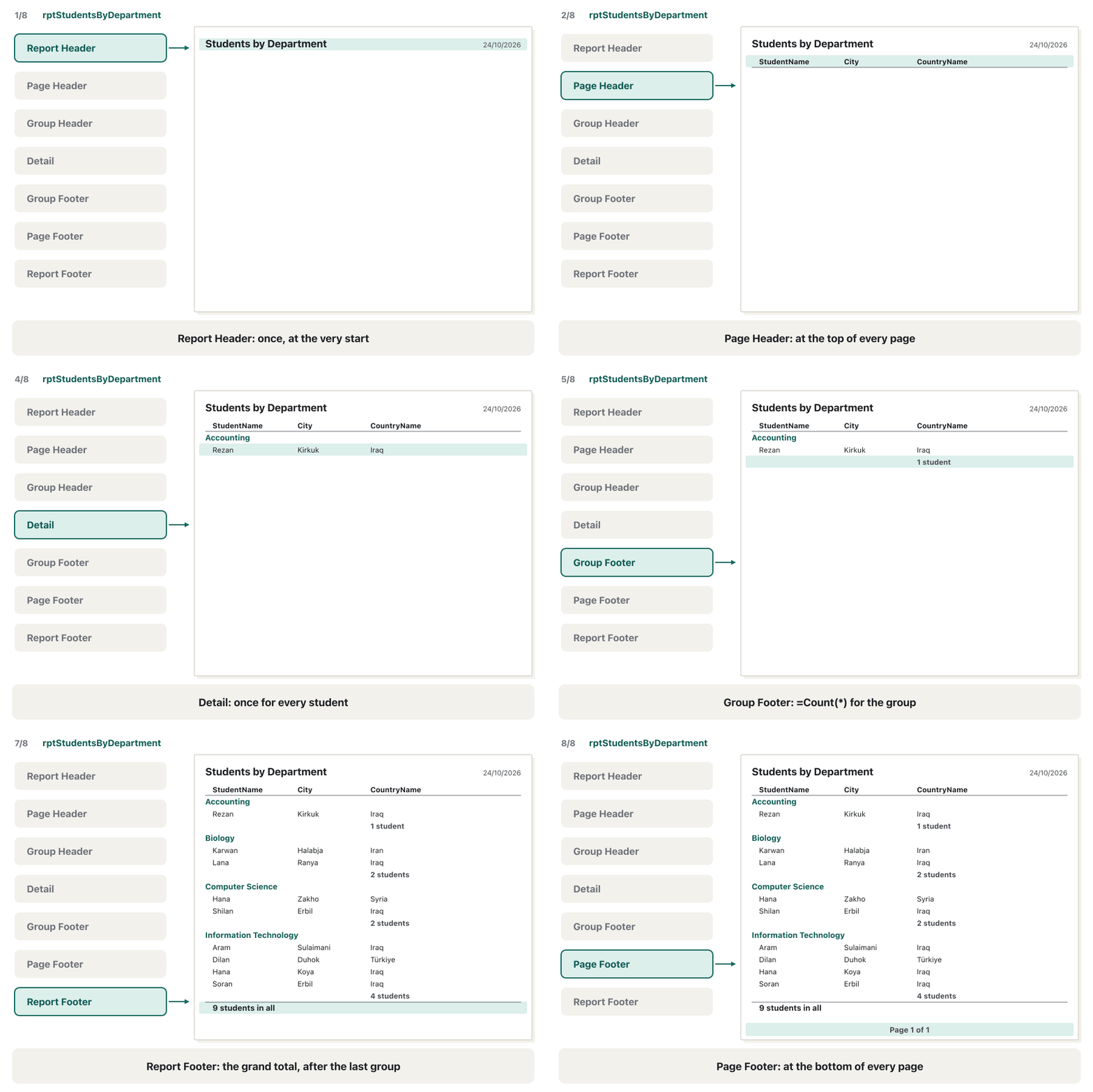
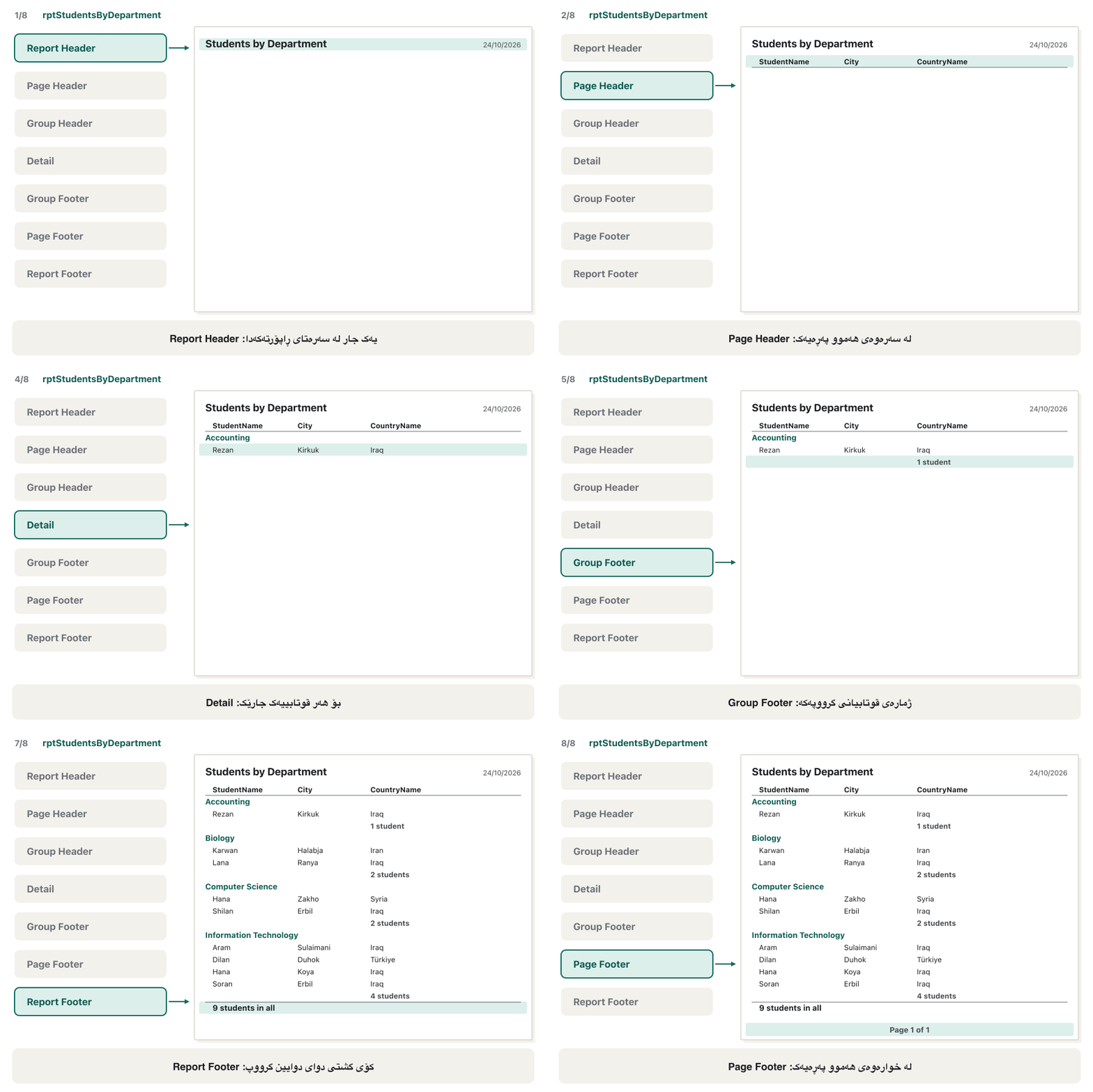
Page numbers come ready-made: Report Design → Header/Footer → Page Numbers (Page N or Page N of M, top or bottom). [Page] and [Pages] are the current page and the number of pages.
ژمارەی پەڕە ئامادەیە: Report Design ← Header/Footer ← Page Numbers (Page N یان Page N of M، سەرەوە یان خوارەوە). [Page] و [Pages] پەڕەی ئێستا و ژمارەی پەڕەکانن.
Group, Sort, and TotalGroup، Sort و Total
Grouping is changed in the Group, Sort, and Total pane: Report Design → Grouping & Totals → Group & Sort (in Layout or Design view). Add a group or Add a sort and pick a field; More on a group line opens its options: the totals, a title, with/without a header section, with/without a footer section and keep the whole group together on one page. A report can have up to 10 grouping levels.
گرووپکردن لە Group, Sort, and Total دەگۆڕدرێت: Report Design ← Grouping & Totals ← Group & Sort (لە Layout یان ). Add a group یان Add a sort و هەڵبژێرە؛ More لەسەر دێڕی گرووپێک هەڵبژاردەکانی دەکاتەوە: کۆکان، ناونیشانێک، with/without a header section، with/without a footer section و keep the whole group together on one page. دەتوانێت تا 10 ئاستی گرووپکردنی هەبێت.
rptCourseFees: a report on Course and Department, grouped by DeptName, with CourseCode, Title and FeeIQD in the Detail. In the group's More → with FeeIQD totaled choose Sum and tick Show Grand Total and Show in group footer:
rptCourseFees: لەسەر Course و Department، بەپێی DeptName گرووپکراو، بە CourseCode، Title و FeeIQD لە Detail. لە More ← with FeeIQD totaledـی گرووپەکە Sum هەڵبژێرە و Show Grand Total و Show in group footer نیشان بکە:
| Department (group)بەش (گرووپ) | Coursesوانەکان | Sum of FeeIQDکۆی FeeIQD |
|---|---|---|
| Accounting | AC11 | 350,000 IQD |
| Biology | BI11 | 400,000 IQD |
| Computer Science | CS21 | 500,000 IQD |
| Information Technology | IT11, IT12 | 750,000 IQD |
| Grand totalکۆی گشتی | 2,000,000 IQD |
Group, Sort, and TotalGroup، Sort و Total
Intervals, subreports and chartsگرووپکردن بە بەش، ژێرڕاپۆرتەکان و هێڵکارییەکان
- Grouping intervals: group on part of a value. StudentName by first character gives A (Aram), D (Dilan), H (Hana, Hana), K, L, R, S (Shilan, Soran); EnrolDate by month gives September 2026 (10 enrolments) and October 2026 (1).
- A is a report inside a report, linked like a subform (Link Master/Child Fields): a course report with a subreport of its students prints each course and, under it, the enrolled students. Drag one report from the Navigation Pane onto another in Design view, or use the Subform/Subreport control.
- A : Report Design → Controls → Insert Modern Chart (a column chart of the fees per department, for example).
- گرووپکردن بە بەش: لەسەر بەشێک لە نرخێک گرووپ بکە. StudentName by first character دەدات A (Aram)، D (Dilan)، H (Hana، Hana)، K، L، R، S (Shilan، Soran)؛ EnrolDate by month دەدات September 2026 (10 تۆمارکردن) و October 2026 (1).
- لە ناو ، وەک دەبەسترێتەوە (Link Master/Child Fields): وانەکان کە قوتابیانی تێدایە هەر وانەیەک چاپ دەکات و لە ژێریدا قوتابییە تۆمارکراوەکانی. لە لە ڕابکێشە سەر یەکێکی تر، یان Subform/Subreport بەکاربهێنە.
- : Report Design ← Controls ← Insert Modern Chart (بۆ نموونە بۆ کرێی هەر بەشێک).
Print and exportچاپکردن و هەناردن
- Print: right-click the report → Print sends it to the default ; File → Print → Print lets you choose the printer, pages and copies; Quick Print prints at once.
- PDF or XPS: in Print Preview click PDF or XPS (or External Data → Export → PDF or XPS), choose the folder and Optimize for Standard, and Access writes
rptStudentsByDepartment.pdf. A PDF looks the same on every computer and cannot be changed by mistake — the same idea as PDF from PowerPoint. - To Excel: select
qryMarksByCourse→ External Data → Export → Excel → tick Export data with formatting and layout. The marks per course become a worksheet for further calculation. - To a text file: Export → Text File writes a — for example comma-separated values (CSV) that almost every program can read.
- To another Access database: External Data → Export → Access copies an object into another
.accdbfile — a table with its data or as a design only. - On the wizard's last page tick Save export steps: the same export runs again from External Data → Saved Exports.
- چاپکردن: ڕاست لە ← Print دەینێرێت بۆ بنەڕەتی؛ File → Print → Print ڕێگە دەدات ، پەڕەکان و ژمارەی کۆپییەکان هەڵبژێریت؛ Quick Print یەکسەر چاپ دەکات.
- PDF یان XPS: لە Print Preview لە PDF or XPS بکە (یان External Data ← Export ← PDF or XPS)، و Optimize for Standard هەڵبژێرە و Access
rptStudentsByDepartment.pdfدەنووسێت. لەسەر هەموو کۆمپیوتەرێک وەک یەک دەردەکەوێت و بە هەڵە ناگۆڕدرێت — هەمان بیرۆکەی PDF لە PowerPointـەوە. - بۆ Excel:
qryMarksByCourseهەڵبژێرە ← External Data ← Export → Excel ← Export data with formatting and layout نیشان بکە. نمرەکانی هەر وانەیەک دەبنە پەڕەیەکی Excel بۆ ژماردنی زیاتر. - بۆ : Export ← Text File دەنووسێت — بۆ نموونە نرخی جیاکراو بە کۆما (CSV) کە نزیکەی هەموو دەتوانێت بیخوێنێتەوە.
- بۆ Accessـی تر: External Data ← Export → Access کۆپی دەکات بۆ
.accdbـی تر — لەگەڵ ، یان تەنها دیزاینەکەی. - لە دوایین پەڕەی Save export steps نیشان بکە: هەمان هەناردن لە External Data ← Saved Exports دووبارە کار دەکات.
Import or link: bringing data inهێنان یان بەستنەوە: هێنانەژوورەوەی دراوە
Data often already exists in an Excel sheet, a text file or another Access database. External Data → Import & Link → New Data Source → From File → Excel (or Text File; From Database → Access) offers three choices:
زۆر جار پێشتر لە پەڕەیەکی Excel، یان Accessـی تردا هەیە. External Data ← Import & Link ← New Data Source ← From File ← Excel (یان Text File؛ From Database ← Access) سێ هەڵبژاردە پێشکەش دەکات:
| Choiceهەڵبژاردە | What happensچی ڕوو دەدات |
|---|---|
| Import the source data into a new tableImport — بۆ نوێ | a copy; later changes in Excel do not reach Accessکۆپیـیەک؛ گۆڕانکاریی دواتری Excel ناگاتە Access |
| Append a copy of the records to an existing tableAppend — کۆپیی بۆ هەبوو | the rows are added to, for example, Student; every rule of the table still appliesڕیزەکان بۆ وەک Student زیاد دەکرێن؛ هەموو ڕێسایەکی هێشتا جێبەجێ دەکرێت |
| Link by creating a linked tableLink — بەستنەوە بە | a stays connected to the file; you see Excel's latest data, but a linked Excel sheet is read-only in Access — change it in Excel بە بەستراو دەمێنێتەوە؛ نوێترین Excel دەبینیت، بەڵام پەڕەیەکی Excelـی بەستراو لە Accessـدا تەنها دەخوێنرێتەوە — لە Excelـدا بیگۆڕە |
Import or link: bringing data inهێنان یان بەستنەوە: هێنانەژوورەوەی دراوە
Importing step by stepهێنان هەنگاو بە هەنگاو
Prepare the sheet: one header row, one column per field, the same names as the table. Format the Phone column as Text in Excel first: Access decides each type from the first eight rows, and a number column would lose the leading 0 of a local number such as 07500001001.
پەڕەکە ئامادە بکە: یەک ڕیزی سەردێڕ، هەر لە ستوونێکی خۆیدا، هەمان ناوەکانی . سەرەتا لە Excel ستوونی Phone وەک Text فۆرمات بکە: Access جۆری هەر ستوونێک لە هەشت ڕیزی یەکەمـەوە دیاری دەکات و ستوونێکی ژمارە 0ـی سەرەتای ژمارەیەکی ناوخۆیی وەک 07500001001 لەدەست دەدات.
On a practice copy: New Data Source → From File → Excel →
new-students.xlsx→ Append a copy of the records to the table: Student → OK.لەسەر کۆپییەکی ڕاهێنان: New Data Source ← From File ← Excel →
new-students.xlsx→ Append a copy of the records to the table: Student → OK.The Import Spreadsheet Wizard: choose the worksheet (one worksheet or named range at a time), keep First Row Contains Column Headings. For a new table you also check each field's data type, can skip a column, and choose Let Access add primary key or your own key.
Import Spreadsheet Wizard: پەڕەی Excel هەڵبژێرە (هەر جارە یەک پەڕە یان ناونراو)، First Row Contains Column Headings بهێڵەوە. بۆ نوێ هەروەها هەر دەپشکنیت، دەتوانیت ستوونێک بەجێبهێڵیت و Let Access add primary key یان خۆت هەڵبژێریت.
Finish, and tick Save import steps if you will repeat it. Rows that break a rule (a DOB outside 1990–2000, a CountryID that does not exist) are not added; Access tells you how many.
Finish بکە؛ ئەگەر دووبارەی دەکەیتەوە Save import steps نیشان بکە. ئەو ڕیزانەی ڕێسایەک دەشکێنن (DOBـێک لە دەرەوەی 1990–2000، CountryIDـێک کە بوونی نییە) زیاد ناکرێن؛ Access دەڵێت چەندن.
Loading the first data into a new database is a step of the implementation phase; Access's import wizard is one way to do it. Input masks are not applied to imported values, so check them after an import (masks).
بارکردنی یەکەم بۆ ناو نوێ هەنگاوێکی قۆناغی جێبەجێکردنـە؛ هێنانی Access ڕێگایەکە بۆ ئەنجامدانی. لەسەر نرخە هێنراوەکان جێبەجێ ناکرێن، بۆیە دوای هێنان بیانپشکنە (ماسکەکانی نێوخستە).
Trust: the Message Bar and trusted locationsمتمانە: Message Bar و شوێنە متمانەپێکراوەکان
When you open a database that Access does not trust, a yellow Message Bar appears under the Ribbon: Security Warning — Some active content has been disabled. Access is in Disabled Mode: you can read and type data, but it blocks the parts that could do harm — and VBA code, and also action queries. Attackers hide harmful code in Office files and ask people to "enable content" (macro viruses), so Access asks you first.
کاتێک دەکەیتەوە کە Access متمانەی پێی نییە، Message Barـێکی زەرد لە ژێر دەردەکەوێت: Security Warning — Some active content has been disabled. Access لە Disabled Modeـدایە: دەتوانیت بخوێنیتەوە و بنووسیت، بەڵام ئەو بەشانە ڕادەگرێت کە دەتوانن زیان بگەیەنن — و کۆدی VBA، هەروەها پرسەکانی گۆڕانکاری. هێرشبەران کۆدی زیانبەخش لە Officeـدا دەشارنەوە و داوا لە خەڵک دەکەن «enable content» بکەن (ڤایرۆسی ماکرۆ)، بۆیە Access سەرەتا لە تۆ دەپرسێت.
- Enable Content turns the blocked content on for this file; you may have to do it again later, for example after the file changes. Click it only for a file you know — your own University.accdb, not an unknown attachment.
- Enable Content ناوەڕۆکە ڕاگیراوەکە بۆ ئەم دەکاتەوە؛ لەوانەیە دواتر دووبارە پێویست بێت، بۆ نموونە دوای گۆڕانی . تەنها بۆ لێ بکە کە دەیناسیت — University.accdbـی خۆت، نەک نەناسراو.
Trust: the Message Bar and trusted locationsمتمانە: Message Bar و شوێنە متمانەپێکراوەکان
Trusted locationsشوێنە متمانەپێکراوەکان
- A is a folder you trust for good: File → Options → Trust Center → Trust Center Settings → Trusted Locations → Add new location, browse to your own folder (for example
D:\AccessLab) → OK. Databases opened from there run without the Message Bar. - Trusting folders on the network is off by default (Allow Trusted Locations on my network). Leave it off unless you control who can write to that folder: anyone who can drop a file there could make you run it.
- کە بۆ هەمیشە متمانەی پێ دەکەیت: File → Options ← Trust Center ← Trust Center Settings ← Trusted Locations ← Add new location، بڕۆ بۆ خۆت (بۆ نموونە
D:\AccessLab) ← OK. هەر لەوێوە بکرێتەوە بەبێ Message Bar کار دەکات. - متمانەکردن بە سەر بە شێوەی بنەڕەتی کوژاوەیە (Allow Trusted Locations on my network). کوژاوەی بهێڵەوە مەگەر خۆت دیاری بکەیت کێ دەتوانێت لەو بنووسێت: هەر کەسێک بتوانێت لەوێ دابنێت دەتوانێت وات لێ بکات کاری پێبکەیت.
Back up, Compact & Repair and the analysis toolsباکئەپ، Compact & Repair و ئامرازەکانی شیکردنەوە
File → Info of an open database holds two maintenance buttons — Compact & Repair Database and Encrypt with Password (next screens) — and shows the file's location. Before any maintenance, make a backup:
File → Infoـی کراوە دوو چاککردنەوە هەڵدەگرێت — Compact & Repair Database و Encrypt with Password (شاشەکانی داهاتوو) — و شوێنی پیشان دەدات. پێش هەر چاککردنەوەیەک، دروست بکە:
- Back Up Database: File → Save As → Save Database As → Back Up Database → Save As. Access proposes a name with the date —
University_2026-10-24.accdb— keep it: it tells you which copy is which. This is a full backup of the whole file; keep copies on another drive or in the cloud too (why backups). - Restore = copy the backup back: rename the damaged file, copy the backup into its folder and give it the original name. One damaged object can be imported back from the backup with External Data → New Data Source → From Database → Access (recovery).
- Back Up Database: File → Save As → Save Database As → Back Up Database → Save As. Access ناوێک بە ڕێکەوتەوە پێشنیار دەکات —
University_2026-10-24.accdb— بیهێڵەوە: پێت دەڵێت کام کۆپی کامەیە. ئەمە باکئەپی تەواوـی هەموو ؛ کۆپی لەسەر درایڤێکی تر یان لە هەوریشدا بهێڵەوە (بۆچی باکئەپ). - گەڕاندنەوە = کۆپیکردنەوەی : ناوی تێکچوو بگۆڕە، کۆپی بکە بۆ هەمان و ناوە ڕەسەنەکەی بدەرێ. تێکچوو دەتوانرێت بە External Data ← New Data Source ← From Database ← Access لە بهێنرێتەوە (گەڕاندنەوە).
Back up, Compact & Repair and the analysis toolsباکئەپ، Compact & Repair و ئامرازەکانی شیکردنەوە
Compact & Repairچاککردنەوە بە Compact & Repair
- Compact & Repair Database: an Access file grows as you add, change and delete — deleted records and objects leave unused space behind. Compact & Repair copies the database without that space, which makes the file smaller and often faster, and it can repair a damaged file. It does not compress the data the way a ZIP file does (file compression is something else). It needs the file to yourself (no other users) — and a backup first, because a repair may cut damaged data.
- Compact on Close: File → Options → Current Database → Compact on Close compacts each time the file closes (it takes effect after you reopen the database; not for a file several people share).
- Compact & Repair Database: Access بە زیادکردن، گۆڕین و سڕینەوە گەورە دەبێت — ئەو و دەسڕدرێنەوە شوێنی بەکارنەهاتوو بەجێدەهێڵن. Compact & Repair بەبێ ئەو شوێنە کۆپی دەکات، کە بچووکتر و زۆر جار خێراتر دەکات؛ هەروەها دەتوانێت تێکچوو چاک بکاتەوە. وەک ZIP ناپەستێنێت (پەستاندنی فایل شتێکی ترە). پێویستی بەوەیە تەنها بۆ خۆت بێت (هیچ تر نا) — و سەرەتا ، چونکە چاککردنەوە لەوانەیە تێکچوو ببڕێت.
- Compact on Close: File → Options ← Current Database ← Compact on Close هەر جارێک دادەخرێت Compact دەکات (دوای دووبارە کردنەوەی کاریگەر دەبێت؛ نەک بۆ کە چەند کەسێک هاوبەشی دەکەن).
Back up, Compact & Repair and the analysis toolsباکئەپ، Compact & Repair و ئامرازەکانی شیکردنەوە
Templates and the analysis toolsقاڵبەکان و ئامرازەکانی شیکردنەوە
- Save as a template: File → Save As → Save Database As → Template stores the design (and, if you tick it, the data) as an
.accdtfile; File → New can then start a new database from it.
- پاشەکەوتکردنی وەک : File → Save As → Save Database As → Template دیزاینەکە (و ئەگەر نیشانی بکەیت، ) وەک
.accdtهەڵدەگرێت؛ پاشان File → New دەتوانێت نوێ لێیەوە دەست پێبکات.
| Database Tools button Database Tools | What it doesچی دەکات |
|---|---|
| Database Documenter | prints a report describing every table, field, property and relationship you choose چاپ دەکات کە هەموو ، ، تایبەتمەندی و هەڵبژێردراو وەسف دەکات |
| Analyze Table | looks for repeated data and suggests splitting a table (normalization help)بە دوای دووبارەدا دەگەڕێت و دابەشکردنی پێشنیار دەکات (یارمەتی بۆ ) |
| Analyze Performance | suggests ways to make objects faster, such as an indexڕێگای خێراترکردنی پێشنیار دەکات، وەک |
| Object Dependencies (in the Relationships group) | lists which objects use the selected one — check before you delete a query a report needsلیستی ئەو ئەوی هەڵبژێردراو بەکاردەهێنن — پێش سڕینەوەی کە پێویستیەتی بیپشکنە |
Split the database: back end and front endsدابەشکردنی بنکەدراوە: بنکەدراوەی پشتەوە و بنکەدراوەی پێشەوە
When several people use one Access file over the network, split it. The Database Splitter moves the tables into a on a shared folder, and leaves the queries, forms, reports and macros in a that reaches the tables through . Every user gets an own copy of the front end:
کاتێک چەند کەسێک یەک Access لەسەر بەکاردەهێنن، دابەشی بکە. Database Splitter دەگوازێتەوە بۆ لەسەر هاوبەش؛ ، ، و لە ـدا دەهێڵێتەوە کە بە دەگاتە . هەر کۆپییەکی تایبەتی وەردەگرێت:
Split the database: back end and front endsدابەشکردنی بنکەدراوە: بنکەدراوەی پشتەوە و بنکەدراوەی پێشەوە
Splitting step by step, and whyدابەشکردن هەنگاو بە هەنگاو و بۆچی
Back up the database and ask everyone to close it. Work on a copy on your own drive, not on the network share.
دروست بکە و داوا لە هەمووان بکە دایبخەن. لەسەر کۆپییەک لە درایڤی خۆت کار بکە، نەک لەسەر بەشی هاوبەشی .
Database Tools → Move Data → Access Database → Split Database.
لە Database Tools ← Move Data ← Access Database و پاشان Split Database بکە.
Keep the proposed name
University_be.accdband save it in the shared folder, written as a network (UNC) path such as\\LabServer\University\University_be.accdbrather than a drive letter, so every PC finds it.ناوی پێشنیارکراوی
University_be.accdbبهێڵەوە و لە هاوبەش پاشەکەوتی بکە، بە ڕێڕەوی (UNC) وەک\\LabServer\University\University_be.accdbنەک ، بۆ ئەوەی هەموو کۆمپیوتەرێک بیدۆزێتەوە.Copy the front end
University.accdbto each user's PC. If the back end moves later: External Data → Import & Link → Linked Table Manager → select the tables → point them to the new place.University.accdbکۆپی بکە بۆ کۆمپیوتەری هەر . ئەگەر دواتر شوێنی گۆڕا: External Data ← Import & Link ← Linked Table Manager ← هەڵبژێرە ← ئاماژەیان پێبکە بۆ شوێنە نوێیەکە.
- Why: only data travels over the network (faster); a crash usually damages one user's front end, not the tables; you can change forms and send out a new front end without stopping anyone.
- What it is not: a shared Access file is still a desktop database. It has no user accounts or permissions inside, and only a modest number of users can work at once; a server DBMS such as MySQL or SQL Server is built for that (access control, desktop or server, database systems, several users on one file).
- بۆچی: تەنها بە دەڕوات (خێراتر)؛ تێکچوون زۆربەی جار یەک تێک دەدات، نەک ؛ دەتوانیت بگۆڕیت و نوێ بنێریت بەبێ ڕاگرتنی کەس.
- ئەوەی نییە: Accessـی هاوبەش هێشتا سەر کۆمپیوتەرە. هیچ هەژماری یان مۆڵەتێکی لە ناودا نییە و تەنها ژمارەیەکی کەمی بەکارهێنەر دەتوانن پێکەوە کار بکەن؛ DBMSـی وەک MySQL یان SQL Server بۆ ئەوە دروست کراوە (کۆنترۆڵی دەستڕاگەیشتن، سەر کۆمپیوتەر یان ڕاژەکار، سیستەمی بنکەدراوە، چەند بەکارهێنەرێک لەسەر یەک فایل).
Protect the file: encryption and ACCDEپاراستنی فایل: شفرەکردن و ACCDE
A booklet in the sources names three ways to "protect" a database: encrypt it with a password, save it as ACCDE, and hide the interface. They protect very different things:
نامیلکەیەک لە سەرچاوەکاندا سێ ڕێگا بۆ «پاراستنی» ناو دەبات: بە ، ACCDE و شاردنەوەی ڕووکار. شتی زۆر جیاواز دەپارێزن:
File → Open → Browse, select University.accdb, click the arrow beside Open → Open Exclusive (nobody else may have it open).
File → Open → Browse، University.accdb هەڵبژێرە، لە تیری تەنیشت Open بکە ← Open Exclusive (کەسی تر نابێت کردبێتیەوە).
File → Info → Encrypt with Password; type the password twice in Set Database Password → OK.
File → Info ← Encrypt with Password؛ لە Set Database Password دوو جار بنووسە ← OK.
From now on Access asks for the password every time. To remove it: Open Exclusive → File → Info → Decrypt Database → type the password.
لە ئێستاوە Access هەموو جارێک دەپرسێت. بۆ لابردنی: Open Exclusive ← File → Info ← Decrypt Database ← بنووسە.
Encryption scrambles the whole .accdb file: without the password nobody can read the tables, not even with another program (encryption). It works for .accdb files only. A forgotten password cannot be recovered — Microsoft cannot open the file for you. Use a long passphrase and keep it safe (strong passwords; the same idea for PowerPoint: a password to open). In a split database, encrypt the back end and re-link the front end with that password.
هەموو .accdb تێکدەدات: بەبێ کەس ناتوانێت بخوێنێتەوە، تەنانەت بە تریش (شفرەکردن). تەنها بۆ .accdb کار دەکات. کە لەبیرت چووبێت ناگەڕێتەوە — Microsoft ناتوانێت بۆت بکاتەوە. دەستەواژەیەکی درێژ بەکاربهێنە و بە سەلامەتی بیپارێزە (تێپەڕەوشەیەکی بەهێز؛ هەمان بیرۆکە بۆ PowerPoint: تێپەڕەوشە بۆ کردنەوە). لە دابەشکراودا شفرە بکە و بەو دووبارە ببەستەوە.
Protect the file: encryption and ACCDEپاراستنی فایل: شفرەکردن و ACCDE
Make ACCDE: a locked designMake ACCDE: دیزاینی قفڵکراو
Make ACCDE: File → Save As → Make ACCDE → Save As writes University.accde. Access compiles any VBA, removes its editable source code and compacts the file. In the .accde, forms, reports and modules can no longer be opened in Design view — but the tables and data stay readable and changeable. Keep your .accdb: it is the only copy you can still change. ACCDE suits a front end you hand out to users.
Make ACCDE: File ← Save As ← Make ACCDE ← Save As University.accde دەنووسێت. Access هەر VBAـیەک compile دەکات، کۆدی سەرچاوەکەی لادەبات و Compact دەکات. لە .accdeـدا، ، و Moduleـەکان چیتر لە ناکرێنەوە — بەڵام و هەر دەخوێنرێنەوە و دەگۆڕدرێن. .accdbـەکەت بهێڵەوە: تاکە کۆپییە کە هێشتا دەتوانیت بیگۆڕیت. ACCDE بۆ گونجاوە کە دەیدەیت بە بەکارهێنەران.
Startup options: open like an applicationهەڵبژاردەکانی دەستپێک: وەک ئەپێک بیکەرەوە
File → Options → Current Database makes the file feel like a finished program when it opens:
File → Options ← Current Database وا دەکات کاتی کردنەوە وەک تەواوکراو هەست پێبکرێت:
- Application Title: University in the title bar.
- Display Form:
frmMainMenu— the main menu of lesson 7 opens by itself. - A full-size menu: the booklet also puts the macro action
MaximizeWindowin the main menu's On Load event, so the form fills the Access window when it opens. - Display Status Bar, Display Navigation Pane, Allow Full Menus (cleared, only the Home tab stays and Save/Save As disappear) and Allow Default Shortcut Menus (the right-click menus): untick what users should not see.
- Most changes take effect only after you close and reopen the database.
- Application Title: University لە .
- Display Form:
frmMainMenu— لیستی سەرەکیی وانەی 7 خۆی دەکرێتەوە. - لیستی سەرەکیی گەورە: نامیلکەکە هەروەها کاری
MaximizeWindowدەخاتە ڕووداوی On Loadـی لیستی سەرەکی، بۆ ئەوەی کاتی کردنەوە هەموو Access پڕ بکاتەوە. - Display Status Bar، Display Navigation Pane، Allow Full Menus (کە لابرا، تەنها تابی Home دەمێنێتەوە و Save/Save As نامێنن) و Allow Default Shortcut Menus (لیستەکانی ڕاست): ئەوەی نابێت بەکارهێنەران ببینن لایبدە.
- زۆربەی گۆڕانکارییەکان تەنها دوای داخستن و دووبارە کردنەوەی کاریگەر دەبن.
Startup options: open like an applicationهەڵبژاردەکانی دەستپێک: وەک ئەپێک بیکەرەوە
Convenience, not securityئاسانکاری، نەک ئاسایش
Practice: finish the University databaseڕاهێنان: بنکەدراوەی University تەواو بکە
Build rptStudentsByDepartment with the Report Wizard, add a Group Footer count and page numbers, and save it as a PDF. How many pages, groups and students does the PDF show?
rptStudentsByDepartment بە Report Wizard دروست بکە، ژماردنێک لە Group Footer و ژمارەی پەڕە زیاد بکە و وەک پاشەکەوتی بکە. چەند پەڕە، گرووپ و قوتابی پیشان دەدات؟
Show answerوەڵامەکە پیشان بدە
- Wizard: view by Department, sort StudentName, Stepped. Group footer
=Count(*) & " students"(Group & Sort → More → with a footer section), Page Numbers Page N of M at the bottom. - Print Preview → PDF or XPS. One page; four groups (Accounting 1, Biology 2, Computer Science 2, Information Technology 4); nine students; Page 1 of 1.
- : by Department، ڕیزکردن بەپێی StudentName، Stepped. Group Footer
=Count(*) & " students"(Group & Sort → More → with a footer section)، Page Numbersـی Page N of M لە خوارەوە. - Print Preview ← PDF or XPS. یەک پەڕە؛ چوار گرووپ (Accounting 1، Biology 2، Computer Science 2، Information Technology 4)؛ نۆ قوتابی؛ Page 1 of 1.
With the Report Wizard, take StudentName from Student, Title from Course and Mark from Enrolment; view by Student, sort by Mark from high to low, Stepped, and in Summary Options tick Avg of Mark. What does each group show, and why are there two Hana groups?
بە Report Wizard، StudentName لە Student، Title لە Course و Mark لە Enrolment وەربگرە؛ by Student، ڕیزکردنی Mark لە بەرزەوە بۆ نزم، Stepped؛ لە Summary Options Avgـی Mark نیشان بکە. هەر گرووپێک چی پیشان دەدات و بۆچی دوو گرووپی هانا هەیە؟
Show answerوەڵامەکە پیشان بدە
- Eight groups — Rezan has no enrolment, so he is not in the report.
- Averages: Aram 81.5 (85, 78), Dilan 73.5 (88, 59), Karwan 72, Lana 81, Shilan 78.5 (91, 66), Soran 95, Hana (6) 47, Hana (9) empty — her only mark is still Null.
- The group is the student record (StudentID), not the name, so the two Hanas stay apart — one more reason why keys, not names, identify people.
- هەشت گرووپ — ڕێزان هیچ تۆمارکردنێکی نییە، بۆیە لە نییە.
- تێکڕاکان: ئارام 81.5 (85، 78)، دیلان 73.5 (88، 59)، کاروان 72، لانا 81، شیلان 78.5 (91، 66)، سۆران 95، هانا (6) 47، هانا (9) بەتاڵ — تاکە نمرەکەی هێشتا Nullـە.
- گرووپەکە قوتابییەکەیە (StudentID)، نەک ناوەکە، بۆیە دوو هاناکە جیا دەمێننەوە — هۆیەکی تر بۆ ئەوەی ، نەک ناو، خەڵک دەناسێننەوە.
On a practice copy you append three rows from new-students.xlsx to Student. Row 1: DOB 1995-05-05, CountryID 1. Row 2: DOB 2003-02-10, CountryID 2. Row 3: DOB 1997-08-19, CountryID 9. Which rows arrive, and why?
لەسەر کۆپییەکی ڕاهێنان سێ ڕیز لە new-students.xlsxـەوە بۆ Student Append دەکەیت. ڕیزی 1: DOB 1995-05-05، CountryID 1. ڕیزی 2: DOB 2003-02-10، CountryID 2. ڕیزی 3: DOB 1997-08-19، CountryID 9. کام ڕیزانە دەگەن و بۆچی؟
Show answerوەڵامەکە پیشان بدە
Put these steps in a safe order and say which one protects the marks from being read: Make ACCDE of the front end · Back Up Database · Encrypt the back end · set Display Form = frmMainMenu · Split Database · Compact & Repair.
ئەم هەنگاوانە بە ڕیزبەندییەکی سەلامەت دابنێ و بڵێ کامیان نمرەکان لە خوێندنەوە دەپارێزێت: Make ACCDEـی · Back Up Database · · Display Form = frmMainMenu · Split Database · Compact & Repair.
Show answerوەڵامەکە پیشان بدە
Back Up Database (always first).
Back Up Database (هەمیشە یەکەم).
Compact & Repair.
Compact & Repair بکە.
Split Database → University_be.accdb on the shared folder.
Split Database ← University_be.accdb لەسەر هاوبەش.
Encrypt the back end (Open Exclusive → Encrypt with Password), then re-link the front end's tables with the password.
شفرە بکە (Open Exclusive ← Encrypt with Password)، پاشان بە دووبارە ببەستەوە.
Set Display Form = frmMainMenu and the other Current Database options in the front end.
Display Form = frmMainMenu و هەڵبژاردەکانی تری Current Database لە دابنێ.
Make ACCDE of the front end and copy it to each PC; keep the .accdb.
Make ACCDEـی بکە و کۆپی بکە بۆ هەر کۆمپیوتەرێک؛ .accdbـەکە بهێڵەوە.
Only the encryption protects the marks: ACCDE locks the design, and startup options are skipped with Shift.
تەنها نمرەکان دەپارێزێت: ACCDE دیزاینەکە قفڵ دەکات و هەڵبژاردەکانی دەستپێک بە Shift تێدەپەڕێنرێن.
Common mistakesهەڵە باوەکان
| Mistakeهەڵە | What to doچی بکەیت |
|---|---|
| A grand total in the Page Footerکۆی گشتی لە Page Footer | Put it in the Report Footer; the Page Footer is for page numbers.بیخەرە Report Footer؛ Page Footer بۆ ژمارەی پەڕەیە. |
| Expecting a linked Excel sheet to accept changes in Accessچاوەڕوانی ئەوەی پەڕەیەکی Excelـی بەستراو لە Accessـدا گۆڕانکاری وەربگرێت | Edit it in Excel, or import it instead of linking.لە Excelـدا دەستکاری بکە، یان لە جیاتی بەستنەوە بیهێنە. |
| Importing phone numbers from a number columnهێنانی ژمارەی تەلەفۆن لە ستوونێکی ژمارەوە | Format the column as Text in Excel first (the first eight rows decide the type).سەرەتا لە Excel ستوونەکە وەک Text فۆرمات بکە (هەشت ڕیزی یەکەم جۆرەکە دیاری دەکەن). |
| Clicking Enable Content on every file لە Enable Content لە هەموو | Only for files you trust; use a trusted location for your own folder.تەنها بۆ ئەو متمانەت پێیانە؛ بۆ خۆت بەکاربهێنە. |
| Calling Compact & Repair "compression"ناونانی Compact & Repair بە «پەستاندن» | It removes unused space and can repair; it does not compress.شوێنی بەکارنەهاتوو لادەبات و دەتوانێت چاک بکاتەوە؛ ناپەستێنێت. |
| Splitting or compacting without a backup, or while others have the file openدابەشکردن یان Compact بەبێ ، یان لە کاتێکدا کەسانی تر کردووەتەوە | Back up first and make sure you have exclusive access.سەرەتا دروست بکە و دڵنیابە تەنها خۆت کردووەتەوە. |
| Treating ACCDE or a hidden Navigation Pane as securityدانانی ACCDE یان شاراوە وەک ئاسایش | Encrypt with a strong password; ACCDE only locks the design, Shift skips startup options.بە بەهێز شفرە بکە؛ ACCDE تەنها دیزاین قفڵ دەکات، Shift هەڵبژاردەکانی دەستپێک تێدەپەڕێنێت. |
| Forgetting the database passwordلەبیرچوونی | There is no recovery: keep the passphrase safe and an unencrypted backup in a secure place.هیچ گەڕاندنەوەیەک نییە: دەستەواژەکە بە سەلامەتی بپارێزە و شفرەنەکراو لە شوێنێکی پارێزراودا بهێڵەوە. |
Summaryپوختە
- A report presents a table or query for reading and printing; build it with Report, the Report Wizard (grouping, sorting, layout), Report Design or Blank Report.
- Seven sections print in order: Report Header, Page Header, Group Header, Detail, Group Footer, Page Footer, Report Footer (above the last Page Footer).
- Group, Sort, and Total sets groups, intervals and totals; reports print on a printer or export to PDF, Excel and text.
- Import copies data; link keeps a live connection (a linked Excel sheet is read-only).
- Enable Content trusts one file (you may be asked again); a trusted location trusts a whole folder for good.
- Back Up Database before maintenance; Compact & Repair removes unused space (not compression); split shared databases into a back end and front ends.
- Encrypt with Password is the real protection; ACCDE locks the design; startup options are convenience that Shift bypasses.
- یان بۆ خوێندنەوە و چاپکردن پیشان دەدات؛ بە Report، Report Wizard (گرووپکردن، ڕیزکردن، ڕێکخستن)، Report Design یان Blank Report دروستی بکە.
- حەوت بەش بە ڕیز چاپ دەبن: Report Header، Page Header، Group Header، Detail، Group Footer، Page Footer، Report Footer (لە سەرووی دوایین Page Footer).
- Group، Sort و Total گرووپ، بەش و کۆ دادەنێت؛ لەسەر چاپ دەکرێن یان بۆ ، Excel و دەق هەناردە دەکرێن.
- Import کۆپی دەکات؛ Link پەیوەندییەکی زیندوو دەهێڵێتەوە (پەڕەی Excelـی بەستراو تەنها دەخوێنرێتەوە).
- Enable Content متمانە بە یەک دەکات (لەوانەیە دووبارە بپرسرێتەوە)؛ بۆ هەمیشە متمانە بە هەموو دەکات.
- پێش چاککردنەوە Back Up Database؛ Compact & Repair شوێنی بەکارنەهاتوو لادەبات (نەک پەستاندن)؛ هاوبەش دابەش بکە بۆ و .
- Encrypt with Password پاراستنی ڕاستەقینەیە؛ ACCDE دیزاین قفڵ دەکات؛ هەڵبژاردەکانی دەستپێک ئاسانکارین و Shift تێیان دەپەڕێنێت.
Summaryپوختە
Check yourselfخۆت تاقی بکەرەوە
Why does the Report Footer appear above the Page Footer when printed?بۆچی Report Footer لە کاتی چاپکردندا لە سەرووی Page Footer دەردەکەوێت؟
The Page Footer is fixed at the bottom of every page; the Report Footer prints right after the last group, on the last page.
Page Footer لە خوارەوەی هەموو پەڕەیەک جێگیرە؛ Report Footer ڕاستەوخۆ دوای دوایین گرووپ، لە دوایین پەڕەدا چاپ دەبێت.
What is the difference between importing and linking an Excel sheet?جیاوازیی هێنان و بەستنەوەی پەڕەیەکی Excel چییە؟
Import makes an independent copy in Access; link keeps reading the sheet, which stays read-only in Access.
Import کۆپییەکی سەربەخۆ لە Accessـدا دروست دەکات؛ Link بەردەوام پەڕەکە دەخوێنێتەوە کە لە Accessـدا تەنها دەخوێنرێتەوە.
What does each user get after a split?دوای دابەشکردن هەر بەکارهێنەرێک چی وەردەگرێت؟
An own copy of the front end (queries, forms, reports, macros) with linked tables pointing to the shared back end.
کۆپییەکی تایبەتی (، ، ، ) لەگەڵ کە ئاماژە بۆ هاوبەش دەکەن.
Course reviewپێداچوونەوەی کۆرس
Four questions across the whole course — one University database, from the first table to the finished application.
چوار پرسیار لە سەرانسەری کۆرسەکەدا — یەک University، لە یەکەم تا ئەپە تەواوکراوەکە.
Lesson complete!وانەکە تەواو بوو!
Well done. Review the key terms, then go on to the next lesson.دەستخۆش. سەیرێکی زاراوە سەرەکییەکان بکەرەوە، پاشان بڕۆ بۆ وانەی داهاتوو.
Key termsزاراوە سەرەکییەکان
Related lecturesوانە پەیوەندیدارەکان
- Queriesپرسەکان
- What Is Microsoft Access?Microsoft Access چییە؟
- Backstage View and Saving Filesپیشاندانی Backstage و پاشەکەوتکردنی فایلەکان
- Protecting Files and Slide Viewsپاراستنی فایلەکان و پیشاندانەکانی سلاید
- Backup and Recoveryباکئەپ و گەڕاندنەوەی دراوە
- Database Security: Threats and Countermeasuresئاسایشی بنکەدراوە: هەڕەشەکان و ڕێوشوێنەکانی بەرگری
References and further readingسەرچاوەکان و خوێندنەوەی زیاتر
- Microsoft Support: Introduction to reports in Access
- Microsoft Support: Import or link to data in an Excel workbook
- Microsoft Support: Decide whether to trust a database
- Microsoft Support: Compact and repair a database
- Microsoft Support: Split an Access database
- Microsoft Support: Encrypt a database by using a database password
- Microsoft Support: Set user options for the current database
- Microsoft Support: Bypass startup options when you open a database
- Microsoft Support: Protect your data with backup and restore processes
This lecture is a first edition. The Kurdish text and terminology are waiting for review by Kurdish IT teachers.ئەم وانەیە چاپی یەکەمە. دەقە کوردییەکە و زاراوەکانی چاوەڕێی پێداچوونەوەی مامۆستایانی کوردی بواری IT ن.